Students
Add and find a student, understand staff access and correct or remove an eligible record
The owner, principal and front office add and update students. Teachers read students in their assigned class-teacher sections, including guardian contacts. A subject assignment alone gives marks access, not access to the class’s student records.
Add a student
Open Students → Add student. The next admission number is already filled in: it continues from the newest student’s number, in the same format. Change it if this student needs another; the next student continues from what you save. Enter the name and known admission details, then save. The admission number is the student’s unique number: no two students in your school share one, and it prints on their invoices and receipts. Under Guardian, enter a phone number to find a family already on file, and click Use for a sibling; otherwise add a name. The guardian you name here is the primary guardian. You can leave it empty and use Family later. Keep official identifiers only when the school has them; entering an APAAR ID does not register the pupil with APAAR or submit a government return.
Next, link the family and enroll the student.
Find a record
Search Students by name or admission number. The filter menu includes Today, Status, Leaving and, for certificate readers, Transfer certificate. Use Leaving: Left or passed out with No TC issued to find certificates still needed. These filters open a student on Certificates; Back returns to the list.
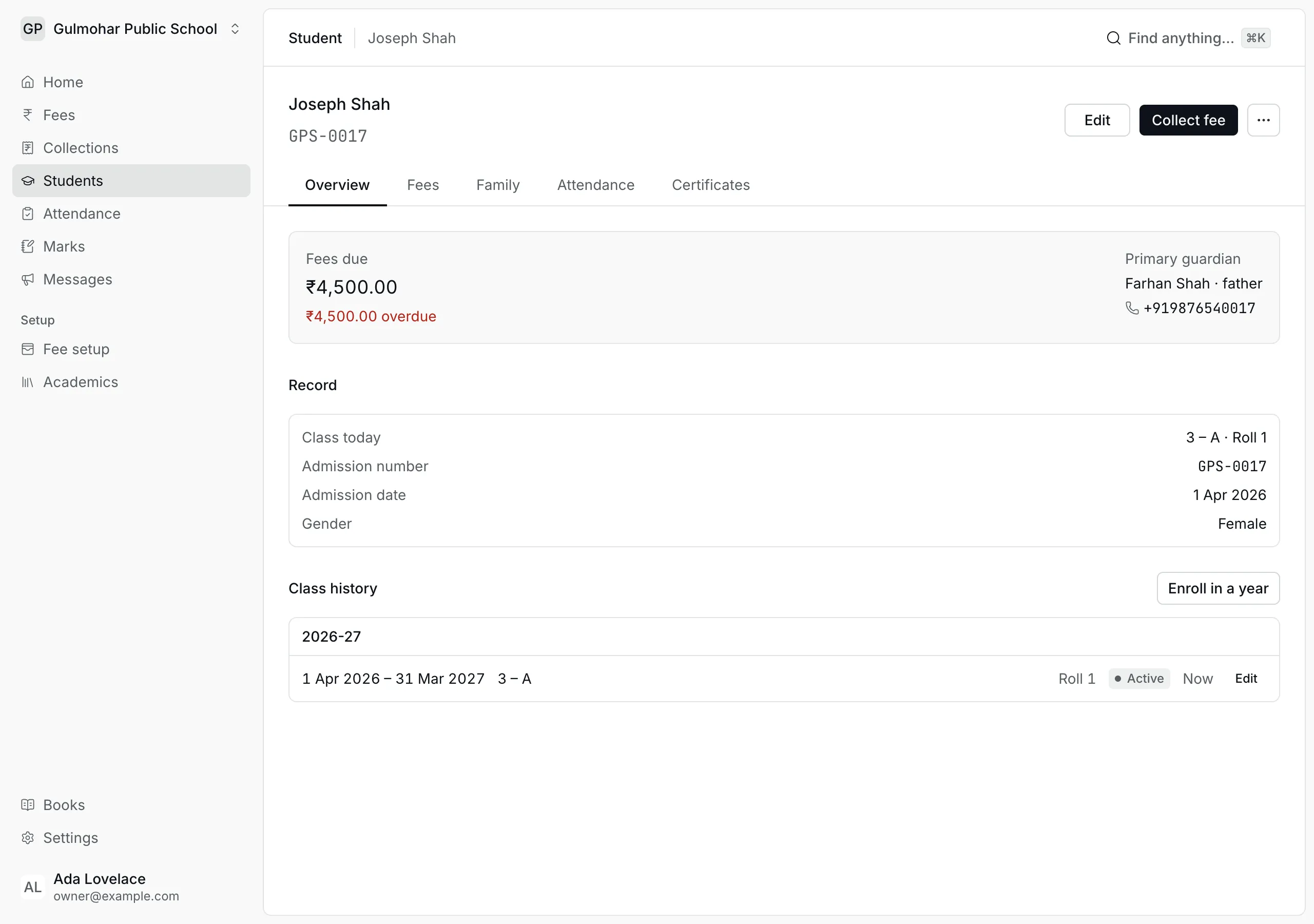
The student record has Overview, Family, Attendance, Fees and Certificates as your role permits. Above the tabs, on every tab, are the student’s name, admission number, class and roll today, the primary guardian’s phone and the fees due. Overview shows the admission, personal and identity details and the class history. Campus is a staff console; students and parents do not sign in to a portal.
Correct or remove a record
Correct the original student, guardian or class-history record rather than adding a second student. Collect fee sits at the top right of the student page; ⋯ beside it holds Edit student, Open in Books, Redact identity and Delete student, as your role permits. Only the owner and principal can delete eligible unused records; linked history can prevent deletion. The owner can redact personal data when needed. A student with certificates cannot be deleted. Redaction is permanent; check the person and the confirmation carefully. School’s bills and fee receipts then print no name, address or guardian, and still print the admission number, class and roll so the paper ties to the register. Books keeps its tax documents as posted.
| Problem | Next step |
|---|---|
| Admission number is already used | Find and update the existing student, or check the number |
| Class or section is missing | Ask the principal to add it in Academics |
| Student is absent from today’s roster | Check the active year and the placement’s effective dates and status |
| Placement changed since opening | Reload the student’s timeline and check it before saving again |
| A guardian has no phone | Correct Family before sending; a message cannot reach a missing number |