Correct published marks
Record a reasoned correction, review its history and remove a mark for an elective not taken
Only the owner and the principal correct marks, and only on a published result. Before publishing, change a mark on its sheet like anyone else.
Open the cell
On the published result, click the mark to correct. Correct Mathematics · Manoj Sharma opens, with the class, section, exam and maximum under it.
Enter the new mark
In Marks out of 100, enter the right mark, or tick Absent.
Give the reason
Reason is required (up to 500 characters), for example “Totalling error on the answer sheet: page 3 was not added.”
Save
Click Save correction. The message “Corrected Mathematics for Manoj Sharma” appears and the cell shows Corrected under the mark.
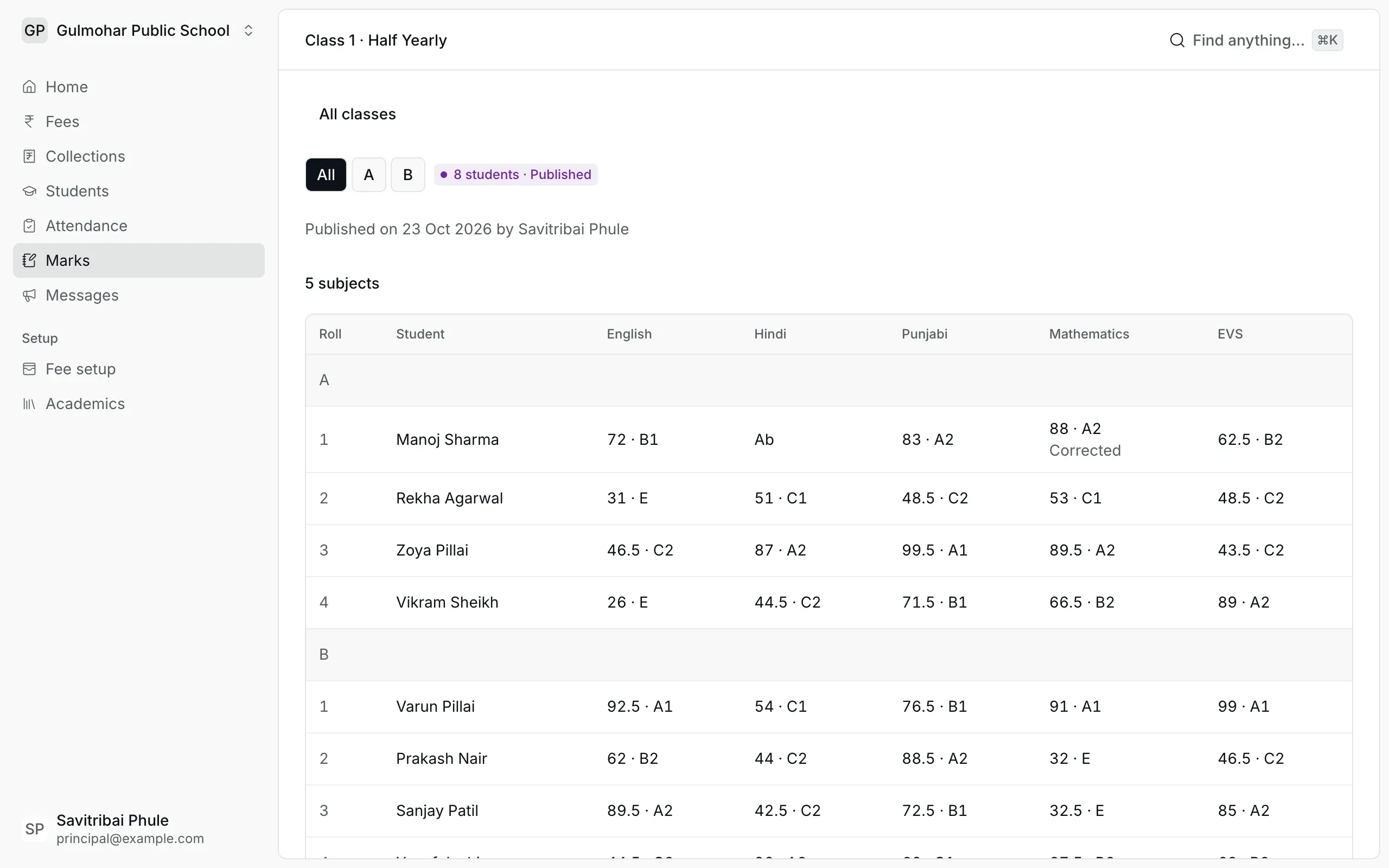
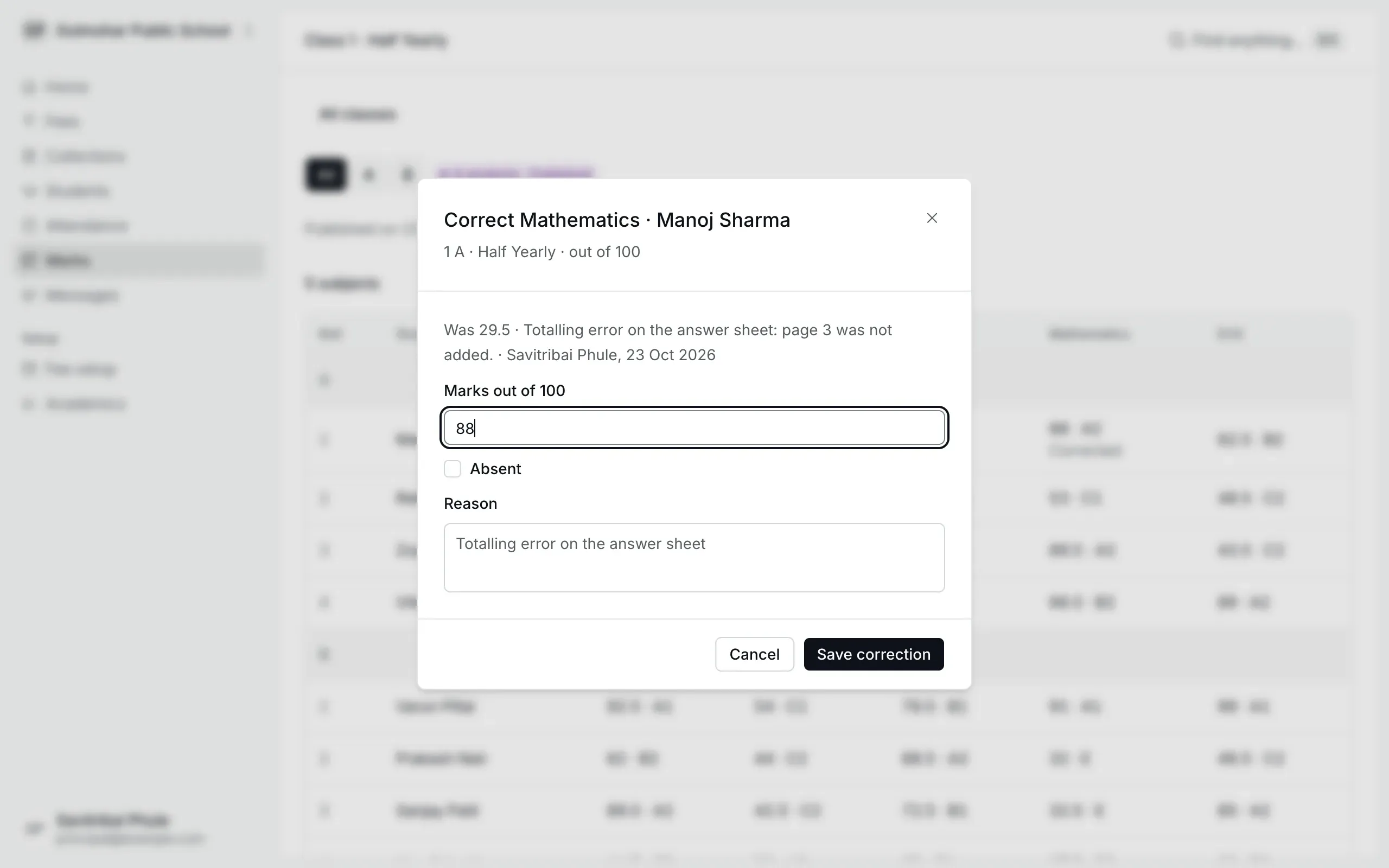
Opening a corrected cell lists each earlier correction, oldest first, for example “Was 29.5 · Totalling error on the answer sheet: page 3 was not added. · Principal’s name, 23 Oct 2026”. Each correction is also recorded in the audit log.
Remove a mark for an elective not taken
If a student was ticked for an elective by mistake and a mark was saved, the correction form for that elective also shows Not taken: remove this mark (“Also unticks Computer Education for Varun Chatterjee, for an elective ticked in error.”). Tick it, give a reason and click Remove mark. The mark, its corrections and the student’s tick go together; the message reads “Removed Computer Education for Varun Chatterjee”. The audit log keeps the value it had. This also works for a student who has left.
The option does not show for a compulsory subject, or for the student’s only mark in the exam, since that mark keeps them on the published result. Mark them Absent instead.
A cell labelled Not taken has a mark for an elective the student is no longer ticked for. Remove it this way if it should not be there.
Fill an empty cell
On a published result, the owner or principal can also click an empty cell of a student on the result: a mark removed in error, or a subject left blank for a student who had left. Enter the mark or Absent and a reason, and click Save correction. The history reads “Was not entered”. For an elective, the student is ticked for it again, unless they now take another subject of its pick-one group.
Reprint report cards after checking the corrected result. Before publication, edit the marks sheet.