Subjects
Add and edit a class’s subjects, set maxima and understand what changes after marks or publication
Each class has its own list of subjects for the year: the subjects it is examined in, each marked out of a maximum. A subject is Compulsory (every student takes it) or Elective (only the students you tick take it; see elective). Each subject has its teachers in each section. Those teachers enter its marks; see Exams and marks.
Who can do it: an Owner or a Principal sets subjects, subject teachers and electives, in Academics. Teachers and the front office do not see this page. A teacher sees the result of this work in Marks: one sheet for each subject and section they teach.
Open a class’s subjects
Open Academics (under Setup in the sidebar). In Classes and teachers, choose the year in the year select, for example 2026-27. On the class row, click ⋯, then Subjects.
The Class 3 · Subjects sheet opens for the selected year. Each subject shows its name, Compulsory or Elective, and its maximum (“out of 100”). Under it, each section has a line with that subject’s teachers and a picker to add one more.
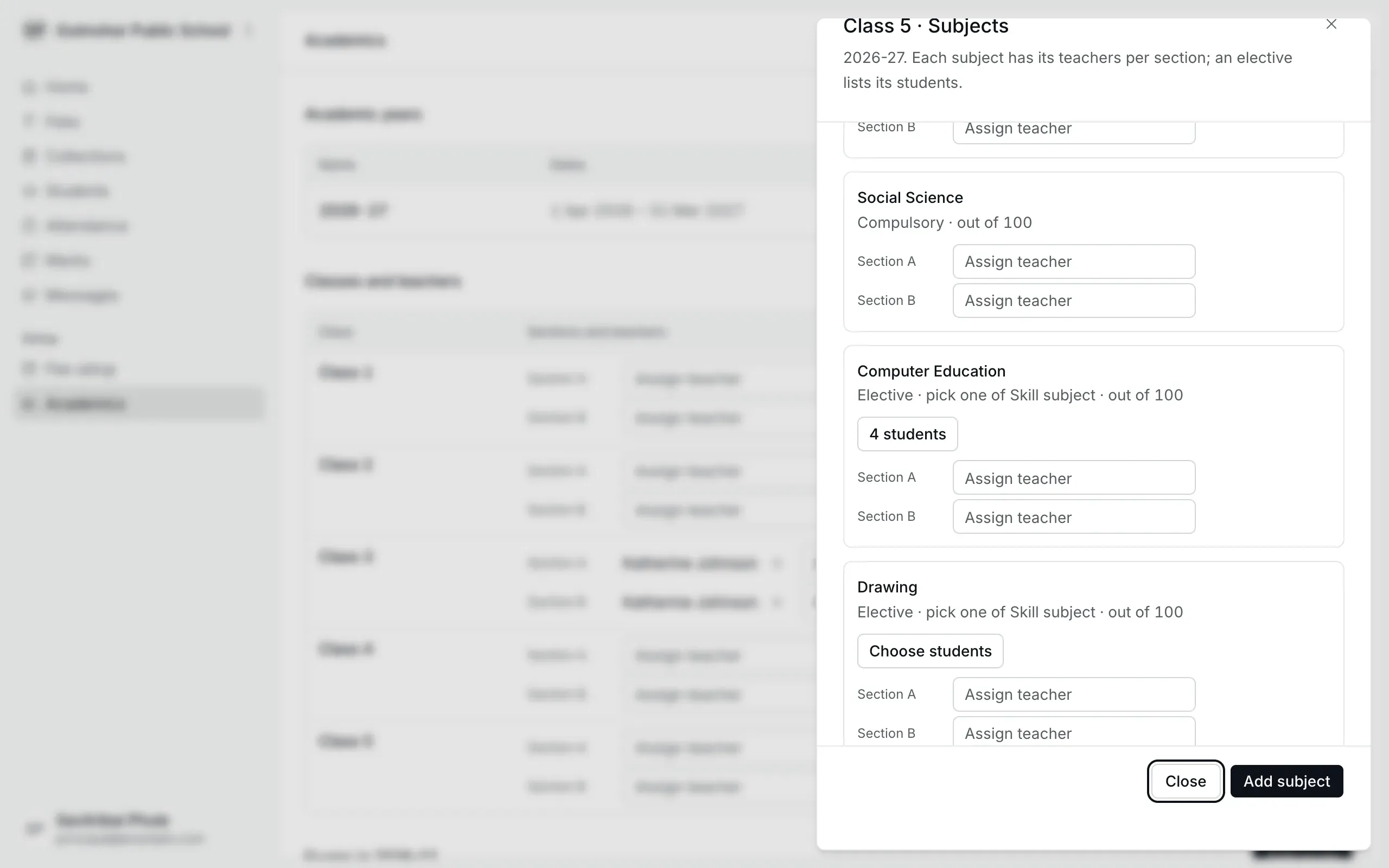
A class with no subjects yet reads “No subjects for 2026-27. Add the ones this class is examined in.”
Add a subject
Open the form
Name it
For a CBSE class, choose the CBSE subject by name; its code and name fill in. For a school subject, enter the Subject, for example “Science”. Names are unique in a class for the year, whatever their capitals.
Set the maximum
Choose the type
Leave Elective unticked for a compulsory subject. Tick it for a subject only some students take; see Elective students.
Save
Click Add subject. The message “Subject added” appears and the subject joins the end of the list.
Subjects stay in the order you add them, and the class result shows its columns in that order. There is no reordering. To move a subject, delete it and add it again while it has no marks.
To change a subject, click ⋯ on it, then Edit, and click Save subject.
| Change | When it is allowed |
|---|---|
| Rename | Always. A published result shows the new name. |
| Change Out of | Until the subject has any mark |
| Delete | While the subject has no marks and no exam of the year is published for the class |
| Add a subject | While no exam of the year is published for the class |
| Make an elective compulsory | Always, after a confirmation. All its saved student selections are removed; marks stay. |
Deleting asks Delete Science? (“Its teachers and student list are removed with it.”).
Next, assign subject teachers, choose elective students or set up CBSE subjects and extras.
For the next academic year, copy subjects and teachers. Use Subject setup errors to resolve a refused change.