Read and publish a class result
Resolve missing marks and assessments, read school grades and publish one class at a time
In Marks, click Result on a class. The page title reads “Class 3 · Half Yearly”.
- The badge at the top counts the students and what is missing, for example “8 students · 23 marks missing”, then “Complete”, then “Published”.
- Missing: names each sheet still short and how many, for example “3 B · Science (2)”. Pass it to the teacher concerned.
- Section chips (All, A, B) filter the table to one section.
- Each row is a student; each column a subject, in the order of the class’s subjects.
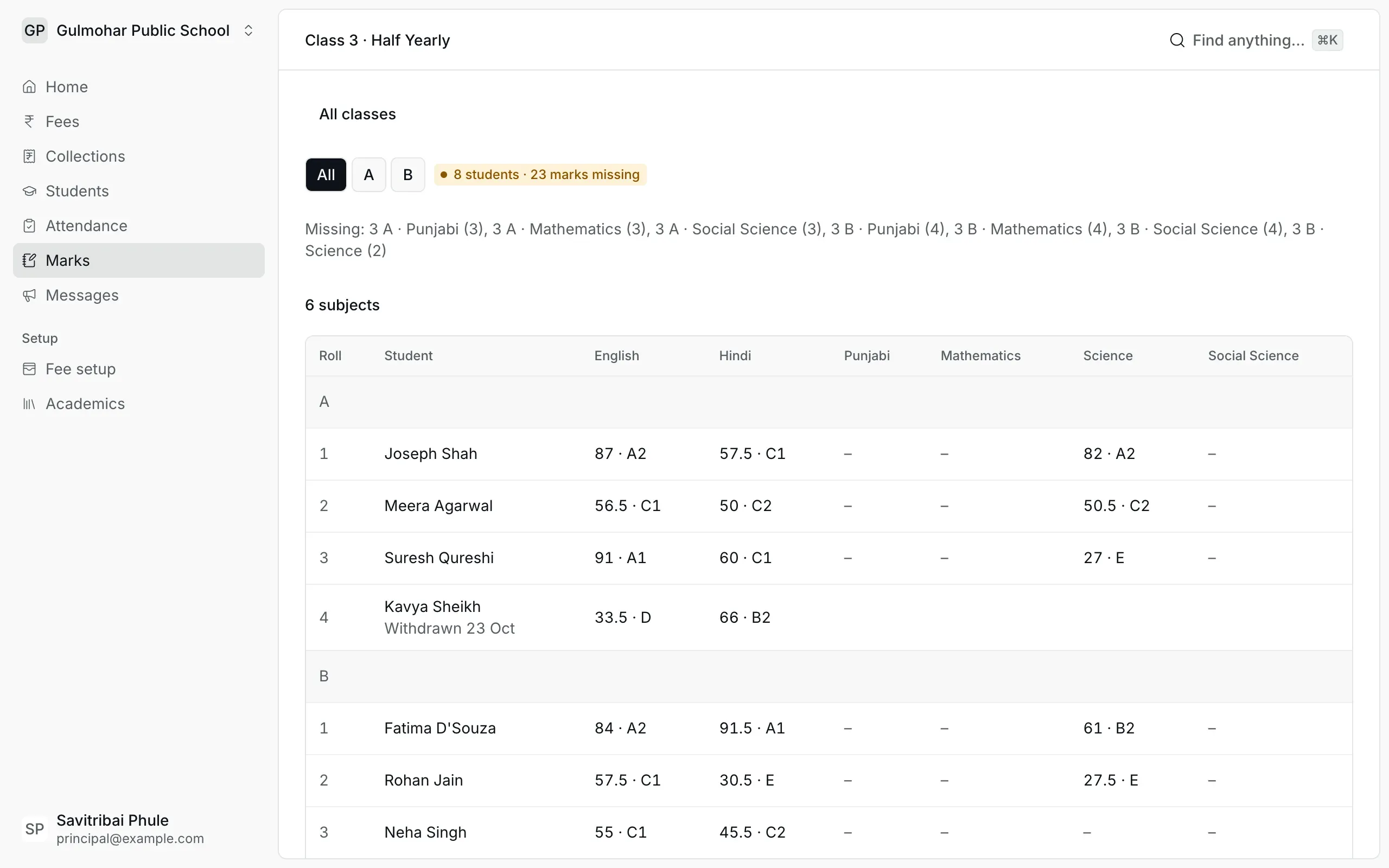
| A cell shows | It means |
|---|---|
72 · B1 |
The mark and its grade |
Ab |
Absent; no grade |
– |
Missing: the student takes the subject, and no mark is saved yet |
| Empty | The student does not take this elective |
| Corrected | A published mark was corrected; the owner or principal opens it to see the history |
| Not taken | A mark is saved for an elective the student is no longer ticked for |
The result shows each subject’s mark and school grade. A selected report composition also shows its total, percentage and school grade when the numeric result is complete.
Grades
Internal school exams use these absolute grade bands, CBSE’s Class IX and XI school scales, on each subject’s percentage (mark ÷ maximum × 100). Board X and XII grades rank candidates nationally, so a school grade never stands in for them. The percentage is not rounded: 80.5 out of 100 is B1, and 32.5 is E.
| Grade | Percentage |
|---|---|
| A1 | 91 and above |
| A2 | 81 to below 91 |
| B1 | 71 to below 81 |
| B2 | 61 to below 71 |
| C1 | 51 to below 61 |
| C2 | 41 to below 51 |
| D | 33 to below 41 |
| E | Below 33 |
Students with no subjects
A student who takes no subject at all (in a class where every subject is an elective and none is ticked for them) holds the class back. The result reads, for example, “No subjects: Sanjay Shah. Choose their electives in Academics.” and the badge adds “· 1 without subjects”. Tick their electives in Subjects.
Publish a class result
Publish shows only to the owner and the principal, and only when the badge reads Complete: no required mark or report assessment is missing and the result has no setup issue. A descriptive early-years composition uses observations instead of marks.
Open the result
In Marks, click Result on the class, for example class 2.
Publish
Click Publish. Publish Half Yearly for Class 2? warns: “Every sheet of the class becomes read-only. A mark then changes only by a correction with a reason.” Click Publish.
Check
The message “Published Half Yearly for Class 2” appears. The result reads “Published on 23 Oct 2026 by” the principal’s name.
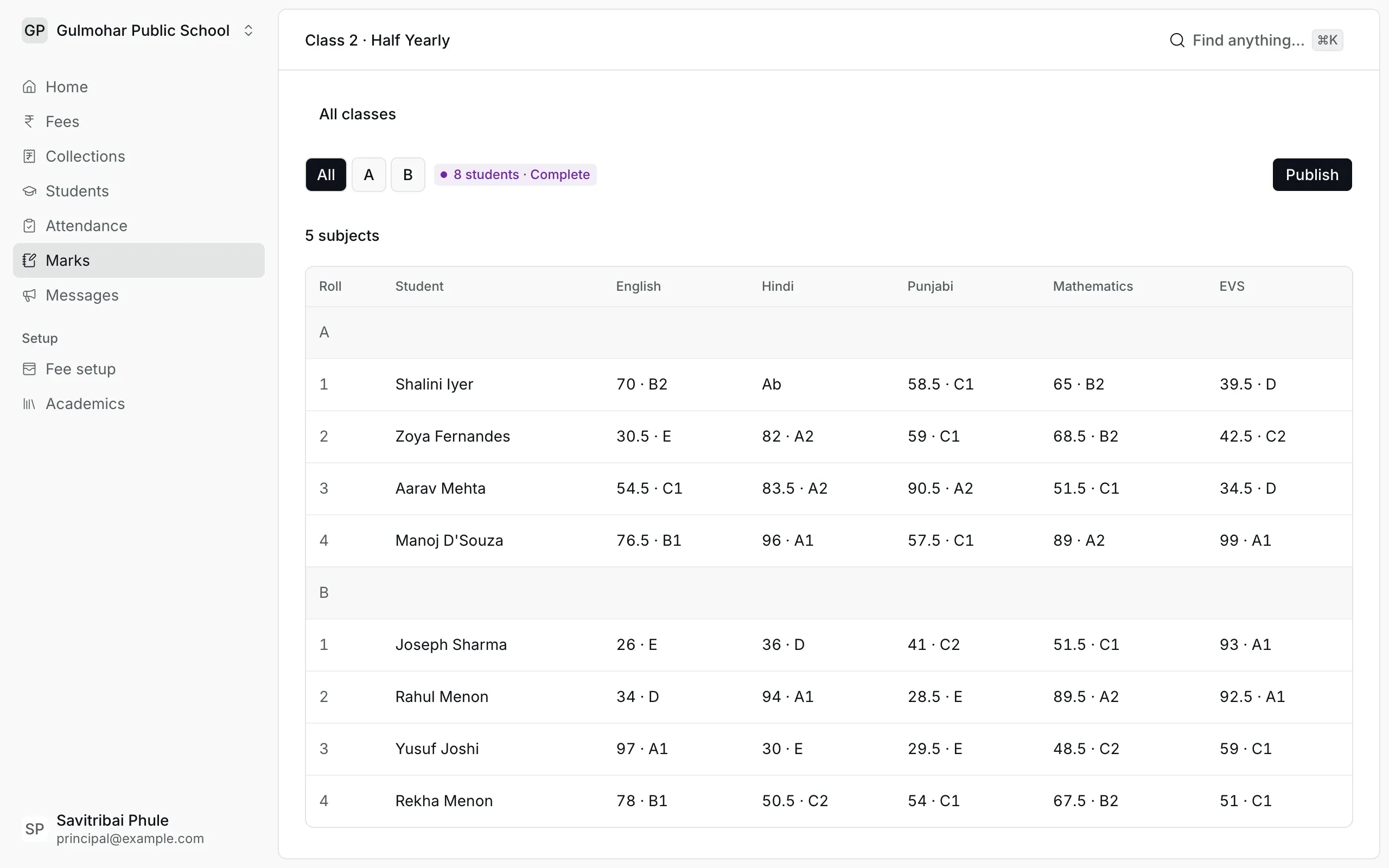
Publishing is per class: class 2 can be published while class 3 is still being entered. The exam row in Academics then counts one more class. Publishing is recorded in the audit log.
A published result keeps the students who had marks in it. If you later change such a student’s class, section or status, date the change after the publication date (see Common errors).
Front office
The front office opens Marks, chooses the exam and clicks Result on a class to read it, for example to answer a parent at the desk. They see the same table, without Publish or corrections.
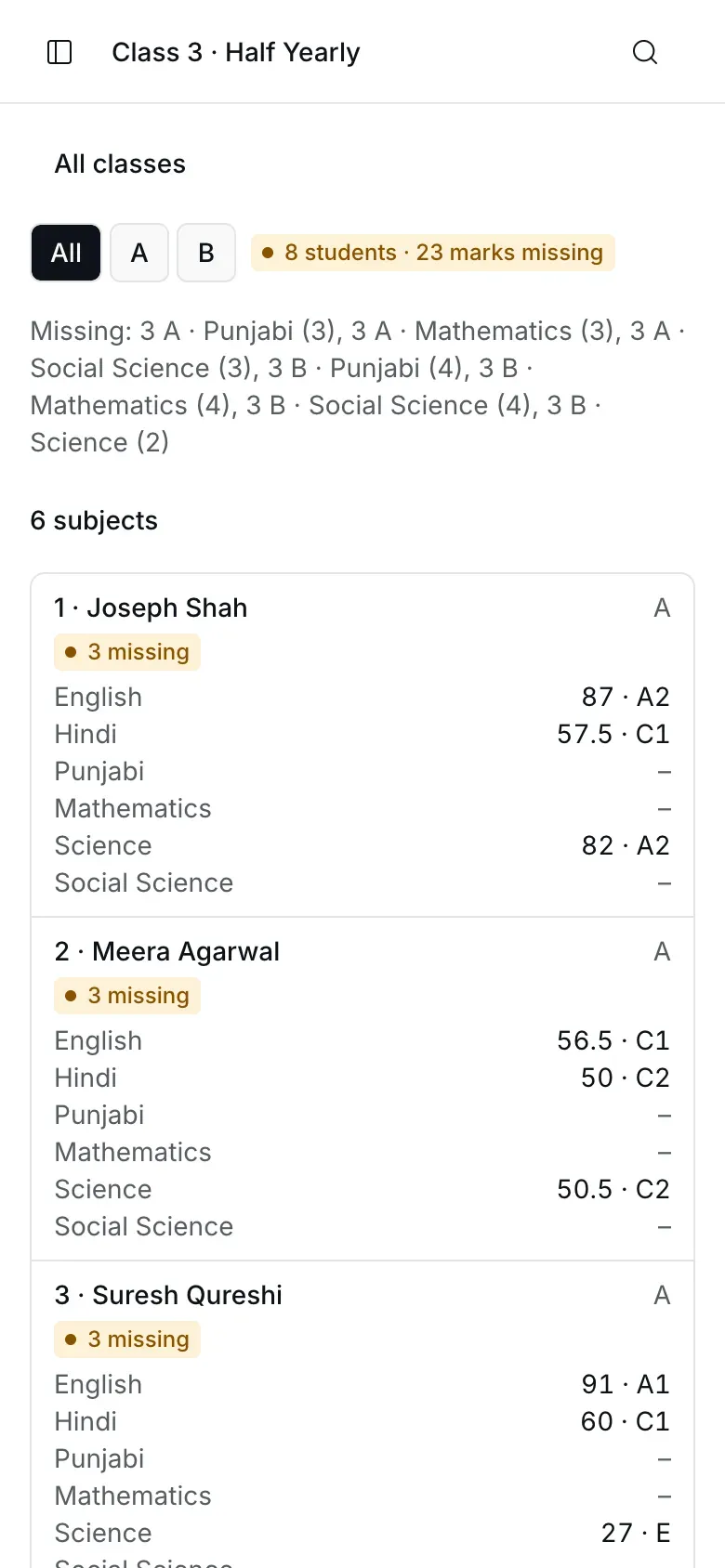
On a phone, the class result shows one card per student, with their section, a badge (“Complete”, “2 missing” or “No subjects”) and each subject’s mark.
For pass rules see school and Board outcomes. After publication, print report cards or correct a mark.