Enter and clear marks
Save subject sheets, mark absence, clear mistakes and handle students who left
Open the sheet
In Marks, click Enter on the sheet, for example “3 A · Science”. The sheet lists the section’s students who take the subject, by roll number. For an elective, only the students ticked for it appear.
Type the marks
Enter each mark in the box, from 0 to the maximum, in halves: 32, 32.5. If the subject has
assessment parts, enter each part separately; their marks make the total. For a student who
missed the paper, tick Absent; the mark box clears.
Check the count
The bar at the bottom shows what you changed and what is left, for example “3 changed · 1 still blank”.
Save
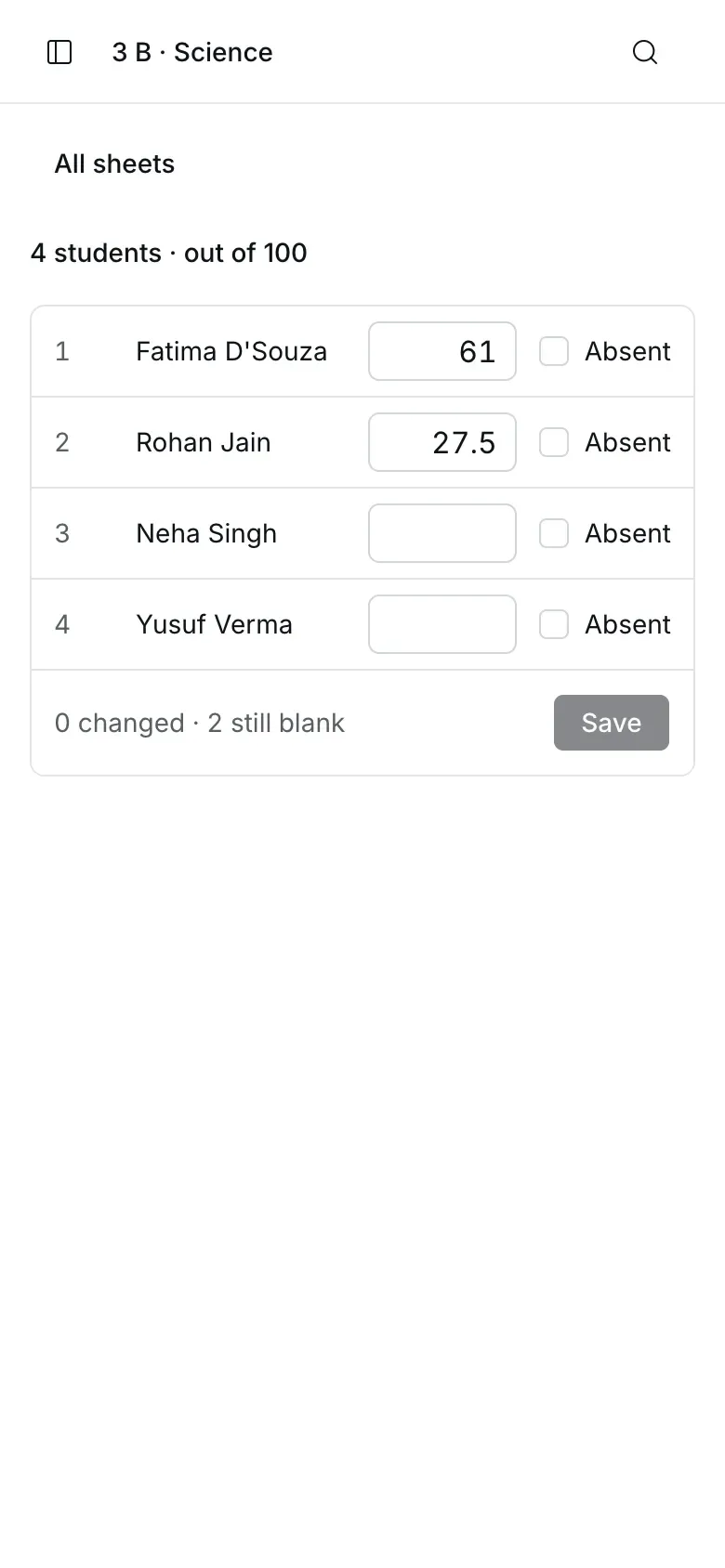
You do not have to fill every row. A blank row stays missing, and you or a colleague can fill it later. Two teachers of the same sheet can save in turn; each save keeps the other’s marks.
Clear a saved mark
To remove a mark typed by mistake, empty its box (or untick Absent). The row reads “Clears the saved mark”. Click Save; the message reads “Cleared 1 mark”. The row is then missing again. Use this, for example, for a mark saved for a student ticked for an elective by mistake. The audit log records who cleared which marks.
Students who left
A student who left the school after a mark was saved stays on every sheet of the class, labelled, for example, “Withdrawn 23 Oct”. Their marks stay on the result. A blank row for them is not missing, so the class can still be completed without it. You can still change their marks.
Their last mark in the exam cannot be cleared, because it keeps them on the result. The row reads “Their last mark in Half Yearly: mark Absent instead.” Change the mark, or tick Absent.
Leaving without saving
If you leave a sheet with unsaved changes, Leave without saving? asks first (“2 changed marks are not saved yet.”). Click Stay to go back and save, or Leave to drop the changes.
After the class is published
A published class’s sheets are read-only. The sheet reads “Published on 23 Oct 2026. Ask the principal to correct a mark.” and lists only the students with a mark in it.
See marks errors for a refused save. After publication, use a reasoned correction.