Locks
Close the books and the GST period through a date, see who locked them and why, and allow a time-limited late correction
A lock closes a period: it sets a date on or before which nothing new can be entered. After your CA (Chartered Accountant) has reviewed the quarter and you have filed the GST (Goods and Services Tax) return, you lock the period so that nobody posts into it by mistake. To post is to write an entry into the books for good. Edernal Books has two locks:
- Books stops every posting dated on or before its date.
- Tax period stops posting a document (an invoice, bill, note or receipt) that belongs in a GST register, or a journal with any GST-account line, dated on or before its date. A GST register is the list of sales or purchases that feeds your GST return; GST journals do not enter it. Set this lock when you file the return for the period.
Who can do it: your role decides this. An Owner or a Chartered Accountant sets locks and grants exceptions (lock exceptions, time-limited permissions to post into a locked period). An Accountant can see the locks but not change them. An Operator does not see this page.
The Locks page
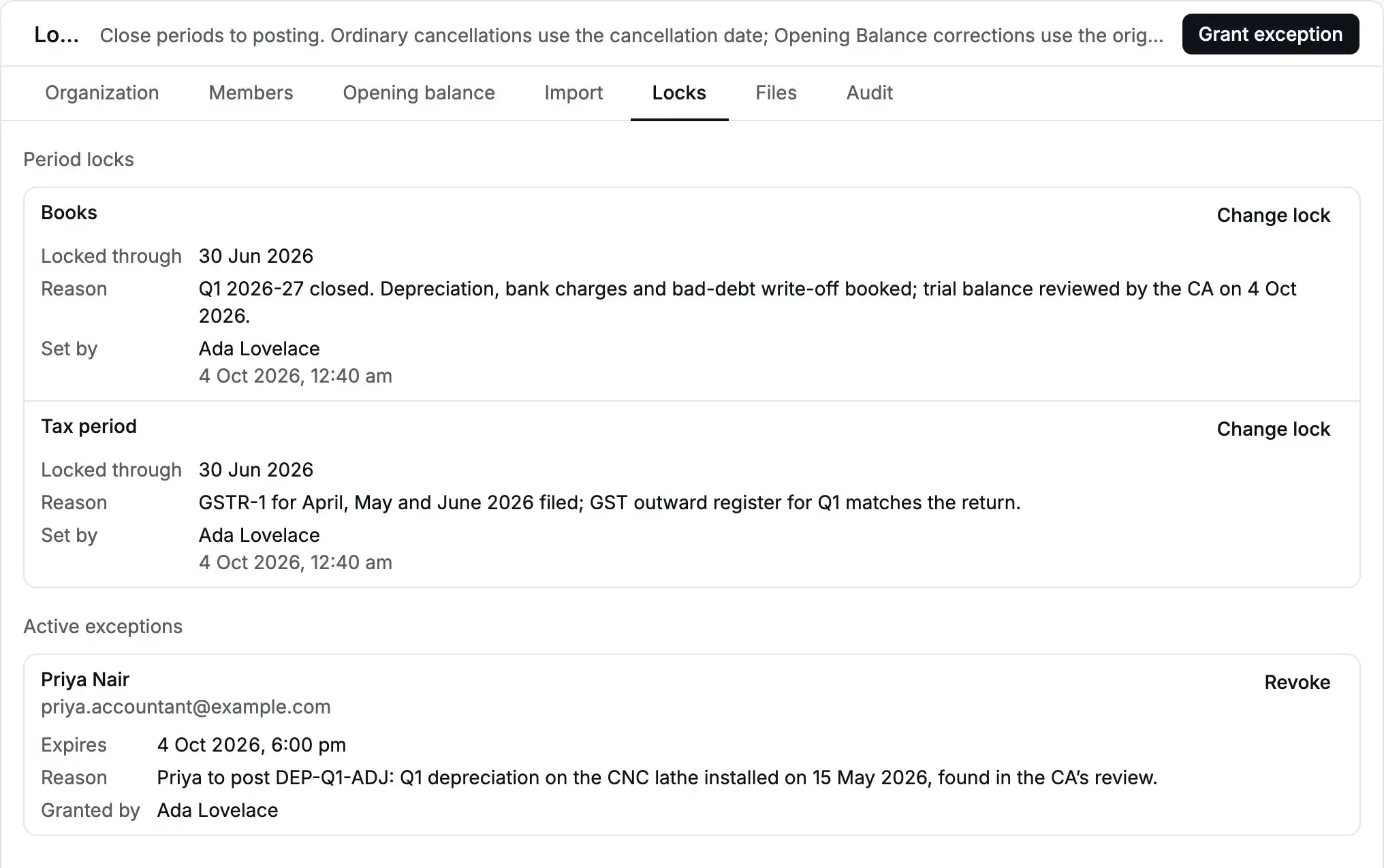
Open Settings → Locks. Period locks shows Books and Tax period, each with Locked through (or “Not locked”), the Reason, and Set by with the date and time of the change. Active exceptions lists the people who may post into the locked books right now.
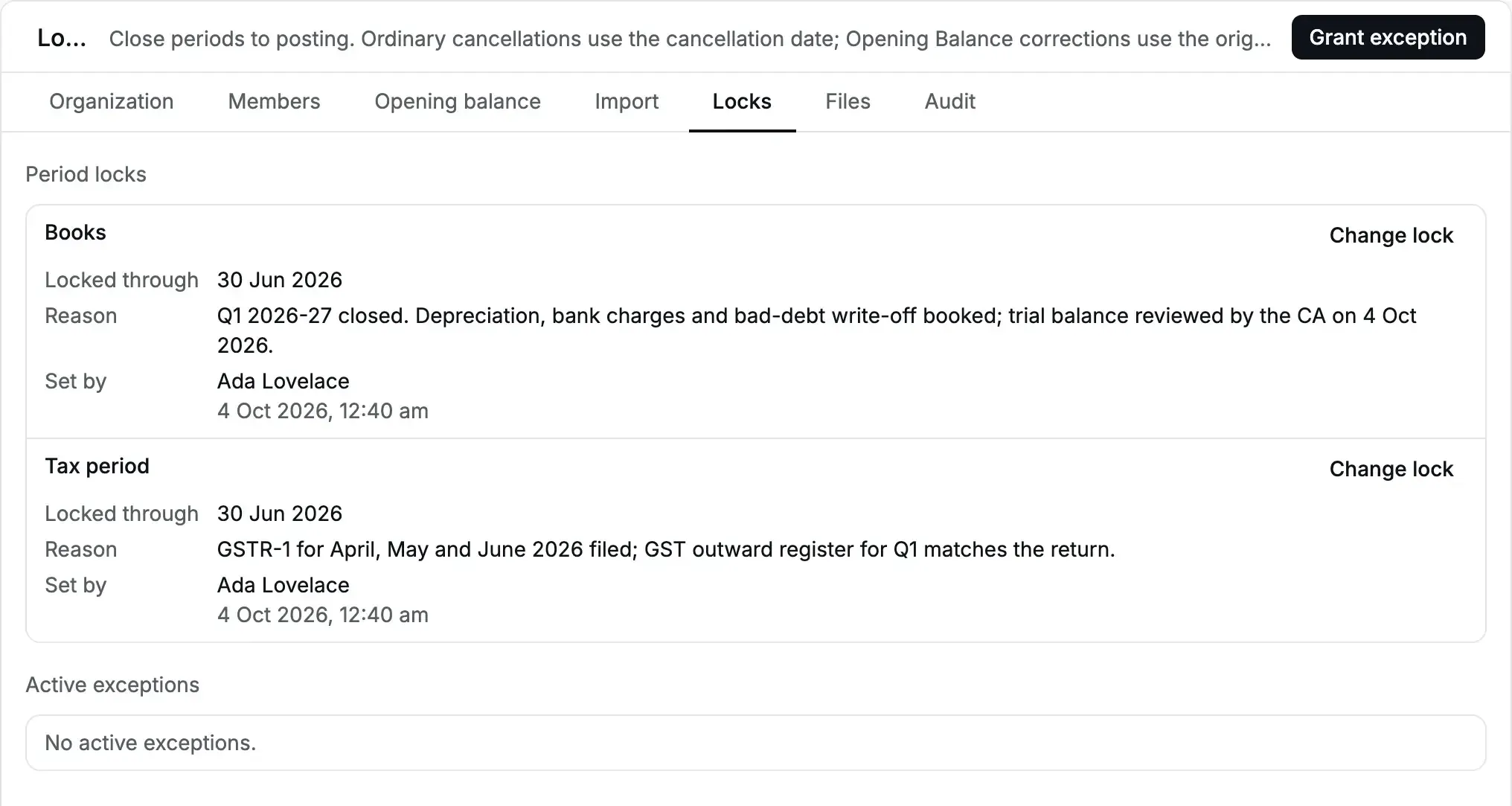
What each lock blocks
The lock date is inclusive: a lock through 30 Jun 2026 refuses a document dated 30 Jun 2026 and allows one dated 1 Jul 2026.
| Action | Books lock | Tax period lock |
|---|---|---|
| Post an invoice, bill, credit note or debit note dated in the period | Refused | Refused, when the organization has a GSTIN (GST registration number) |
| Post a receipt (money in) or payment (money out) dated in the period | Refused | Refused only for a direct receipt to a GST-classified income account when the organization has a GSTIN; other receipts and payments are not in a GST register |
| Post a journal (a manual entry) dated in the period | Refused | Refused if any line names a GST input, output or cess account; otherwise not affected |
| Post an Opening Balance (your balances on the day you start using Edernal Books), or import one, dated in the period | Refused | Not affected |
| Save an invoice or bill draft (saved but not yet posted) dated in the period | Allowed | Allowed |
| Post that draft | Refused | Refused |
| Cancel or amend a document | Checked on its original date | Checked on its original date when it affects tax |
| Cancel an Opening Balance | Checked on its cutover date | Not affected |
| Apply credit or reverse an allocation (a match of a payment or credit to an invoice) | Checked on the later source or target date; reversal uses the allocation’s date | Not affected |
A cancellation posts its reversal, an equal and opposite entry, on the original document date. It corrects that period’s balances and cannot bypass a lock by cancelling later. A books lock requires an exception or reopening; a tax lock must be reopened for documents that affect tax. Opening Balance corrections follow the same rule on their cutover date.
Set or change a lock
Open the lock
In Settings → Locks, click Change lock on Books or Tax period.
Choose the date
In Locked through, enter the last day of the closed period, for example 30/06/2026 for
April–June. To unlock, clear the date.
Give the reason
Reason is required (up to 500 characters). Write what was closed and who reviewed it, for example “Q1 2026-27 closed. Trial balance reviewed by the CA on 4 Oct 2026.”
Save
Click Save lock. The message “Books locked through 30 Jun 2026” (or “Tax period locked through …”) appears. Clearing the date shows “Books unlocked”.
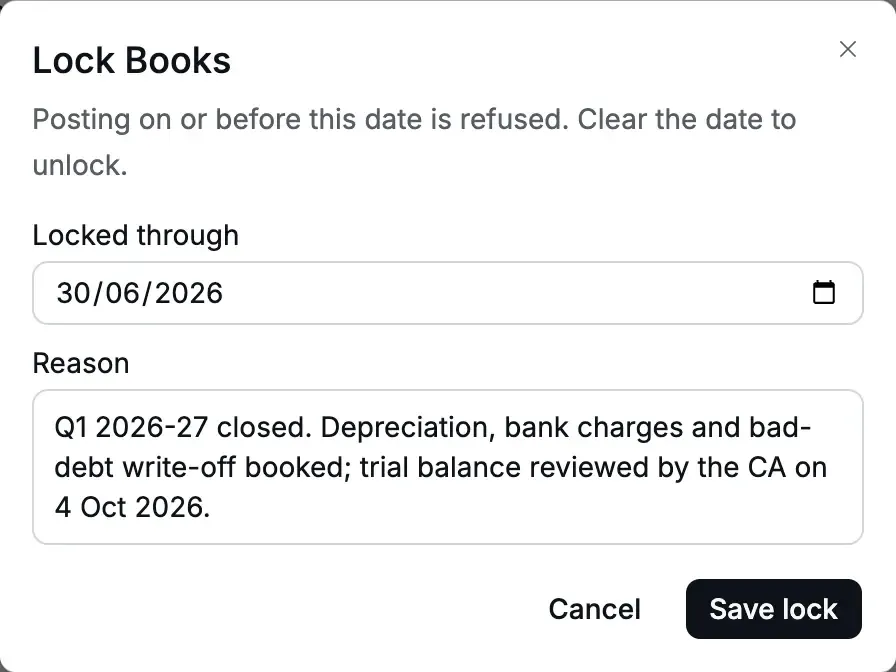
You can move a lock earlier to reopen a period, or later to close more. Every change needs a reason and is recorded.
If someone else changed the same lock while your dialog was open, saving shows “This lock changed after you opened it.” Close the dialog, read the new lock, and try again.
What a user sees when a period is locked
When someone posts a document dated in a locked period, the form keeps their entry and shows the message under the date:
- Books lock: “Books are locked through 30 Jun 2026. Ask for an exception to post on or before that date.”
- Tax period lock: “The tax period is locked through 30 Jun 2026.”
The tax message comes first when both apply. An exception does not clear it.
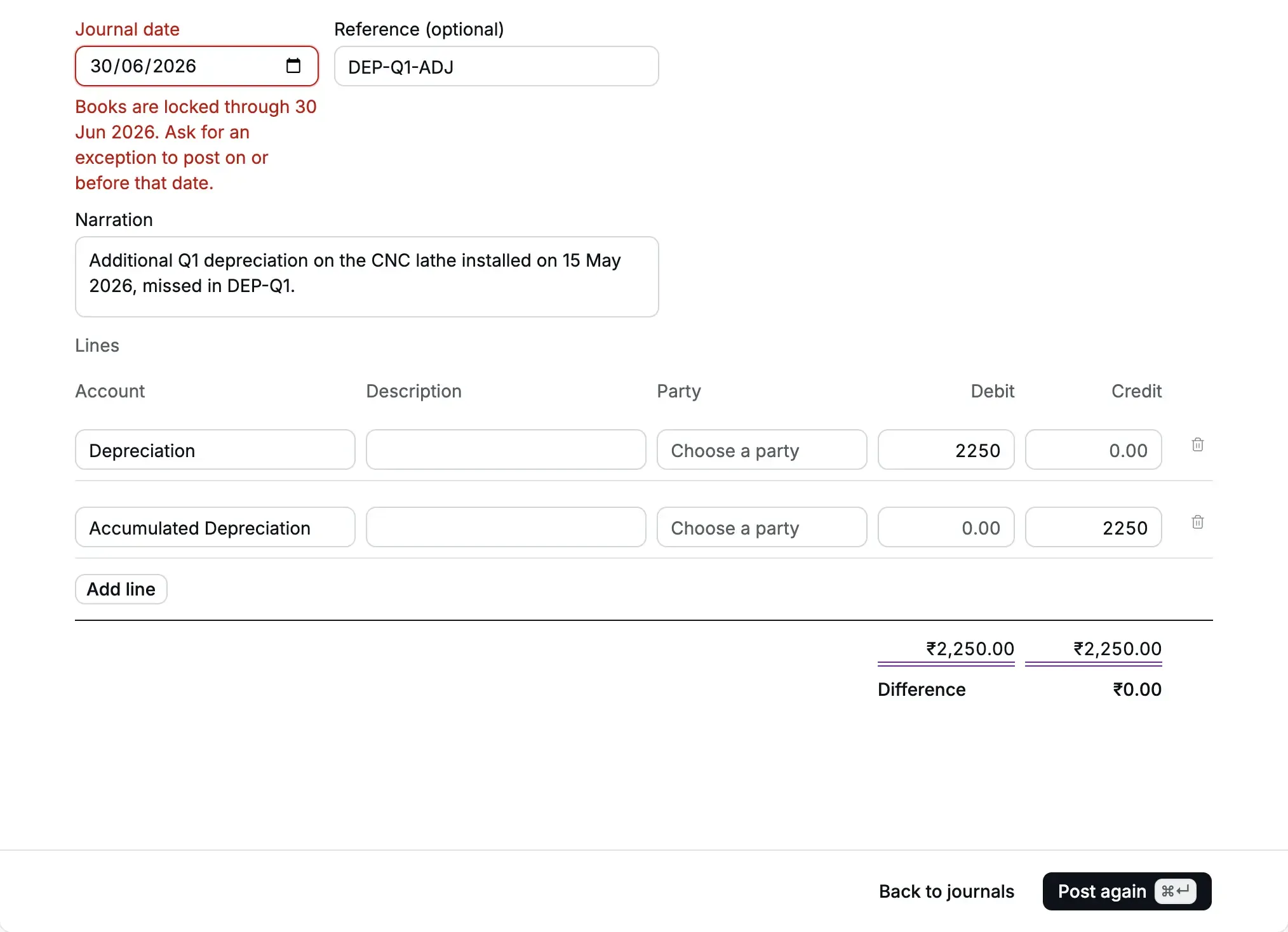
Let one person post a late correction
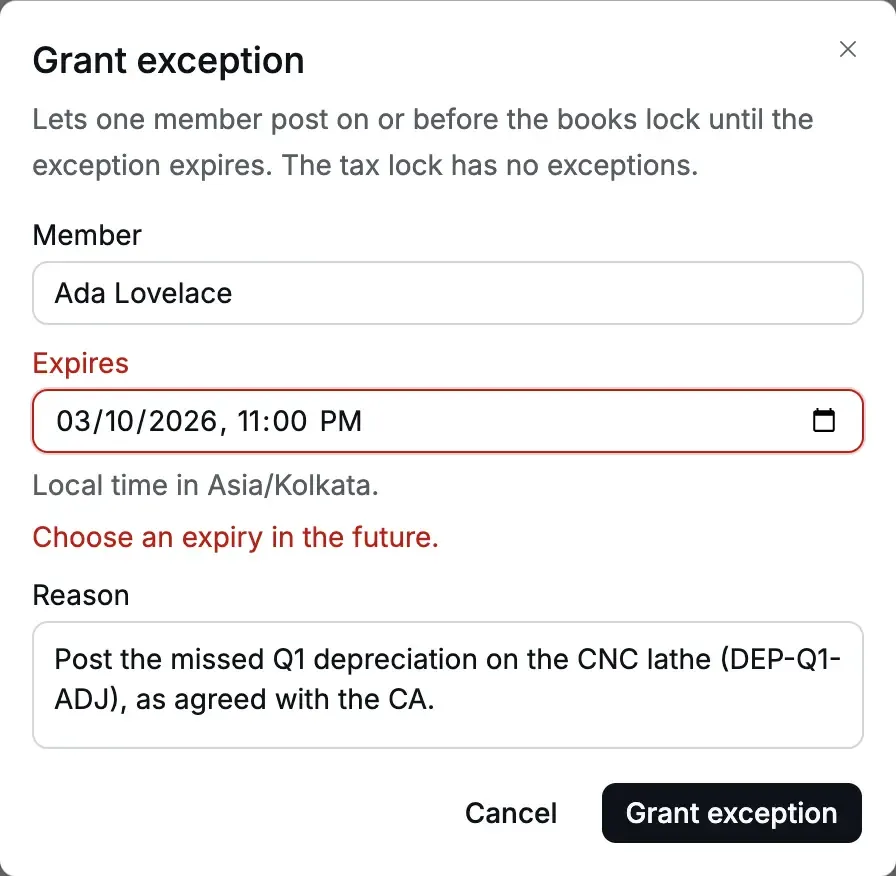
An exception lets one member post or cancel documents dated on or before the books lock, for 1, 7 or 30 days. Use it for a correction your CA asks for after the close. The tax lock has no exceptions: to post a GST document into a filed period you must move the tax lock itself, which you should do only with your CA.
Open Grant exception
Choose the member
In Member, choose the person who will post, for example Priya Nair, the accountant. The list shows only members who can post documents. A member who already has an active exception must use that grant or have it revoked before another is issued.
Choose for how long
In For how long, choose 1 day, 7 days or 30 days. Keep it short: 1 day is usually enough. You can revoke it sooner.
Give the reason and grant
Name the entry and who asked for it, then click Grant exception. The message “Exception granted” appears.
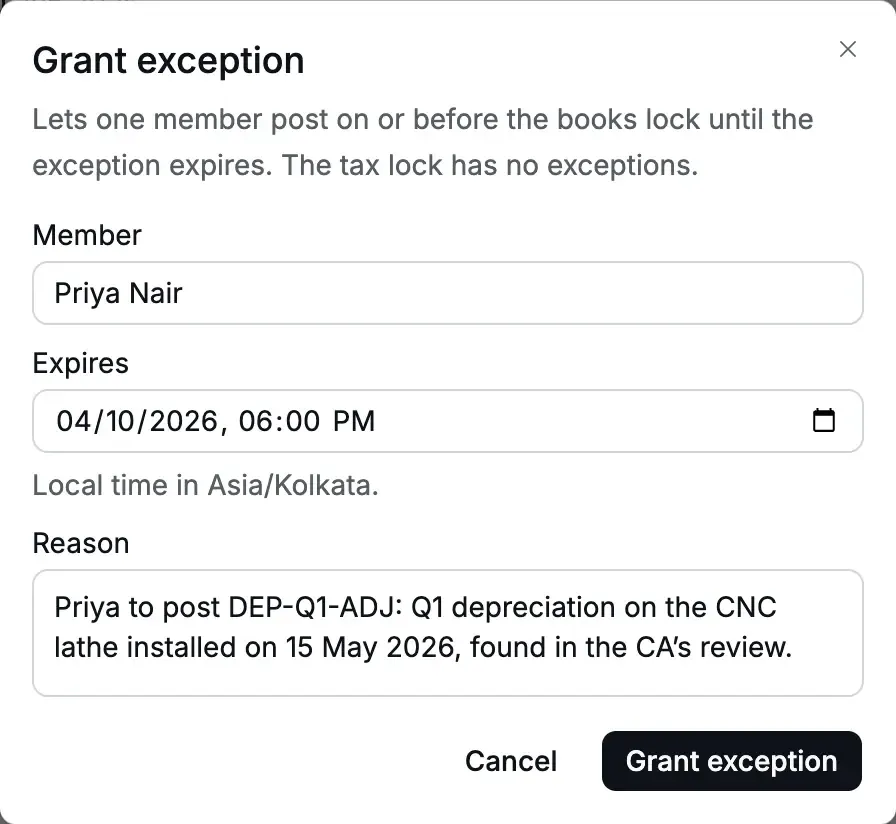
The dialog reminds you: “For a short time, this member can post or cancel documents dated on or before the books lock. The tax lock always stays closed.”
The exception appears under Active exceptions with the member, Expires, Reason and Granted by. Until it expires, that member can post any document dated on or before the books lock. Nobody else can.
When the time passes, the exception stops working by itself and leaves the list. The next posting into the locked period is refused again with the books message.
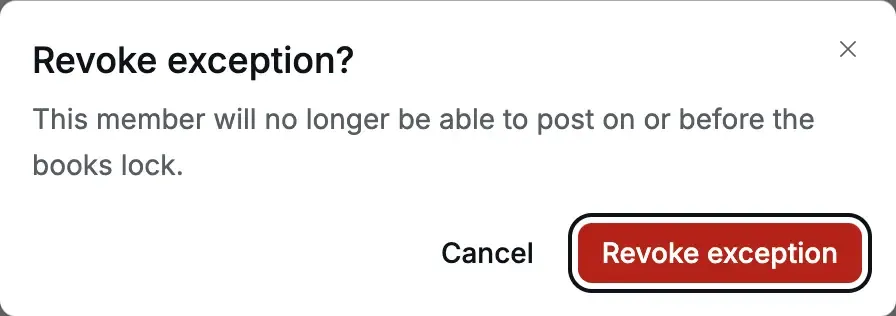
To end it early, click Revoke and confirm Revoke exception? (“This member will no longer be able to post on or before the books lock.”). The message “Exception revoked” appears.
Find lock changes in the audit log
The Locks page shows only the current locks and active exceptions. To see earlier changes, open Settings → Audit and search or choose a period:
| Audit action | Details |
|---|---|
| Period lock changed | kind (general or tax), the new date, the reason |
| Lock exception granted | the member’s name and email, the number of days, the reason |
| Lock exception revoked | the exception |
Expired exceptions do not appear on the Locks page; their grant stays in the audit log.
Common errors
| Message | Where | What to do |
|---|---|---|
| Books are locked through 30 Jun 2026. Ask for an exception to post on or before that date. | Any document form | Date the document after the lock, or ask the owner or CA for an exception |
| The tax period is locked through 30 Jun 2026. | Invoice, bill, note, GST receipt or GST journal | Post in the open period, or ask the owner or CA to reopen the tax lock |
| Choose a member | Grant exception | Pick the person who will post |
| Choose a member of this organization. | Grant exception | The person left or was removed; refresh and choose a current member |
| This member already has an active exception. | Grant exception | Use the existing grant, or revoke it before granting another |
| This lock changed after you opened it. | Change lock | Reopen the dialog and review the new date |
| This exception is not active. | Revoke | It already expired or was revoked; refresh the page |
On a phone
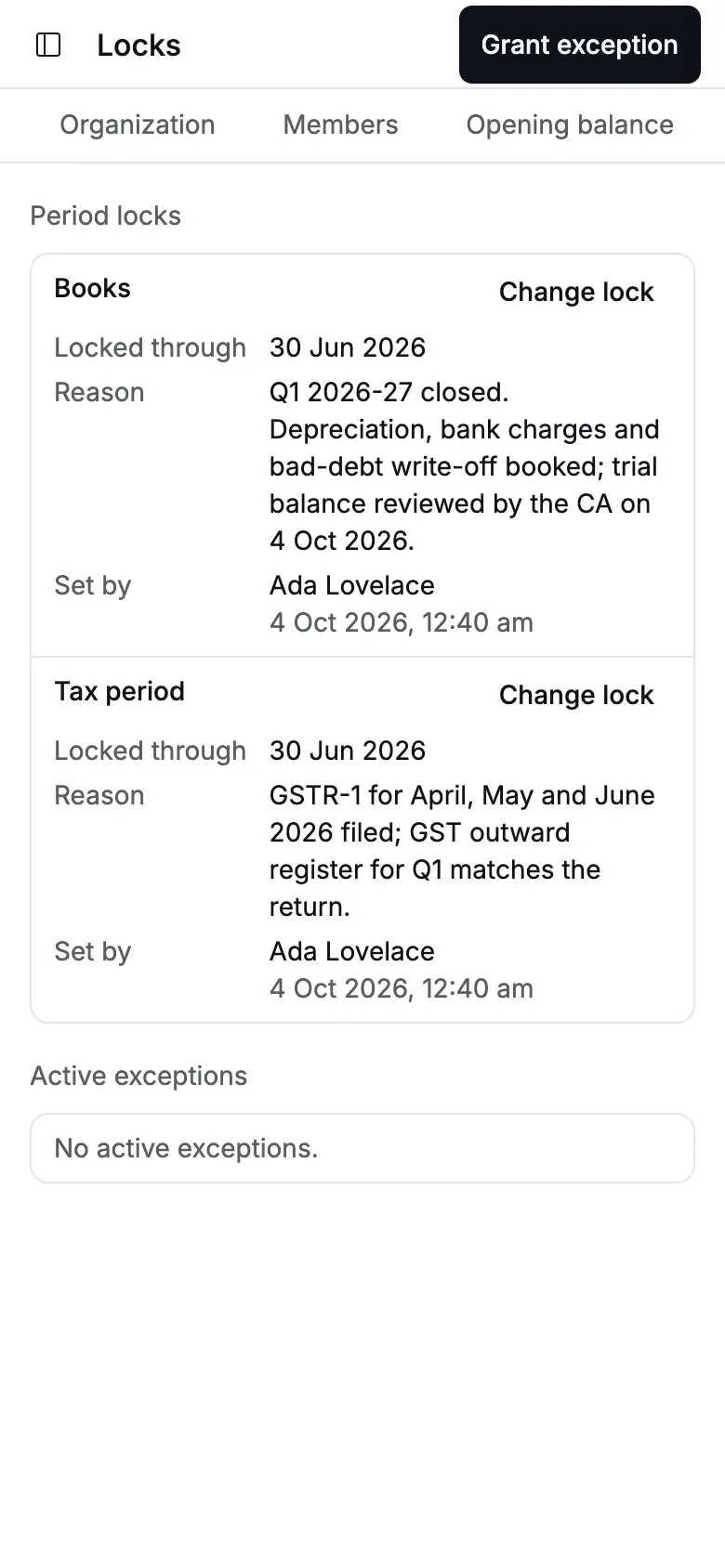
The Locks page works on a phone; the settings tabs scroll sideways.
Related pages
- Journals: the adjusting entries you post before a close.
- Trial balance: the report your CA reviews before you lock.
- Audit log: the history of every lock and exception.
- Closing a quarter: the full close for April–June 2026.