Items
The goods and services you sell, with HSN or SAC, unit, price, GST rate and income account
An item is a thing you sell: a product such as a brass valve, or a service such as installation. Every invoice line names an item. The item fills the line’s description, HSN or SAC code (the GST classification code for goods or services), unit price and GST rate, and decides which income account the sale posts to.
Who can do it: an Owner or Accountant (see roles) adds and edits items. An Operator and a Chartered Accountant see the list, and an operator picks items on invoices.
The item list
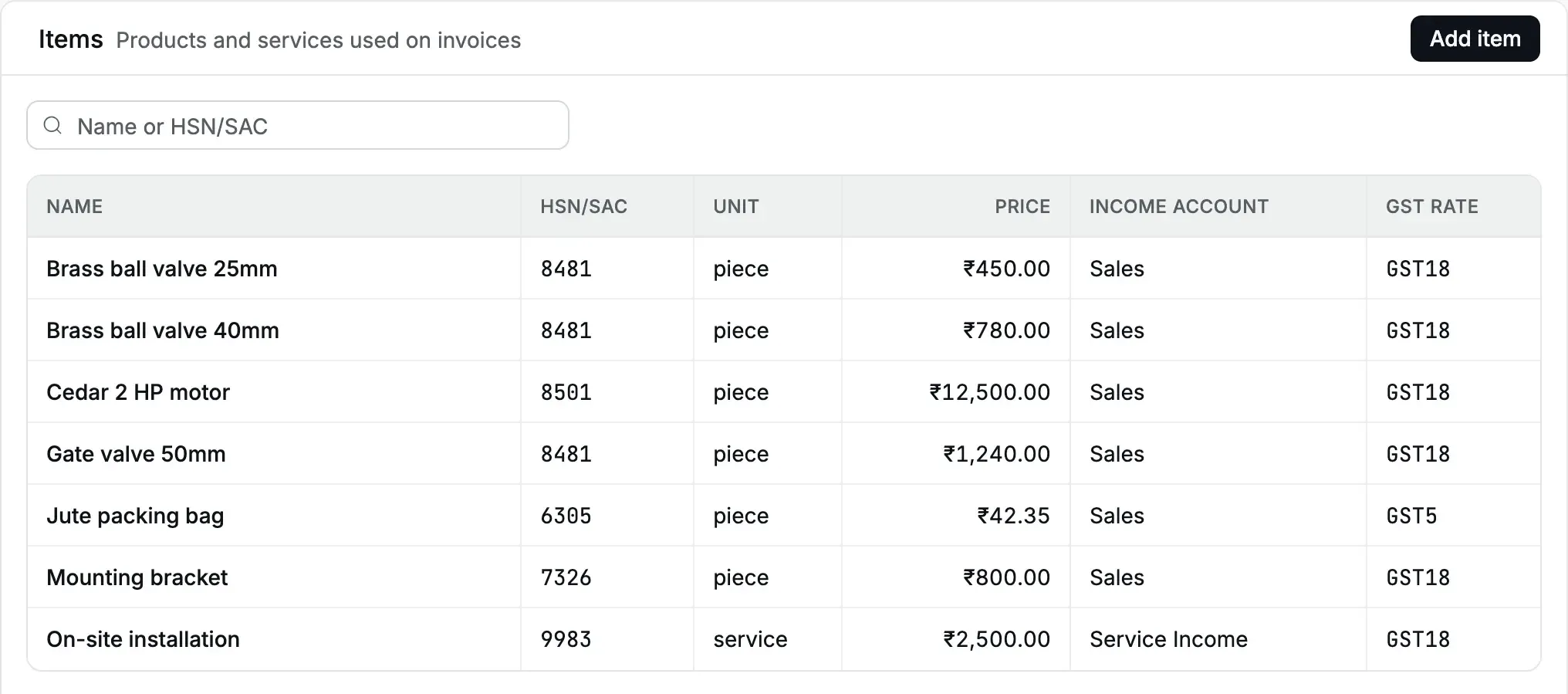
Open Masters → Items (masters are the lists you set up once and reuse). Each row shows Name, HSN/SAC, Unit, Price, Income account and GST rate. Search by name or HSN/SAC. An Owner or Accountant clicks a row to edit it; for other roles the rows are read-only.
Click Export and choose Download Excel or Download CSV to save the list. These need the same permission as report downloads: Owner, Accountant and Chartered Accountant.
Add an item
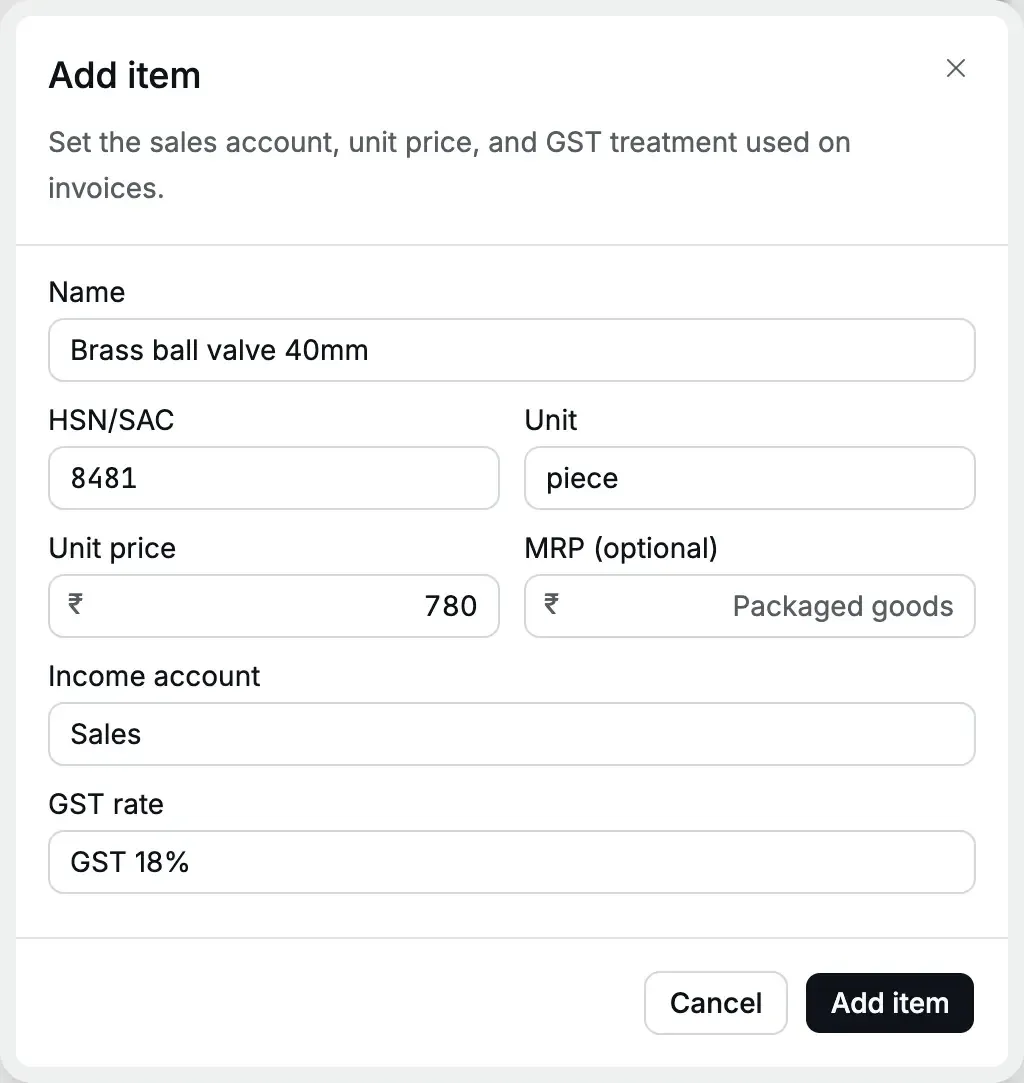
Cedar Components adds a larger valve to its range: Brass ball valve 40mm, HSN 8481, sold at ₹780 a piece plus 18% GST.
Open the form
Name it
Type Brass ball valve 40mm in Name. This is the description printed on the invoice.
Add HSN/SAC and unit
Set the price
Type 780 in Unit price. This is the price before GST. Leave MRP (maximum retail price) empty unless the item is packaged goods with a printed MRP.
Check the income account
Income account starts on your main income account, Sales here. Most items stay there; choose another account to file this one elsewhere.
Choose the GST supply class
In GST supply class, choose Taxable. GST rate appears.
Choose the GST rate
Save
Click Add item. You see “Item added”, and the item is ready for invoices.
The fields
| Field | Required | What it does |
|---|---|---|
| Name | Yes | Up to 120 characters. Unique in the organization, in any mix of capitals |
| HSN/SAC | For taxable items | 4 to 8 digits. HSN for goods (8481 for valves), SAC for services (9983 for installation, 9992 for education) |
| Unit | No | Up to 20 characters, such as piece, kg, hour, month or term |
| Unit price | Yes | Price before GST, in rupees and paise. Zero is allowed for an item you always price on the invoice |
| MRP (optional) | No | Maximum retail price for packaged goods. Above zero when filled |
| Income account | Yes | An active income account, not a group or system account. Sets where the sale posts. A new item starts on the main income account |
| GST rate | For a Taxable item | The rate charged on the invoice. Shown only when the item’s GST supply class is Taxable |
Goods and services
Edernal Books does not store a goods-or-services flag. The HSN/SAC code and the income account show which it is: Cedar Components keeps goods under Sales and services such as On-site installation (SAC 9983) under Service Income.
GST rate and the income account
Choose the item’s GST supply class. Choosing another income account first fills its class (supply class: taxable, exempt, nil-rated and so on; see Chart of accounts):
- A Taxable item needs an HSN/SAC and a GST rate. Without the HSN/SAC, saving shows “Enter an HSN/SAC code for a taxable item.” Without a rate, it shows “Choose a GST rate for a taxable item.”
- An Exempt, Nil-rated, Non-GST or Not a supply item has no rate and its invoices charge no GST. If you switch the item’s class to a non-taxable one, the rate is cleared.
The rate list shows only rates in force today: GST 5%, GST 18% and GST 40%. GST 12% ended on 21 September 2025; GST 28% remained for tobacco goods until 31 January 2026. GST 40% began on 22 September 2025. There is no 0% rate: choose Nil-rated for the item instead. Whether the invoice charges CGST and SGST or IGST (central and state, or integrated GST) depends on the place of supply, the state where GST treats the sale as made, not on the item.
Edit an item
Click the item’s row. Change any field and click Save item. The change applies to new invoices. Posted invoices keep the name, price and rate they were posted with.
Mark an item inactive
Open the item and click Mark inactive. It leaves the item picker on new invoices; past invoices still show it. The list shows it greyed with an Inactive badge. Click Mark active to restore it.
An income account cannot be marked inactive while an active item uses it.
Common errors
| Message | What to do |
|---|---|
| “An item with that name already exists.” | Names compare without case: brass ball valve 25MM clashes with Brass ball valve 25mm. Edit the existing item or add a size or grade to the name |
| “Use a 4 to 8 digit HSN/SAC code” | Type digits only, 4 to 8 of them |
| “Choose a GST rate for a taxable item.” | Choose a rate, or choose a non-taxable income account |
| “Choose an active income account that is not a group or system account.” | Choose another account, or add one in the chart of accounts |
| “Enter an MRP above zero, or leave it empty” | Clear the MRP or type the printed price |
Related pages
- Chart of accounts: add an income account and set its GST class.
- Invoices: each invoice line is an item.
- Import opening balances: create many items from Excel.
Track stock
Stock tracking is available in both Books and Campus. Open an existing item you buy and sell, click Track stock, and enter an expected cost. Stock moves with the documents you post. Once an item has stock movements, tracking stays on.
- A Bill with that item and a quantity adds stock and its cost. Its line posts to Stock, so you choose no account.
- An Invoice takes the cost of the oldest stock first and posts it to Cost of Goods Sold, updating profit with the posted cost. The line shows how many are in stock.
- A Credit Note with a quantity in Returned puts the goods back at their cost.
- Adjust stock records damaged, lost, sample and found goods. On a GST-registered organization it asks whether to reverse the input credit, and Stock Loss takes the cost.
A sale of more than is in stock is never refused. It uses the last cost, or the expected cost before a purchase has supplied one. The Items page lists it for review; the next Bill corrects that cost. An operator sees only the quantity, never the cost.
Stock already on the shelf goes on the Opening Balance as one Stock line, with a count for each item. Goods you bought this year before you started tracking go on the item as a Count, which moves their cost out of Purchases.