Chart of accounts
The groups and accounts your books post to, the system accounts, GST supply class, and inactive accounts
The chart of accounts is the list of every ledger (the running record of one account) your books post to: cash and bank, receivables (money customers owe you), GST, capital, sales, expenses. Each posted document writes to these accounts, and every report is built from them.
Every organization starts with a ready chart, so you can post on the first day. Add accounts when your business needs a ledger the chart does not have, for example a Courier and Postage expense or a Scrap Sales income.
Who can do it: an Owner or Accountant (see roles) adds, renames and marks accounts inactive. A Chartered Accountant and an Operator can see the chart.
Read the chart
Open Accounting → Chart of accounts. Each row shows the account Name, its Parent ledger, its Code, its Type (Asset, Liability, Equity, Income or Expense) and the GST supply class for income accounts (see assets, liabilities and equity). Search by name or code. The filter icon in the search box filters by Type.
Click Export and choose Download Excel or Download CSV to save the list. These need the same permission as report downloads: Owner, Accountant and Chartered Accountant.
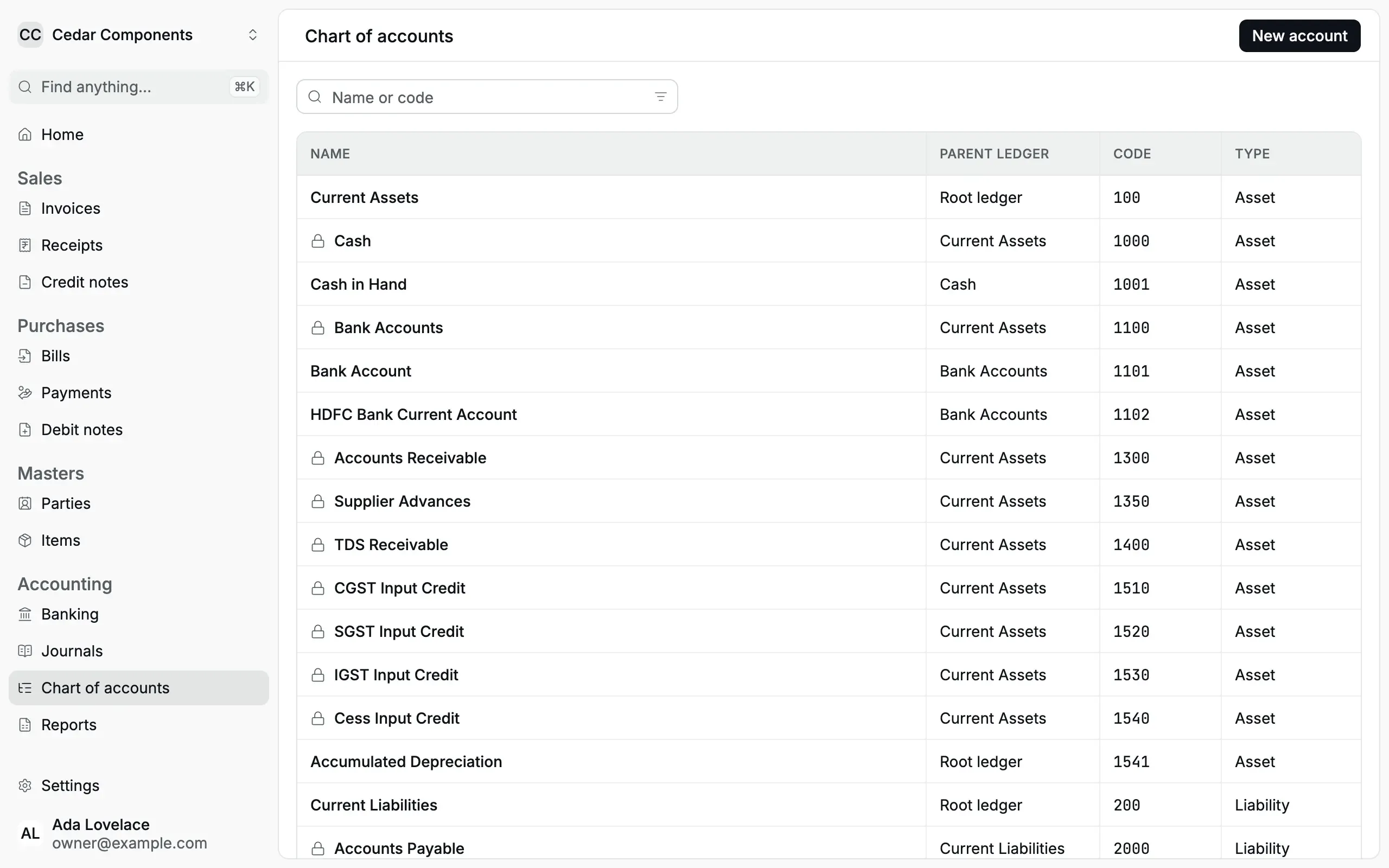
There are three kinds of row:
| Kind | Example | Posts? |
|---|---|---|
| Group (group account) | Current Assets (100), Bank Accounts (1100) | No. It only collects the rows below |
| System account | Accounts Receivable (1300), CGST Output Payable (2210) | Yes, but only from documents |
| Account | Cash in Hand (1001), Professional Fees (6031) | Yes |
System accounts
A lock icon marks a system account: one Edernal Books posts to itself, from the documents you post. Accounts Receivable and Accounts Payable are control accounts, totals of every customer’s or vendor’s balance:
| System account | Posted by |
|---|---|
| Accounts Receivable (1300), Accounts Payable (2000) | Invoices, bills, receipts, payments, notes, opening items |
| Customer Advances (2150), Supplier Advances (1350) | Advance receipts and payments (money paid before the invoice) |
| CGST, SGST, IGST and Cess Output Payable (22xx) | Invoices and credit notes (output tax: GST you collect; see CGST, SGST and IGST and cess) |
| CGST, SGST, IGST and Cess Input Credit (15xx) | Bills and debit notes (ITC, input tax credit: GST you paid and may deduct) |
| TDS Receivable (1400), TDS Payable (2300) | Receipts with TDS (tax deducted at source) deducted, bills with TDS |
| Round Off (6900) | Invoices and bills that round the total to the rupee |
| Share Capital, Capital Account or Corpus Fund (3000) | Your opening equity; also open to Journals |
| Cash (1000), Bank Accounts (1100) | Groups that hold your money accounts (see Banking) |
You can rename a system account, but you cannot mark it inactive. You cannot pick Accounts Payable (payable) or an advance account in a Journal (a manual journal entry) or the Opening balance (the balances you start with). A Journal can use Accounts Receivable only with a party (customer or vendor) on the line, and the Opening balance form cannot use it at all. GST input, output and cess accounts are available in both: use them for cutover balances, GST payments and input-tax set-off. GST journals change the ledger balances, not the GST registers; see GST settlement journals.
Account codes
Edernal Books gives each new top-level account the next code for its type. You do not type codes.
| Type | New codes |
|---|---|
| Asset | 1200–1999 |
| Liability | 2000–2999 |
| Equity | 3001–3999 |
| Income | 5000–5999 |
| Expense | 6000–6799 |
Under a group, the code takes the first free slot in that group’s range: 1200 under Current Assets (100), 2001 under Current Liabilities (200), or 1102 under Bank Accounts (1100). A top-level asset continues after the highest asset code instead. Groups themselves cannot be added.
Add an expense account
Cedar Components starts sending samples by courier and wants the cost in its own ledger.
Open the form
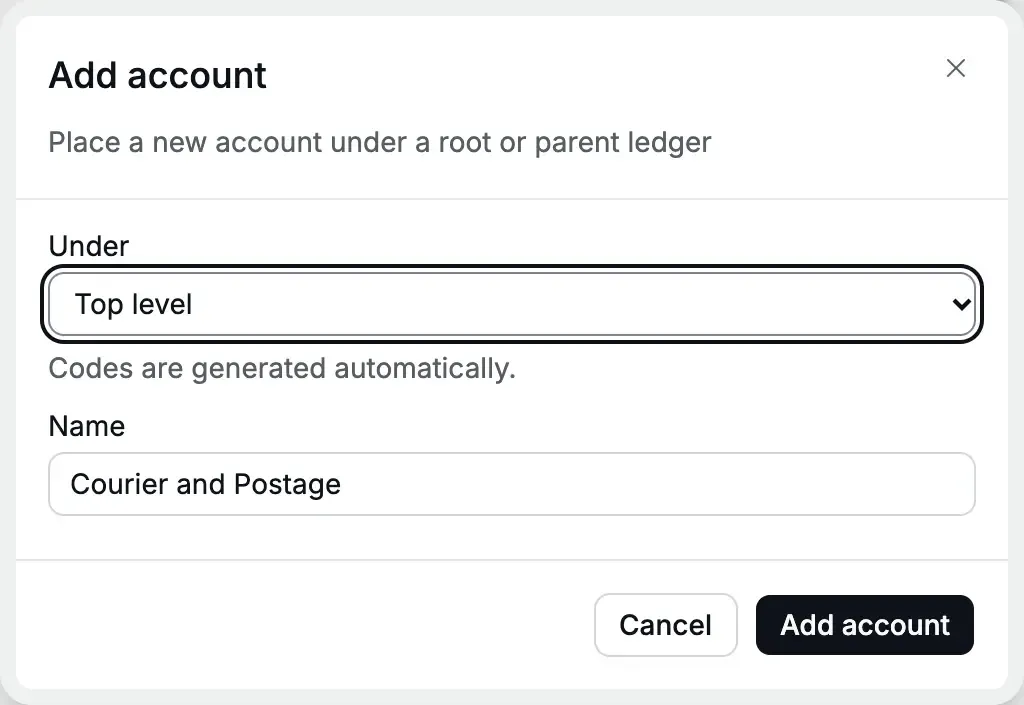
In Chart of accounts, click New account. The Add account panel opens.
Choose where it belongs
In Under, choose a group, or Top level (Expense). A new organization has no expense groups, so most expense accounts go at the top level.
Name it
Type Courier and Postage in Name. Names are unique among active accounts, in any mix of capitals.
Save
Click Add account. You see “Account added”. The account appears with code 6034.
Add an income account
Cedar Components sells brass scrap from its workshop. Scrap is a taxable supply, so it needs a taxable income account.
Choose Top level (Income)
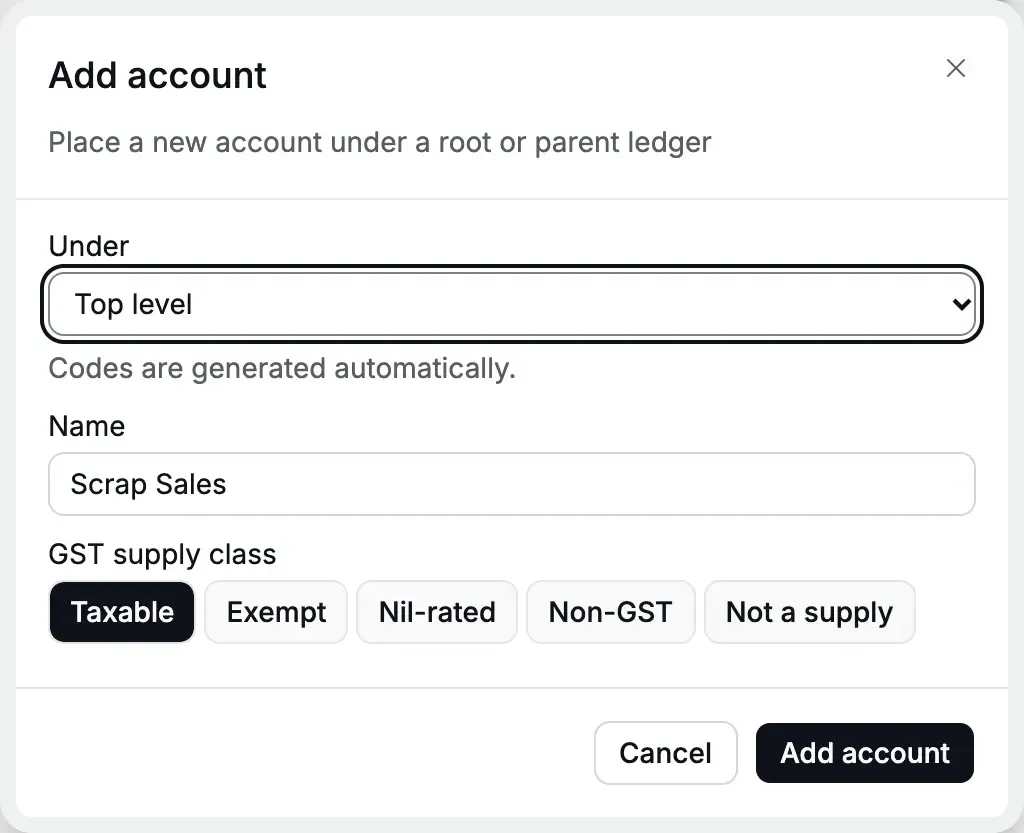
Click New account. In Under, choose Top level (Income).
Name it
Choose the GST supply class
For an income account, GST supply class appears. Choose Taxable.
Save
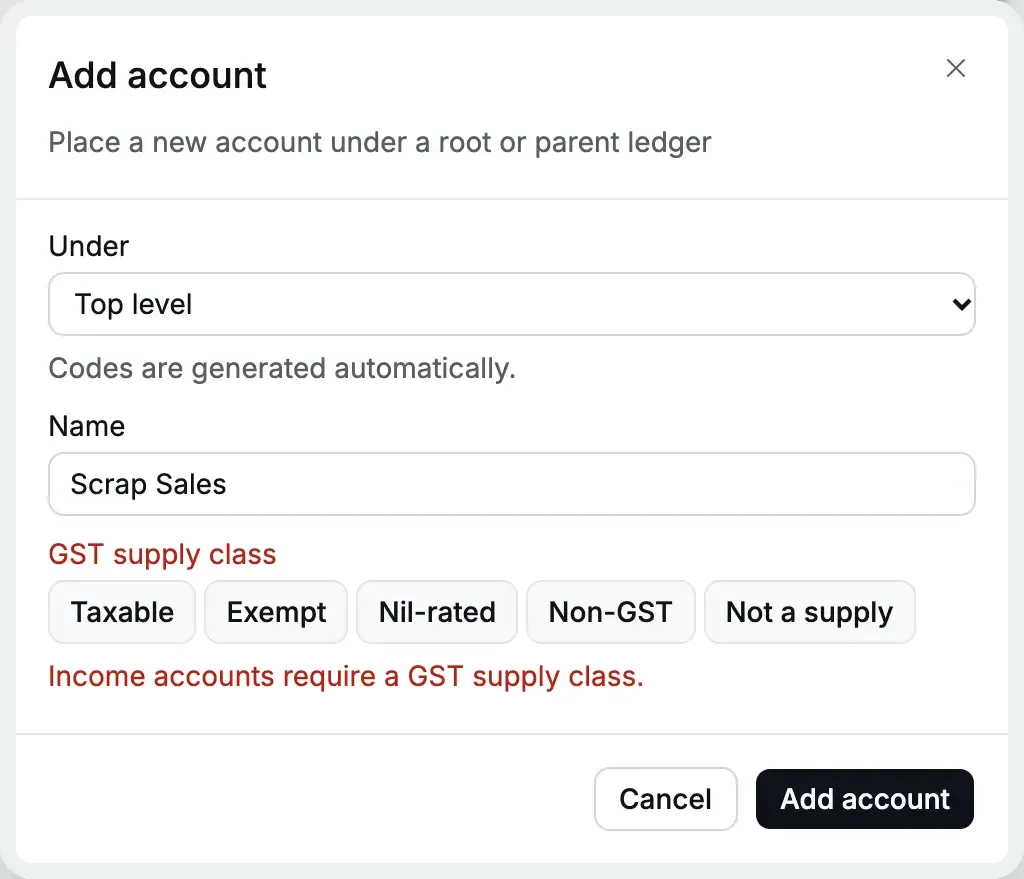
If you save an income account without a class, the panel shows “Income accounts require a GST supply class.”
GST supply class
The supply class tells Edernal Books how GST treats the income in this account. Every item takes its GST treatment from its income account.
| Class | Use it for | Example |
|---|---|---|
| Taxable | Supplies that carry GST. Items under it need a GST rate | Sales of valves, installation services |
| Exempt | Supplies exempt from GST | School fees, interest on deposits |
| Nil-rated | Supplies with a GST rate of 0% | Fresh vegetables, unbranded grains |
| Non-GST | Supplies outside GST law | Petrol, diesel, liquor for drinking |
| Not a supply | Income that is not a supply at all | Insurance claims, discounts received |
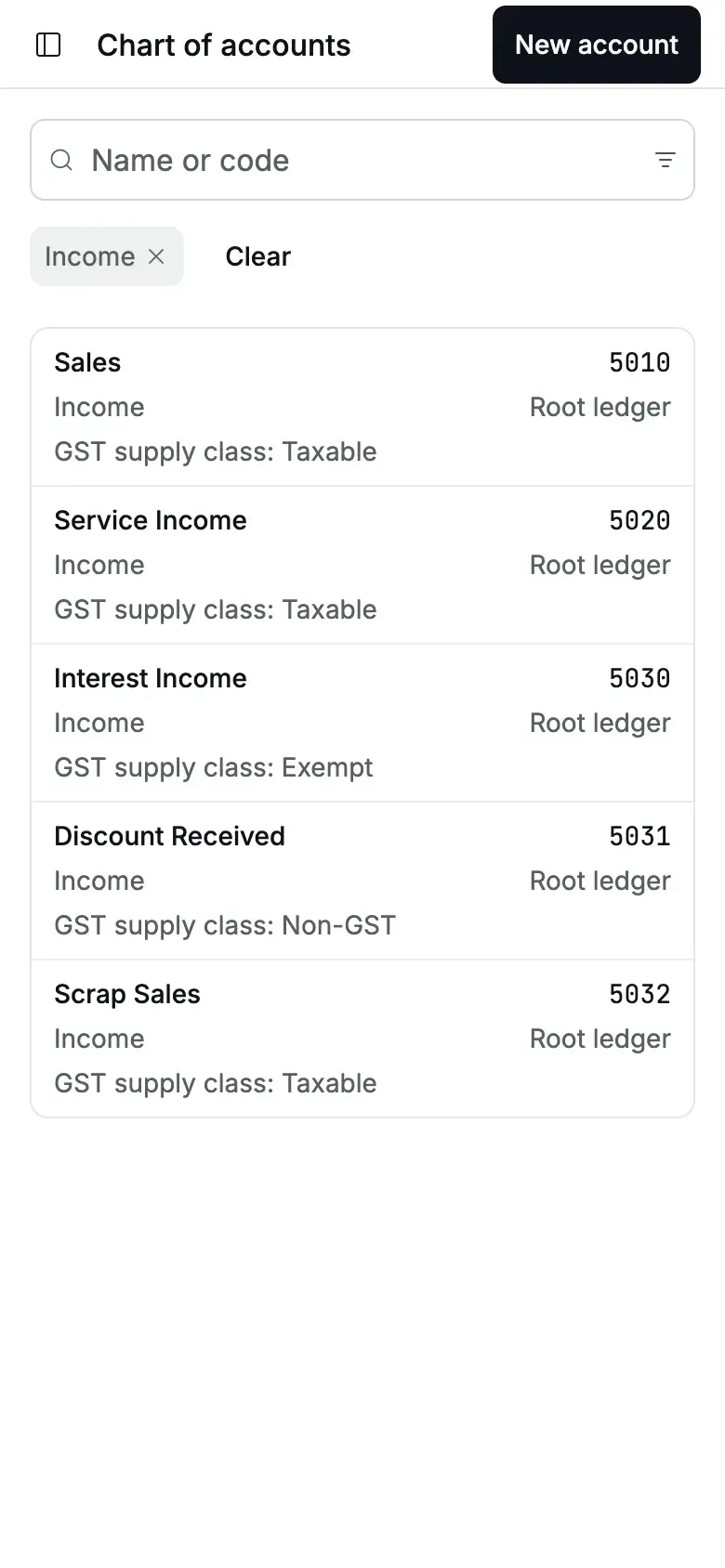
The ready chart sets the class of its income accounts, for example Sales is Taxable and Interest Income is Exempt. A trust or society starts with Fees as Exempt, and a school’s Fee Income group holds one Exempt account per fee stream; the professional chart’s Rent Received is Taxable for commercial letting. You can change the class in Edit account before the account’s first posting. Once it has posted entries, mark the account inactive and add a new one if you chose the wrong class.
If you change an account from Exempt to Taxable, choose a GST rate on each item that uses it before invoicing in a GST-registered organization.
To see an income account’s GST supply class on a desktop, open the account. The phone cards show “GST supply class: …” below the account name.
Edit an account
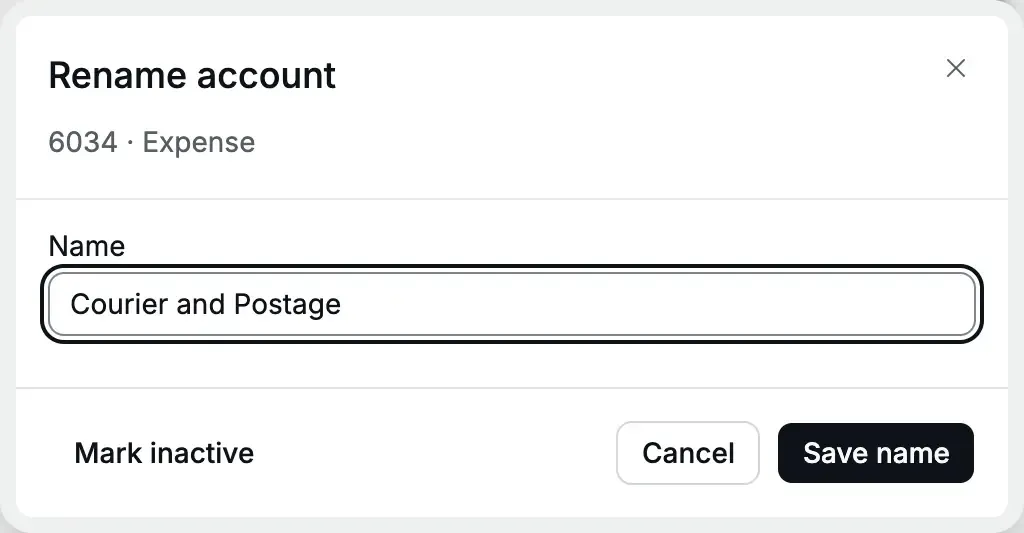
Click the account’s row. The Edit account panel shows its code and type. Change Name and click Save. You see “Account saved”. For an income account, you can also change GST supply class while it has no posted entries. The code, type, parent and posted entries stay the same, and reports show the new name.
Mark an account inactive
Mark an account inactive when you stop using it. It leaves the pickers on new documents, but its past entries and balance stay in every report.
- Click the account’s row.
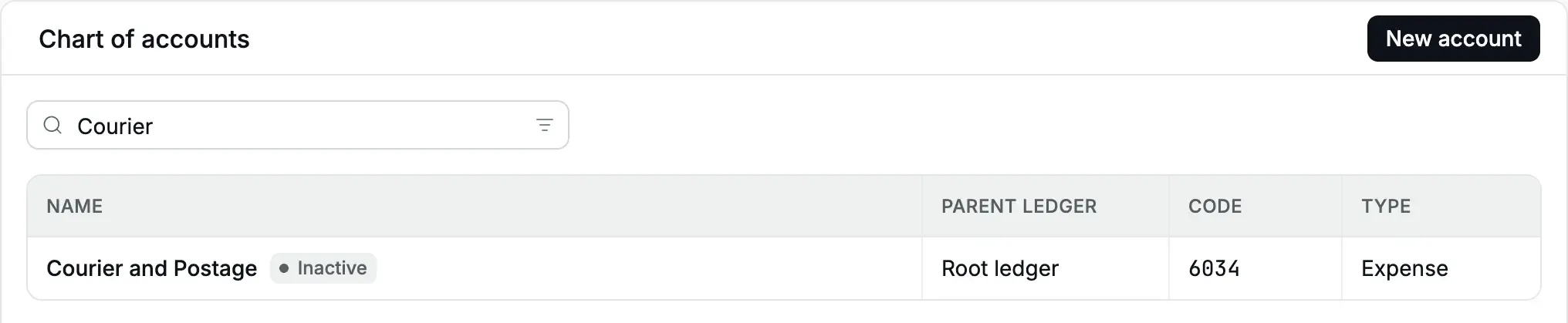
- Click Mark inactive. There is no confirmation. You see “Account marked inactive”, and the row shows an Inactive badge.
- To use it again, open it and click Mark active.
Rules:
- Groups and system accounts cannot be marked inactive. The button does not show for them.
- An income account used by an active item is refused: “This account is used by the active Item “…”.” Mark the item inactive first, or move it to another account.
- A cash or bank account used by an active payment method (a named way money moves, such as UPI) is refused: “This account is used by the active Payment Method “UPI”.” Mark the method inactive first.
- An account that still has a balance can be marked inactive. Clear an asset or liability balance by a Journal first, so your balance sheet does not carry a ledger you can no longer post to. A Journal cannot use a taxable income account in a GST-registered organization: correct such income with a credit note, and mark the account inactive once you stop invoicing to it.
- A new account can reuse the name of an inactive one.
What you cannot do
- Delete an account. Mark it inactive instead.
- Add a group. New accounts always take postings. Put them under an existing group or at the top level.
- Change the type or parent after you save. Add a new account and mark the old one inactive.
- Change the supply class after a posting. Add a new account with the correct class and mark the old one inactive.
Related pages
- Banking: add a bank or cash account and its payment method.
- Items: every item names an income account.
- Opening balance: carry balances into these accounts.
- Trial balance: every account’s balance for a period.