Invoices
Bill customers with items, discount and GST, then post, print, collect, amend or cancel
An invoice records a sale to a customer. It sets what the customer owes you, and it posts your income and the GST (Goods and Services Tax) you collect. Edernal Books works out CGST and SGST, or IGST (central and state GST on a sale within your state, integrated GST on a sale to another state) from the place of supply, the state where the sale is taxed. It prints a PDF to send to the customer.
Use an invoice for every sale of goods or taxable services, on credit or paid at the counter. To record money before you bill, an advance, use a receipt instead.
Who can do it (see roles): an Owner, Accountant or Operator creates and posts invoices. Only an Owner or Accountant can amend or cancel one. A Chartered Accountant can open and print invoices but cannot change them.
The invoice register
Open Sales → Invoices. The register lists draft invoices (saved but not yet in your books), posted ones (recorded in your books) and cancelled ones, newest document date first. It opens on This month.
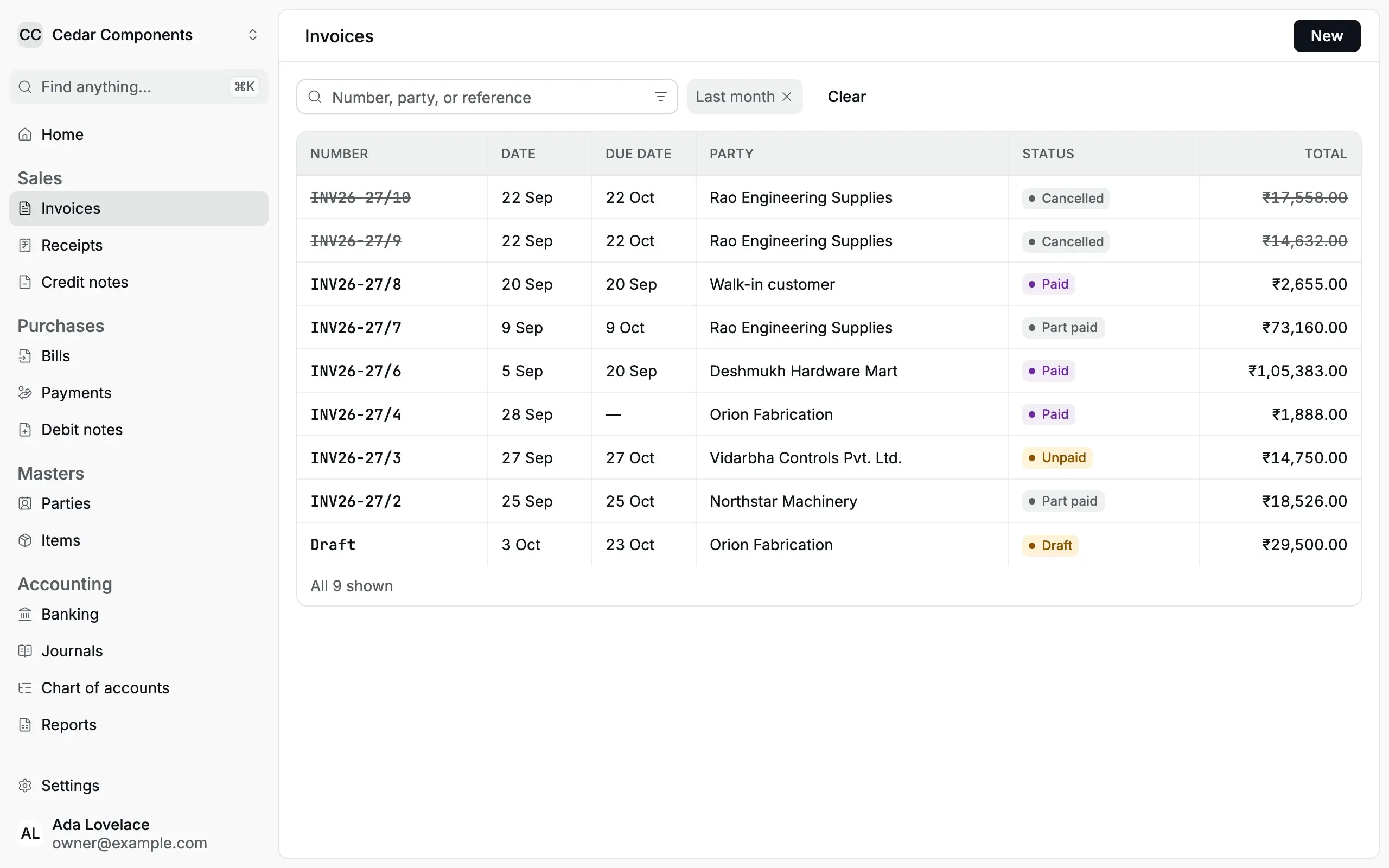
| Column | Shows |
|---|---|
| Number | The invoice number, or Draft before posting |
| Date, Due date | The invoice date and the date payment is due |
| Party | The customer (party) as printed on the invoice |
| Status | Draft, Unpaid, Part paid, Paid or Cancelled, plus Overdue when the due date has passed and money is still due |
| Total | The invoice total, after discount, GST and round-off (rounding to whole rupees) |
To narrow the list:
- Type at least three letters or digits in the search box to find an invoice number, a party name or a reference such as a purchase order (PO) number.
- Click the filter icon in the search box to choose a Date period or a Status: Draft, Unpaid, Part paid, Paid, Overdue, Open or Cancelled. Open shows posted invoices with money still due, whether unpaid or part paid. Overdue shows open invoices whose due date is before today.
- Click Clear to remove every filter.
Use Export to print or download the filtered register. See Export a list for formats, access and limits.
Three cards above the search box count and add up the matching invoices, not just the loaded page: Posted, Open and Overdue. They follow your search, party and Date filters. Click Open or Overdue to filter the list to that status, and click it again or Posted to show every status. On a phone only Posted shows; choose Status from the filter icon instead. Drafts appear in the list even when their date is outside your selected period. The cards refresh when you post or cancel an invoice, or when you come back to the tab.
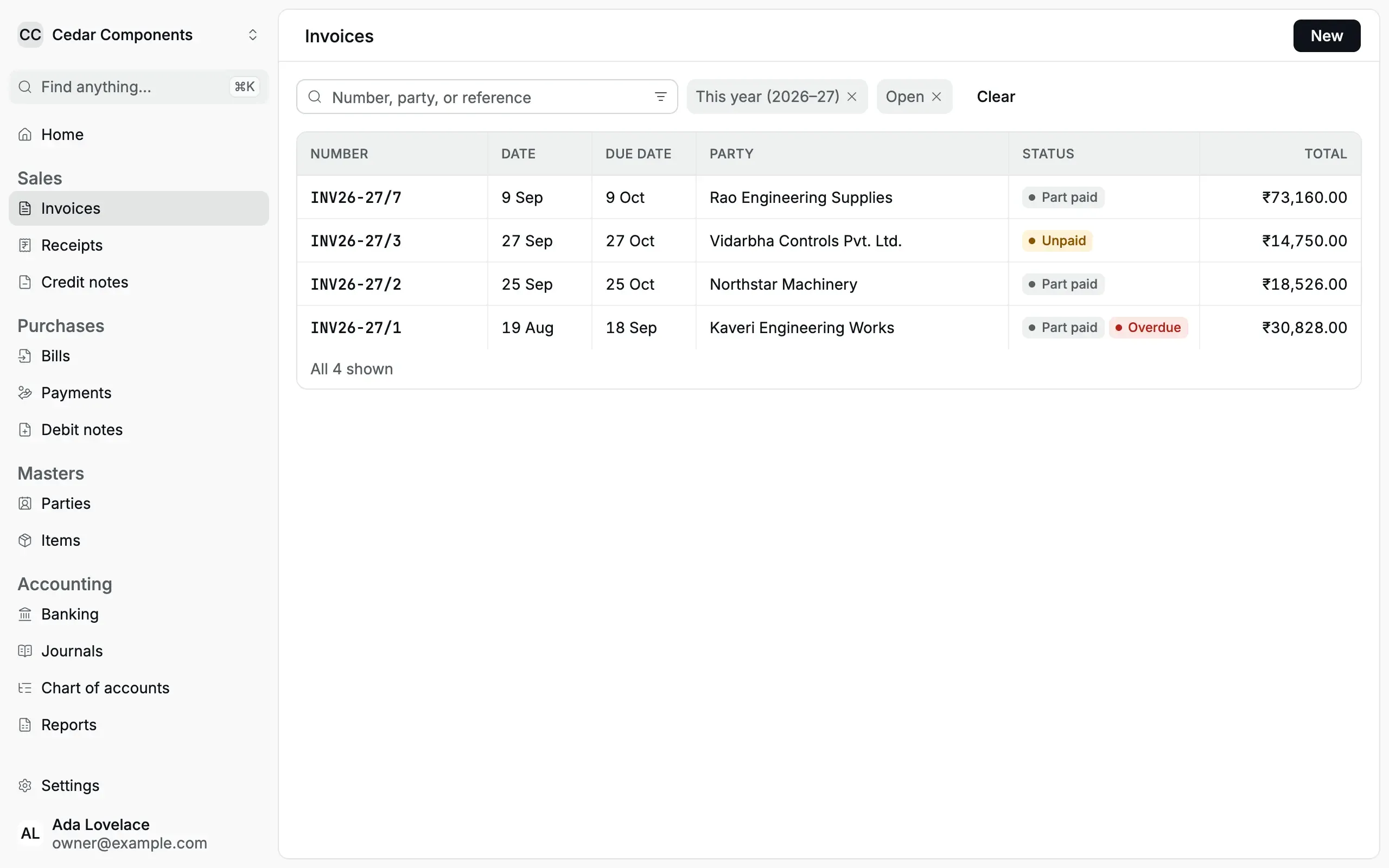
Create an invoice
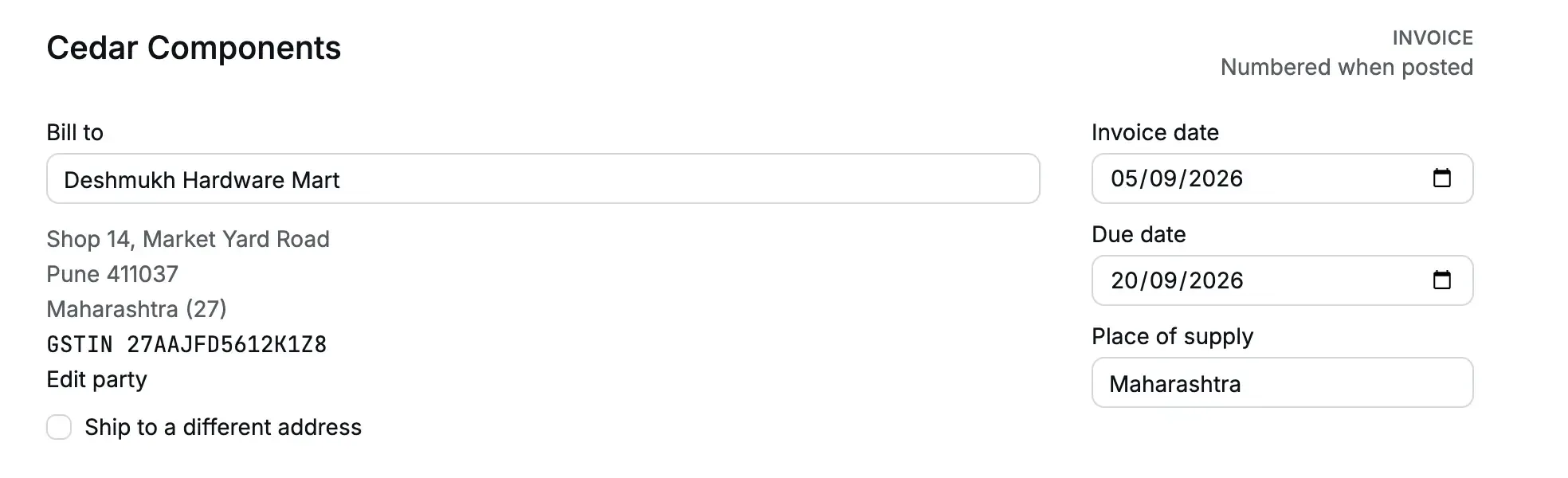
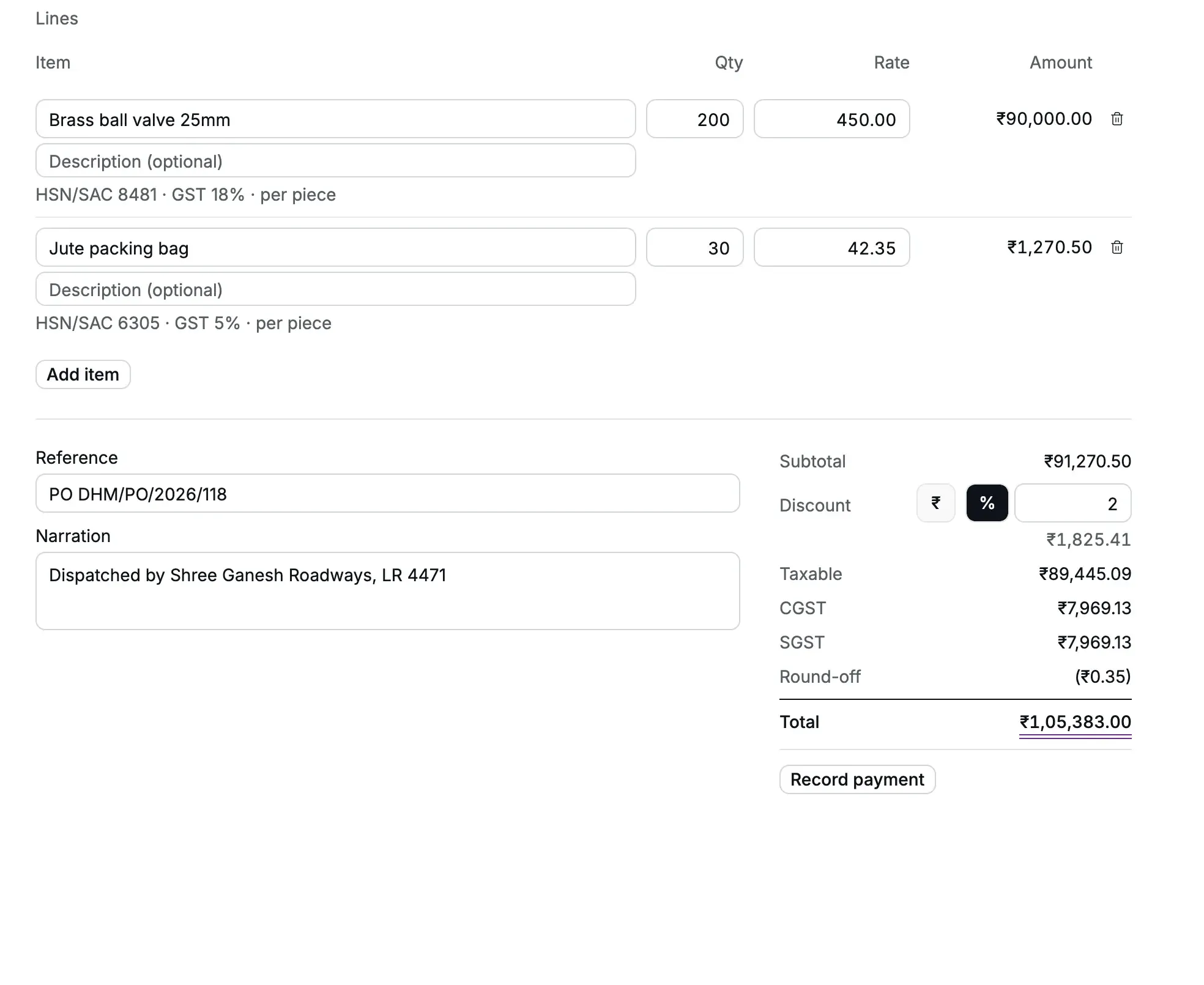
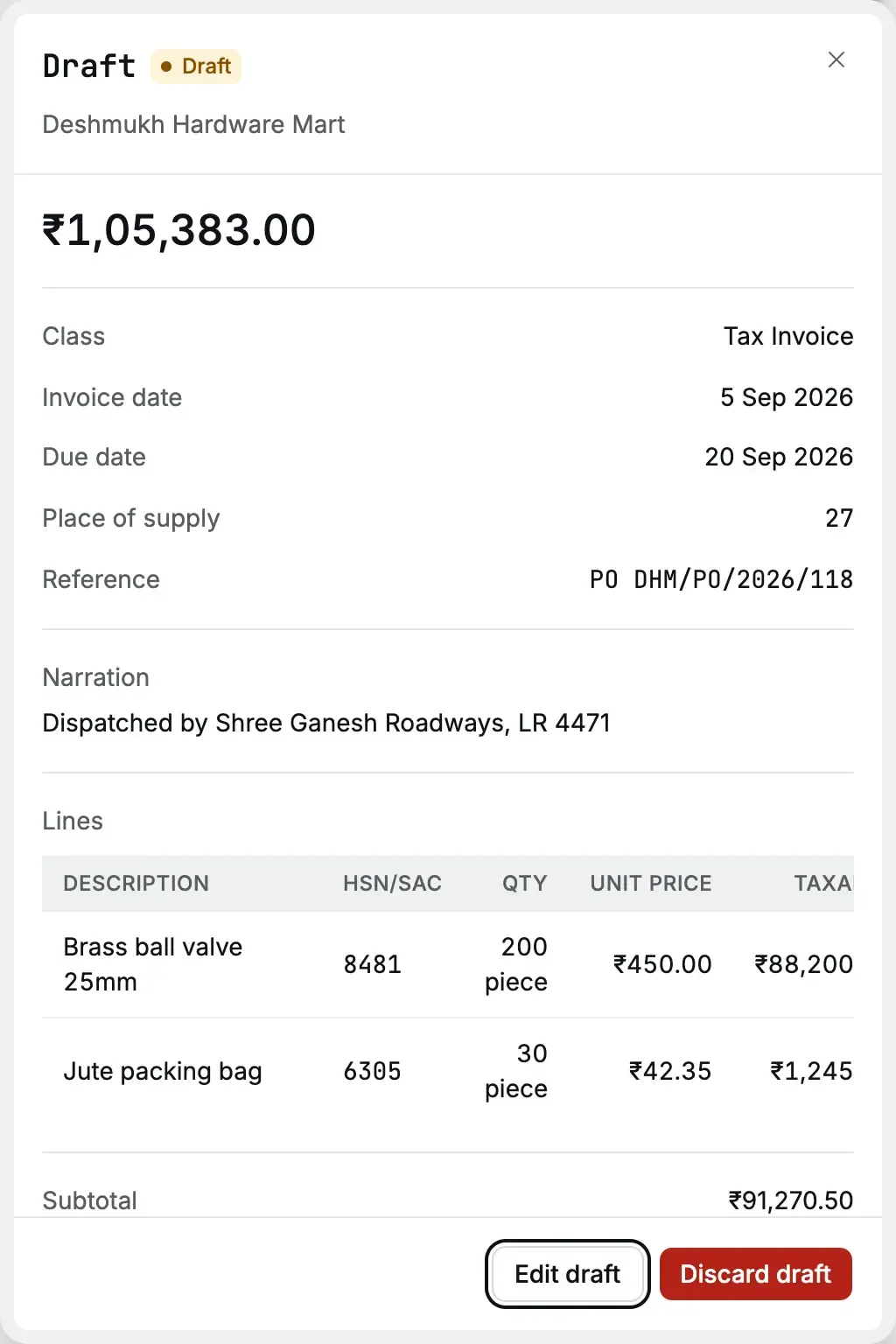
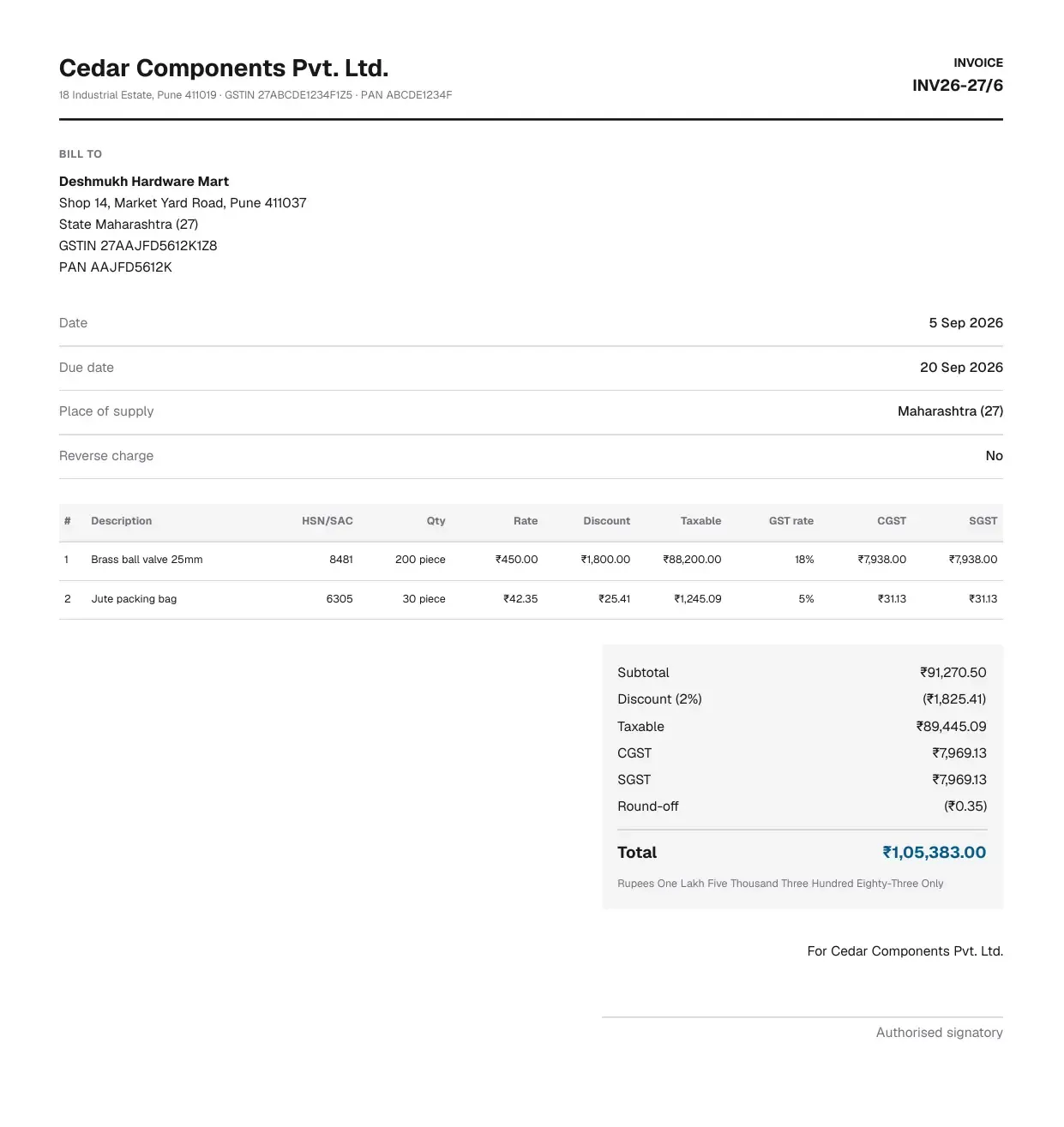
Cedar Components is in Maharashtra. On 5 Sep 2026 it sells 200 brass ball valves at ₹450 and 30 jute packing bags at ₹42.35 to Deshmukh Hardware Mart of Pune, with a 2% trade discount.
Open a new invoice
In Invoices, click New. The editor is laid out like the printed invoice: the customer beside the invoice’s details, then the item lines, then the narration beside the totals. The number is given when you post (Numbered when posted).
Choose the customer
In Customer, type part of the party name and choose it. Customers are listed first. Edernal Books shows the party’s address, state and GSTIN (GST registration number), or Unregistered, under the name. If the address is wrong, click Edit party to correct the party itself. If you can read reports, the party’s Balance shows in a shaded strip under the address, with the balance After this invoice.
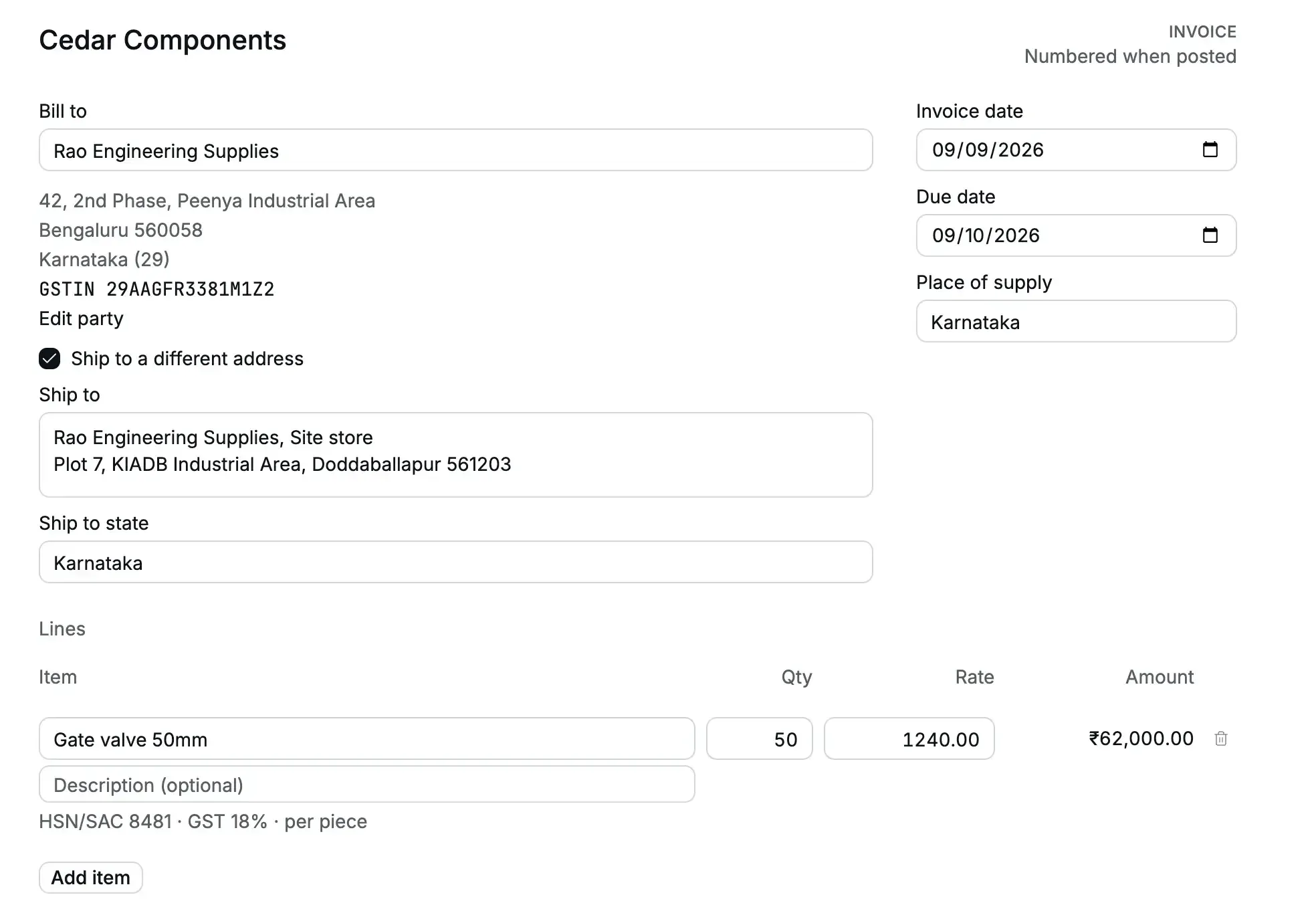
Ship to says Same as billing. If the goods go to another address, click Change under it, type the delivery address in the box that opens below and check the state under it. The invoice then prints both a Bill to and a Ship to block. Same as billing removes the delivery address again.
Check the dates and place of supply
Invoice date starts at today and Terms at Due on receipt. Choose Net 15, Net 30, Net 45 or Net 60 to set Due date that many days after the invoice date, or pick a due date yourself: Terms then shows Custom. Only the due date is saved, and a draft reopens on the terms its dates match.
Place of supply fills from the party’s state and shows as, for example, Maharashtra (27) · from the customer. Click Change to pick another state; Use the customer’s state puts the party’s back. It decides the tax:
| Place of supply | Tax on the invoice |
|---|---|
| Same state as your organization (Maharashtra for Cedar Components) | CGST and SGST, each half the rate |
| Any other state | IGST at the full rate |
Edernal Books does not change the place of supply when you add a ship-to address. Set it yourself by the GST place-of-supply rules. For goods delivered to another state, especially for an unregistered customer, the delivery state can be the place of supply. Check with your CA when the bill-to and ship-to states differ.
Add the lines
Under Items, choose an Item in the numbered row. Below the item, Edernal Books shows its HSN or SAC code (the GST classification code for goods or services), and the unit shows under Qty. Enter the Qty (a whole number from 1 to 1,000,000). Rate fills from the item; you can change it for this invoice. The GST column starts at the item’s rate; for a taxable item you can pick another rate valid on the invoice date. Any other item shows its class (for example Exempt or Nil-rated) instead, which only the item can change. The line prints the item’s name.
Click Add line under the rows for each further line. Click the bin icon to remove a line. On a phone or a narrow window each line is a card.
To add several items at once, click Bulk add beside Add line. The list shows ten items; type to find others by name or HSN/SAC. Tick items with a click, or with the arrow keys and Enter. A ticked item shows its quantity: use − and +, type a number, or press + and − on the keyboard while the search box is empty. The footer shows how many items you ticked and what they come to before discount and tax. Click Add lines or press Ctrl+Enter (⌘+Enter on a Mac). Each item becomes a line at its saved price, and empty lines are filled first. An invoice holds up to 100 lines.
Add a discount, reference and narration
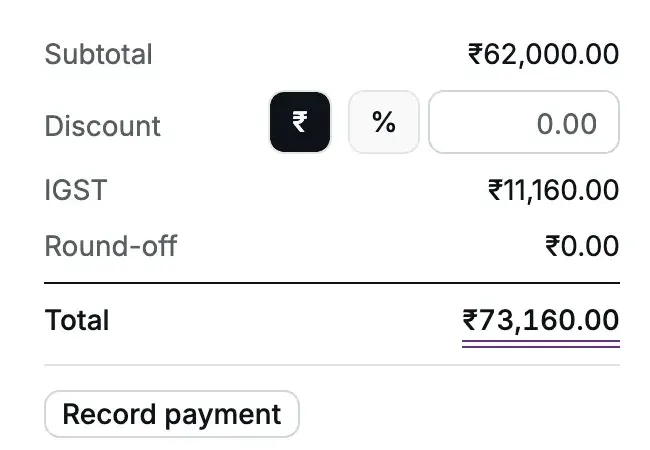
Press Add discount in the totals, choose ₹ for a discount amount or % for a percentage of the subtotal, and type it; the discount shows beside it. Any Invoice fields your organization added sit beside the dates, such as a vehicle or job number, and print when filled in. Under More details, Reference takes the customer’s PO number, which prints on the invoice, and Narration (a free-text note) stays in the books and does not print. An invoice that already holds any of these opens with them showing.
How the totals are worked out
The totals panel asks the server for the same figures that posting will use, so what you see is what posts.
| Step | Deshmukh invoice |
|---|---|
| Subtotal (quantity × rate) | ₹90,000.00 + ₹1,270.50 = ₹91,270.50 |
| Discount 2%, shared across the lines in proportion to their value | (₹1,825.41): ₹1,800.00 on the valves, ₹25.41 on the bags |
| Taxable value | ₹89,445.09 |
| CGST: 9% of ₹88,200.00 plus 2.5% of ₹1,245.09 | ₹7,938.00 + ₹31.13 = ₹7,969.13 |
| SGST: the same | ₹7,969.13 |
| Round-off to the nearest rupee | (₹0.35) |
| Total | ₹1,05,383.00 |
Each tax (CGST, SGST, IGST) is rounded to the paisa on its own running total, so the lines always add up to the invoice tax. The total is then rounded to whole rupees, and the difference posts to the Round Off account.
The discount is a trade discount (a price cut agreed on the invoice), so it lowers the taxable value. It is not posted to a separate discount account.
Inter-state example
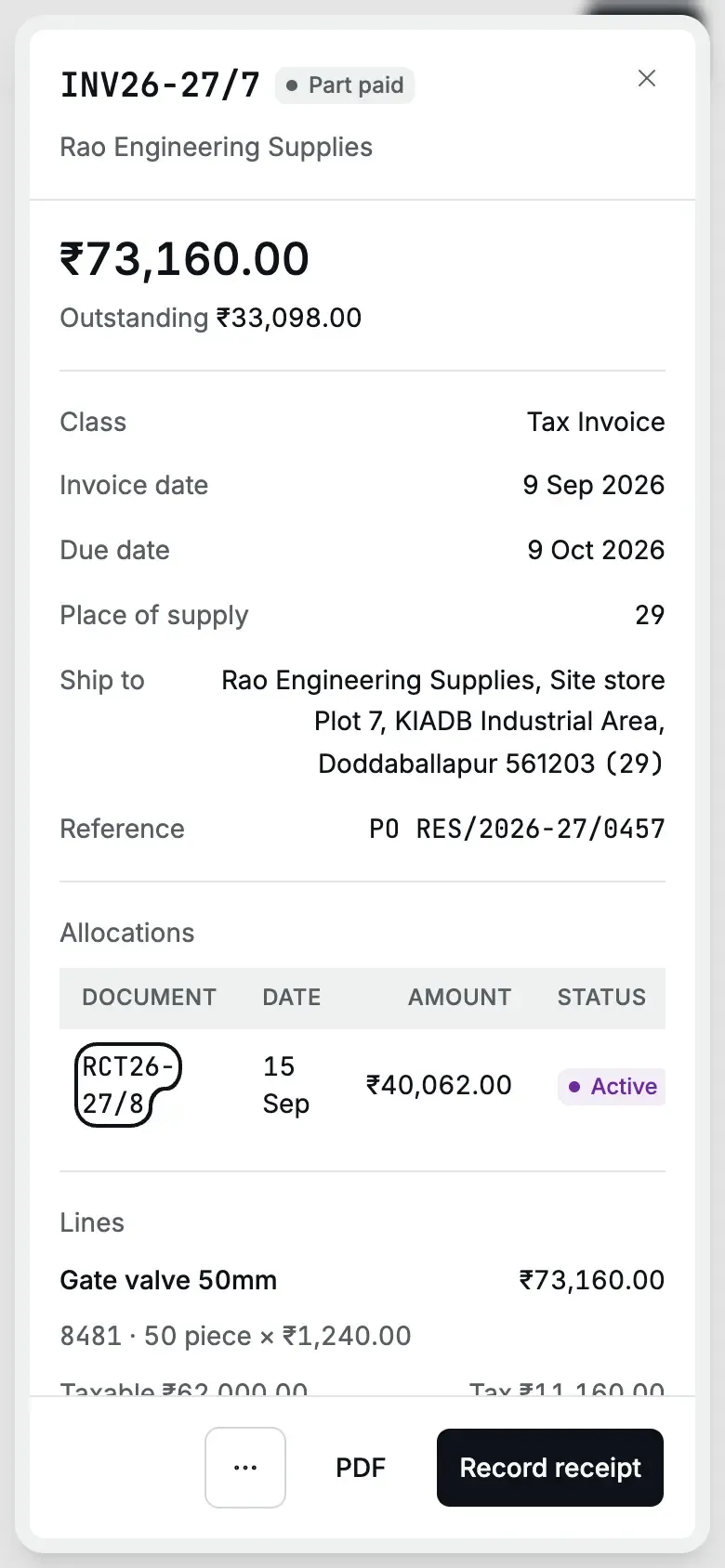
On 9 Sep 2026 Cedar Components sells 50 gate valves at ₹1,240 to Rao Engineering Supplies in Bengaluru, Karnataka, delivered to its Doddaballapur site store. Place of supply is Karnataka, so the invoice carries IGST at 18%.
Save a draft or post
- Save draft keeps the invoice without a number and without touching your books. The editor stays open on the draft. Payment lines are not saved with a draft.
- Post (or ⌘/Ctrl + Enter) numbers the invoice, posts it to your books and adds it to the customer’s balance. The toast says, for example, “Invoice INV26-27/6 posted”. The posted invoice opens with Print, Download PDF and the actions for that invoice.
Edit a draft
Open the draft from the register and click Edit draft. Change what you need, then Save draft again or Post. To delete a draft, click Discard draft, then confirm the deletion. A discarded draft cannot be recovered.
Invoice numbers
An invoice is numbered only when it posts, for example INV26-27/6: the prefix from your organization settings, the financial year (April 2026 to March 2027) and a running number. Numbers run in the order you post, not by invoice date, and each financial year starts again at 1. A draft, a discarded draft or a refused post uses no number. A cancelled invoice keeps its number.
The invoice record
Click an invoice in the register to open its record on the right. Press the Up or Down arrow key to step to the previous or next invoice.
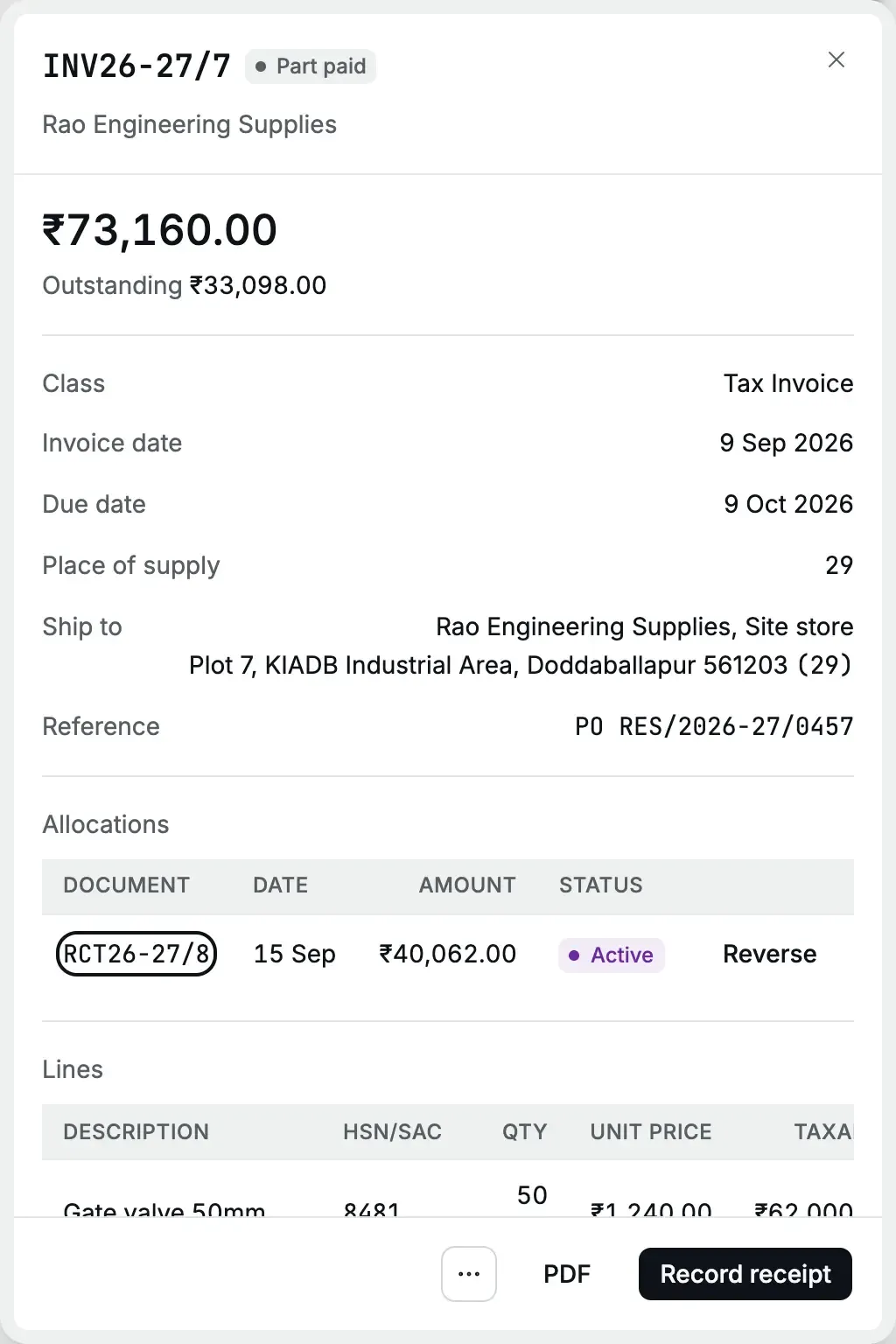
The record shows:
- the total and, once posted, Outstanding: what the customer still owes on this invoice;
- Class: Tax Invoice when any line carries GST, otherwise Bill of Supply (exempt and nil-rated items, which carry no GST, or an organization without a GSTIN);
- Place of supply as the state name and code, for example Maharashtra (27);
- Credit notes posted against it, and Allocations: every receipt, credit note or advance matched to it (see Apply credit);
- each line with taxable value, CGST, SGST, IGST and line total, then the totals.
The footer has:
| Button | Does |
|---|---|
| Record receipt | Opens a receipt against this invoice for the outstanding amount (see Receipts) |
| Opens the invoice PDF in its own tab, to print | |
| Download PDF | Saves the invoice PDF file; the page stays where it is |
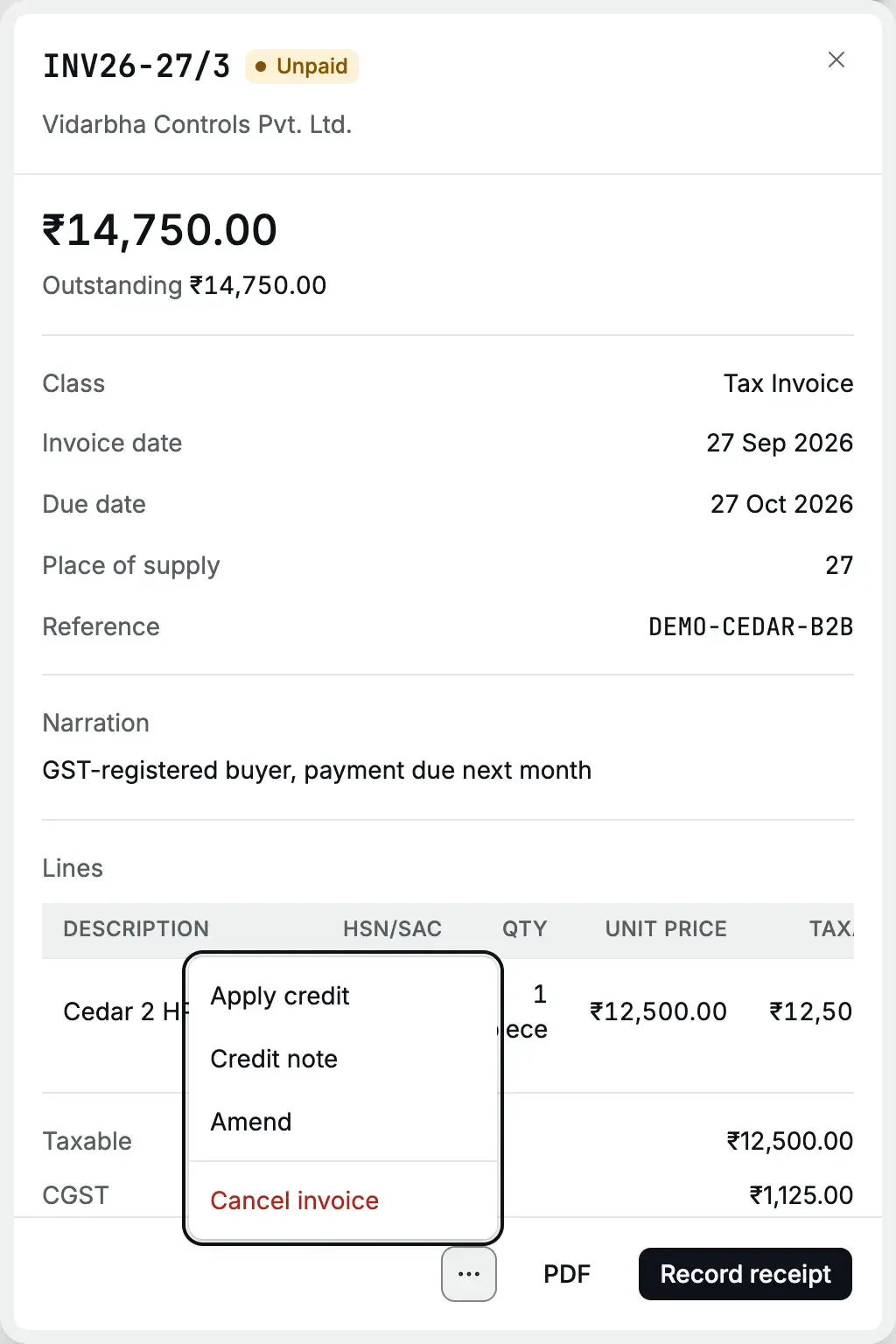
| ⋯ (More actions) | Apply credit, Credit note, Amend, Cancel invoice |
E-invoicing and the IRN
When e-invoicing is connected in Settings → Organization, posting an eligible invoice also requests its Invoice Reference Number (IRN). The invoice can be posted while its IRN is still missing. IRN needed means you must resolve the displayed problem and choose Get IRN before you can print, download or send it. Do not create a second invoice to retry the request. Once issued, the PDF includes the IRN and signed QR code.
Cancel or amend the invoice through Edernal. Edernal cancels its IRN on the portal in the same step. If the portal refuses or does not answer, the invoice stays posted. The E-invoice section shows the cancellation deadline. After that deadline, use a credit note instead.
If the section says IRN cancel unconfirmed, cancel the invoice again to finish it. Printing and sending stay blocked until the result is confirmed. If it says IRN cancelled while the invoice is still posted, cancel the invoice too. These steps also apply to credit notes that carry an IRN.
Print or download the PDF
Click Print. Your browser opens the invoice PDF in its own tab; press Ctrl+P there, or use the viewer’s print button, and only the invoice prints. Click Download PDF to save the file instead. The page stays where it is. On a phone, both show as icons only.
The heading is Tax Invoice when any line carries a GST rate, including mixed taxable and exempt supplies; otherwise it is Bill of Supply for exempt, nil-rated or non-GST supplies, or an organization without a GSTIN.
The PDF shows your organization’s name, address, GSTIN and PAN (Permanent Account Number), the Bill to and Ship to blocks, date, due date, place of supply, reverse charge (No: you, not the buyer, pay this GST), the reference and any Invoice fields that hold a value, each line with HSN or SAC, quantity, rate, discount, taxable value, GST rate and tax (amounts print without ₹ in each cell; “Amounts in ₹” is stated once above the table), the totals, the total in words, and a signature block. A cancelled invoice prints CANCELLED.
Counter sale (paid now)
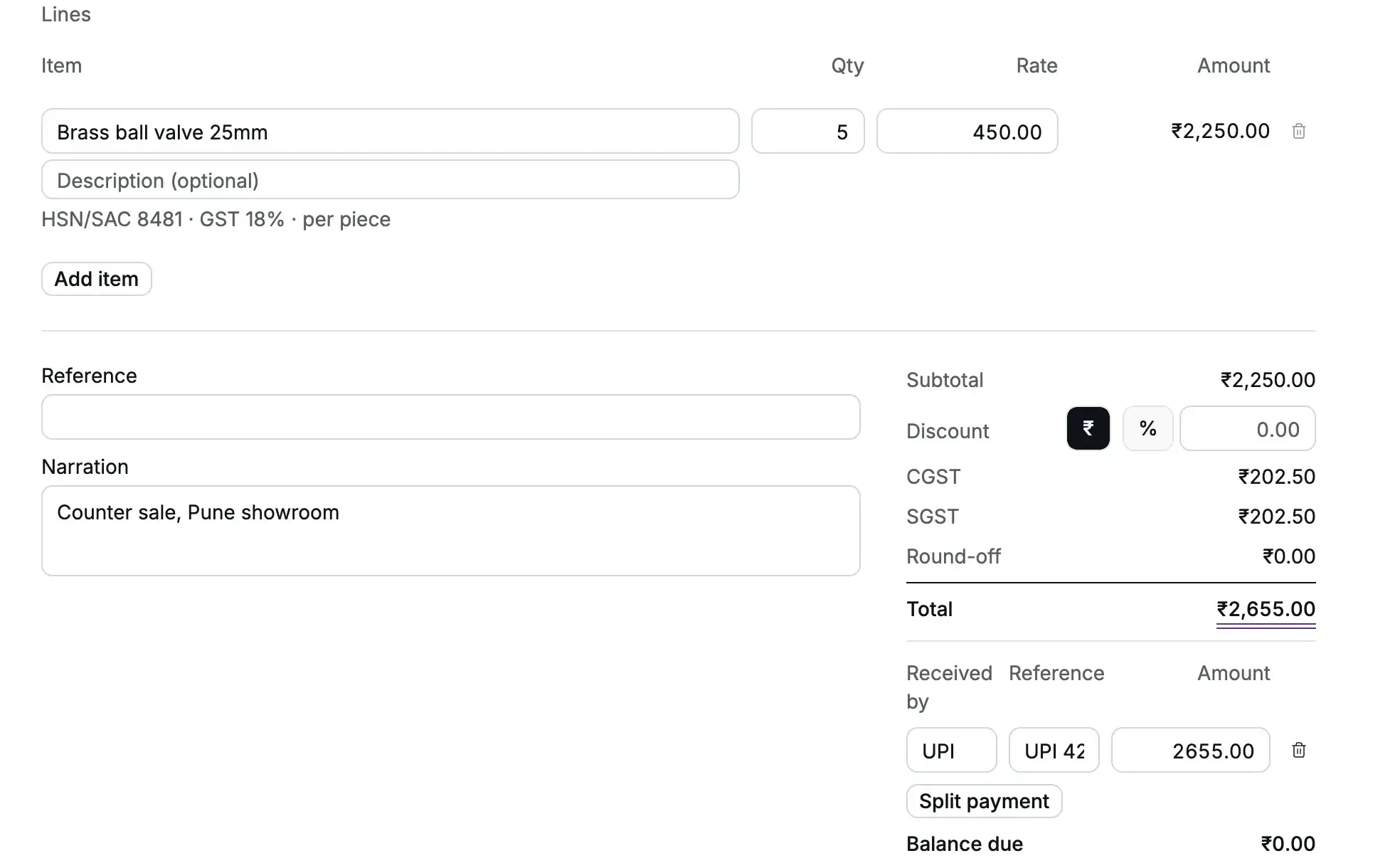
When the customer pays at the counter, a counter sale, record the payment on the invoice itself.
Fill the invoice
Choose the party, for example a Walk-in customer party you keep for counter sales, and add the lines.
Record the payment
Under the totals, tick Payment received now. Choose how the money came in, the payment method (Cash, UPI, Card or Bank transfer), check the amount (it starts at the invoice total) and type the UPI, cheque or card reference under it.
Split if needed
If the customer pays part in cash and part by UPI, click Split with another method and add up to four payments. Balance due shows what is left on credit, and the footer shows it beside the total.
Post
Click Post. The toast reads, for example, “Invoice INV26-27/8 posted · ₹2,655.00 received”. Edernal Books posts the invoice and one receipt for each payment, matched to the invoice.
The payments cannot add up to more than the invoice total: “Received cannot exceed the invoice total”. An Operator needs both invoice and receipt posting rights, which the Operator role has.
What happens in the books
When you post INV26-27/6, Edernal Books writes this entry. Each line is a debit or credit (Dr or Cr), the two equal sides of every entry. Accounts Receivable is the receivable control account that holds what all customers owe. The Output Payable accounts hold the output tax, the GST you collect and owe the government.
| Account | Debit | Credit |
|---|---|---|
| Accounts Receivable (Deshmukh Hardware Mart) | ₹1,05,383.00 | |
| Round Off | ₹0.35 | |
| Sales | ₹89,445.09 | |
| CGST Output Payable | ₹7,969.13 | |
| SGST Output Payable | ₹7,969.13 |
Each item credits its own income account (here Sales; a service item might credit Service Income). An inter-state invoice credits IGST Output Payable instead of CGST and SGST. A round-off that adds to the total is a credit to Round Off.
The customer’s party ledger (the running list of its entries) shows the invoice as a debit of ₹1,05,383.00. A counter sale also posts a receipt: Dr the payment method’s bank or cash account, Cr Accounts Receivable, so the customer’s balance returns to zero.
Correct a posted invoice
A posted invoice is never edited. Choose the correction that matches what happened:
| Situation | Do this |
|---|---|
| Goods came back, or you agreed a lower price | Post a credit note against the invoice |
| The invoice is wrong (wrong quantity, rate, party or date) | Amend it |
| The sale did not happen | Cancel it |
Amend
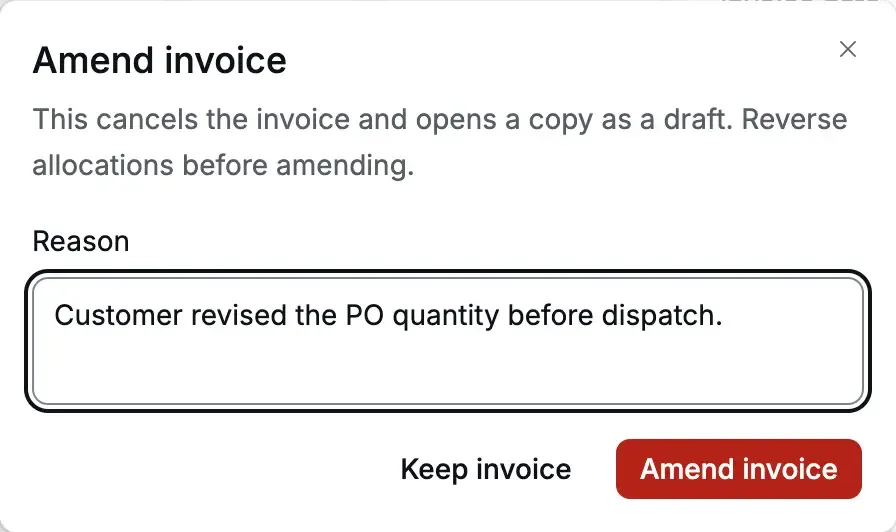
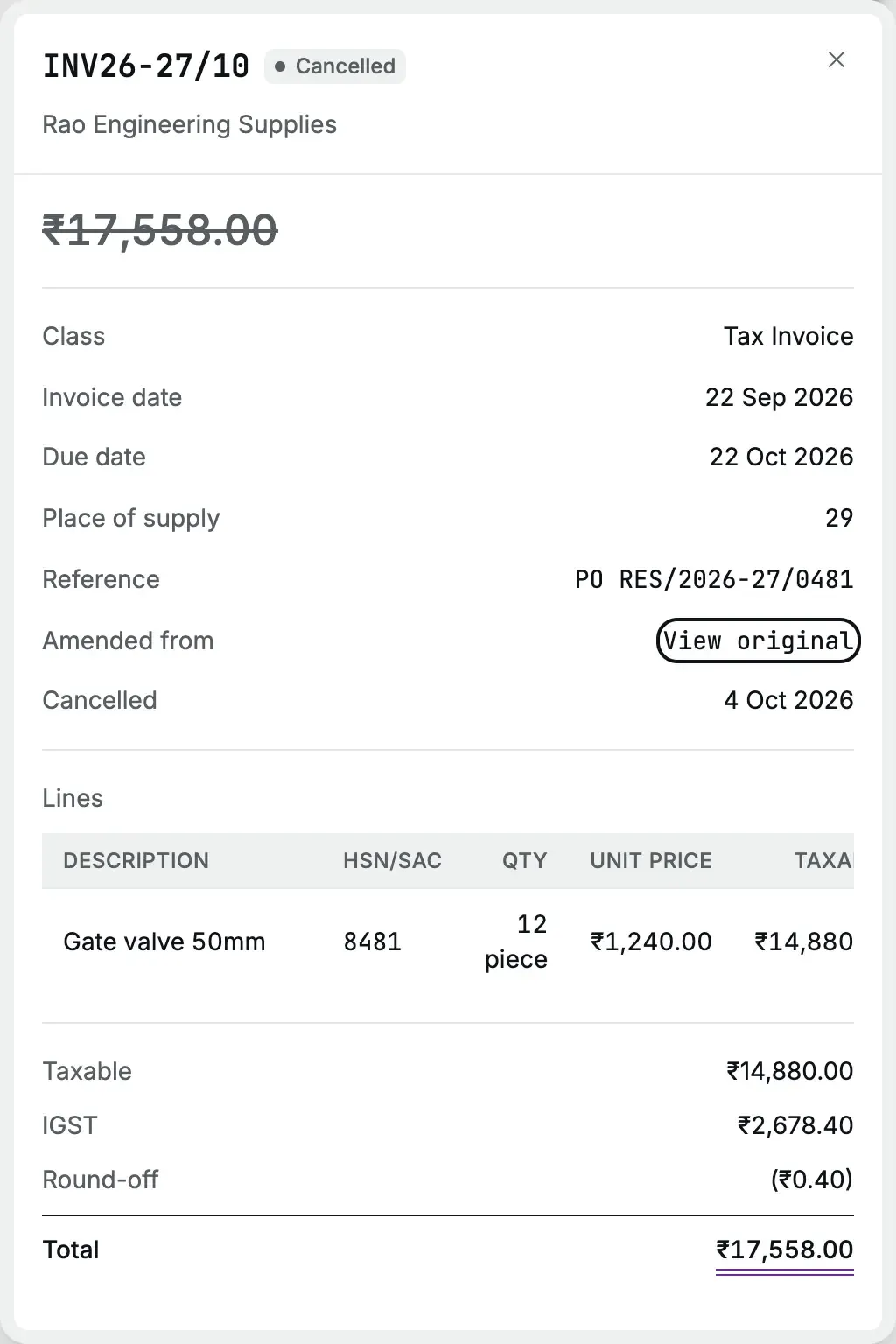
Click ⋯ → Amend, type the reason and click Amend invoice. Edernal Books cancels the invoice and opens a copy as a new draft, with the same date, lines and reference. Fix it and click Post. The new invoice gets the next number and its record shows Amended from → View original.
Cancel
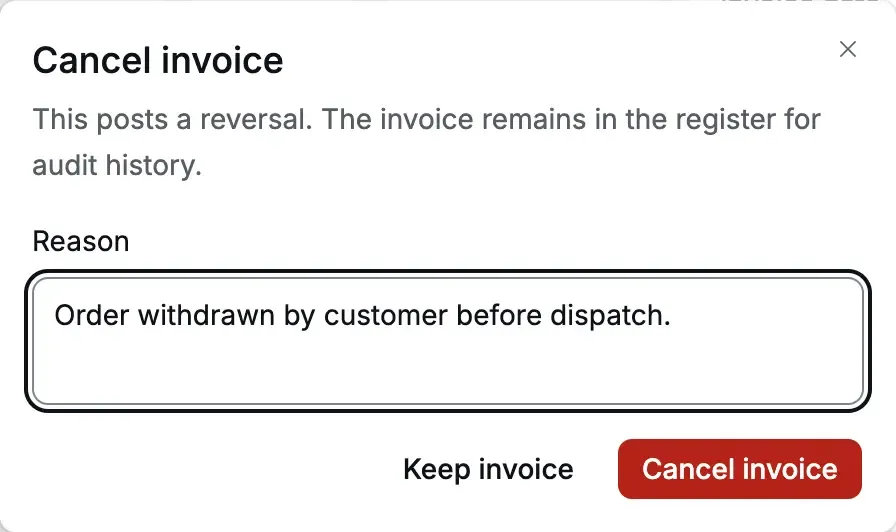
Click ⋯ → Cancel invoice, type the reason and click Cancel invoice. Edernal Books posts a reversal, an equal and opposite entry, of every line of the original entry and removes the invoice from the customer’s balance. The invoice stays in the register, struck through, with the date it was cancelled.
Amend and Cancel appear only when nothing is matched to the invoice. If a receipt, advance or credit note is matched to it:
- Cancel any credit note posted against it first. Otherwise the cancel is refused with “Cancel credit note CN26-27/2 first.”
- Reverse every other allocation in its Allocations list (see Apply credit). Otherwise the cancel is refused with “Reverse allocations from RCT26-27/10 first.”
Common messages
| Message | What to do |
|---|---|
| Choose a party | Pick a customer in Customer |
| Choose the place of supply | Choose a Place of supply (it fills once a party is chosen) |
| Choose an item | Every line needs an item; remove empty lines |
| Quantity must be from 1 to 1,000,000 | Use a whole number. For part quantities, set the item’s unit smaller (for example grams instead of kg) |
| Due date cannot be before the invoice date | Move the due date on or after the invoice date |
| Enter a percentage above 0 and up to 100 | Fix the % discount |
| Discount cannot exceed the invoice subtotal. | Lower the discount |
| An invoice total must be greater than zero. | At least one line needs a price |
| An item has no GST rate effective on the invoice date. | Check the item’s GST rate in Items |
| The tax period is locked through 30 Jun 2026. | The date is in a locked GST period. Use a later date or ask your CA (see Period locks) |
| Books are locked through 30 Jun 2026. Ask for an exception to post on or before that date. | The date is in a locked period. Use a later date or ask your CA for an exception |
| Received cannot exceed the invoice total | Lower the payment amounts |
| This draft changed. Reload it and try again. | Someone else saved the draft. Reopen it and make your change again |
Related pages
- Receipts: collect the money
- Credit notes: returns and price reductions
- Apply credit: use an advance against an invoice
- Party ledger: everything a customer owes
- A month of trading: a worked month of sales
WhatsApp notices and reminders
On a posted Books invoice, the owner, accountant or operator can use ⋯ → Send on WhatsApp, or Send payment reminder when it is overdue. Check the customer’s phone and confirmation before sending. See Invoice notices and payment reminders for bulk reminders, delivery and service prerequisites.