Payments
Pay suppliers against bills or in advance, pay expenses directly, refund customers, and record bank charges and write-offs
A payment records money that goes out: settling a supplier’s bills, an advance before the bill arrives, an expense with no bill, or a refund to a customer. It credits the bank or cash account behind the payment method (a named way money moves, tied to one account) and debits the supplier, the advance or the expense. Debit and credit are the two equal sides of every entry; see debit and credit.
Who can do it: an Owner or Accountant posts (records for good) and cancels payments of every kind; see roles. An Operator posts Advance and Direct payments only, because an Operator cannot see bills. A Chartered Accountant can open payments.
The payment register
Open Purchases → Payments. The register lists payments newest document date first, with Number, Date, Party (the party paid), Kind and Amount. It opens on This month. Search by number, party or reference. The filter icon in the search box offers Date, Status (Posted or Cancelled) and Settlement (Advance, Against open items or Direct).
One line under the filters counts and adds up every matching payment, not only those on screen, for example “8 posted payments · ₹2,40,000.00 · Cash ₹10,000.00 · HDFC NEFT/RTGS ₹2,30,000.00”. It lists each payment method only when there is more than one. The line counts posted payments only, unless you filter Status to Cancelled. It refreshes when you post or cancel a payment, or when you come back to the tab.
Use Export to print or download the filtered register. See Export a list for formats, access and limits.
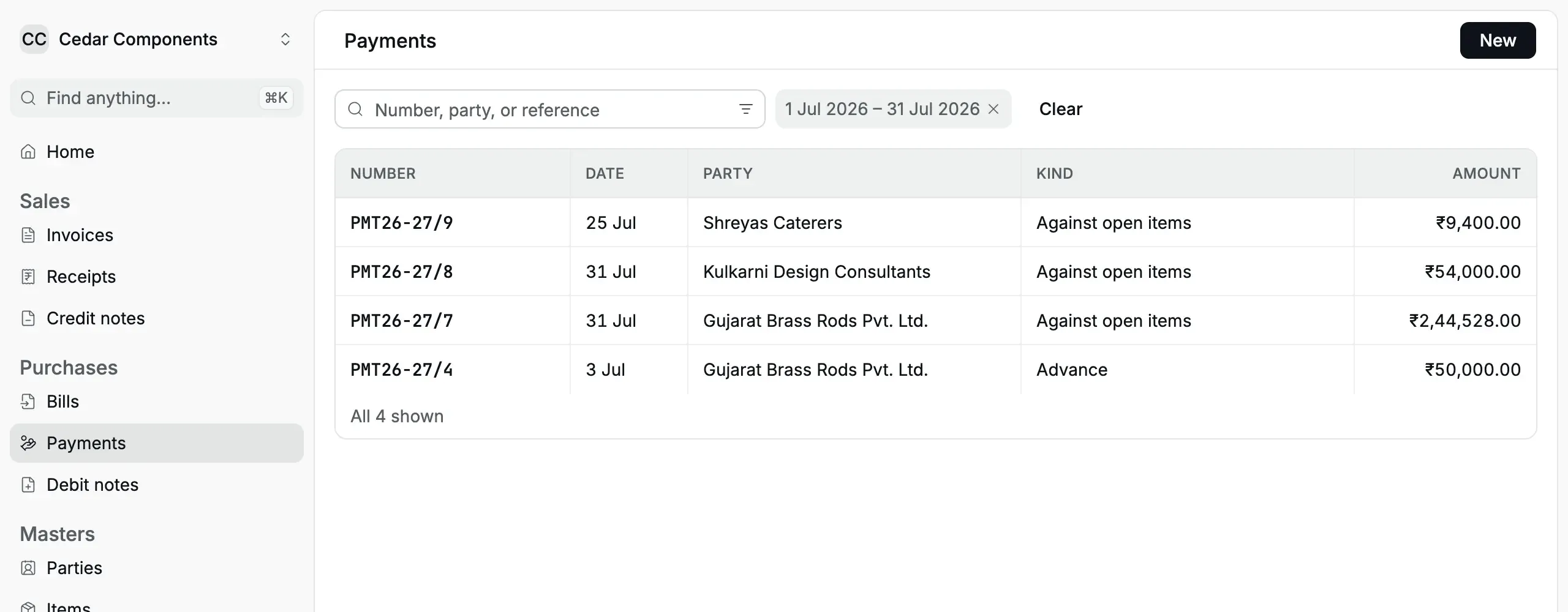
Choose the settlement kind
The settlement kind says what the money is for.
| Kind | Use it when | What it does |
|---|---|---|
| Advance | You pay a supplier before the bill, for example against a purchase order | Holds the money in Supplier Advances until you apply it |
| Against open items | You pay bills you have booked, or refund a customer’s credit notes | Settles the bills or credit notes you choose. Anything left over on a bill payment becomes an advance |
| Direct | You pay an expense that has no bill, such as a courier or a bank fee | Debits the expense or asset account. No supplier balance changes |
The payment method decides the bank or cash account. To add one, see Banking.
Pay against bills
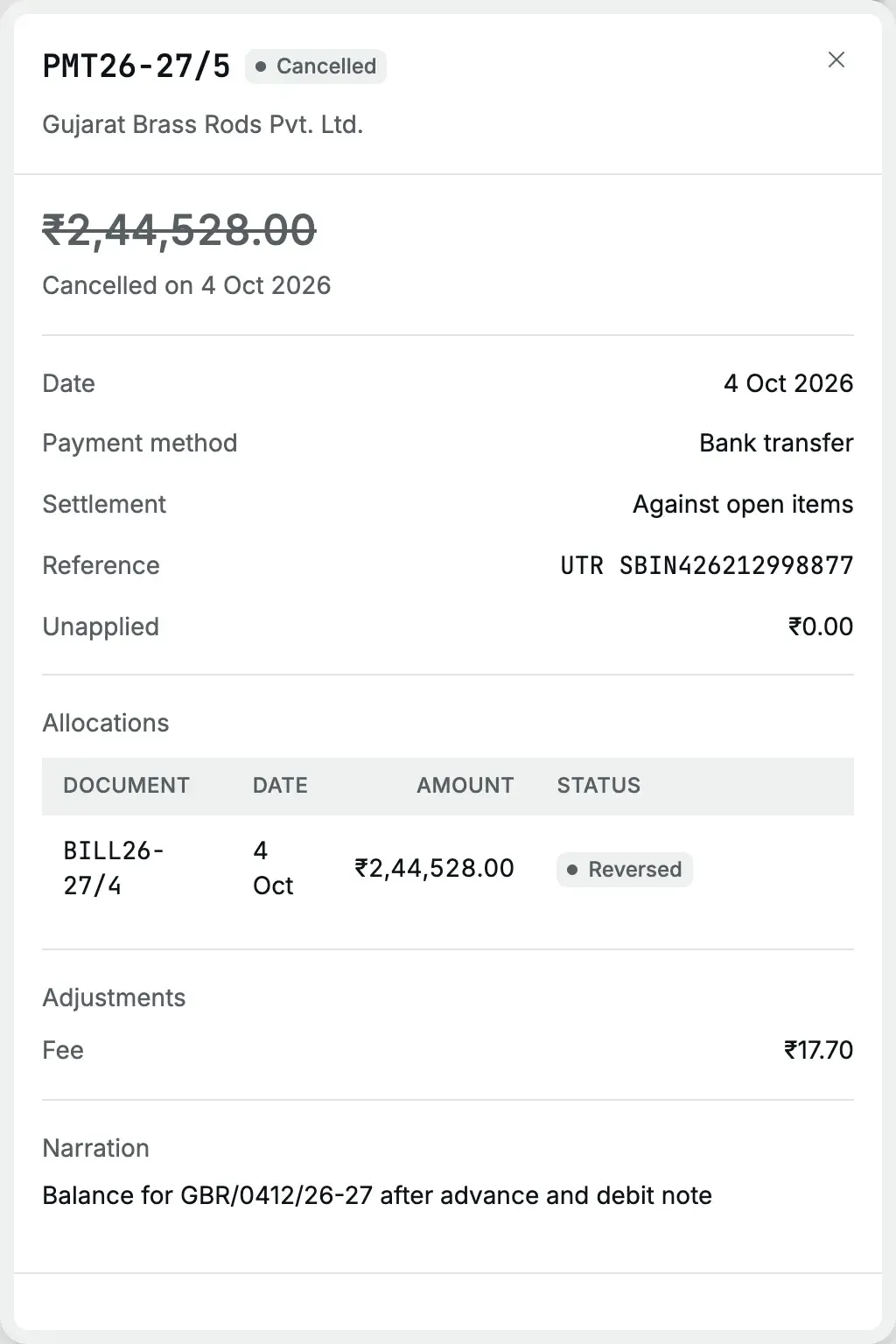
On 31 Jul 2026 Cedar Components pays Gujarat Brass Rods the balance of its brass rod bill: ₹3,06,800 less the ₹50,000 advance and the ₹12,272 debit note, which is ₹2,44,528. The bank also charges ₹17.70 for the NEFT transfer (NEFT, the bank-to-bank transfer system).
Open a new payment
In Payments, click New. The New payment form opens on the right, with the cursor in Party.
Choose the supplier and the method
Choose the Party. Check the Payment method; Bank transfer is the usual default.
Choose Against open items
Click Against open items, then leave Pay against on Bills. The Open bills grid lists the supplier’s bills that still have something outstanding (left to pay), oldest first, with the supplier’s invoice number, bill date and due date.
Type the amount and allocate it
Type the Amount paid. On each bill row, type the amount to settle in Allocate (an allocation matches money to a bill), or click Fill to enter what is left of the payment, up to the bill’s outstanding amount.
Check the totals
Below the grid, Allocated shows the total set against bills and Remaining as advance shows what is left. Any remainder posts as an advance to the supplier.
Add a bank charge if any
In Fee expense account (optional) choose Bank Charges and type the Fee amount. The fee is paid out of the same bank account on top of the amount; it does not settle the bill.
Add the reference and date, then post
Type the UTR (the bank’s Unique Transaction Reference) or cheque number in Reference, a Narration (a narration is your note on the entry), and the Date the bank paid it. Click Post (or ⌘/Ctrl + Enter). The toast reads “Payment PMT26-27/7 posted”. The form closes and the balances refresh.
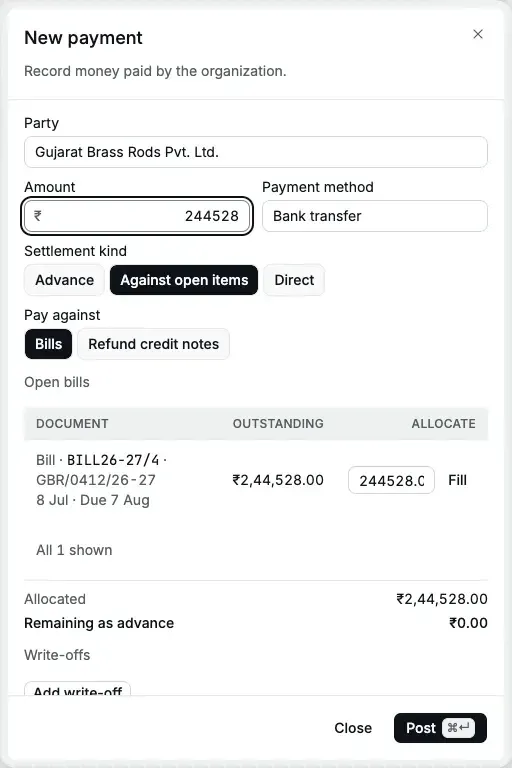
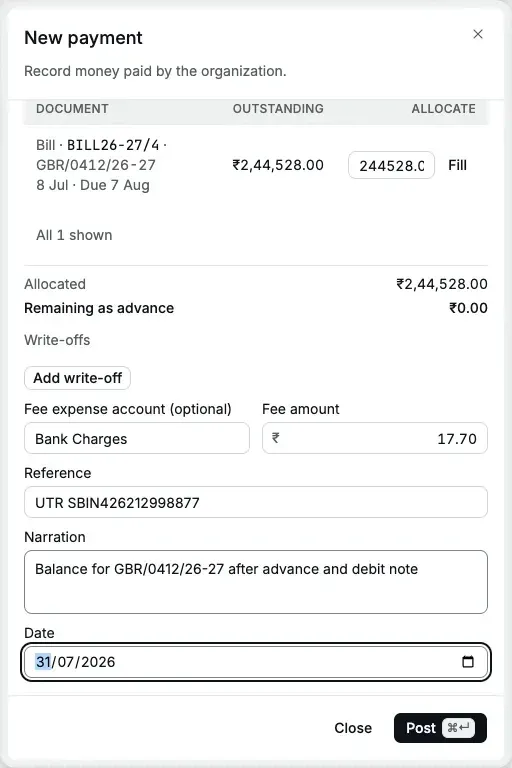
What happens in the books:
| Account | Debit | Credit |
|---|---|---|
| Accounts Payable (Gujarat Brass Rods) | ₹2,44,528.00 | |
| Bank Charges | ₹17.70 | |
| Bank Account | ₹2,44,545.70 |
The bill’s outstanding drops to ₹0.00 and its status becomes Paid. The register and the payment show ₹2,44,528.00; the bank account is credited ₹2,44,545.70 with the fee.
For a bill with TDS (tax deducted at source), pay the Payable after TDS. The bill already deducted the TDS, so the payment takes no TDS section: Kulkarni Design Consultants’ ₹59,000 bill is settled with a payment of ₹54,000.
Write off a small difference
When you pay slightly less than the bill and the supplier accepts it, write the difference off (clear it to an income or expense account) so the bill closes. On 25 Jul 2026 Cedar Components pays Shreyas Caterers ₹9,400 in cash for a ₹9,440 bill; the caterer waives ₹40.
Enter the payment
Choose the party, Against open items, type the Amount ₹9,400 and choose the Cash payment method.
Add the write-off
Under Write-offs, click Add write-off. Choose the Write-off account, here Discount Received (an income account), and type the Amount, ₹40. You can add up to five.
Allocate the whole amount
Click Fill on the bill. With a write-off, the payment plus the write-offs must be allocated in full: Remaining to allocate must show ₹0.00.
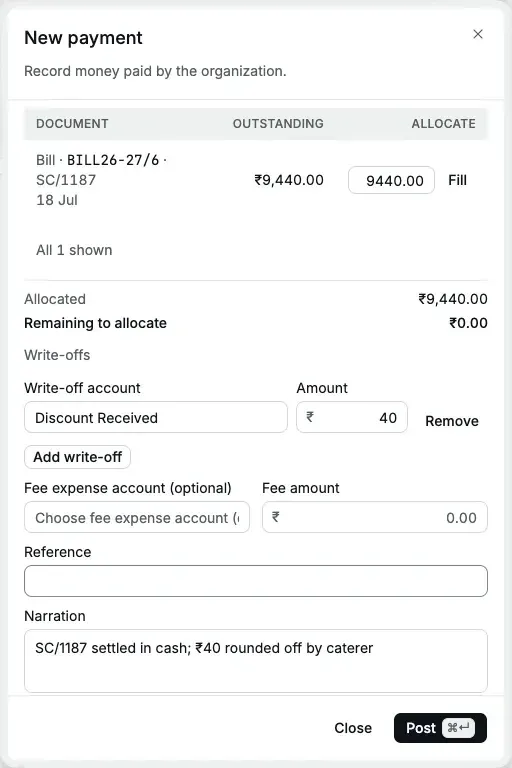
| Account | Debit | Credit |
|---|---|---|
| Accounts Payable (Shreyas Caterers) | ₹9,440.00 | |
| Cash in Hand | ₹9,400.00 | |
| Discount Received | ₹40.00 |
A write-off account must be an active income or expense account. A fee account must be an expense account.
Pay an advance
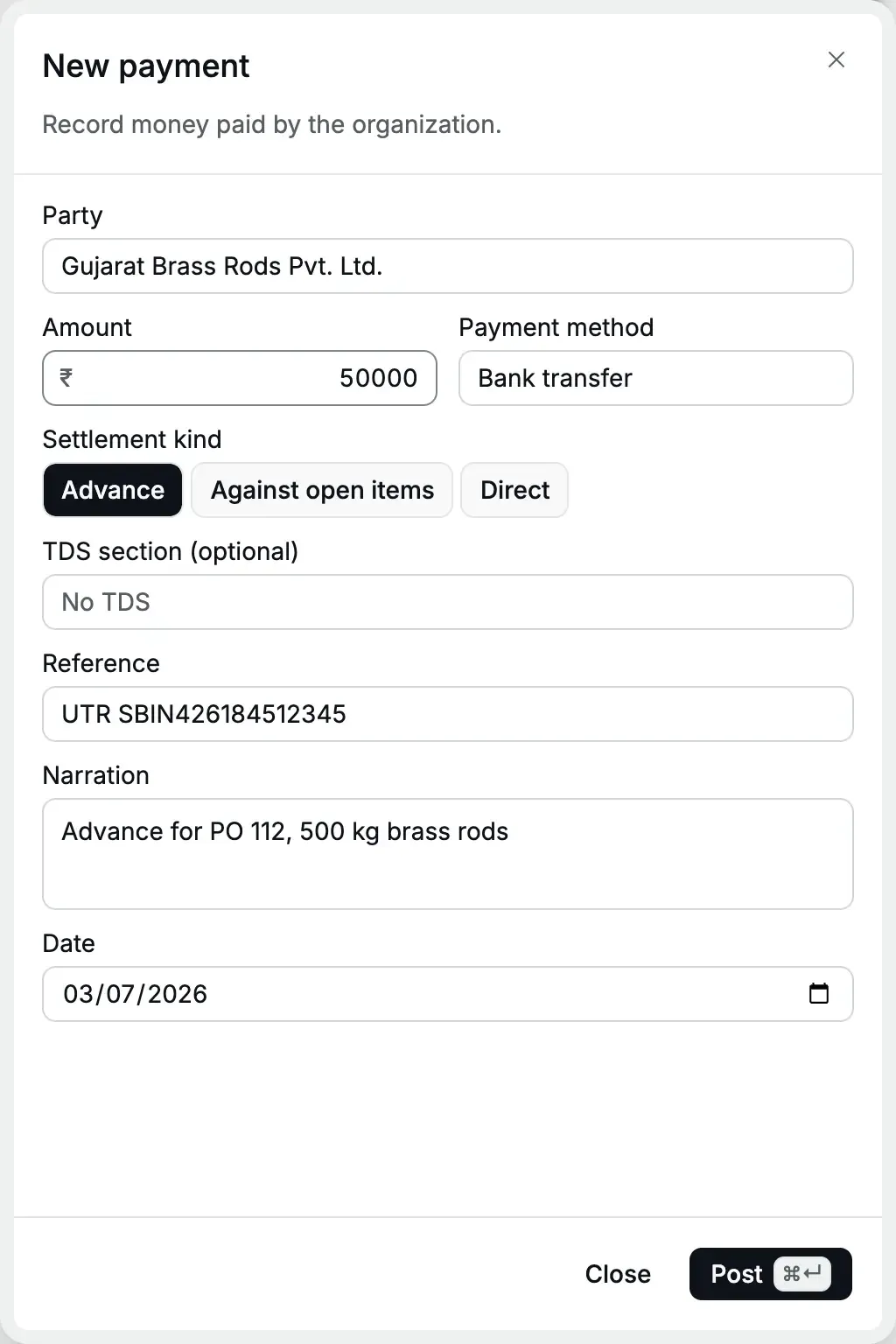
On 3 Jul 2026 Cedar Components pays Gujarat Brass Rods ₹50,000 by NEFT against purchase order 112, before the rods are dispatched.
Fill the party, amount and method
Click New, choose the Party, type the Amount and choose the Payment method.
Leave the kind on Advance
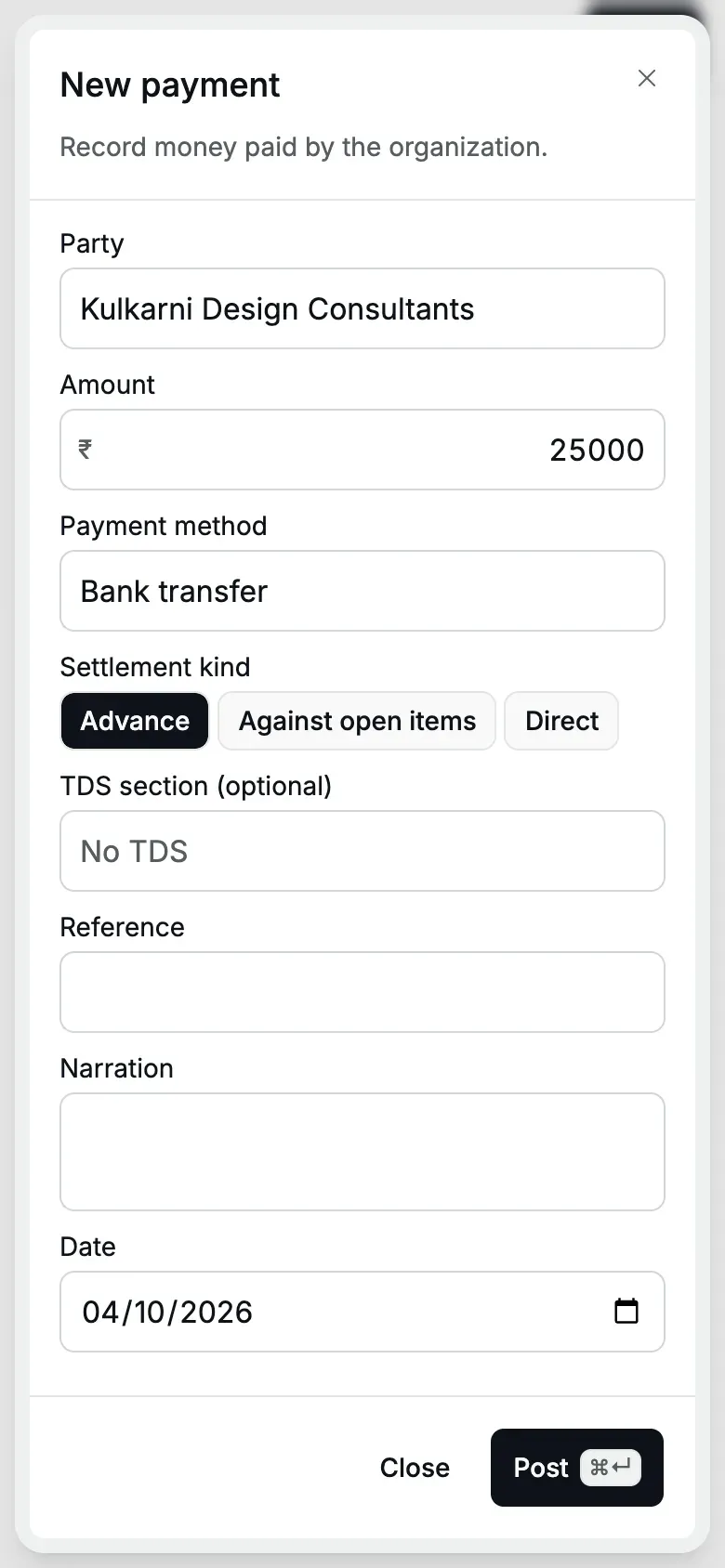
Settlement kind starts on Advance. Leave TDS section (optional) on No TDS for goods.
Add the reference, narration and date, then post
The toast reads “Payment PMT26-27/4 posted”.
| Account | Debit | Credit |
|---|---|---|
| Supplier Advances (Gujarat Brass Rods) | ₹50,000.00 | |
| Bank Account | ₹50,000.00 |
The supplier’s party ledger (the ledger, or running record, of one party) shows ₹50,000.00 Dr: the supplier owes you goods for it. When the bill arrives, apply the advance to it.
TDS on an advance
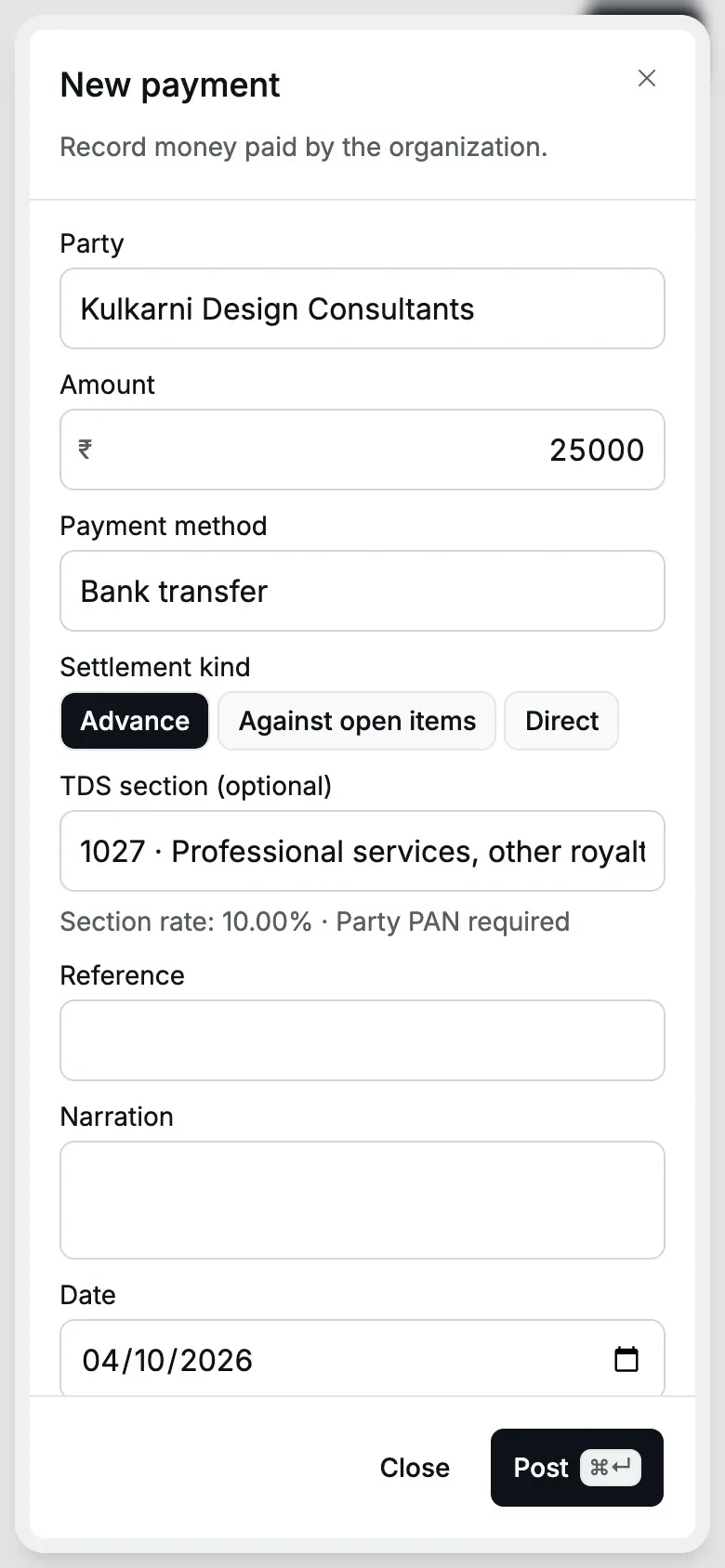
If TDS applies at the time of payment, for example an advance to a consultant, choose the TDS section (the TDS section sets the rate). The form shows the section rate and that the party’s PAN (Permanent Account Number) is required. Type the gross amount in Amount: Edernal Books deducts the TDS from it, pays the rest from the bank and keeps the TDS in TDS Payable (TDS Payable, what you owe the government). A ₹25,000 advance under 1027 at 10% pays ₹22,500 from the bank and credits ₹2,500 to TDS Payable. Net paid shows ₹22,500 before you post.
When the consultant’s bill later arrives, do not choose a TDS section on it for the same amount; see Deduct TDS on a bill.
Pay an expense directly
For a payment with no bill and no supplier balance, such as a courier, a parking fee or a bank charge on its own, choose Direct. Choose the Expense or asset account; the Party is optional. You can also choose a TDS section. No input tax credit (ITC, the GST you paid that you may set against GST you collect) is taken on a direct payment: if the expense has a GST invoice you want to claim, book a bill and pay it instead.
| Account | Debit | Credit |
|---|---|---|
| The expense account | ₹750.00 | |
| Bank Account | ₹750.00 |
Refund a customer
When a customer has a credit note that you will pay back rather than set off, refund it with a payment:
Choose the customer
Click New, choose the customer as Party and click Against open items.
Choose Refund credit notes
In Pay against, click Refund credit notes. The grid lists the customer’s Unapplied credit notes.
Allocate the refund
Type the Amount and allocate it to the credit notes. The amount must equal the total allocated exactly. You can also open the credit note and click Refund.
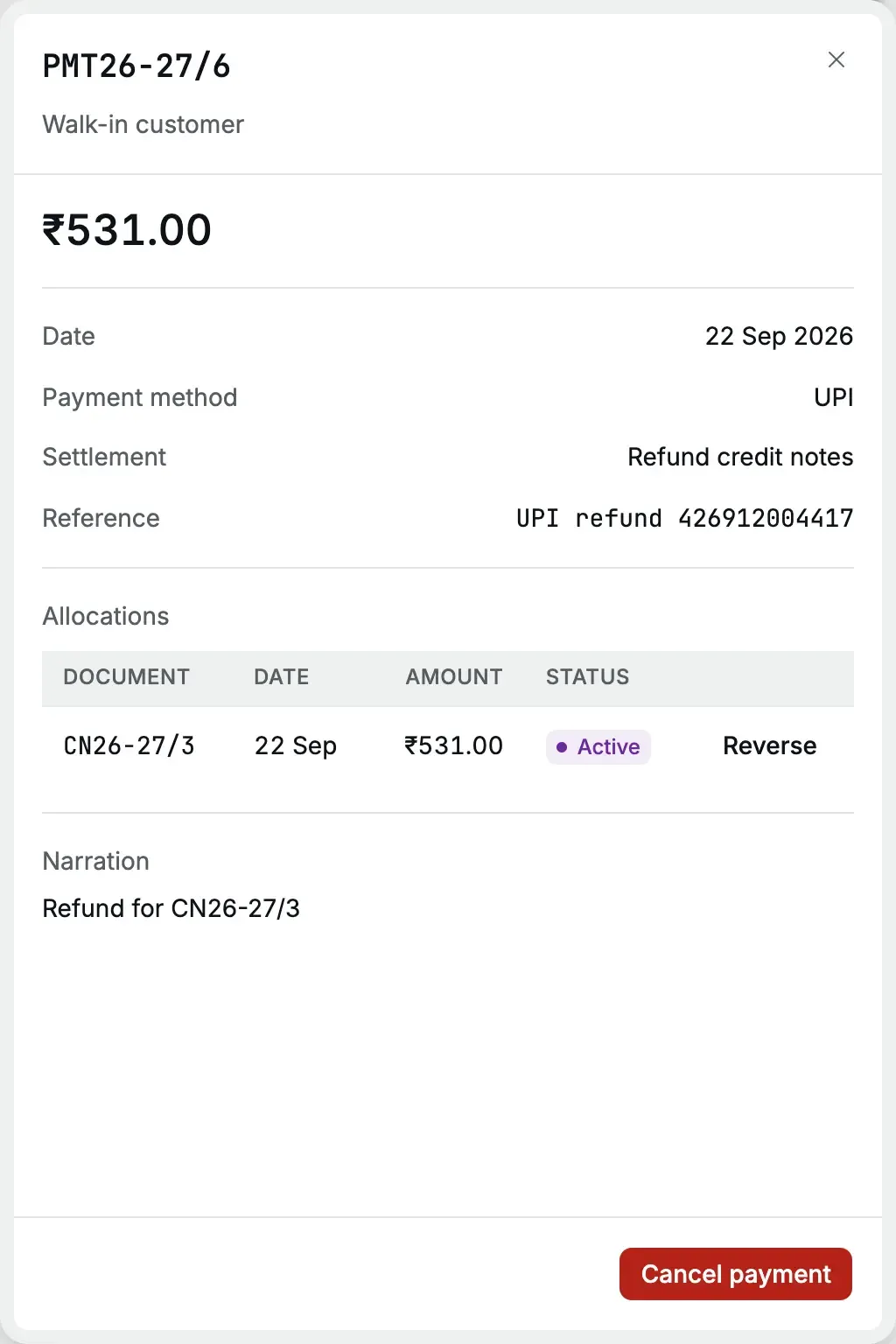
A refund posts Dr Accounts Receivable (the customer’s receivable, what customers owe you), Cr the bank or cash account. It takes no TDS, write-off or fee.
The payment record
Click a payment to open its record: amount, date, payment method, settlement, reference, Unapplied (what is left to apply, for an advance), the Allocations, any Adjustments (fee or write-off) and the narration. Print opens the payment voucher PDF in its own tab, where Ctrl+P prints only the voucher. Download PDF saves it.
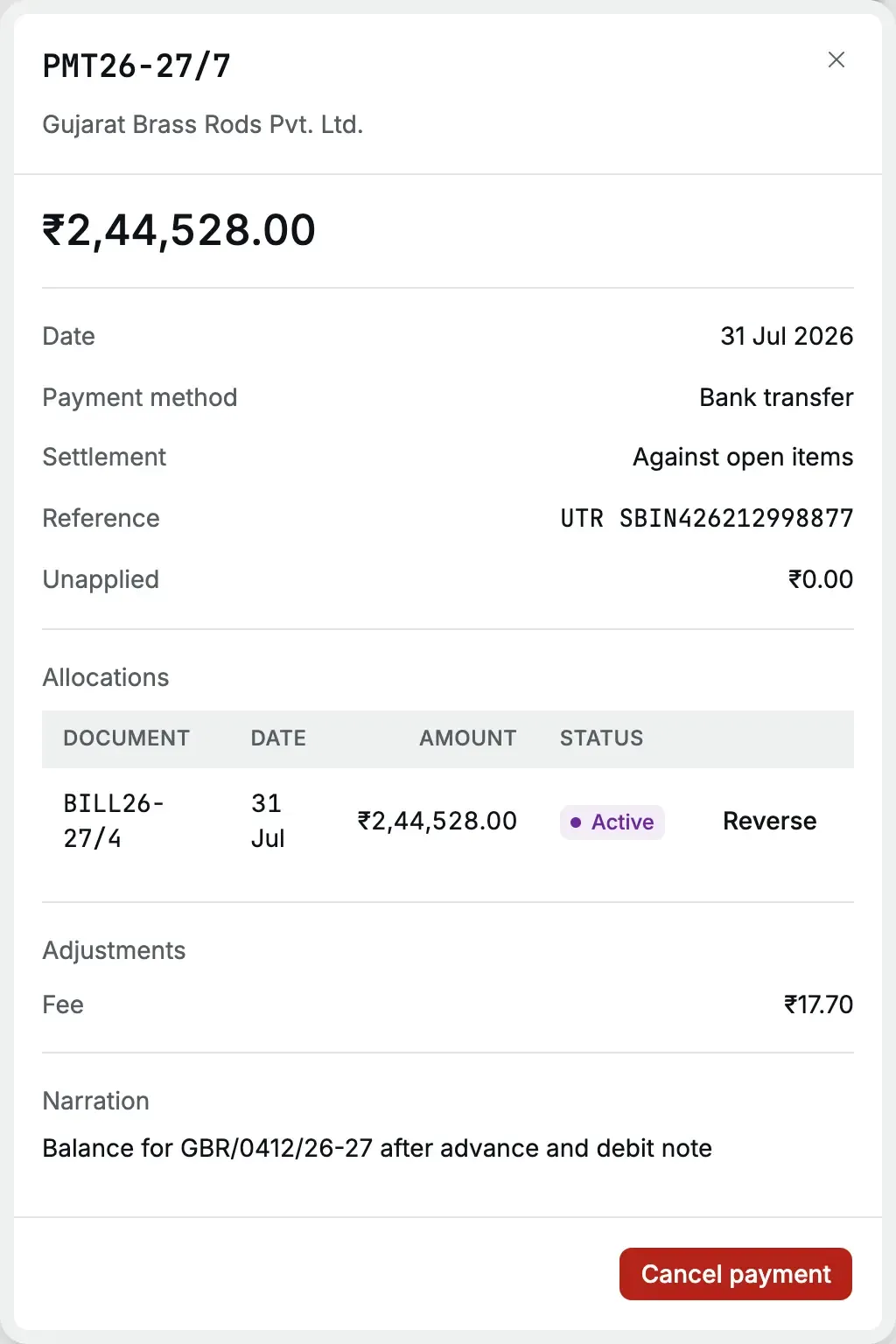
To undo one allocation without cancelling the payment, click Reverse next to it, give a reason and confirm. The amount goes back to the supplier as an advance, ready to apply elsewhere.
Cancel a payment
Cancel a payment that was entered twice, to the wrong party or with the wrong date or amount. Then enter it again correctly.
Open the payment
Open the payment from the register and click Cancel payment.
Give the reason
Type the Reason, for example “Wrong date: bank debited this on 31 Jul 2026”, and click Cancel payment. The toast reads “Payment cancelled”.
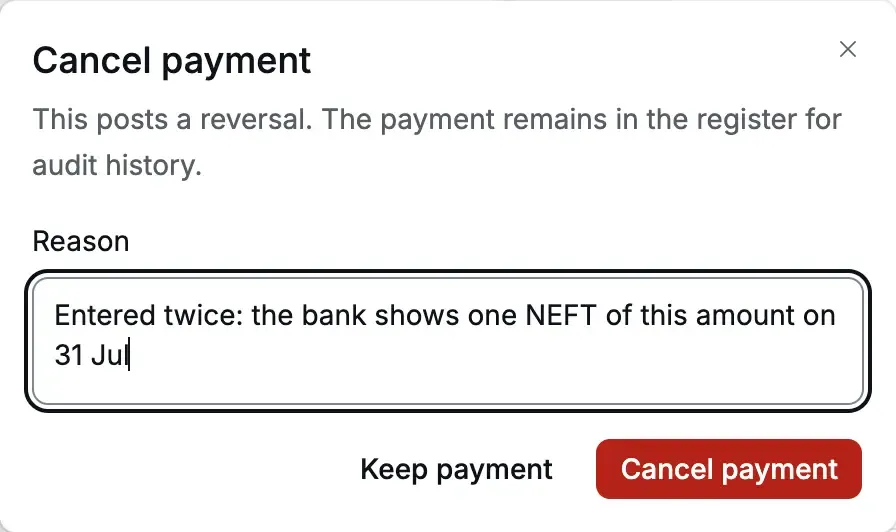
Cancelling posts a reversal (an equal and opposite entry) of the payment’s entry, fee and write-offs included, dated on the payment date, and reverses its allocations. The bills it paid become open again. For a customer refund, cancelling restores the credit notes’ unapplied amounts. The payment stays in the register marked Cancelled. A books lock on the payment date requires an exception before you can cancel it.
On a phone
The payment form works the same on a phone. Fields stack in one column, and Post and Close stay at the bottom.
Common errors
| Message | What it means and what to do |
|---|---|
| Choose a party | Advance and Against open items need a party |
| Choose an expense or asset account | A Direct payment needs the account it pays for |
| Allocated amount cannot exceed the payment | The Allocate amounts add up to more than the Amount |
| Allocate the full payment including write-offs | With a write-off, allocate the amount plus the write-offs in full |
| Refund amount must equal the allocated credit notes | For a refund, the Amount and the allocations must match |
| Choose a write-off account | A write-off row has an amount but no account |
| Choose an expense account and enter a positive fee | Fill both Fee expense account and Fee amount, or neither |
| Choose a party to deduct TDS | A Direct payment with a TDS section needs the party |
| Record the party’s PAN before deducting TDS. | Add the PAN or GSTIN to the party |
Related pages
- Bills: book what you owe, apply advances
- Debit notes: reduce a bill before you pay it
- Purchase cycle: advance, bills, debit note and payments end to end
- Party ledger: check what you owe each supplier