Credit notes
Reduce a posted invoice for a sales return or a price reduction, and refund the customer when the invoice is already paid
A credit note reduces a posted invoice (one already recorded in your books). Use it when the customer returns goods, when you agree a lower price or a post-sale discount, or when you charged too much. It reverses the income and the GST (Goods and Services Tax) for the amount you credit, and lowers what the customer owes.
Use a credit note when the invoice itself was right but the sale changed afterwards. If the invoice was wrong from the start, amend it instead. A fee invoice from School is corrected in School, with a concession, so Credit note does not appear on it.
Who can do it (see roles): an Owner or Accountant posts and cancels credit notes. A Chartered Accountant can read them. An Operator cannot see credit notes.
The credit note register
Open Sales → Credit notes. The register lists posted and cancelled credit notes with Number, Type, Against (the invoice), Party, Date, Total, Unapplied and Status. Unapplied is the part of the note not yet used against an invoice or refunded, its unapplied credit.
You do not start a credit note from this register. Start it from the invoice it corrects.
Use Export to print or download the filtered register. See Export a list for formats, access and limits.
Post a credit note
On 18 Sep 2026 Deshmukh Hardware Mart returns 10 of the 200 brass ball valves on INV26-27/6 because they failed a leak test. The invoice price was ₹450 less the 2% discount, so the taxable value (the value before GST) to credit is 10 × ₹441 = ₹4,410.
Open the invoice
Set the note date
Note date starts at today. Set the date of the return, 18 Sep 2026. It cannot be before the invoice date.
Enter the taxable amount per line
Source lines lists each line of the invoice with its HSN or SAC code (the GST classification code), Left to return (the taxable value not yet credited), GST rate and tax. In Amount, type the taxable value to credit on each line you are reducing, here 4410 on the valve line. Click Full to credit a whole line. Leave the other lines empty.
Give the reason
Post
Click Post note. The toast reads “Credit note posted” and the note opens.
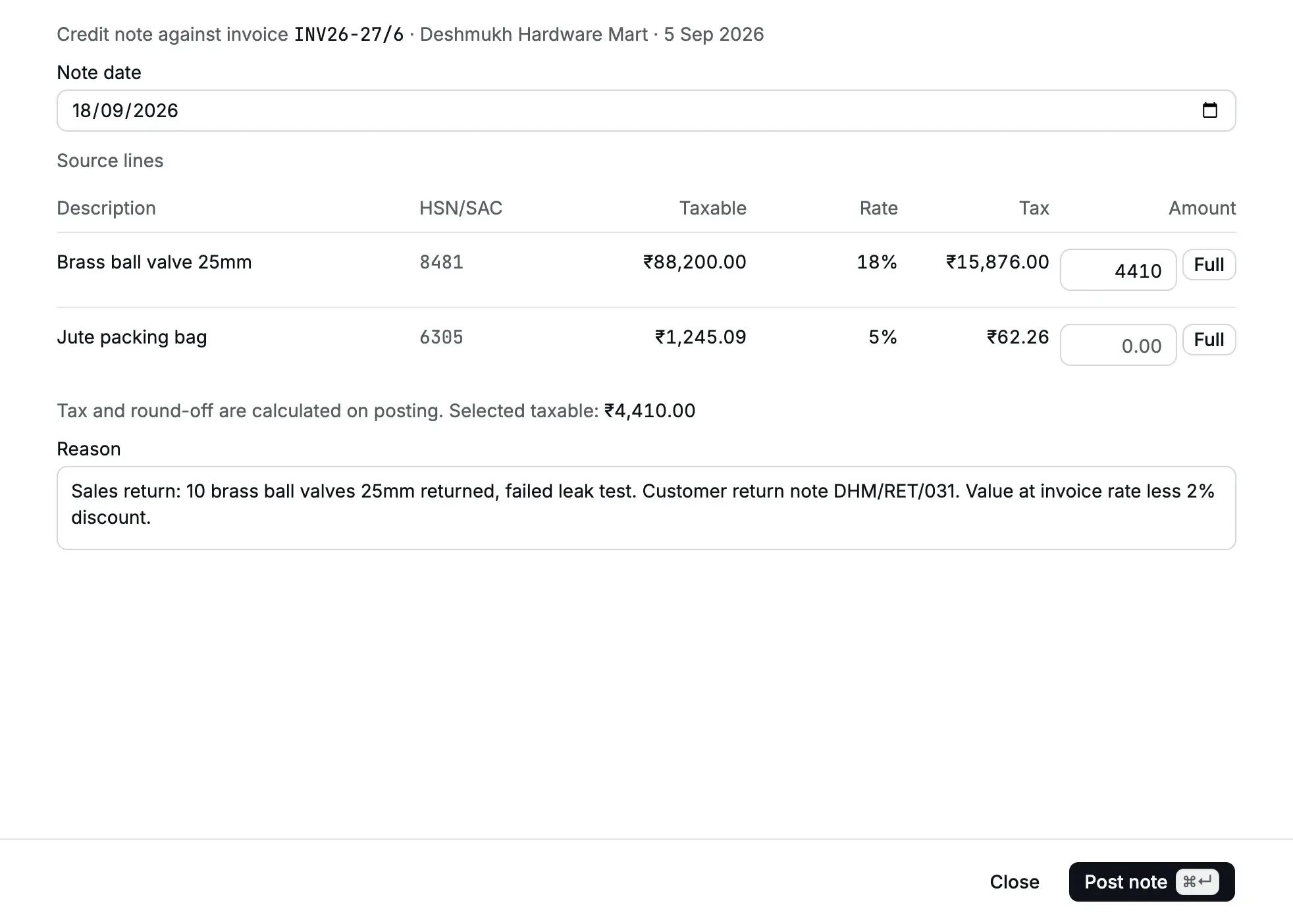
Line rules
- You enter the taxable value, not a quantity. Work it out from the quantity and the invoice rate after discount.
- The note uses the invoice’s own GST rate, place of supply and CGST/SGST or IGST split. You cannot change them.
- The form previews taxable value, GST, round-off and total before posting. The source line’s Left to return excludes earlier posted credit notes; Full fills only that remainder. A cancelled note releases its amount again. If another note posts while this form is open, refresh the source and try again.
- Crediting a whole line returns exactly the tax that line still carries, so a full return leaves no stray paise.
- The note total is rounded to whole rupees, like an invoice.
The credit note record
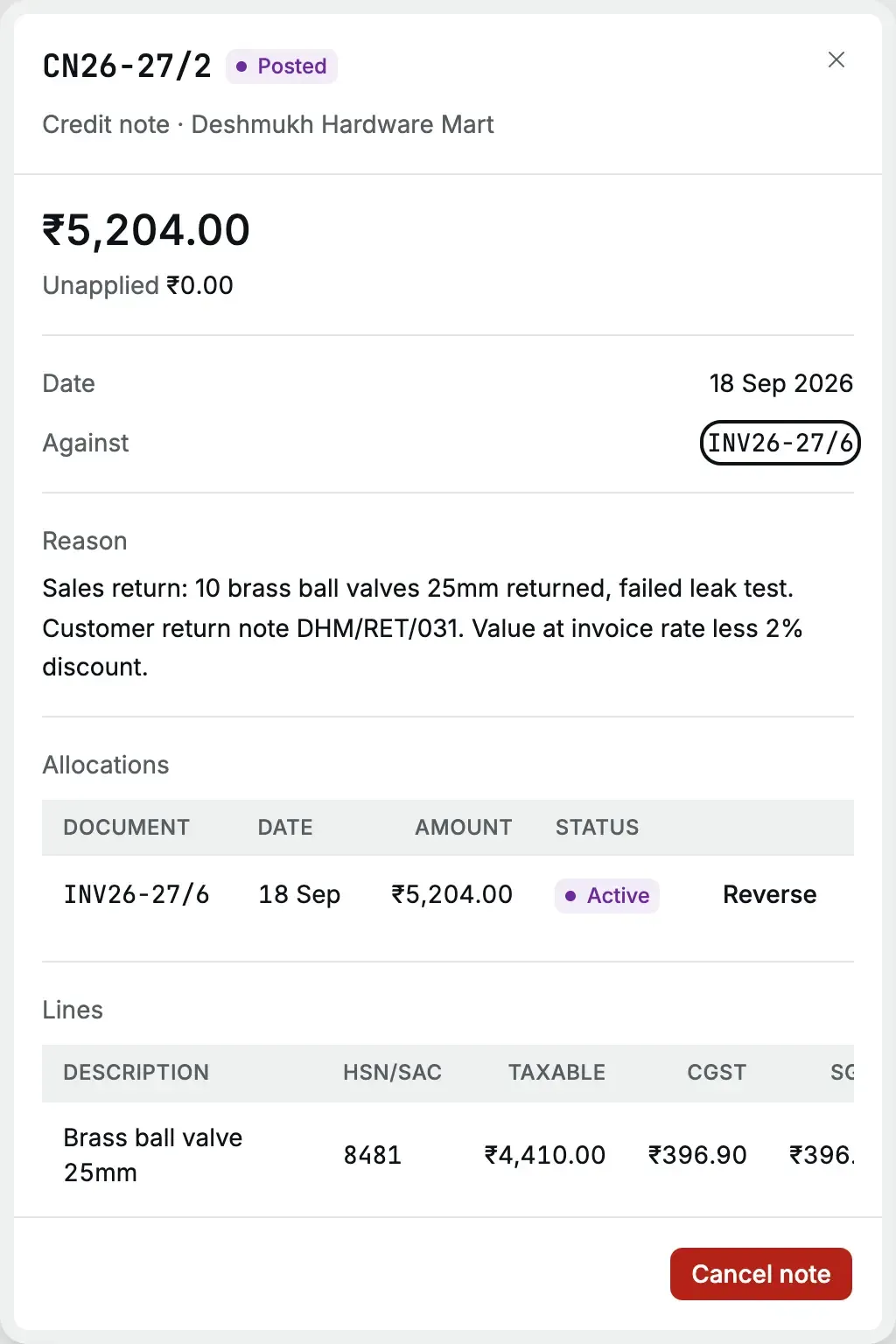
The Credit note record shows its number and party, the total, Unapplied, the date, Against (a link to the invoice), the reason, the Allocations it made, and each line with taxable value, CGST, SGST, IGST and total.
For CN26-27/2: taxable ₹4,410.00, CGST ₹396.90, SGST ₹396.90, total ₹5,203.80 rounded to ₹5,204.00.
Print or download the PDF
Click Print on the record to open the Credit Note in its own tab, then press Ctrl+P or use the viewer’s print button. Click Download PDF to save the file instead. It shows your organization’s and the customer’s names, addresses and GSTINs, the note number and date, the original invoice number and date, each line’s taxable value, GST rate and tax, place of supply, totals, reason and signature line. It repeats the invoice’s Invoice fields and, on a School concession, the student’s details. If the invoice delivered to an address other than the customer’s address on the note, the note prints that original address as Ship to, with its state name and code. A cancelled note prints CANCELLED.
Apply to the invoice
When you post a credit note, Edernal Books applies it to its own invoice at once (an allocation, the match between a credit and an invoice), up to what the invoice still owes, dated on the note date. You do not need to do anything else. The invoice shows the note under Credit notes and Allocations, and its outstanding amount falls by the amount applied.
If the invoice was already paid, or owes less than the note, the rest stays Unapplied. You can then:
- apply it to another open invoice of the same customer; or
- refund it to the customer.
Refund the customer
On 20 Sep 2026 a walk-in customer paid ₹2,655 by UPI (an instant bank payment from a phone) for 5 valves (INV26-27/8). On 22 Sep the customer returns one unused valve. The credit note CN26-27/3 for ₹531.00 (₹450.00 + ₹81.00 GST) stays unapplied, because the invoice is paid.
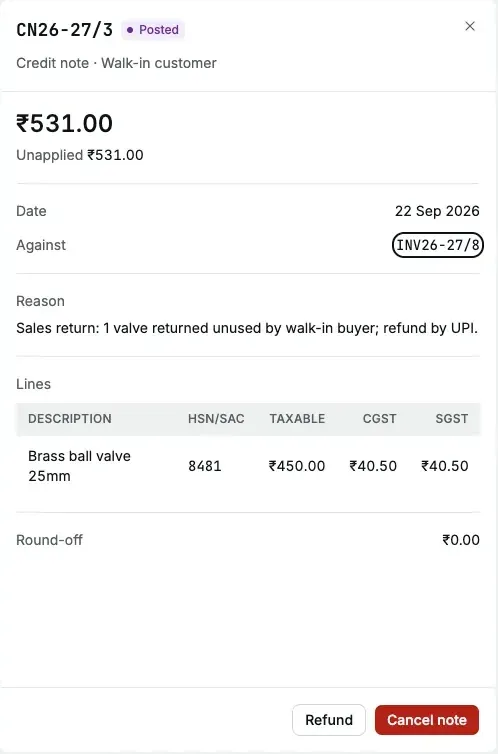
Start the refund
Open the credit note and click Refund. A New payment form opens with the customer selected and Against open items → Refund credit notes already chosen.
Fill the refund
Type the Amount (₹531), choose the Payment method (UPI), and click Fill on the credit note. Add the UPI reference and the date.
Post
Click Post. The refund amount must equal what you allocate to the credit notes: “Refund amount must equal the allocated credit notes”.
What happens in the books
Each line below is a debit or credit (Dr or Cr), the two equal sides of every entry. Accounts Receivable is the receivable account that holds what customers owe.
Credit note CN26-27/2 (the reverse of the invoice lines it credits):
| Account | Debit | Credit |
|---|---|---|
| Sales | ₹4,410.00 | |
| CGST Output Payable | ₹396.90 | |
| SGST Output Payable | ₹396.90 | |
| Round Off | ₹0.20 | |
| Accounts Receivable (Deshmukh Hardware Mart) | ₹5,204.00 |
Applying a credit note to its invoice needs no further entry: both sit in Accounts Receivable.
Refund of CN26-27/3:
| Account | Debit | Credit |
|---|---|---|
| Accounts Receivable (Walk-in customer) | ₹531.00 | |
| Bank Account | ₹531.00 |
On the party ledger the credit note is a credit; the refund is a debit that brings the balance back to zero.
Cancel a credit note
Open the note and click Cancel note. Give the reason. Cancelling posts a reversal of the note’s entry on the note date and reverses its allocations, so the invoice owes the amount again. Cancel a credit note before you cancel or amend its invoice: the invoice refuses with “Cancel credit note CN26-27/2 first.” Cancellation is refused if the note date is tax-locked, or books-locked without an exception.
Common messages
| Message | What to do |
|---|---|
| Enter an amount on at least one line | Type a taxable amount on a line |
| Enter an amount up to what is left to return on this line | The amount is more than the line’s Left to return |
| The note exceeds what remains of “…”. | Earlier notes already credited part of this line; type a smaller amount |
| Note total exceeds the source document total. | Earlier notes already credit most of the invoice |
| Date must be on or after the source date | Move the note date on or after the invoice date |
Related pages
- Invoices
- Apply credit
- Payments: the same form records refunds
- Party ledger
E-invoicing
A credit note that requires an IRN follows the same IRN and cancellation steps as an invoice. Get its IRN before printing or sending it, and finish any unconfirmed IRN cancellation before continuing.