Roles and access
What Books and Campus roles can see and do, including class-teacher and subject-teacher access
Every member of an organization has a role, a fixed set of permissions. The role decides which pages appear in the sidebar, which buttons appear on a record, and which requests the server accepts. Books has four roles. Campus organizations also offer Principal, Front office and Teacher:
| Role | Typical person | In one line |
|---|---|---|
| Owner | The proprietor, partner or director | Does everything, and is the only one who manages members, organization settings and files. |
| Accountant | The in-house accountant | Keeps the books: masters (parties, items and accounts), every document, credits, opening balances, import and reports. Does not manage members or settings. |
| Chartered Accountant | Your CA (Chartered Accountant) or audit firm | Reads everything, downloads reports, and closes periods with locks, which stop changes to past dates. Never records or cancels a document. |
| Operator | A billing or front-desk clerk | Records invoices (bills to customers), receipts (money in) and payments (money out) at the desk. Never cancels, creates parties or items, or sees reports and balances. |
The owner picks the role when they invite someone and can change it later (see Members and invitations). A role belongs to one organization: the same person can be an accountant in one organization and an owner in another.
School roles
School roles are available only in an organization with Campus enabled. They do not grant Books accounting or Settings access. The owner runs both areas. Only the owner invites members and changes roles, including for a principal.
| Task | Owner | Principal | Front office | Teacher |
|---|---|---|---|---|
| Academic setup, subjects and teacher assignments | ✓ | ✓ | — | — |
| Read student records and guardian contacts | ✓ | ✓ | ✓ | Own class-teacher sections |
| Add or edit students; manage enrollment | ✓ | ✓ | ✓ | — |
| Delete eligible unused student records | ✓ | ✓ | — | — |
| Redact student or guardian personal data | ✓ | — | — | — |
| Read attendance | ✓ | ✓ | ✓ | Own class-teacher sections |
| Mark attendance | ✓ | ✓ | — | Own class-teacher sections |
| Correct attendance | ✓ | ✓ | — | Today, own sections |
| Read dues, collect fees and send fee reminders | ✓ | ✓ | ✓ | — |
| Set fees, concessions, refunds and void collections | ✓ | ✓ | — | — |
| Read the invoice and payment report (also Accountant and Chartered Accountant) | ✓ | ✓ | — | — |
| Enter marks | ✓ | ✓ | — | Assigned subjects or own class-teacher sections |
| Read class results and print published reports | ✓ | ✓ | ✓ | — |
| Enter report assessments | ✓ | ✓ | — | Own class-teacher sections |
| Publish results or correct published values | ✓ | ✓ | — | — |
| Prepare certificate drafts and print issued certificates | ✓ | ✓ | ✓ | — |
| Issue, duplicate or cancel certificates | ✓ | ✓ | — | — |
| Send circulars | ✓ | ✓ | — | Own class-teacher sections |
| Read messages | ✓ | ✓ | ✓ | Within section access |
| Promote students | ✓ | ✓ | — | — |
A subject assignment grants that subject’s marks sheet in the assigned section. It does not grant student, guardian or attendance access there. Class-teacher assignments give the broader section access. Assignments are specific to an academic year. See Academic setup.
If a membership has several roles, their permissions combine. The normal invitation and Change role controls choose one role; they do not build custom permission sets. Read every role badge on the membership. A Books-only role does not gain Campus access just because the organization has Campus enabled.
Books permission matrix
✓ means the role can do it. A dash means the page or button does not appear for that role, and the server refuses the request if someone tries it anyway.
A few words used in the tables: a draft is a saved document that does not touch the books yet; to post is to make it final so it enters the books; to cancel a posted document adds an equal and opposite entry, so the original stays visible. A bill is a supplier’s invoice to you. A credit note reduces what a customer owes you, and a debit note reduces what you owe a supplier. To apply a credit is to set an advance or credit note against a specific invoice or bill.
Sales and purchases
The owner, accountant and operator also send invoice notices and overdue reminders; the CA reads their delivery history. See Invoice messages.
| Task | Owner | Accountant | Chartered Accountant | Operator |
|---|---|---|---|---|
| View invoices and receipts | ✓ | ✓ | ✓ | ✓ |
| Save draft invoices and post invoices | ✓ | ✓ | — | ✓ |
| Record (post) receipts | ✓ | ✓ | — | ✓ |
| Cancel an invoice or receipt | ✓ | ✓ | — | — |
| View payments | ✓ | ✓ | ✓ | ✓ |
| Record (post) payments | ✓ | ✓ | — | ✓ |
| Cancel a payment | ✓ | ✓ | — | — |
| View bills | ✓ | ✓ | ✓ | — |
| Save, post and cancel bills | ✓ | ✓ | — | — |
| View credit notes and debit notes | ✓ | ✓ | ✓ | — |
| Post and cancel credit notes and debit notes | ✓ | ✓ | — | — |
| Apply or reverse a credit on a posted document | ✓ | ✓ | — | — |
| Print or download a document PDF | ✓ | ✓ | ✓ | ✓ |
An operator can settle open invoices while recording a receipt (Against open items). Applying an advance (money received before the invoice) or a credit note later, from the invoice, needs an accountant or owner.
Masters and accounting
| Task | Owner | Accountant | Chartered Accountant | Operator |
|---|---|---|---|---|
| View parties, items and the chart of accounts (the list of every account) | ✓ | ✓ | ✓ | ✓ |
| Create and edit parties, items and accounts | ✓ | ✓ | — | — |
| View Banking (bank and cash accounts with balances, payment methods) | ✓ | ✓ | ✓ | — |
| Add bank accounts and payment methods | ✓ | ✓ | — | — |
| View journals (manual entries for adjustments) | ✓ | ✓ | ✓ | — |
| Post and cancel journals | ✓ | ✓ | — | — |
| View the opening balance | ✓ | ✓ | ✓ | — |
| Post and cancel the opening balance | ✓ | ✓ | — | — |
| Import a workbook (Settings → Import) | ✓ | ✓ | — | — |
Reports and balances
| Task | Owner | Accountant | Chartered Accountant | Operator |
|---|---|---|---|---|
| Home figures and charts (income, expenses, profit, Cash and bank, Recent transactions) | ✓ | ✓ | ✓ | — |
| Party balances and a party’s Ledger tab (ledger: every entry for one account or party) | ✓ | ✓ | ✓ | — |
| Trial balance, profit and loss, balance sheet, account ledger, day book | ✓ | ✓ | ✓ | — |
| Download reports and party statements (Excel, PDF); export a list to Excel or CSV | ✓ | ✓ | ✓ | — |
Control and administration
| Task | Owner | Accountant | Chartered Accountant | Operator |
|---|---|---|---|---|
| View period locks | ✓ | ✓ | ✓ | — |
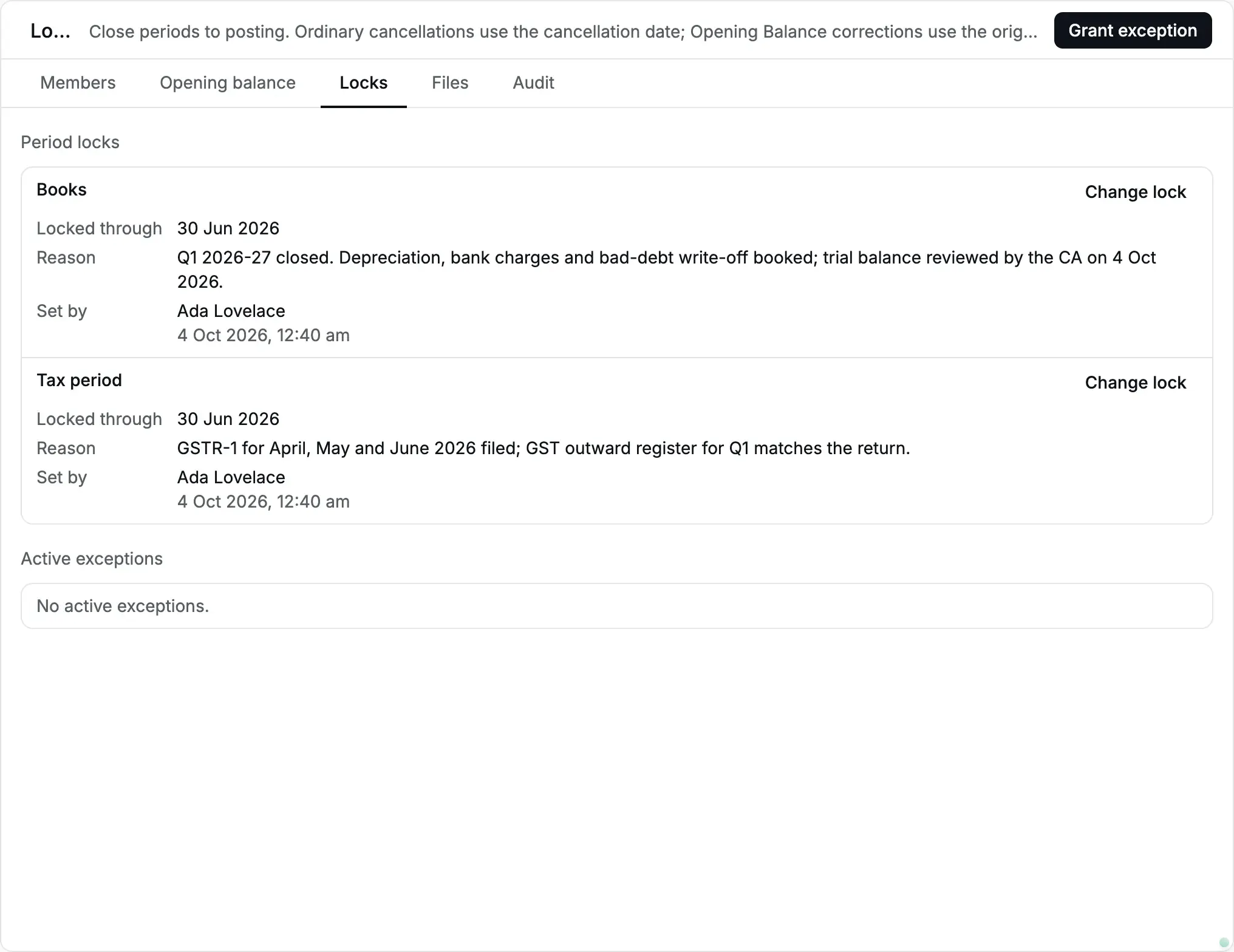
| Set or change a lock, grant a lock exception (a time-limited permission to post into a locked period) | ✓ | — | ✓ | — |
| Edit organization settings (legal name, address, PAN (Permanent Account Number), document prefixes) | ✓ | — | — | — |
| See who is a member | ✓ | ✓ | ✓ | ✓ |
| Invite people, see pending invitations, change roles, remove members | ✓ | — | — | — |
| View and open files | ✓ | ✓ | ✓ | ✓ |
| Upload and delete files | ✓ | — | — | — |
| Read the audit log (the record of who did each sensitive action) | ✓ | ✓ | ✓ | — |
The roles are fixed. You cannot create a custom role or switch off a single permission.
If you open Reports directly without a report or export grant, Edernal Books returns you to Home, with a notice that your role cannot open that page. The hidden sidebar entry does not grant access when its URL is entered by hand.
How the app looks for each role
Owner
The owner sees every sidebar entry, every figure on Home, and the Books Settings tabs: Organization, Members, Opening balance, Import, Locks, Files and Audit. Campus owners also have Notifications and Campus report paper settings.
Accountant
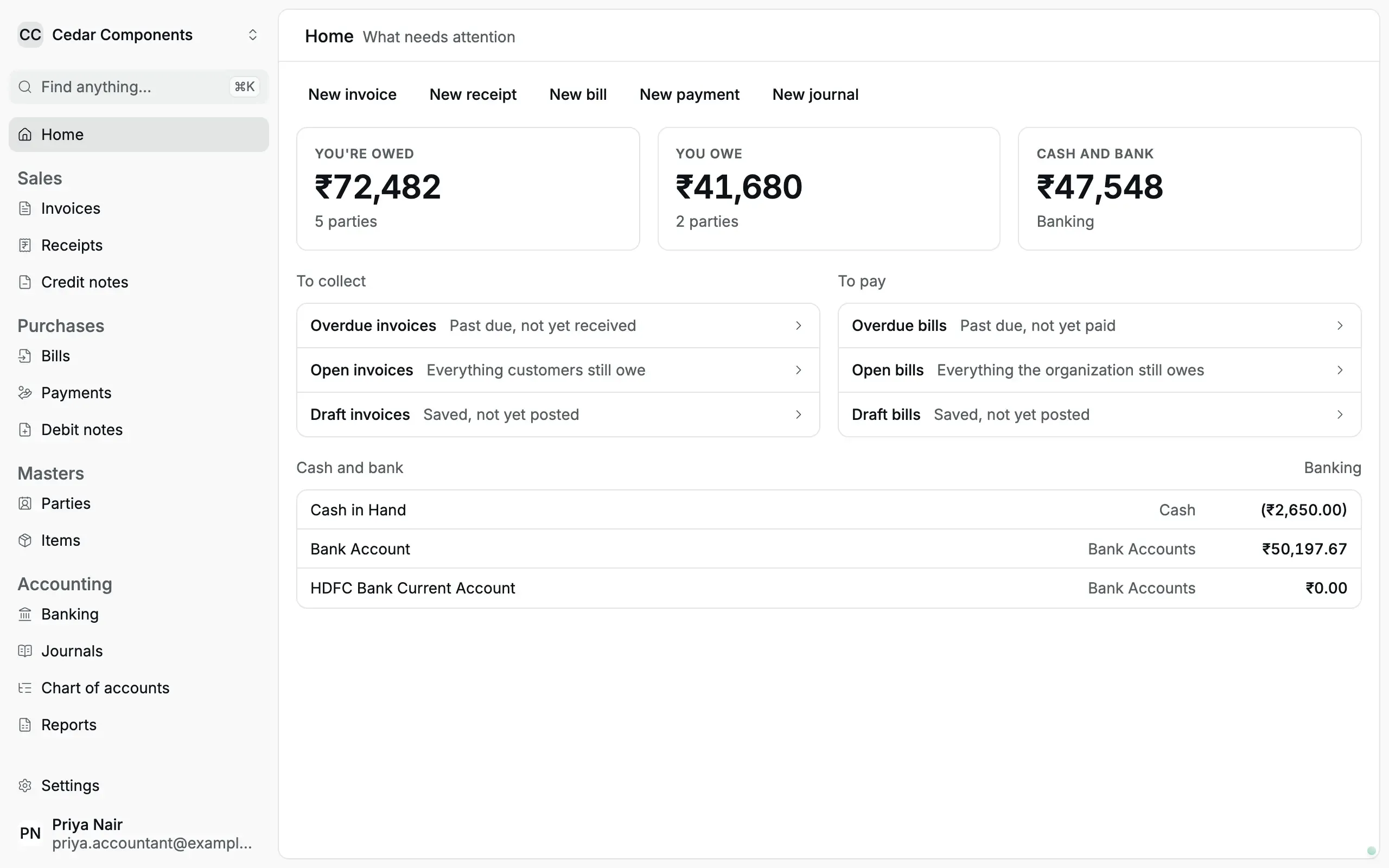
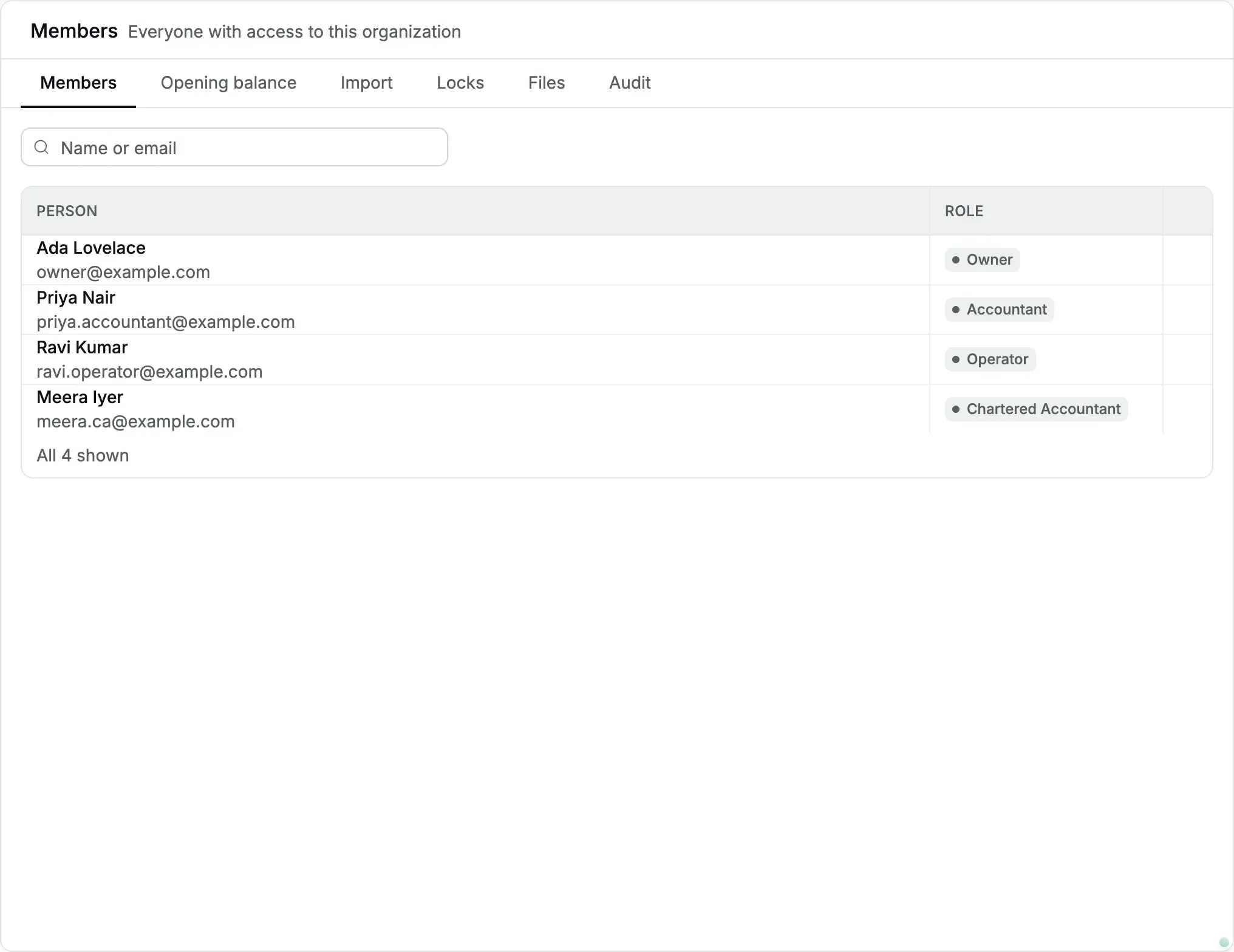
The accountant sees the same sidebar and Home as the owner. In Settings, the Organization tab is missing, and Members shows the team without the Invite button or row actions.
Chartered Accountant
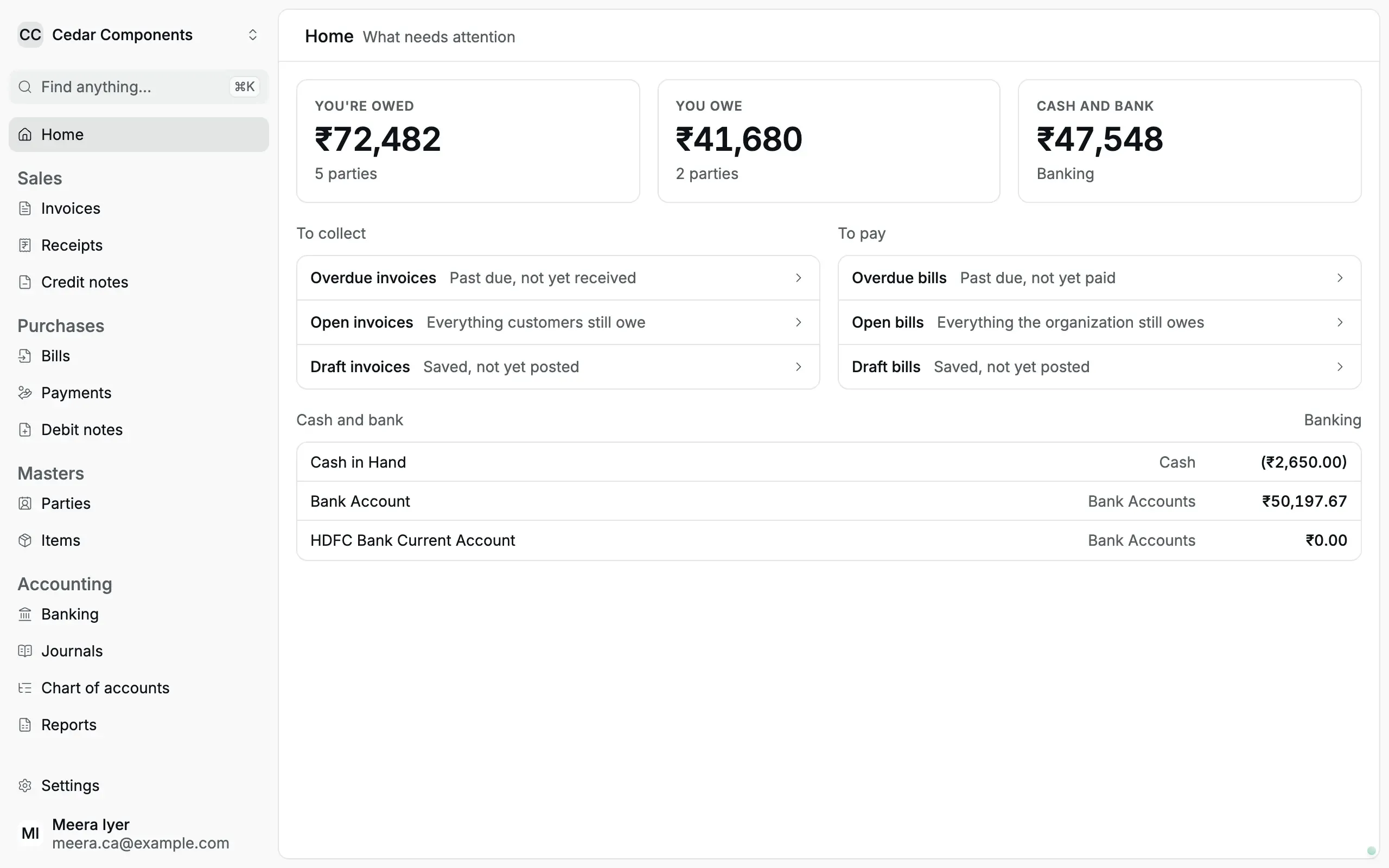
The CA sees every register, report and Home figure but creates nothing. On a document, only Print, Download PDF and Close appear. In Settings, the CA has Members, Opening balance, Locks, Files and Audit, and on Locks the CA can change the Books lock and the Tax period lock.
Operator
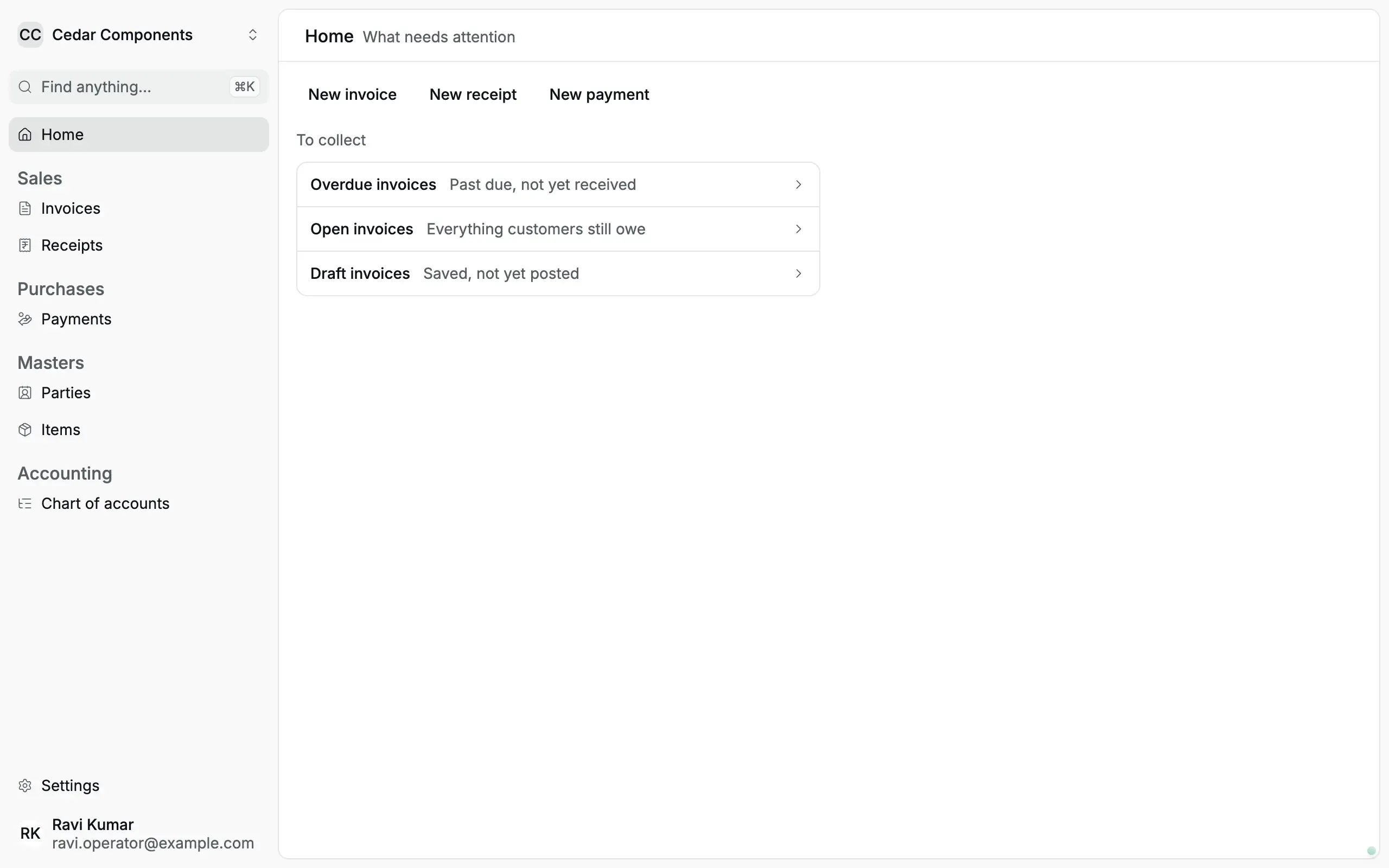
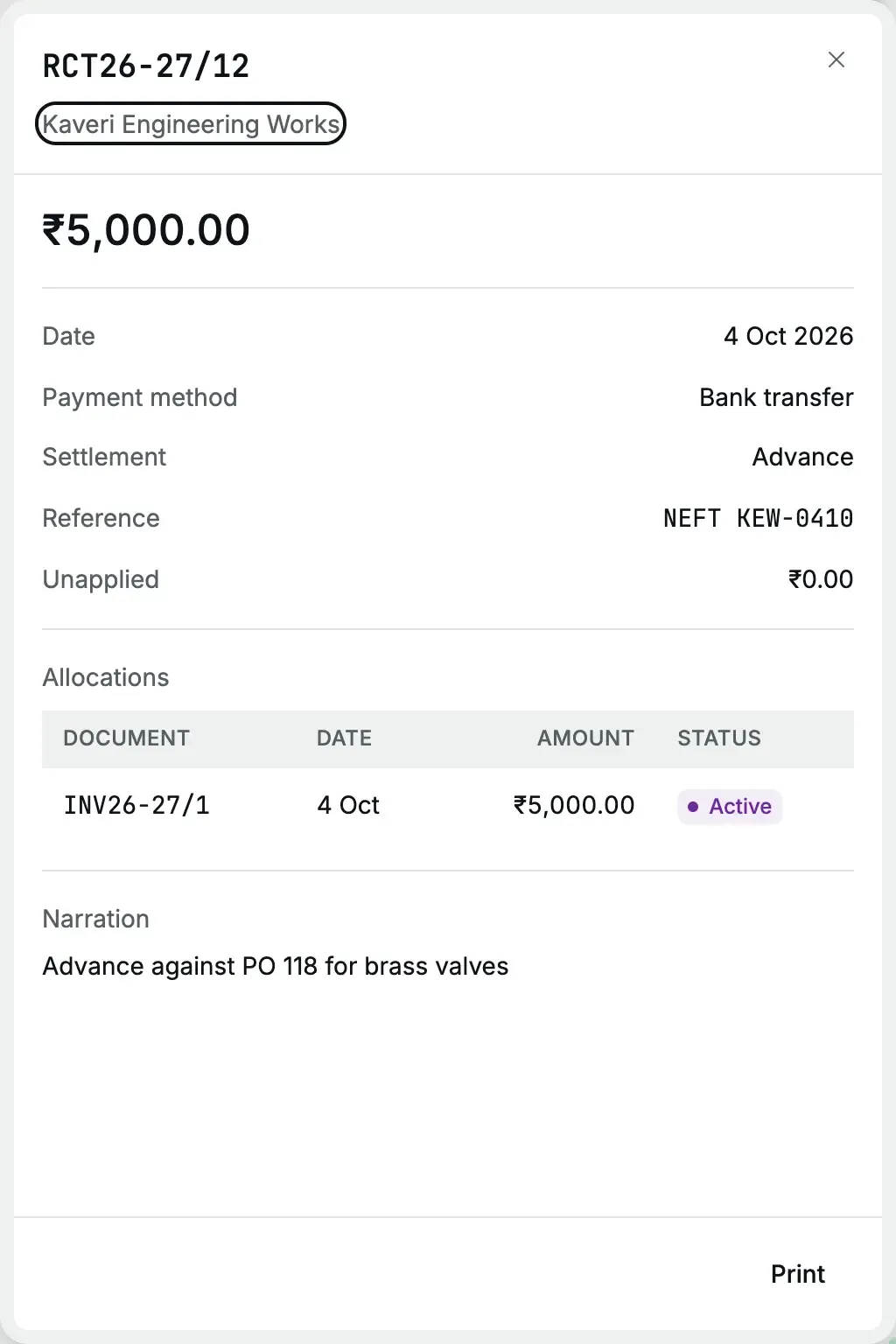
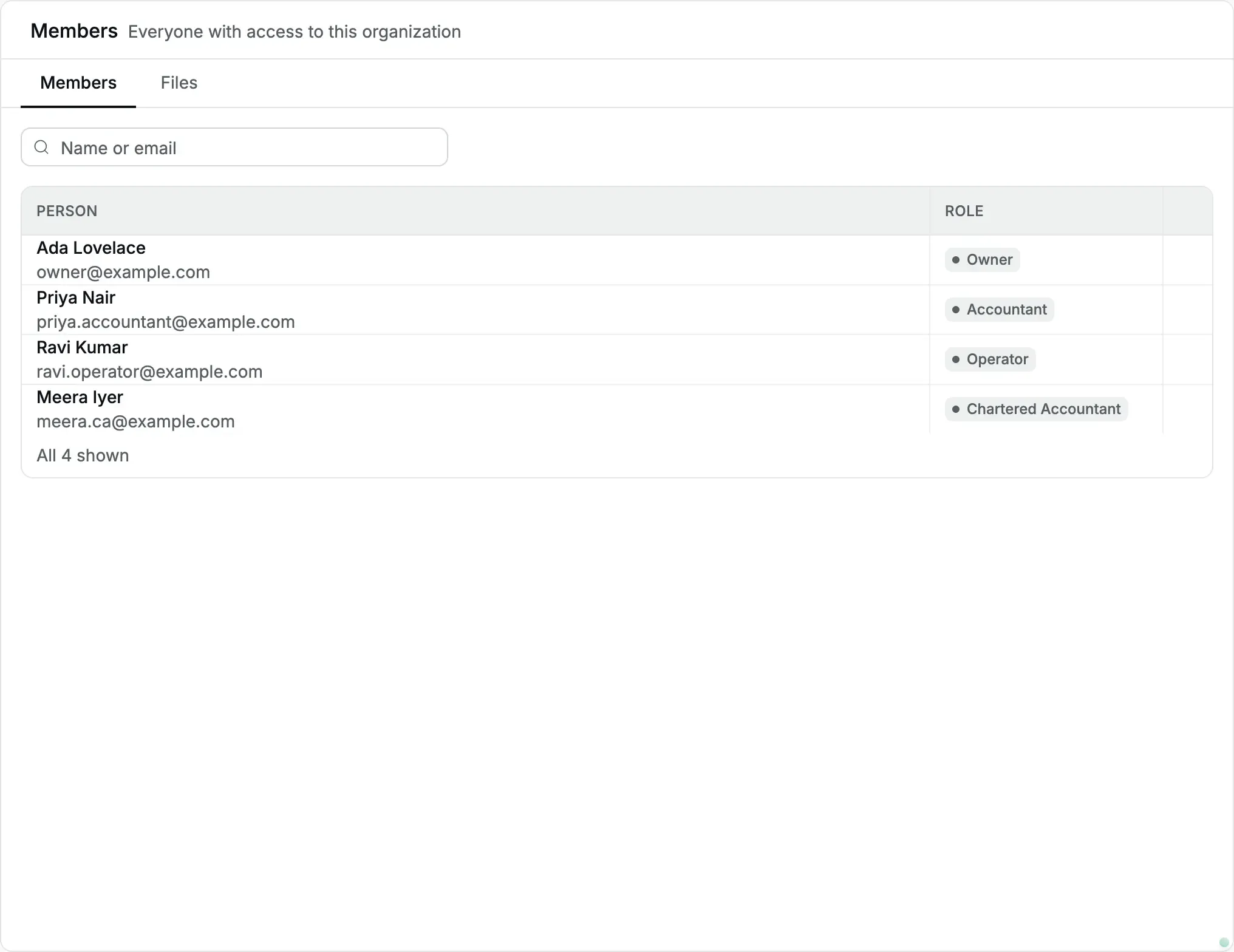
The operator’s sidebar has only Invoices, Receipts, Payments, Parties, Items and Chart of accounts. Home shows overdue invoices under Overdue payments, but no money figures. A posted receipt shows Print, not Cancel receipt. Settings has only Members and Files.
When an action is not there
- If a page your role cannot open is reached from a bookmark or an old link, Edernal Books opens Home instead.
- If a screen is out of date (for example, the owner changed your role while you were working), the server refuses the request with “You do not have permission to do that.” Reload the page to see what your role now allows.
- Every refused request is written to the audit log as a Permission check with a Denied badge, so the owner can see it.
Ask the owner when you need an action your role does not have. Do not borrow another person’s account: the audit log records who did each sensitive action.
Related pages
- Members and invitations: invite people and change roles.
- Audit log: what is recorded about each person’s actions.
- Hiring an accountant and an operator: a worked example.