Members and invitations
Invite a person with a role, share the invitation link, change a role, remove a member and cancel an invitation
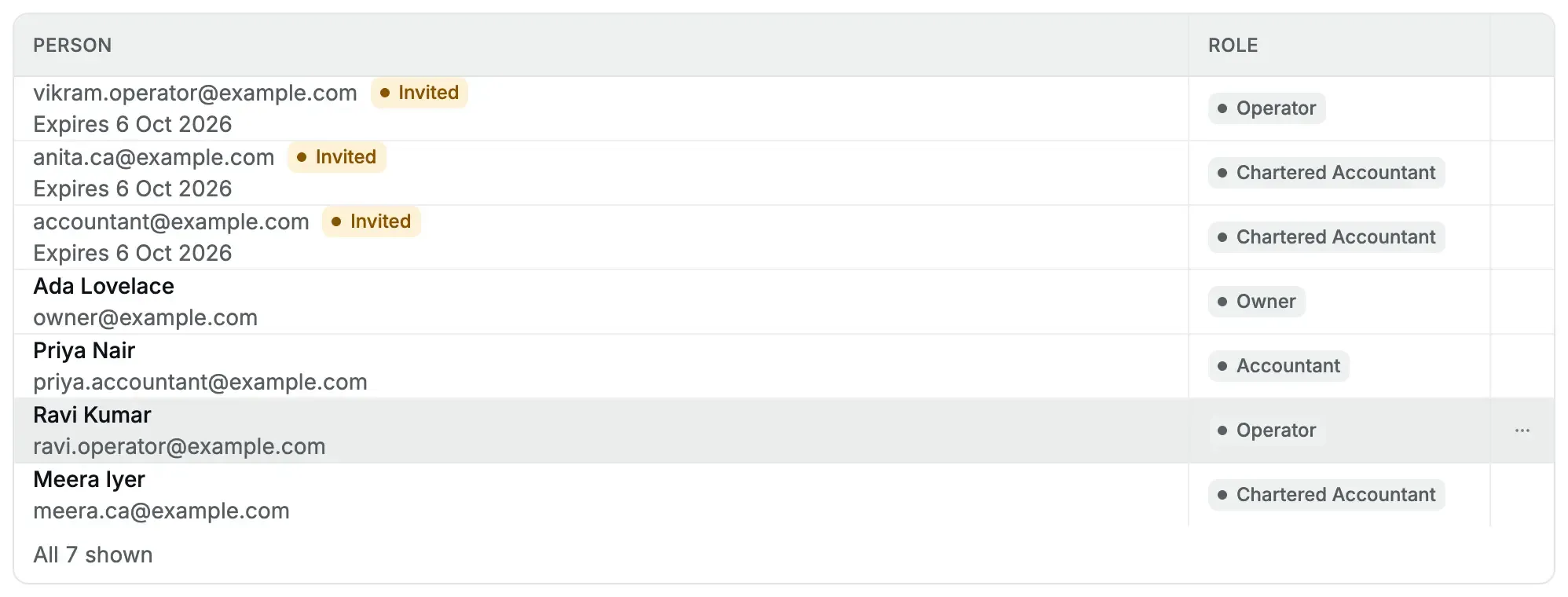
Settings → Members lists everyone who can open this organization’s books, with their role, the set of permissions they have. The owner uses it to bring people in, change what they can do, and take access away.
- Who can use it: everyone sees the member list. Only an Owner sees the Invite button, pending invitations and the row actions.
- When to use it: when someone joins or leaves, when a person’s job changes, or when you change your CA (Chartered Accountant).
Read Roles and access first to choose the right role.
Invite someone
Edernal Books does not send email. You create an invitation and send the link yourself.
Open the invitation form
Go to Settings → Members and click Invite.
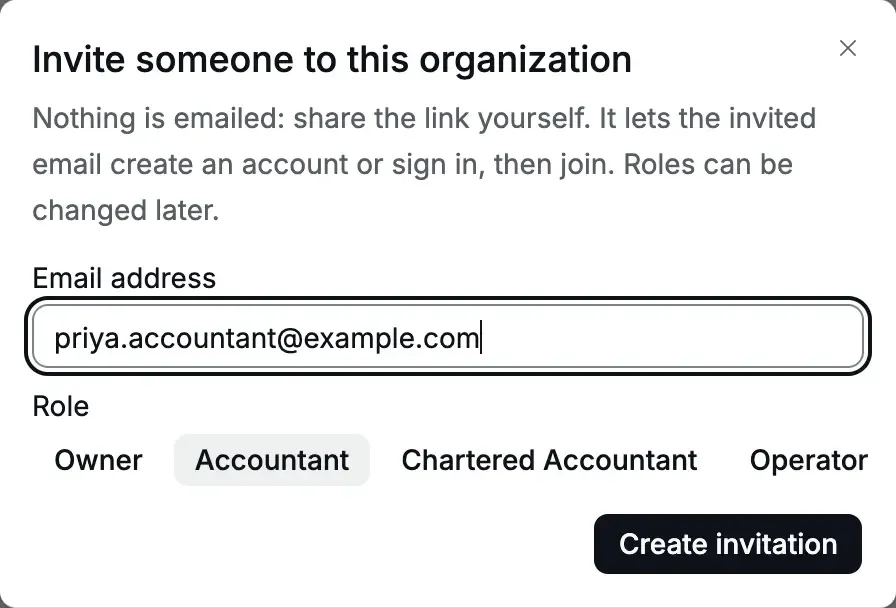
Enter the email address and role
Enter the person’s Email address and choose a Role: Owner, Accountant, Chartered Accountant or Operator. For example, Cedar Components invites priya.accountant@example.com as Accountant. A School organization also offers Principal, Front office and Teacher; only Owner can manage membership. See School roles.
Create the invitation
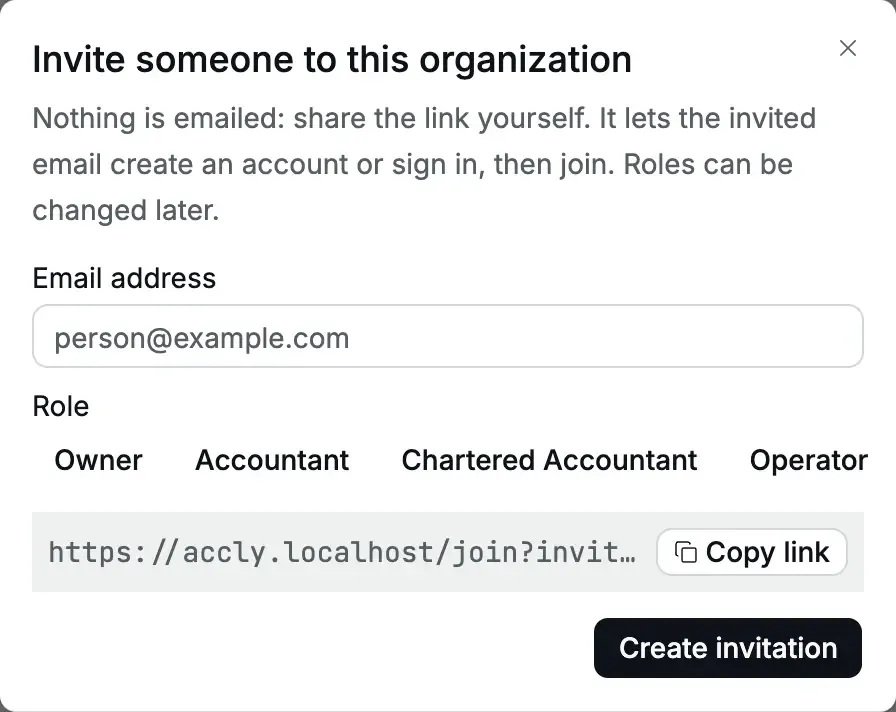
Click Create invitation. A message confirms “Invitation created for priya.accountant@example.com”, and the link appears in the form.
Send the link
Click Copy link and send it to that person directly, for example on WhatsApp or by your own email. They open it, create an account (or sign in) and click Join. See Getting started for their side.
The form stays open and clears, so you can invite the next person. The link from the previous invitation disappears when you create the next one. You can copy it again from the list.
On a phone, the role buttons wrap so every available role remains reachable, including Operator.
If the invitation cannot be created
| Message | Cause | What to do |
|---|---|---|
| “Enter a valid email address” | The email box is empty or not an email address. | Correct it. |
| “Select a role” | No role is chosen. | Click a role. |
| “<email> already has a pending invitation” | This email already has a live invitation. | Copy the existing link from the list. |
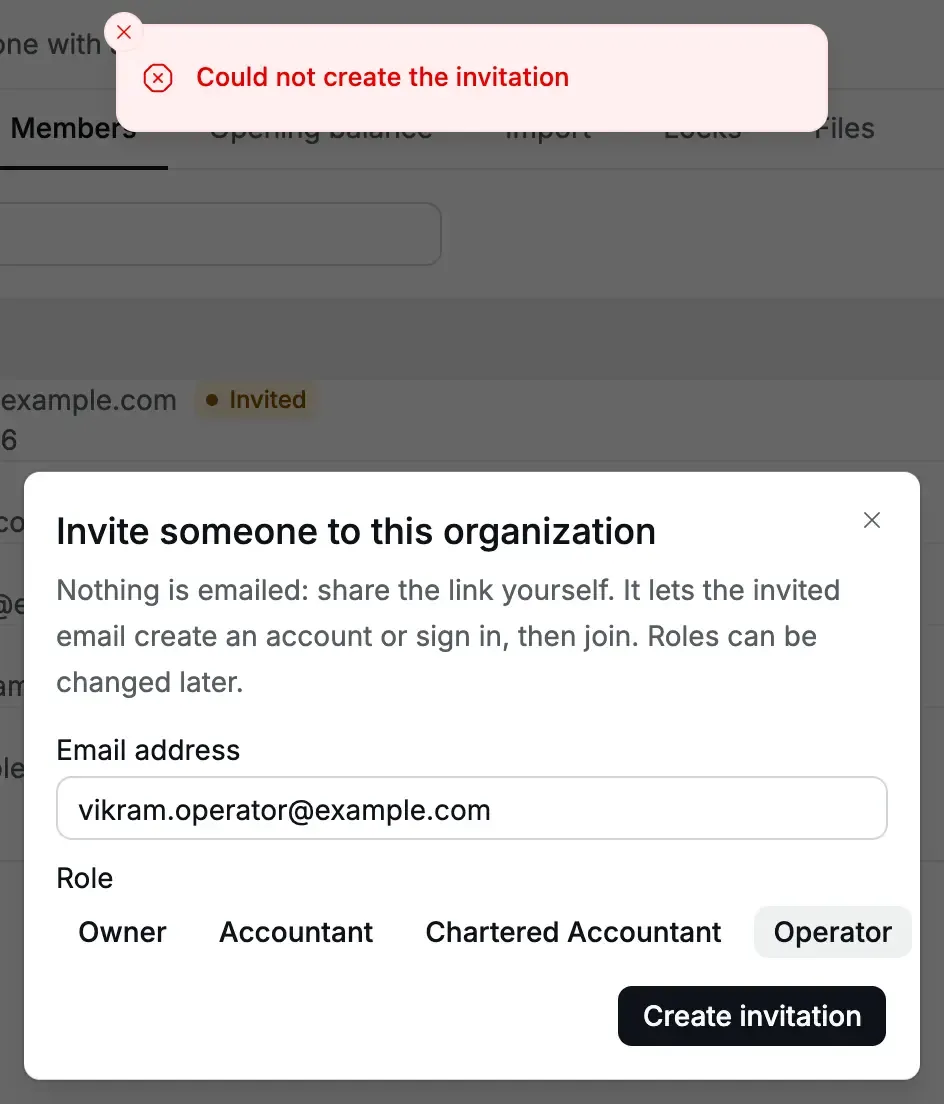
| “Could not create the invitation” | The request failed or the connection dropped. | Check your connection and try again. |
Pending invitations
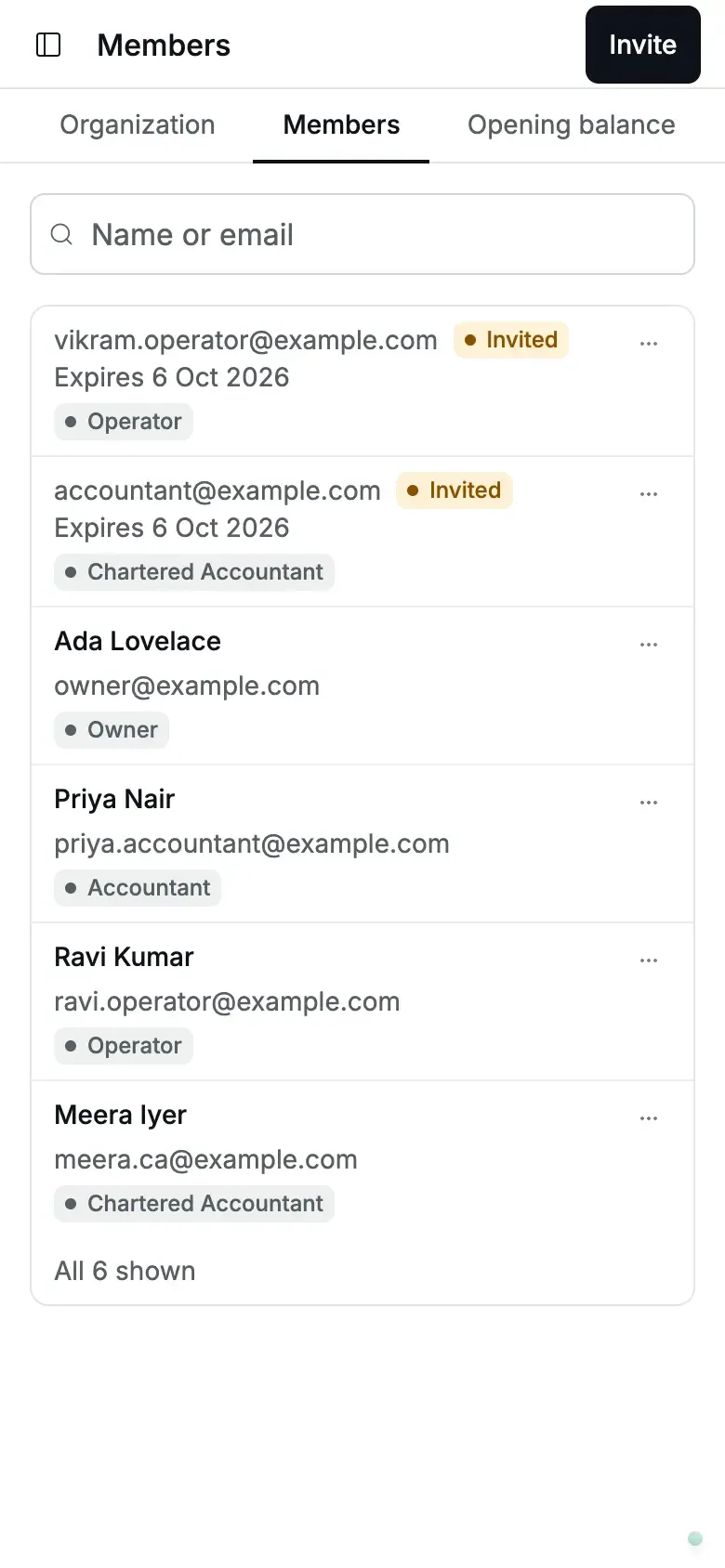
Invitations not yet accepted appear at the top of the list with their role and expiry date. Live invitations show Invited; expired ones show Expired. A new invitation expires 48 hours after it is created.
- Copy the link again: point at the invitation row, click ⋯, then Copy link.
- Cancel an invitation: click ⋯, then Cancel invitation, then confirm Cancel invitation. The link stops working at once. You can invite the same email again afterwards.

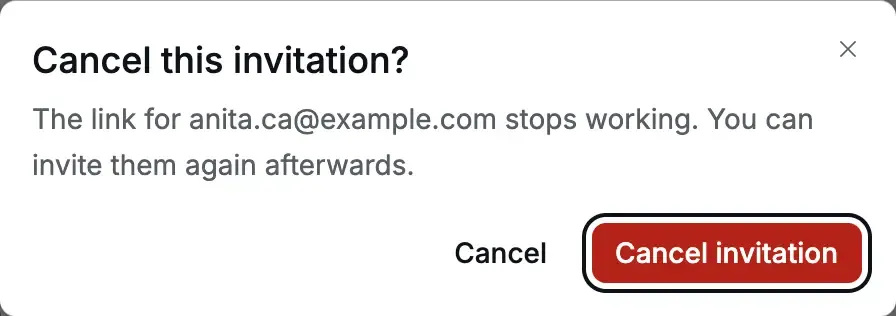
An expired invitation stays in the list with an Expired badge. Use ⋯ → Re-invite to create a fresh invitation; it replaces the expired row. Copy its link from the new row. Until then, the old link says “This invitation has expired. Ask the sender for a new link.” After the re-invite, it says the invitation is no longer available. It cannot be copied as if it were still valid.
Only owners see pending invitations. Other members see only the people who have joined.
Change a role
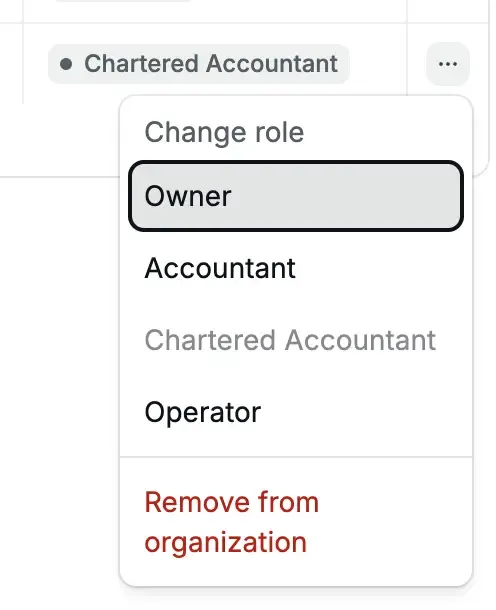
- Point at the member’s row and click ⋯.
- Under Change role, click the new role. The current role is greyed out.
- Read the confirmation and click Change role.
The change then saves with the message “Role updated”. Be especially careful with Owner: an owner can do everything, including removing you.
The person’s next action uses the new role. If they have the app open, their menus update when they reload the page.
Remove a member
- Point at the member’s row and click ⋯.
- Click Remove from organization.
- Read the confirmation, for example “Meera Iyer loses access to this organization immediately. Their audit history is kept.”, and click Remove.
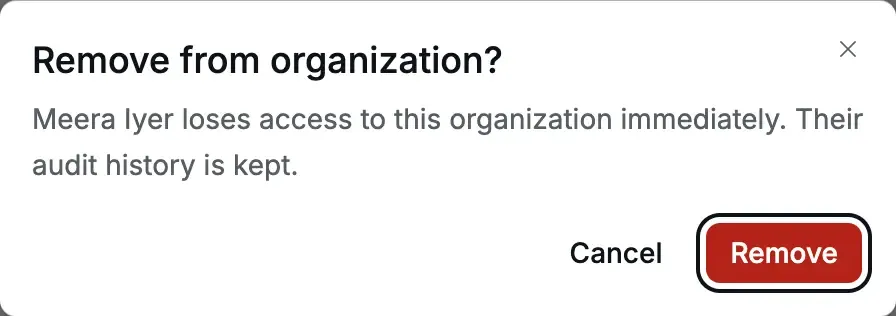
Removal takes effect on the person’s next request. If they still have a page open, it shows “You do not have access to this organization.” Their account stays, and so do the documents they recorded and their audit entries. They can come back only through a new invitation.
The organization always keeps an owner
Edernal Books does not let the last owner leave. If you are the only owner and try to remove yourself or change your own role, the app says “Add another owner before you leave” and nothing changes. To hand the organization over, first invite the new owner and wait for them to join, then change or remove your own membership. See Handover.
Search the list
Type part of a name or email address in Name or email. The search also finds pending invitations by email.
On a phone, each member is a card, and the ⋯ button is always visible.
What is recorded
Each invitation, cancelled invitation, role change and removal is written to the audit log, the record of sensitive actions (glossary), with the owner who did it.
Related pages
- Roles and access: what each role can do.
- Getting started: the invited person’s side of the link.
- Hiring an accountant and an operator: a worked example.