Bills
Book a supplier's invoice with GST, input tax credit and TDS, then apply advances, amend or cancel it
A bill records an invoice your supplier sends you: raw material, a contractor’s work, a professional’s fee or a new machine. It debits the expense or asset account you choose (every entry has equal debit and credit sides). It takes the GST (Goods and Services Tax) as input tax credit (ITC, GST you paid that you may set against the GST you collect) when you can claim it. It keeps back any TDS (tax deducted at source) you must deduct, and it credits the supplier with what you owe, your payable.
Book a bill when the supplier’s tax invoice, the GST invoice that lets you claim credit, reaches you. Use the supplier’s own invoice number and date, so the bill matches the invoice the supplier reports in their GSTR-1, which feeds your GSTR-2B statement, and the input tax credit you claim in your GSTR-3B (see GSTR-1 and GSTR-3B, the monthly GST filings).
Who can do it: an Owner or Accountant creates, posts (records for good) and cancels bills; see roles. A Chartered Accountant (CA) can open them. An Operator does not see bills.
The bill register
Open Purchases → Bills. The register lists drafts (saved but not posted) and posted bills, newest document date first, with Number, Supplier invoice, Party (the party, here the supplier), Date, Due date, Status and Total. It opens on This month; remove that chip or choose another period to see older bills.
Search by bill number, party or supplier invoice number. The filter icon in the search box offers Date and Status: Draft, Unpaid, Part paid, Paid, Overdue (still to pay and past its due date), Open (something still to pay) and Cancelled.
One line under the filters counts and adds up all matching bills, even beyond the loaded page, for example “5 posted bills · ₹1,18,000.00”. It counts posted bills only, unless you filter Status. Drafts remain in the register outside the selected period. The line refreshes when you post or cancel a bill, or when you come back to the tab.
Use Export to print or download the filtered register. See Export a list for formats, access and limits.
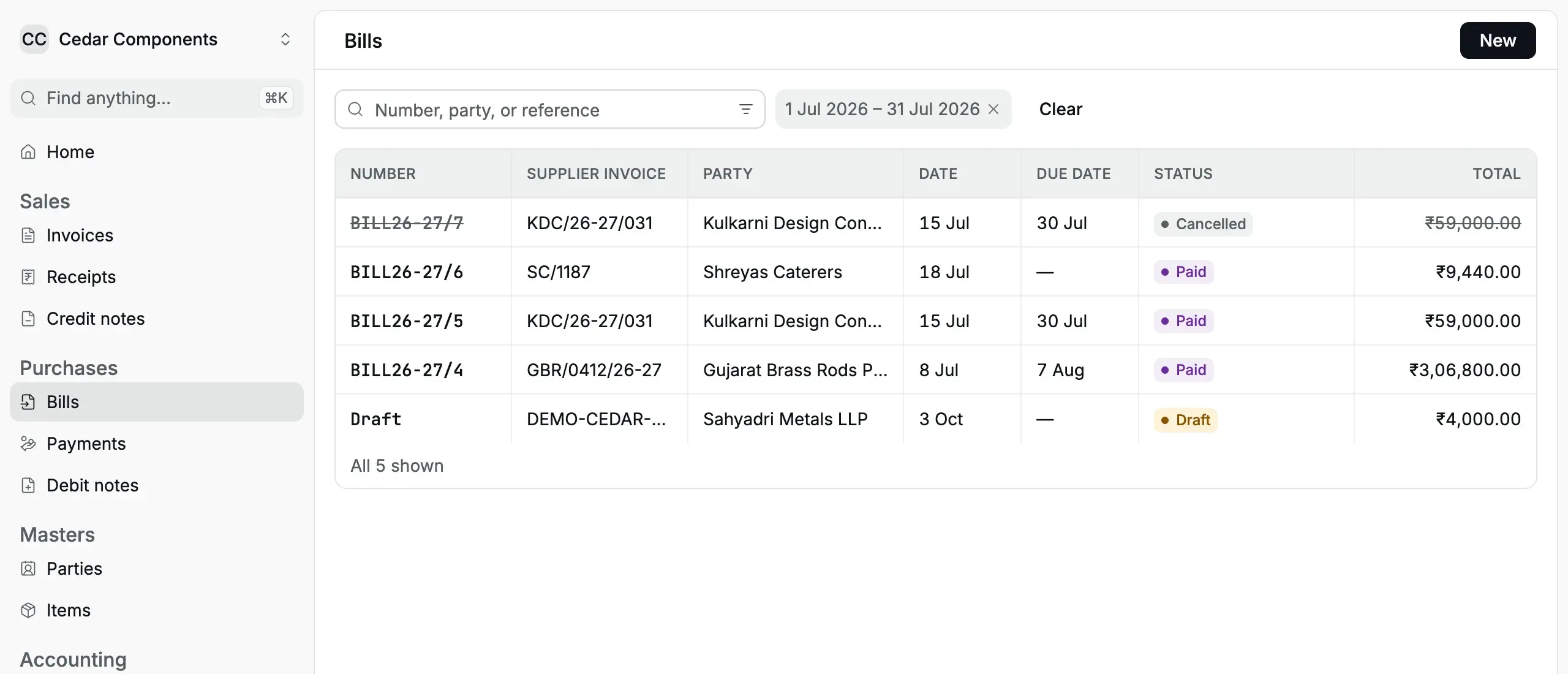
A posted bill shows one of these statuses:
| Status | Meaning |
|---|---|
| Unpaid | Nothing has been paid or applied yet |
| Part paid | Payments, advances or debit notes cover part of it |
| Paid | Nothing is outstanding (left to pay) |
| Overdue | Shown next to Unpaid or Part paid when the due date has passed |
| Cancelled | Reversed; it stays in the register for the audit log |
Book a bill
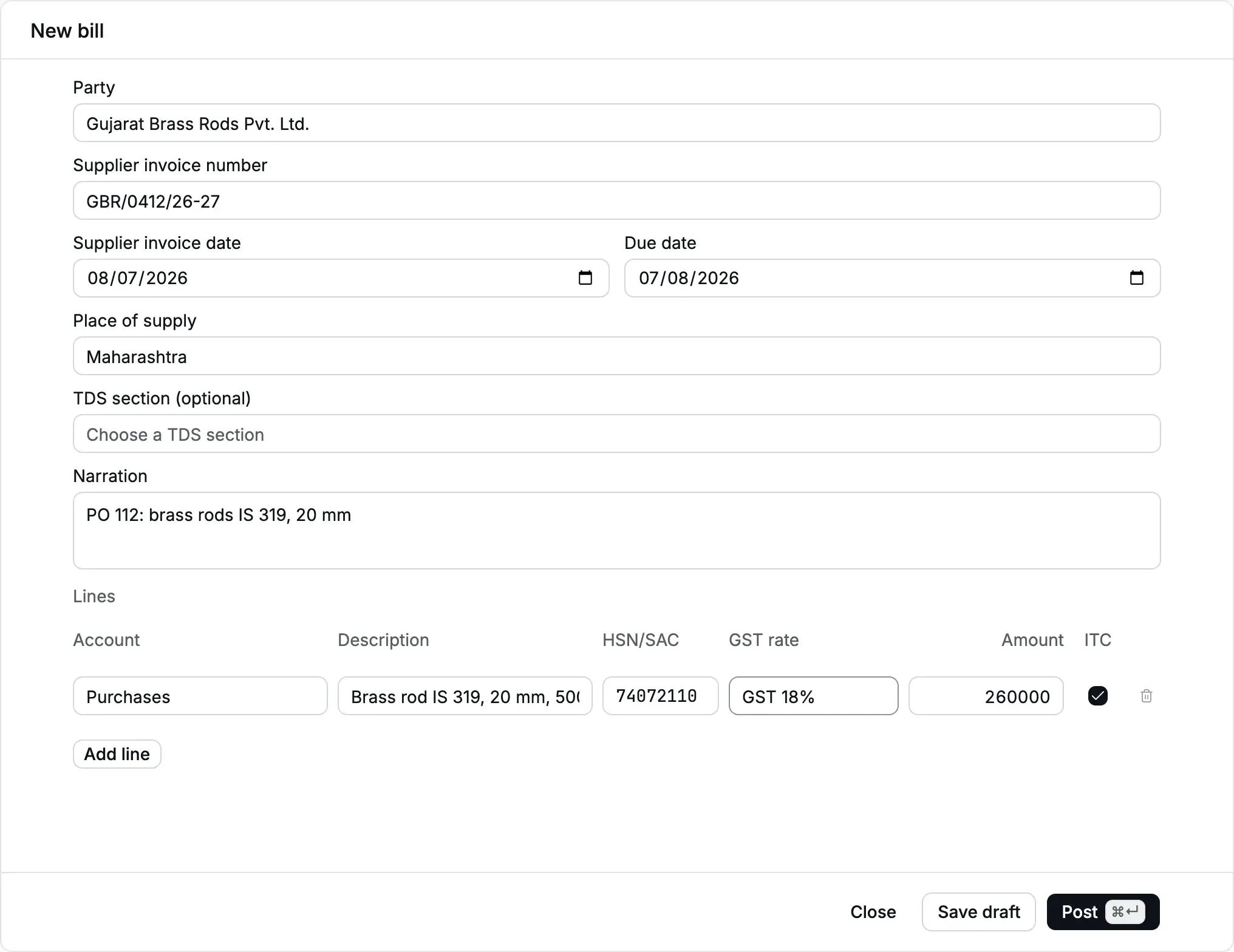
On 8 Jul 2026 Gujarat Brass Rods Pvt. Ltd. of Jamnagar invoices Cedar Components for
500 kg of brass rod at ₹520 a kilo: ₹2,60,000 plus 18% IGST (integrated GST, charged between
states), invoice
GBR/0412/26-27, due in 30 days.
Open a new bill
Choose the supplier
In Party, type part of the name and choose the supplier. If the supplier is new, choose Create “…” and complete the party, including its state.
Copy the supplier's invoice details
Type the supplier’s number in Supplier invoice number (up to 40 characters), and their date in Supplier invoice date. That date is the bill date: the entry posts on it and GST rates are those in force on it. Add a Due date if the supplier gave credit terms.
Check the place of supply
Place of supply (place of supply, the state where the supply is delivered) starts at your organization’s state. Change it only when the goods or services are delivered in another state. When the supplier’s state equals the place of supply, the bill takes CGST and SGST (central and state GST, half each); otherwise it takes IGST.
Choose a TDS section if you must deduct
Leave TDS section (optional) empty for goods. A TDS section is the part of the Income-tax Act that sets the rate for a kind of payment. For a fee, rent, contract or commission, see Deduct TDS on a bill.
Add the lines
For each line, choose the Account (an expense or asset account), type a Description, the HSN/SAC if you have it (the HSN or SAC code that classifies goods or services for GST), the GST rate and the Amount before GST. Leave ITC ticked if you can claim the GST as input tax credit. Click Add line for more; a bill takes up to 100 lines.
Save a draft or post
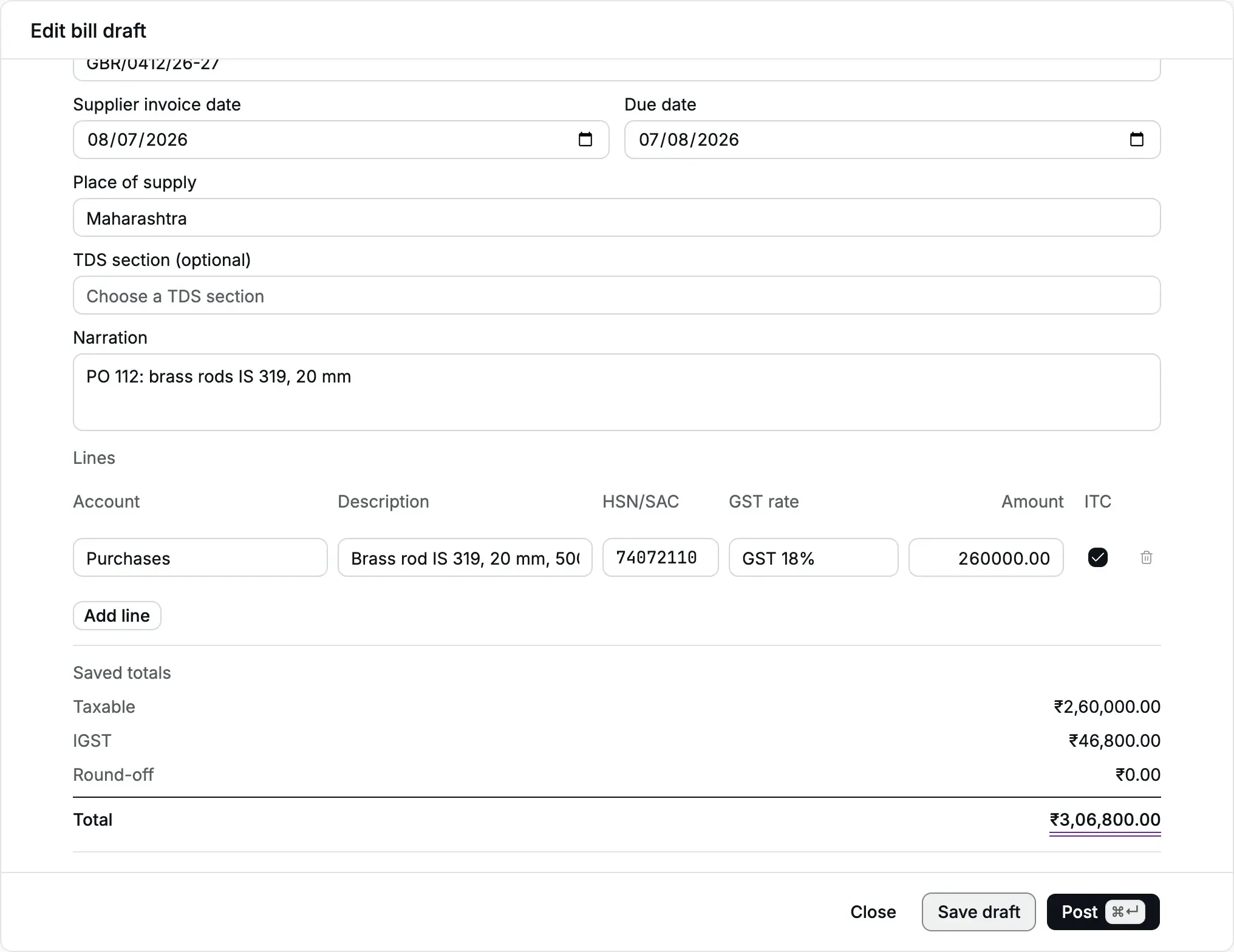
Click Save draft to keep it without posting, or Post (or ⌘/Ctrl + Enter) to book it. The toast reads “Bill BILL26-27/4 posted”, and the posted bill opens.
Posting refuses a supplier invoice number already posted for the same supplier in the same financial year. It ignores letter case and spaces at either end and shows the error on Supplier invoice number. Drafts can share a number; a cancelled bill does not reserve it. Another supplier or financial year can use the same number.
Items and purchase rates
When your organization has Items, choose the Item, Qty, purchase Rate, GST rate and taxable Amount. A tracked Item needs Qty and posts to Stock. Rate calculates the Amount; it never uses the Item’s selling price. If you type an Amount yourself, changing Rate keeps it and offers the calculated amount as a choice.
Use More details below the lines for TDS and narration. Open a line’s Details for its description, HSN/SAC, ITC and stock-cost options. Clearing ITC leaves No ITC visible even after you close Details. For an expense without an Item, choose its account and description below the row.
Choosing the account
A line can post only to an active expense or asset account that is not a group (a heading that holds other accounts) or a system account (one Edernal Books manages itself, such as Accounts Payable). Typical choices:
| What you bought | Account |
|---|---|
| Raw material and goods for resale | Purchases |
| A consultant’s, CA’s or lawyer’s fee | Professional Fees (create it once) |
| Freight, rent, repairs, office expenses | The matching expense account |
| A machine, computer or furniture | The fixed asset account |
When your Organization tracks stock, freight or any other charge that belongs in the cost of the goods goes on its own line, with no Item selected. Open Details on that line and tick Stock cost. This Bill adds it to the tracked goods on the same paper, split by purchase value: ₹3,000 on 100 fans at ₹1,00,000 and 50 mixers at ₹50,000 makes the fans ₹1,02,000 and the mixers ₹51,000. Posted Bills is for a charge that arrives on a later Bill, and adds it to the goods on the Bills you pick. Its input credit stays claimable. To credit part of it back, post a Debit Note on that line.
Select an Item to show Free in Details, even before entering Qty. A paper’s scheme or discount goes in the same Details, as a record: Free is how many of the Qty came free, and Discount is what the paper took off. Neither changes the amount, GST or the journal. Key the paper’s net as the Amount. On a 10+1 at ₹100, enter Qty 11, Free 1 and Amount ₹1,000, and each unit costs ₹90.91 in stock.
To add an account to your chart of accounts, see Chart of accounts.
GST and input tax credit
Each line’s GST is worked out from the rate you choose and the line amount. The bill total is rounded to the nearest rupee, and the difference goes to Round Off.
The ITC box on each line decides where the GST goes:
| ITC box | Where the GST posts | Use it for |
|---|---|---|
| Ticked | CGST, SGST or IGST Input Credit (an asset) | Inputs, input services and capital goods you use for taxable sales |
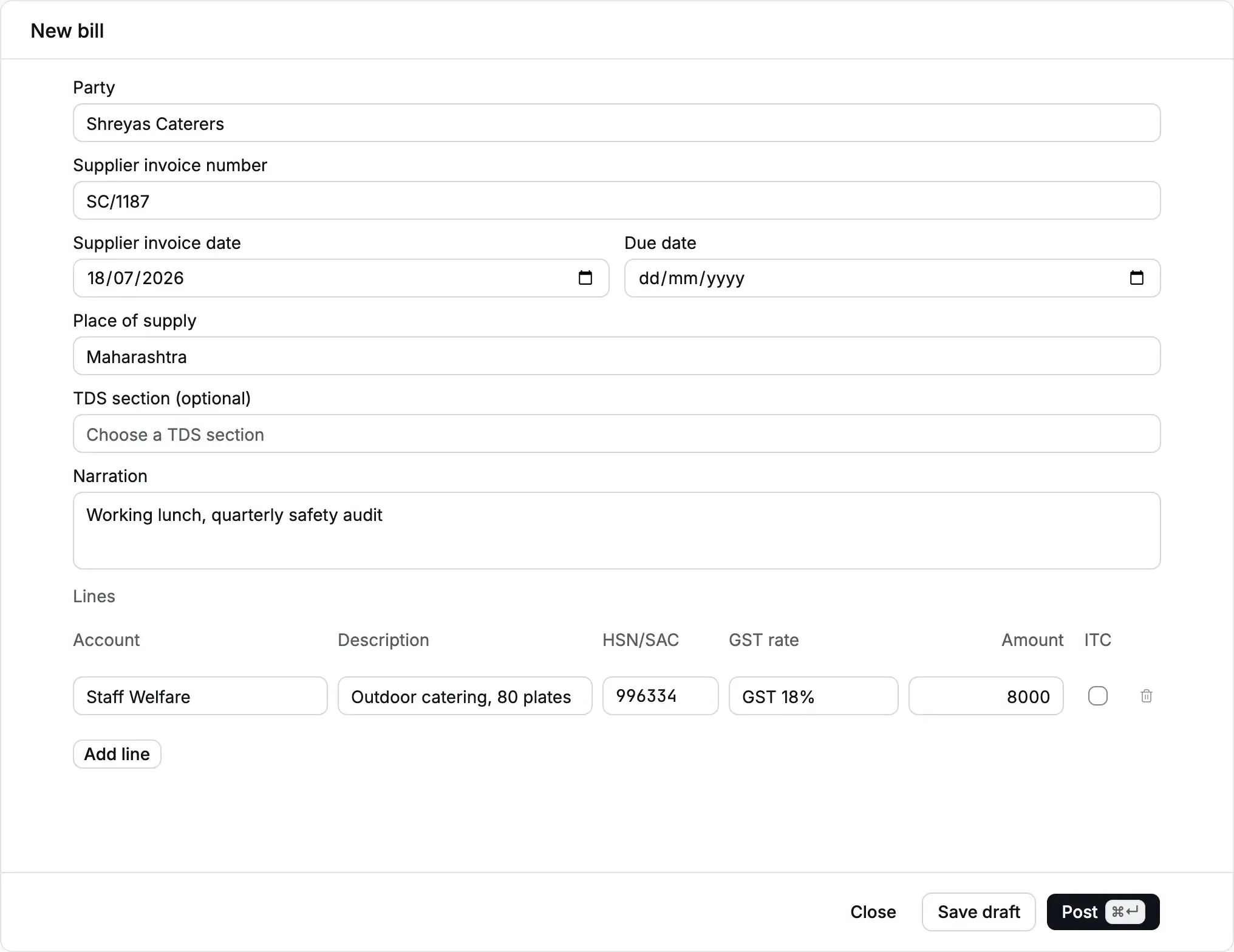
| Not ticked | Added to the line’s own account, as part of the cost | Credit blocked under section 17(5) (food and catering, staff welfare, gifts, most motor vehicles), or supplies used for exempt sales |
On 18 Jul 2026 Shreyas Caterers bills ₹8,000 plus 18% GST for a working lunch. Food is blocked credit, so the line goes to Staff Welfare with ITC cleared, and the whole ₹9,440 is an expense.
If your organization has no GSTIN in Organization settings, the ITC column does not appear and all GST on bills is part of the cost.
Deduct TDS on a bill
Open More details and choose a TDS section when the payment is subject to TDS: a professional’s fee, rent, a contractor’s work or commission. Edernal Books deducts TDS when you book the bill, which is the earlier of credit or payment for most sections, so you do not deduct it again when you pay.
If you choose a TDS section while this supplier has an open advance Payment with TDS, the form warns: “You already deducted TDS when you paid this supplier an advance. Make sure you don’t deduct it twice.” The warning does not block posting: review the deduction with your accountant because the two entries are not netted.
The sections follow the Income-tax Act, 2025, which applies from 1 April 2026. They use the new codes, so search by the description, not the old 1961 Act number:
| Payment | 1961 Act section | Code and description to choose | Rate |
|---|---|---|---|
| Professional or consultancy fee | 194J | 1027 · Professional services… | 10% |
| Technical services | 194J | 1026 · Technical services… | 2% |
| Contractor, individual or HUF | 194C | 1023 · Contractor, individual or HUF | 1% |
| Contractor, company or firm | 194C | 1024 · Contractor, other than individual or HUF | 2% |
| Rent of land, building or furniture | 194-I(b) | 1009 · Rent, land building or furniture | 10% |
| Rent of plant or machinery | 194-I(a) | 1008 · Rent, plant machinery or equipment | 2% |
| Commission or brokerage | 194H | 1006 · Commission or brokerage… | 2% |
| Purchase of goods above the threshold | 194Q | 1031 · Purchase of goods | 0.1% |
Confirm the section and rate with your CA. Edernal Books does not check thresholds (for example the ₹50 lakh limit for purchase of goods) or apply the higher no-PAN rate; it refuses TDS when the party has no PAN (Permanent Account Number, the income-tax ID).
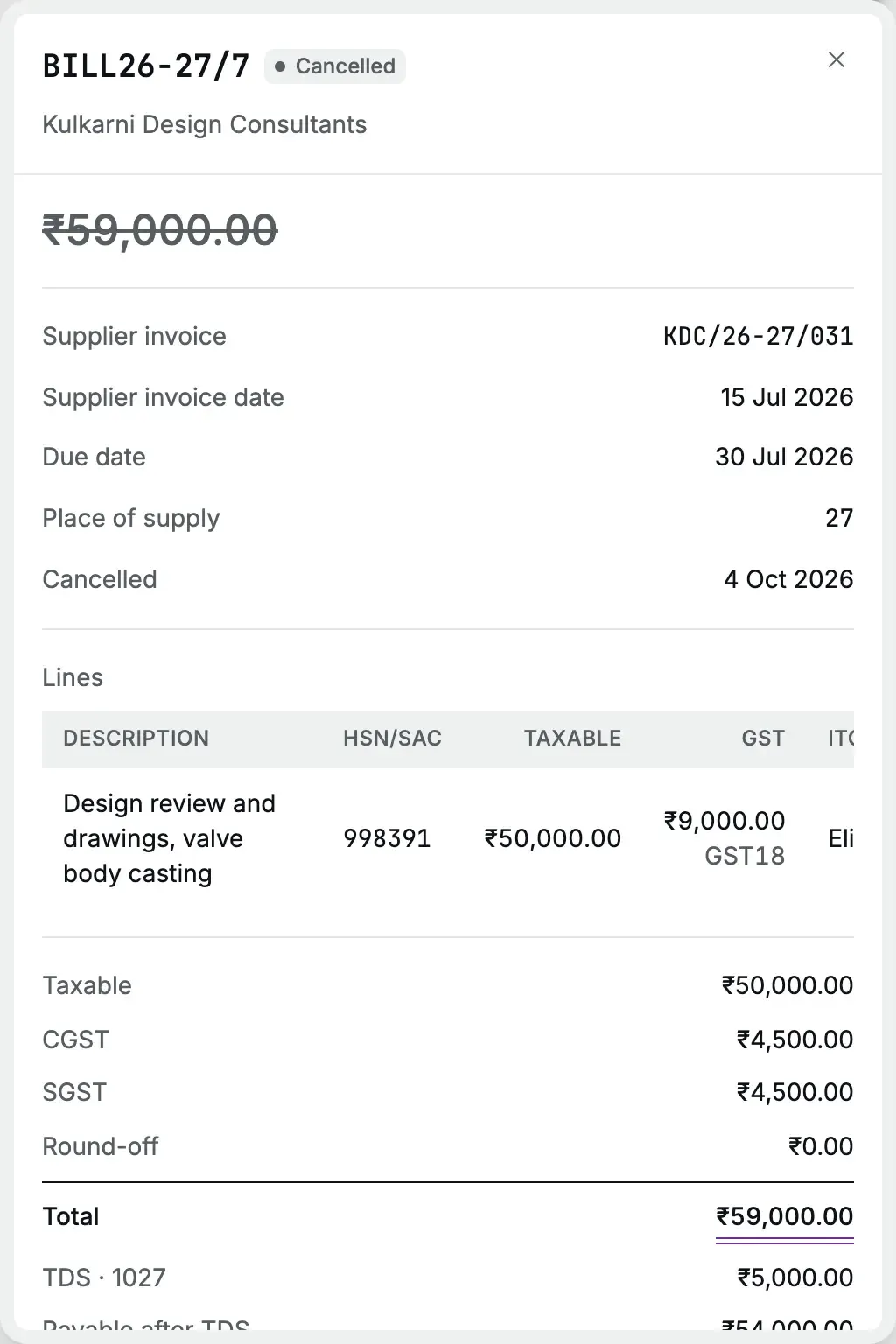
On 15 Jul 2026 Kulkarni Design Consultants bills a design review: ₹50,000 plus 18% GST
(₹4,500 CGST and ₹4,500 SGST), invoice KDC/26-27/031. Choose 1027 · Professional
services….
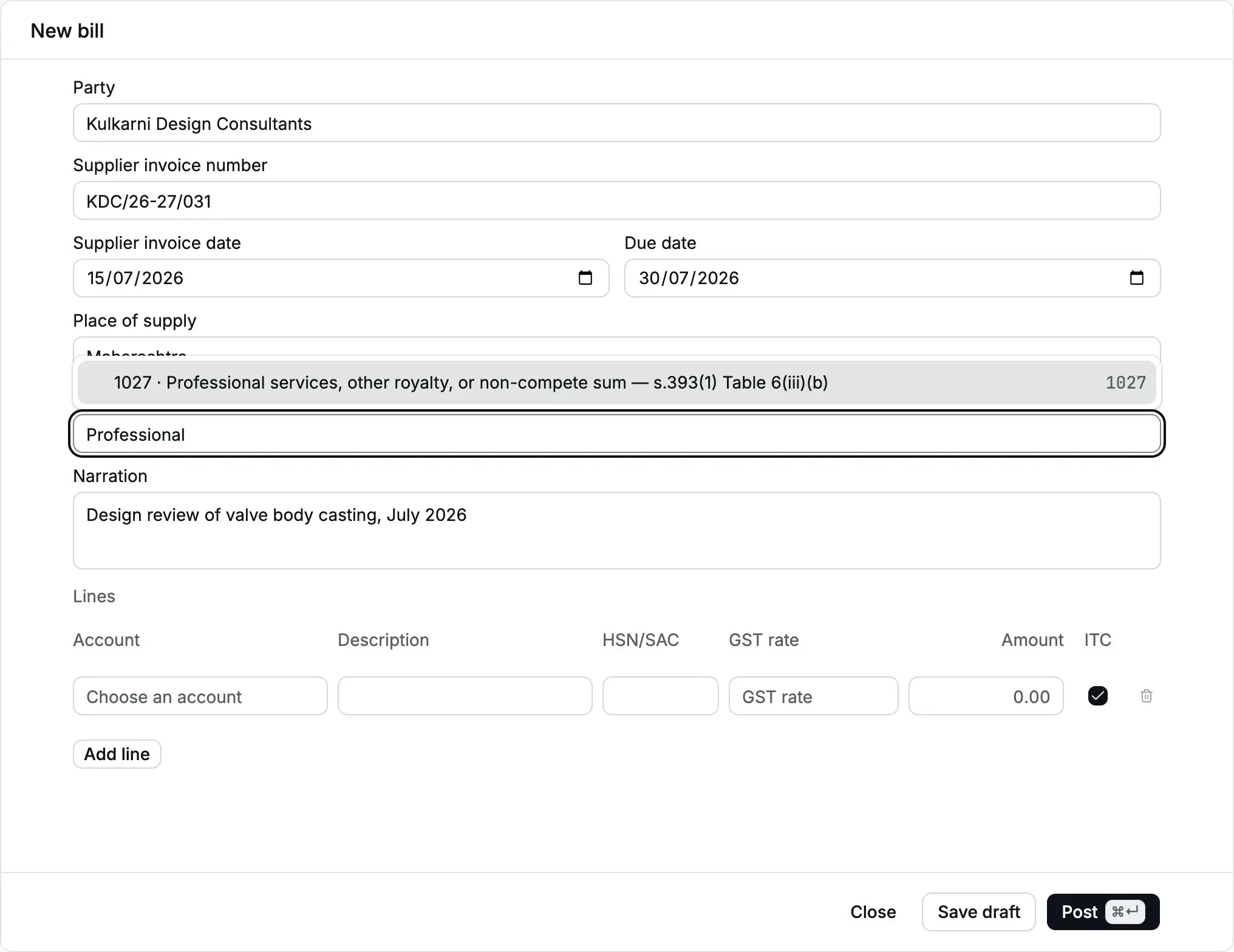
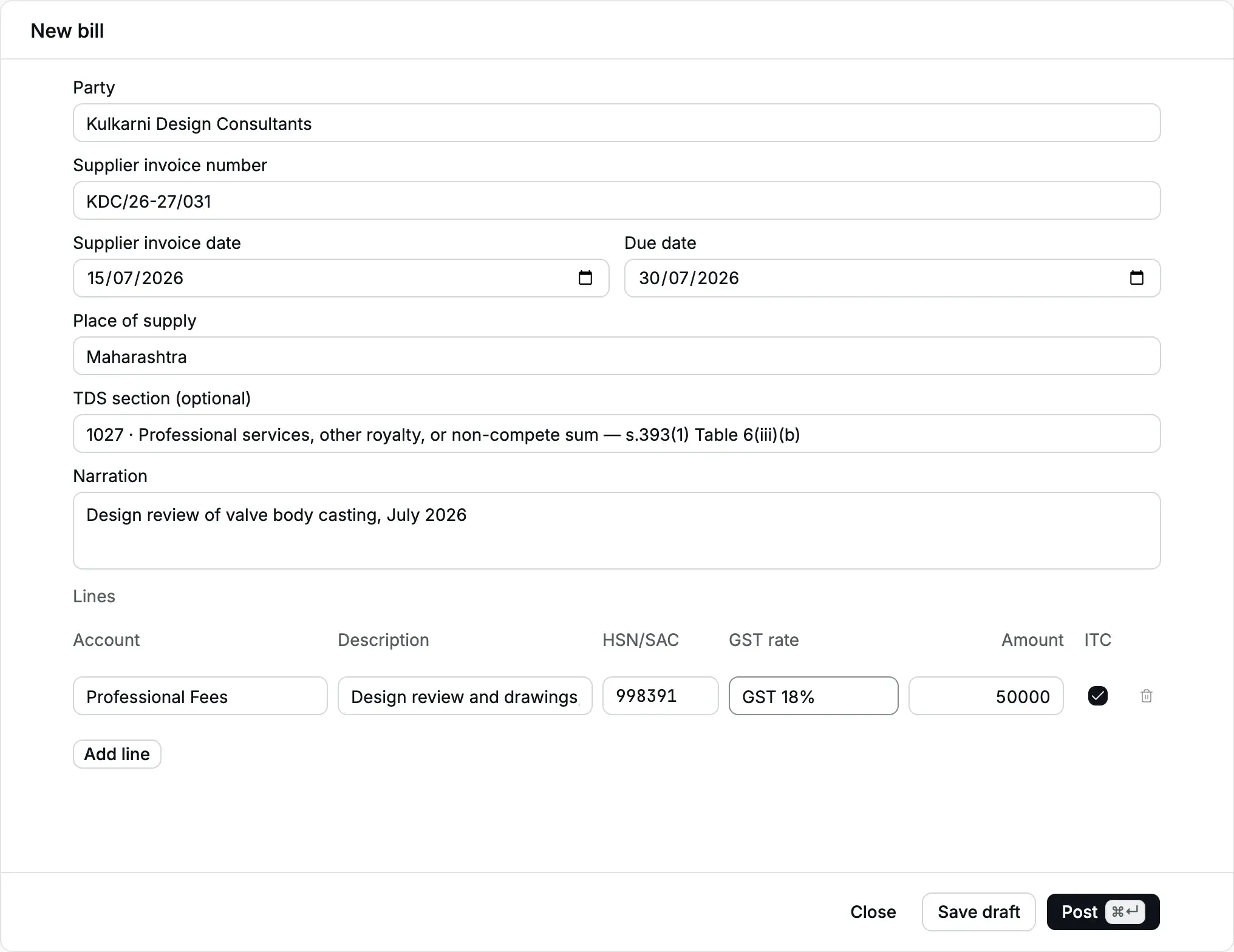
TDS is worked out on the taxable value, not on the GST, and rounded to the nearest rupee: 10% of ₹50,000 is ₹5,000. On ₹12,345 it would be ₹1,234.50, rounded to ₹1,235. The bill’s record shows TDS · 1027 ₹5,000.00 and Payable after TDS ₹54,000.00. That is the bill’s outstanding amount and what you pay the consultant.
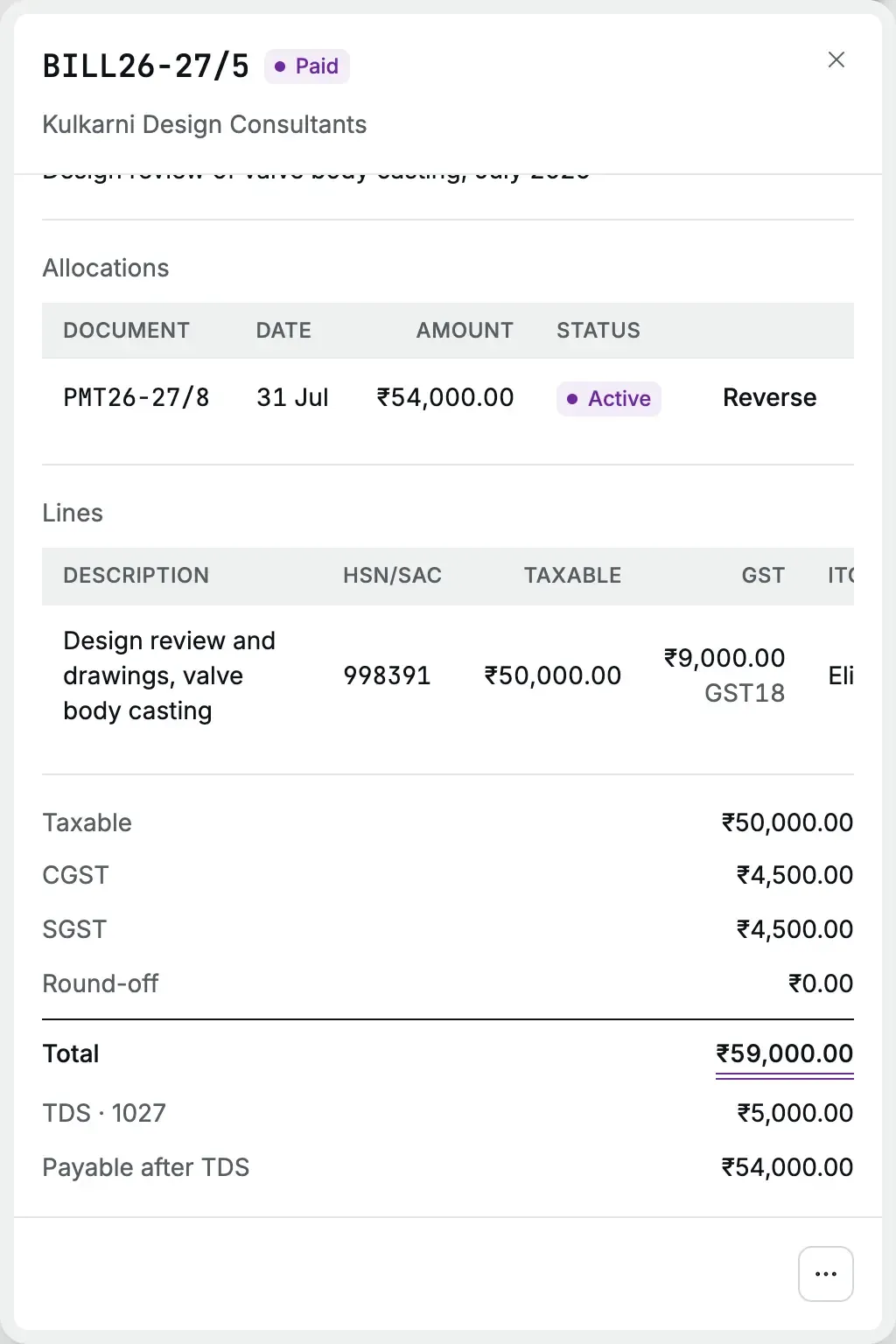
The TDS stays in TDS Payable (TDS Payable, the account for tax you deducted and owe the government) until you deposit it with the government, by the 7th of the next month. Record the deposit with a journal: Dr TDS Payable, Cr your bank account (Dr and Cr are debit and credit, the two equal sides of every entry). See the purchase cycle for an example. The TDS register download under Reports lists every deduction by section, party and PAN for your TDS return.
What happens in the books
The brass rod bill, inter-state with input tax credit:
| Account | Debit | Credit |
|---|---|---|
| Purchases | ₹2,60,000.00 | |
| IGST Input Credit | ₹46,800.00 | |
| Accounts Payable (Gujarat Brass Rods) | ₹3,06,800.00 |
The consultant’s bill, intra-state with TDS:
| Account | Debit | Credit |
|---|---|---|
| Professional Fees | ₹50,000.00 | |
| CGST Input Credit | ₹4,500.00 | |
| SGST Input Credit | ₹4,500.00 | |
| TDS Payable (Kulkarni Design Consultants) | ₹5,000.00 | |
| Accounts Payable (Kulkarni Design Consultants) | ₹54,000.00 |
The catering bill, ITC not eligible:
| Account | Debit | Credit |
|---|---|---|
| Staff Welfare | ₹9,440.00 | |
| Accounts Payable (Shreyas Caterers) | ₹9,440.00 |
The supplier’s balance in the party ledger (the ledger, or running record, of one party) rises by the amount payable: ₹3,06,800.00 for the brass rod and ₹54,000.00 (after TDS) for the consultant. You can check each entry in the day book (the day book lists every entry by date).
The bill record
Click a bill in the register to open its record. It shows the total and Outstanding, the supplier invoice number and date, due date, Place of supply (state name and code, for example Maharashtra (27)), narration (your note on the entry), the Allocations that settle it (allocations match payments and credits to the bill), the lines and the totals.
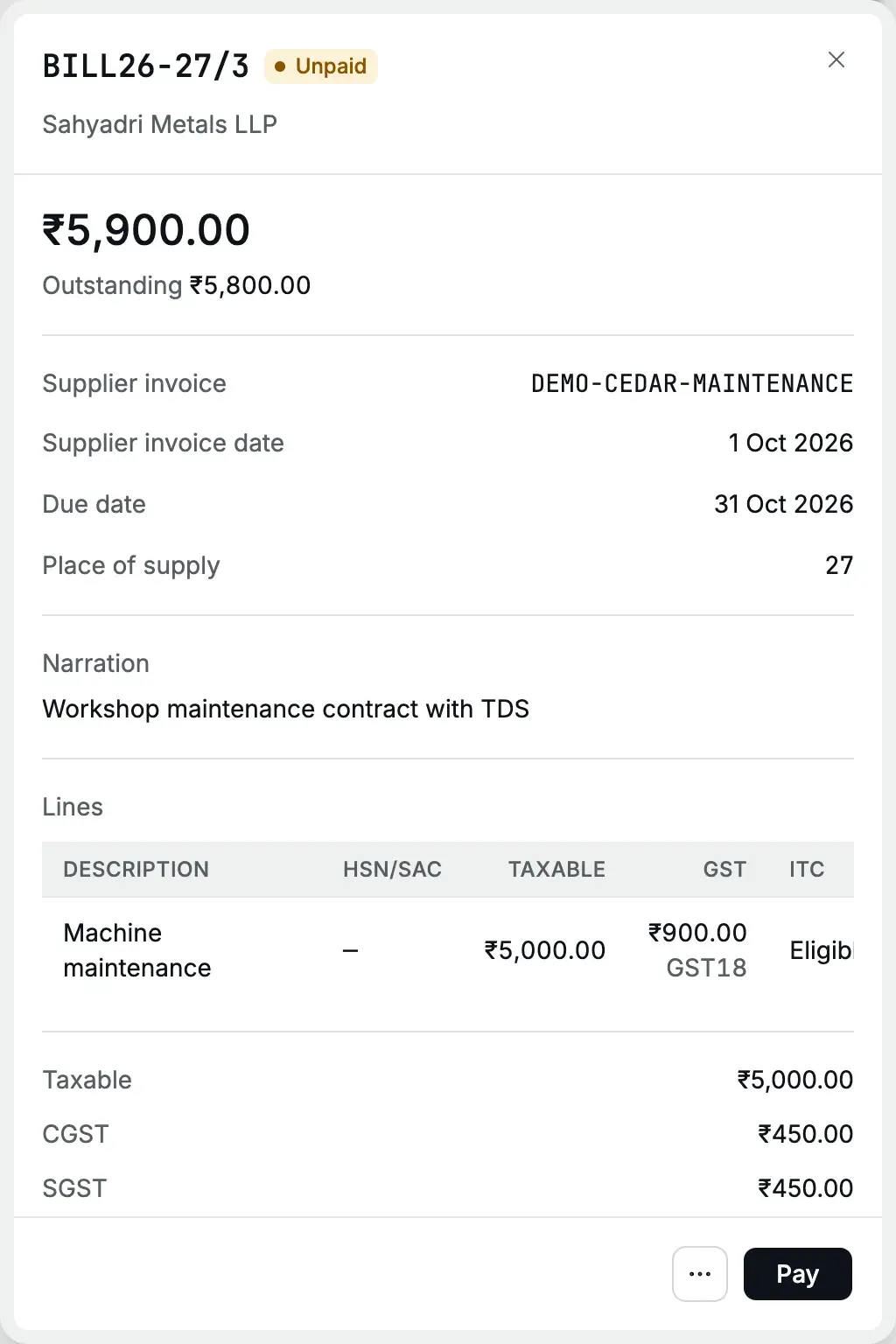
At the bottom:
- Pay opens a new payment with this supplier and Against open items → Bills selected. Enter the amount and allocate it to the bill before posting (see Payments).
- ⋯ opens Apply credit, Debit note, Amend and Cancel bill. Apply credit appears only while something is outstanding. Amend and Cancel bill appear only when no payment, advance or debit note is applied to the bill.
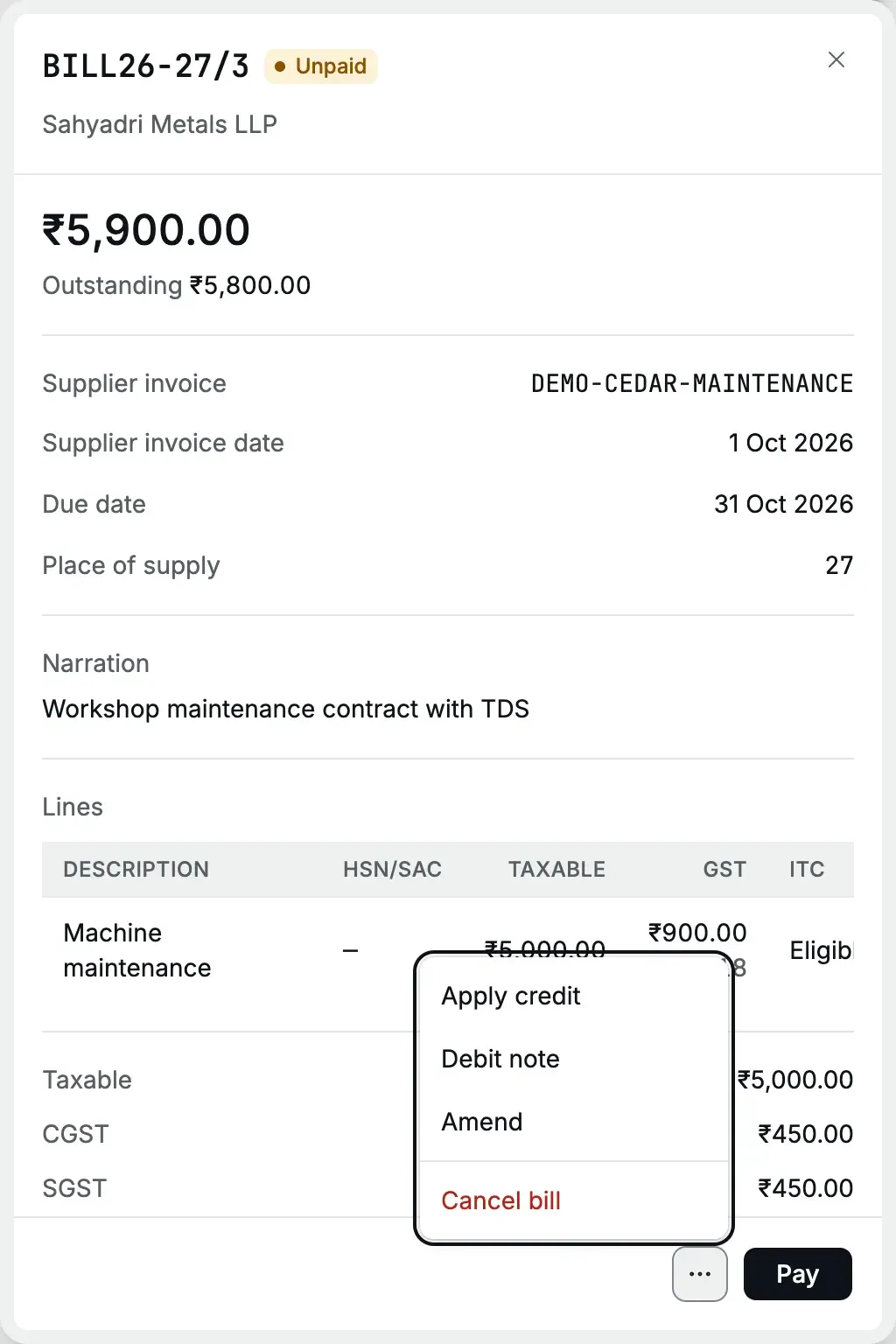
A posted bill also shows Print and Download PDF. They make a “Purchase bill” PDF for your own file: the supplier, supplier invoice number and date, lines, taxes, TDS and the amount payable after TDS. The supplier’s own invoice remains the legal document. On a phone these show as icons only.
Apply an advance
When you paid the supplier an advance (money paid before the bill; see Pay an advance) before the bill came, set it against the bill:
Open Apply credit
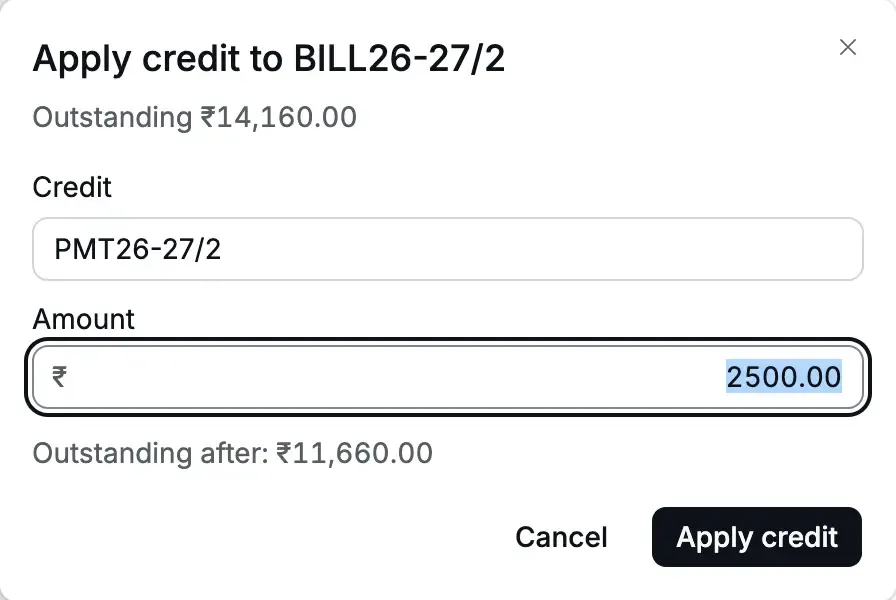
Open the bill and choose ⋯ → Apply credit. The dialog shows the bill’s outstanding amount.
Choose the credit
In Credit, choose the advance payment or an unapplied credit such as a debit note of the same supplier. The Amount fills with the smaller of the credit and the outstanding amount; lower it to apply part.
Apply
Click Apply credit. The toast reads “Credit applied” and the allocation appears on the bill.
Applying an advance posts Dr Accounts Payable, Cr Supplier Advances. The supplier’s balance does not change: the money already counted. The entry is dated on the day you apply it, not on the bill date.
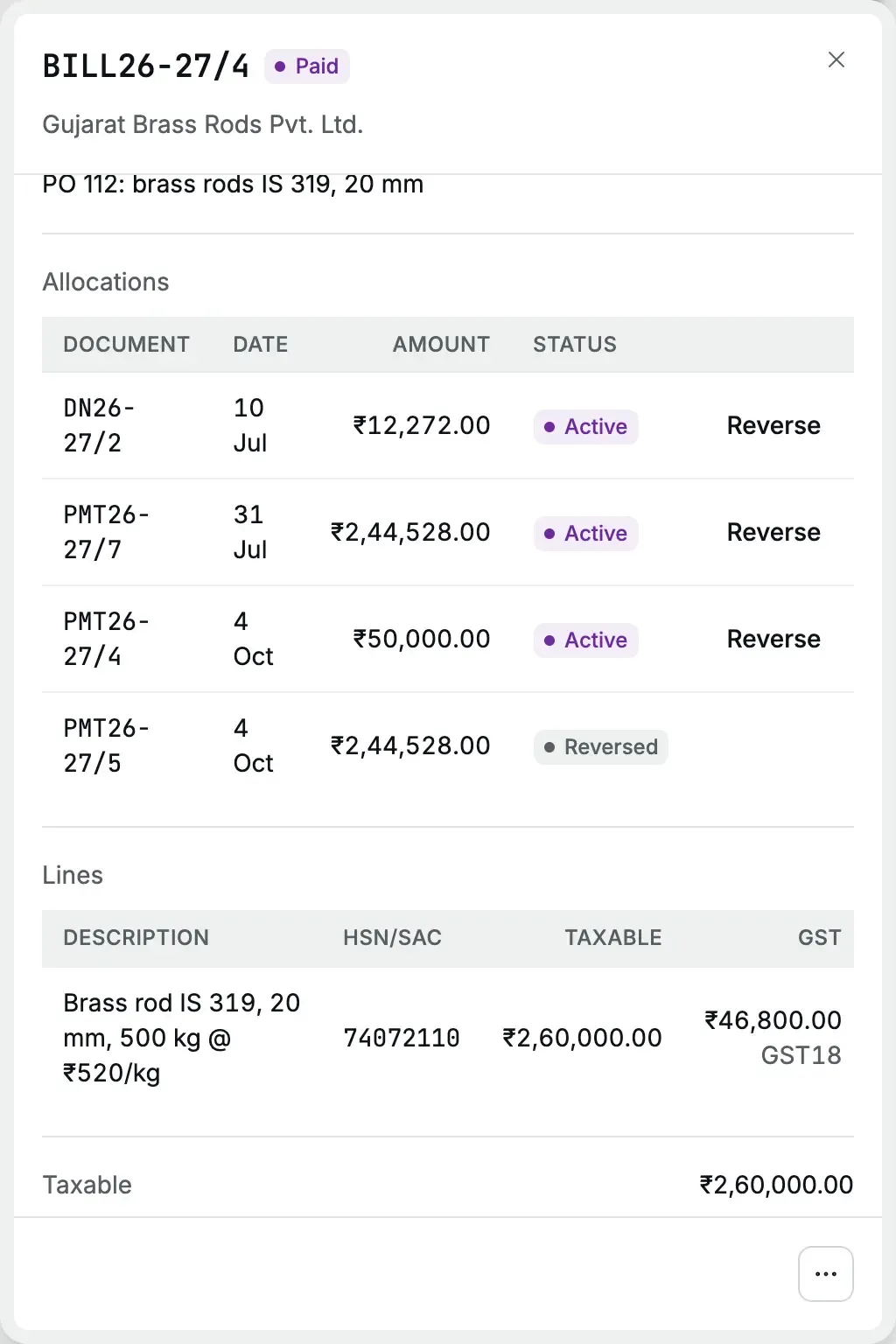
To undo an allocation, click Reverse next to it, give a reason and confirm. Both documents become open to settle again.
Drafts
A draft has no number and posts nothing. It shows in the register as Draft. Open it and choose Edit draft to change it and post it, or Discard draft to delete it. Confirm before deleting; a discarded draft cannot be recovered.
Correct or cancel a bill
| The mistake | What to do |
|---|---|
| Goods returned, short supply, or a lower price | Post a debit note against the bill |
| Wrong amount, account, GST, TDS or supplier details | ⋯ → Amend: cancels the bill and opens a new draft with the same details |
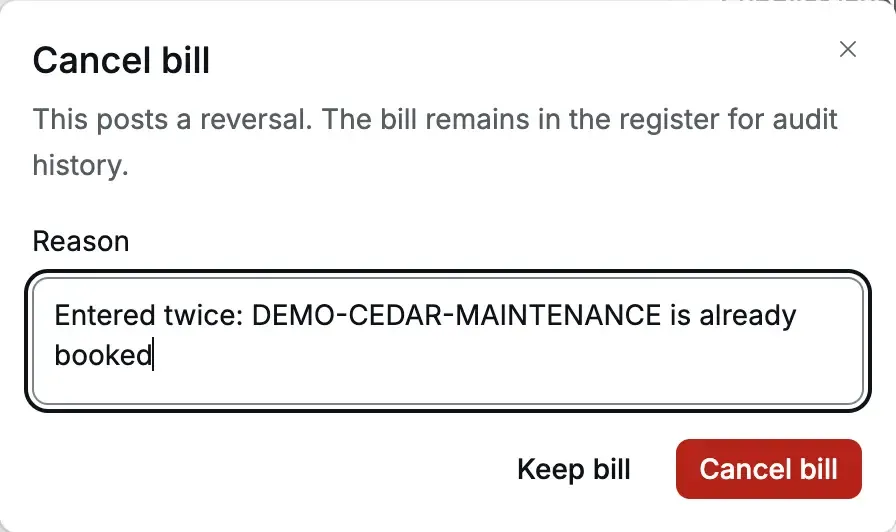
| Entered twice, or not your bill at all | ⋯ → Cancel bill |
Before you amend or cancel, reverse every allocation on the bill and cancel any debit note against it. Otherwise the menu does not offer the action, and the server refuses with “Reverse allocations from PMT26-27/7 first.” or “Cancel debit note DN26-27/2 first.”
To cancel, choose ⋯ → Cancel bill, type the Reason and click Cancel bill.
Posting refuses a supplier invoice number already posted for the same supplier and financial year, ignoring letter case and spaces at either end. The error appears on Supplier invoice number; drafts and cancelled bills do not reserve it.
Common errors
| Message | What it means and what to do |
|---|---|
| Enter the supplier invoice number before posting | Supplier invoice number is empty. A draft can be saved without it |
| Record the supplier’s state before posting a bill. | Edit the party and set its state |
| Record the party’s PAN before deducting TDS. | Add the PAN or a GSTIN to the party, or clear the TDS section |
| Choose a TDS section effective on this date. | The section is not in force on the bill date; choose another |
| Choose a GST rate effective on the bill date. | The rate has ended or not started on that date; choose the current one |
| Due date cannot be before the bill date. | Correct the due date |
| TDS must leave a positive amount payable to the supplier. | The TDS is as large as the bill; check the section and the amounts |
| A bill total must be greater than zero. | Enter a positive amount on at least one line |
| Choose active expense or asset leaves that are not system accounts. | A line names a group, income or system account; choose another |
Related pages
- Payments: pay the bill, with bank charges or a small write-off
- Debit notes: reduce a bill
- Purchase cycle: a full worked example
- Account ledger: check input credit and TDS Payable