Parties
Customers and vendors, with GSTIN, state and PAN, roles, the party page and inactive parties
A party is anyone you deal with: a customer, a vendor, or both. Invoices, bills, receipts and payments each name a party. Invoices, bills, advances and receipts or payments against open items make up the party’s balance. A Direct receipt or payment can name a party but does not change its balance.
Who can do it: an Owner or Accountant (see roles) adds and edits parties. An Operator and a Chartered Accountant can see them; an operator picks existing parties on invoices and receipts but cannot add one.
The party list
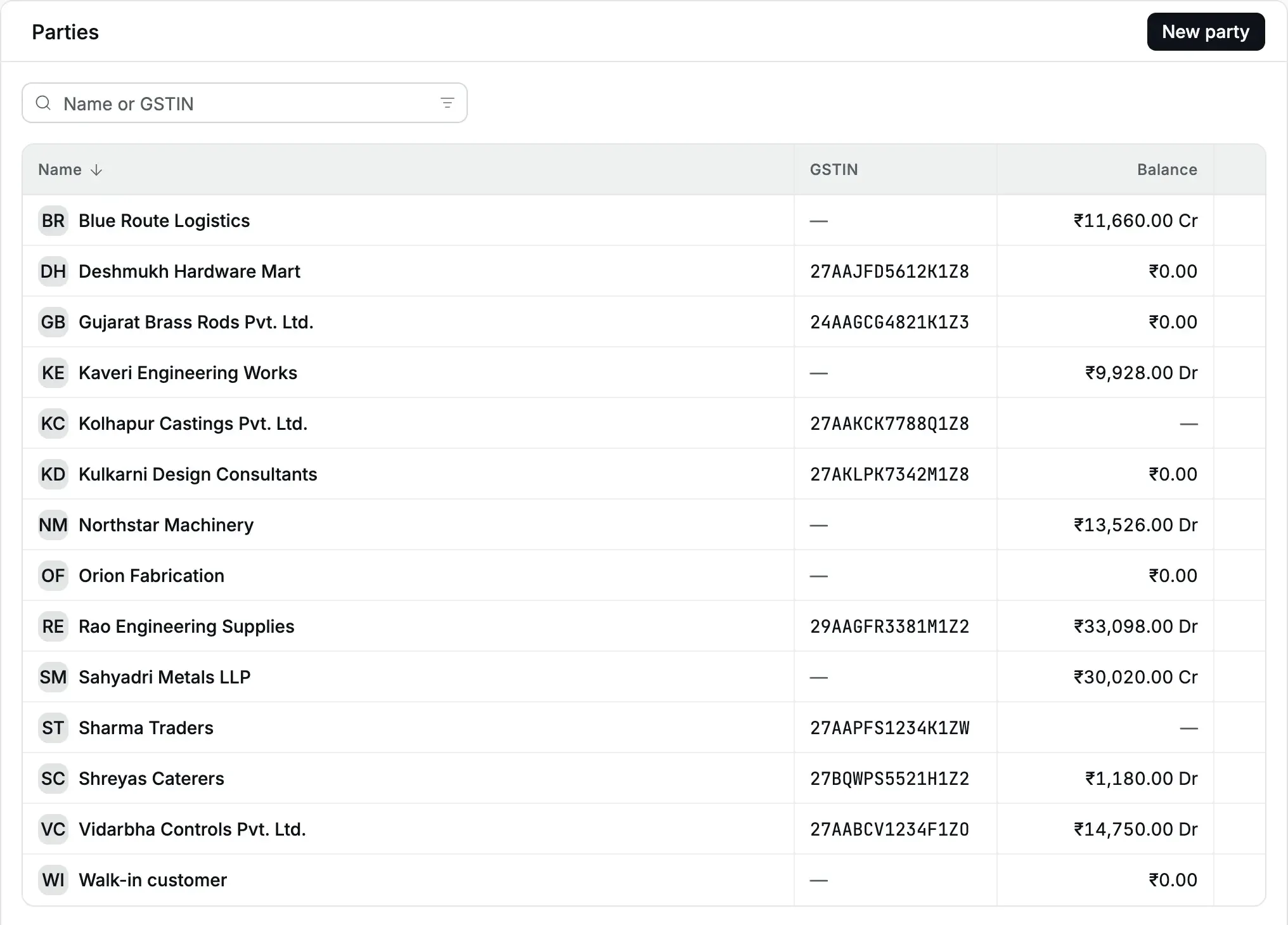
Open Masters → Parties. Each row shows the Name, GSTIN (GSTIN: the 15-character GST registration number; a dash for an unregistered party) and Balance (Dr and Cr are debit and credit):
- Dr: the party owes you, for example ₹33,098.00 Dr for a customer with unpaid invoices.
- Cr: you owe the party, or hold its advance (money paid before the invoice), for example ₹2,44,528.00 Cr for a vendor whose bills are unpaid.
Balances include entries dated through today in your organization’s time zone, like the Home totals. Future-dated entries count only when their date arrives.
Search by name or GSTIN. The filter icon offers Status (Active or Inactive), Role and GST (Registered or Unregistered). Click a column heading to sort. The ⋯ at the end of a row offers Open party, Edit party, View transactions and Copy GSTIN. Click a name to open a quick look over the list.
Click Export and choose Download Excel or Download CSV. The file follows the current search and filters and includes: name, roles, GSTIN, PAN, address, city, state code, PIN, phone, email and status. These need the same permission as report downloads: Owner, Accountant and Chartered Accountant. In the CSV, text that starts with =, +, - or @ gets a leading ' so a spreadsheet does not run it as a formula. Phone numbers such as +91 98765 43210 stay exactly as entered.
Add a customer
Cedar Components starts selling to Sharma Traders, a registered dealer in Pune.
Open the form
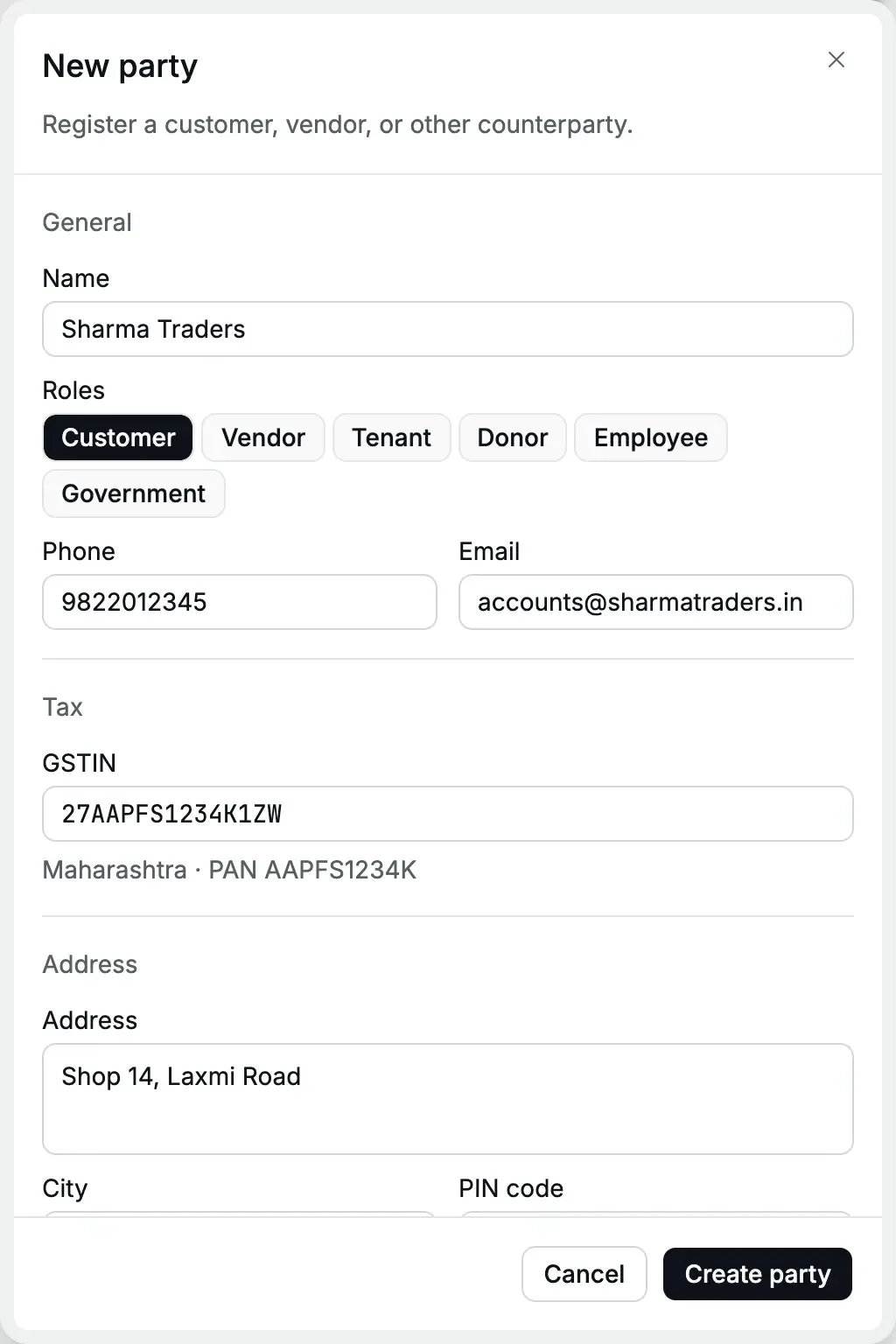
Click New party. The New party panel opens with the role Customer already chosen.
Name and contact
Type Sharma Traders in Name. Add the Phone and Email used for accounts.
Type the GSTIN
Type 27AAPFS1234K1ZW in GSTIN. The line under it shows Maharashtra · PAN AAPFS1234K: the state and PAN (Permanent Account Number) are filled from the GSTIN, so their fields are hidden.
Add the address
Type the Address, City and PIN code. They print on invoices.
Save
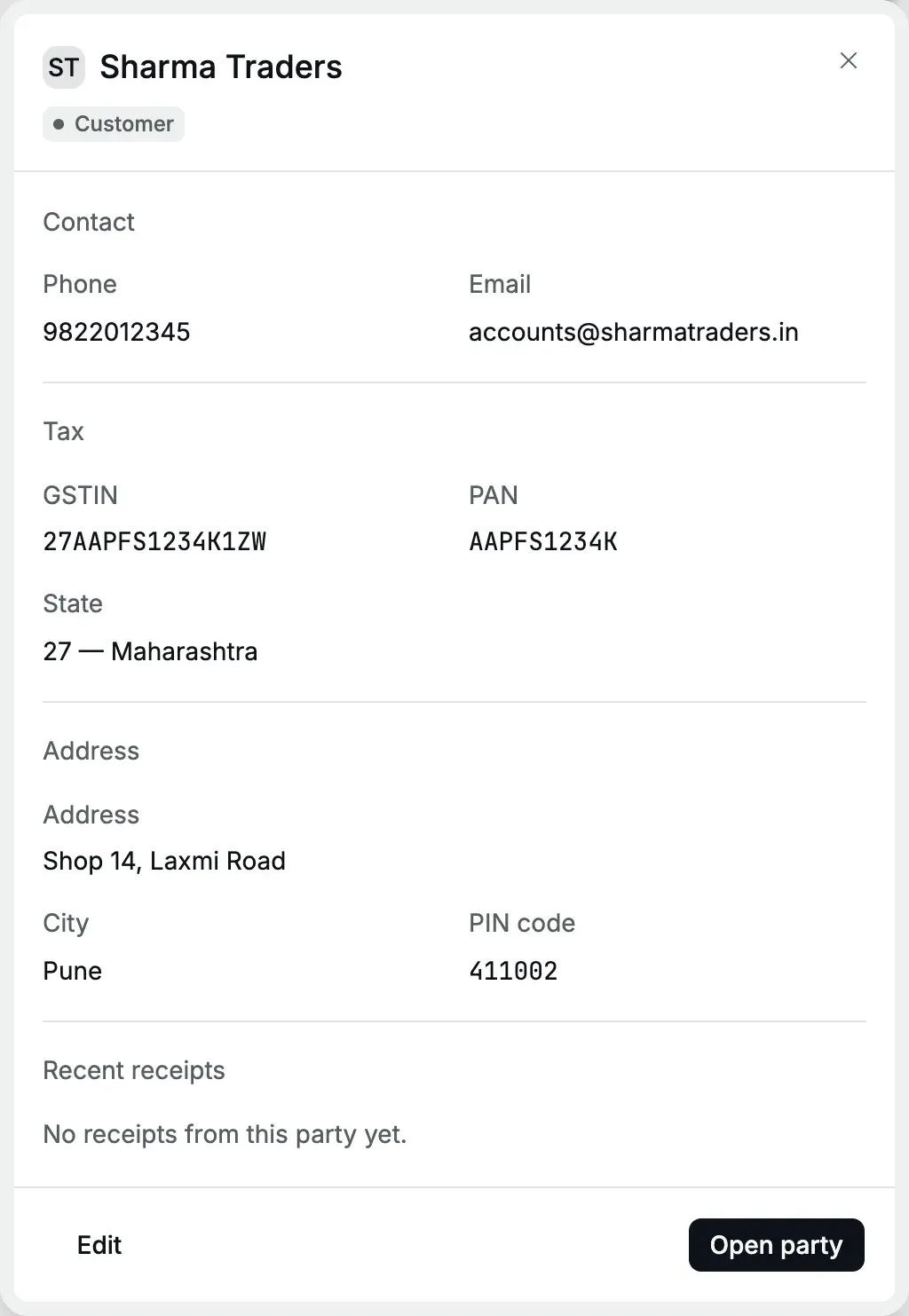
Click Create party (or ⌘/Ctrl + Enter). The party opens in a quick look.
Add a vendor
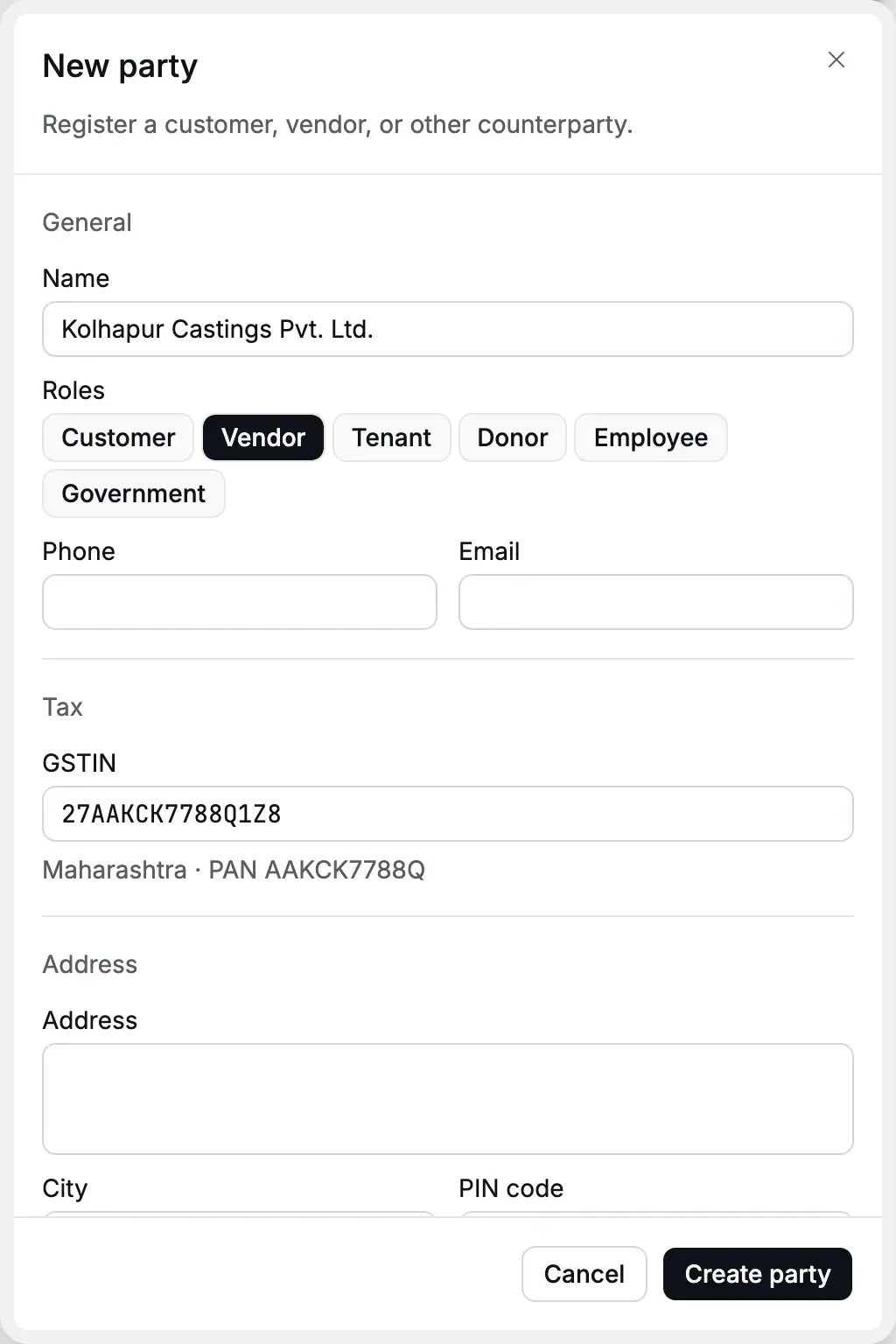
For a supplier, click Vendor under Roles and click Customer to clear it. Cedar Components buys castings from Kolhapur Castings Pvt. Ltd., GSTIN 27AAKCK7788Q1Z8.
You can also add a party from the Party field of an invoice, bill, receipt or payment: type a new name and choose the option to create it. A bill or payment starts the new party as a vendor.
GSTIN, state and PAN
| Field | With a GSTIN | Without a GSTIN (unregistered party) |
|---|---|---|
| State | Taken from the first two digits; field hidden | Required. Choose the state where the party is |
| PAN | Taken from characters 3 to 12; field hidden | Optional. Add it for TDS (tax deducted at source) or high-value parties |
The state matters: it is the default place of supply on invoices and bills, which decides CGST + SGST (same state as you) or IGST (another state); see CGST, SGST and IGST. Cedar Components is in Maharashtra, so a sale to Sharma Traders charges CGST and SGST, and a sale to Rao Engineering Supplies in Karnataka charges IGST.
If you clear a GSTIN, the State and PAN fields come back with the values the GSTIN gave them. Check them before you save.
A GSTIN must have the 15-character GST pattern, a real state code and a valid last check character. Edernal Books checks all three, but does not confirm whether the registration exists or is active. Verify it on the GST portal or the party’s invoice.
Duplicates
Same GSTIN. Only one party can hold a GSTIN. Saving a second party with 27AAPFS1234K1ZW shows “A party with this GSTIN already exists.” Use the existing party. A business with branches in two states has two GSTINs, so two parties.
Same name (namesake). Names compare without case and extra spaces. If you save Sharma traders while Sharma Traders exists, the party is not saved. A warning beside the Create party button says “A party named Sharma traders exists” and offers Create anyway. Use it only for a genuinely different party, such as two students with the same name. Otherwise, use the existing party: two records for one customer split their balance.
Roles
Roles describe the party. They do not limit what you can do with it.
| Role | Typical use |
|---|---|
| Customer | You invoice them and receive money |
| Vendor | They bill you and you pay them |
A party can hold both roles, for example a dealer who both buys from and sells to you. On an invoice, parties with the Customer role are listed first; on a bill, Vendor parties come first. The others are still listed below them.
The party page
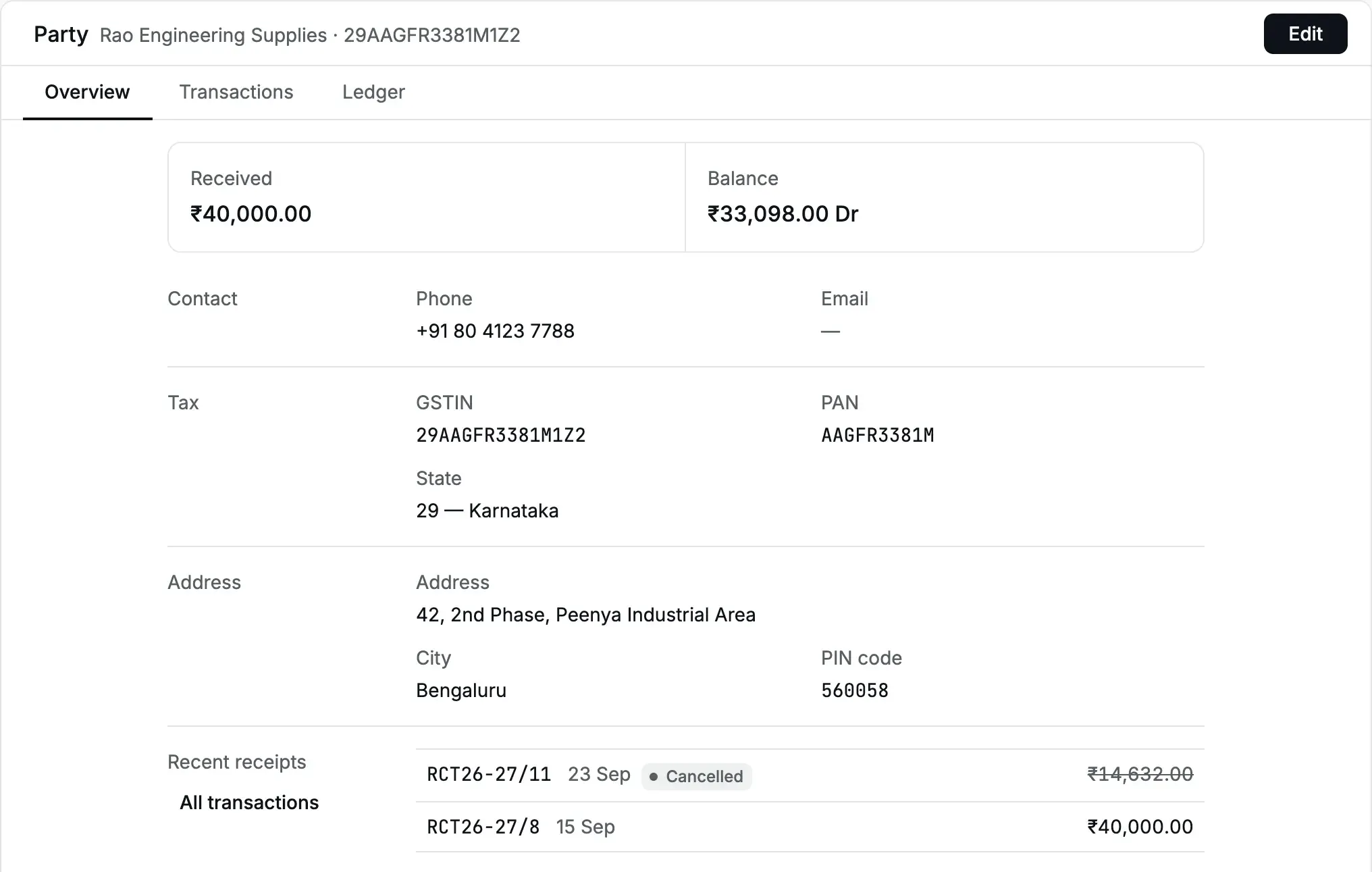
Open a party with Open party in the quick look, or Open party in the row’s ⋯ menu. The page has three tabs. Above the tabs, on every tab, are the party’s name, roles, phone and email, with its Balance and the amount received (or only Received, if your role cannot read ledgers).
The party’s contact, tax and address details, then its recent receipts.
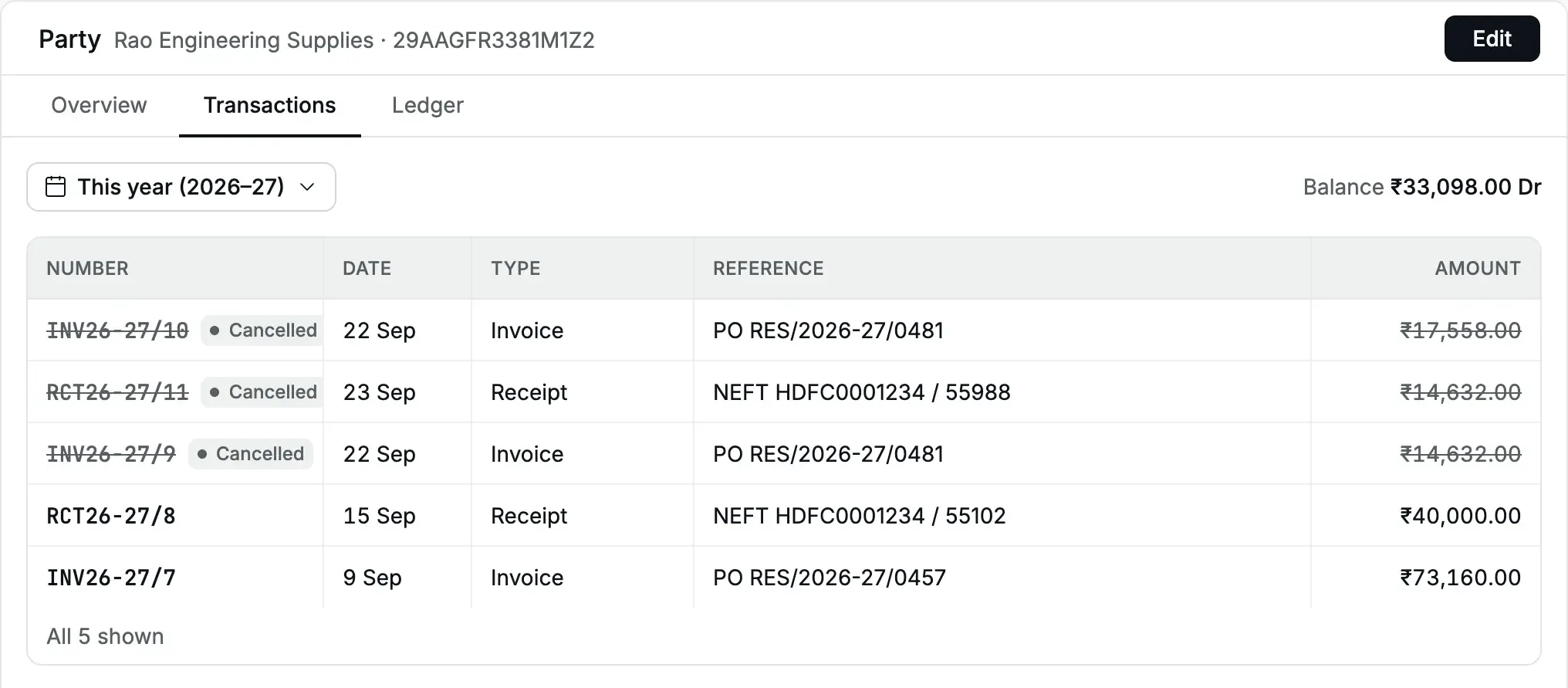
Every invoice, receipt, bill, payment and note for the party in a period, with its number, date, type, reference and amount. Cancelled documents show a Cancelled badge.
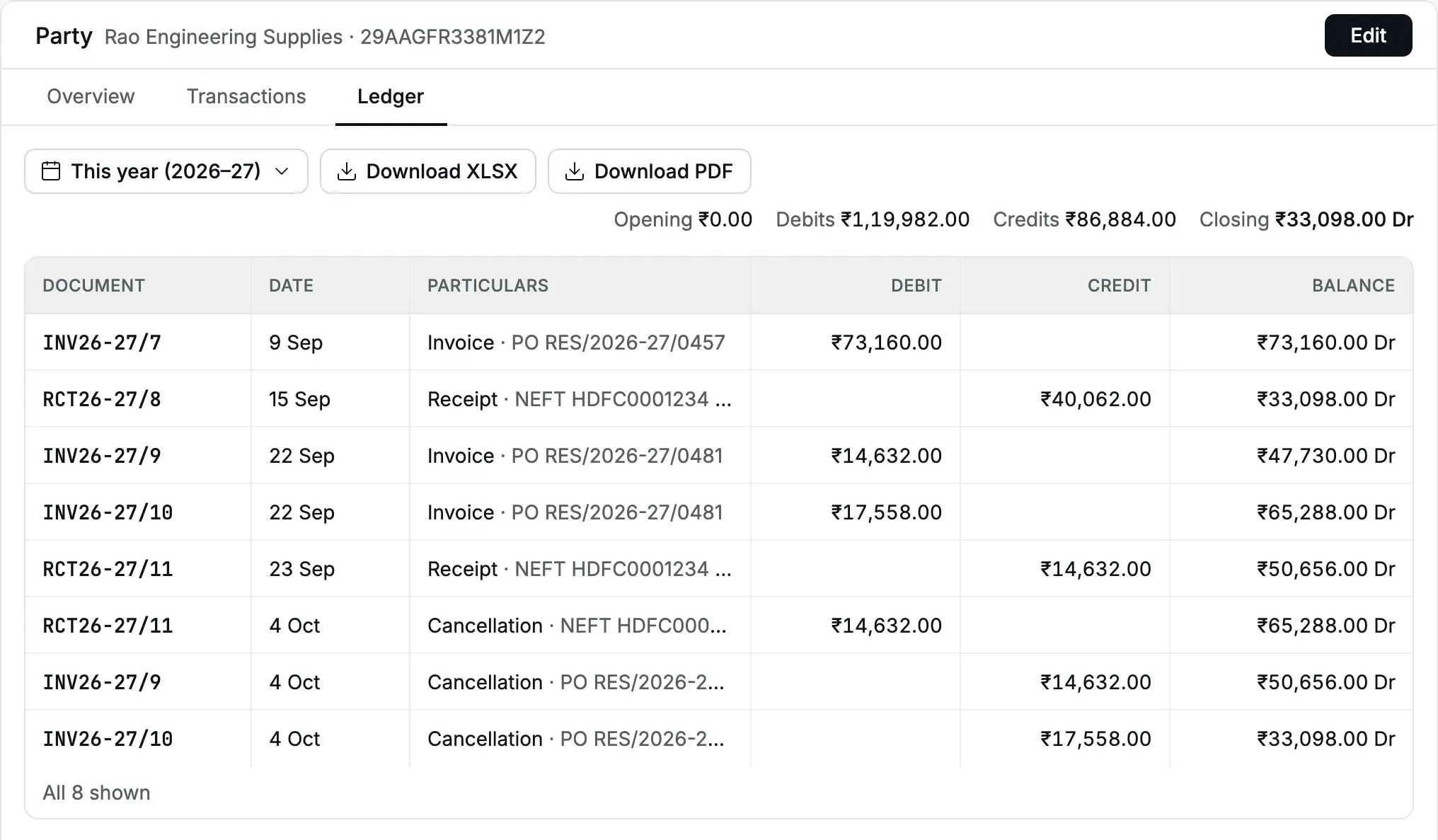
The party’s ledger, a statement for a period: Opening, Debits, Credits and Closing, then each entry with a running balance. A cancellation shows as its own reversal line on the day it was cancelled. Use Print, Download PDF or Download Excel to send it to the party. See Party ledger.
An Operator sees the Overview and Transactions; the Ledger tab needs report access.
Edit a party
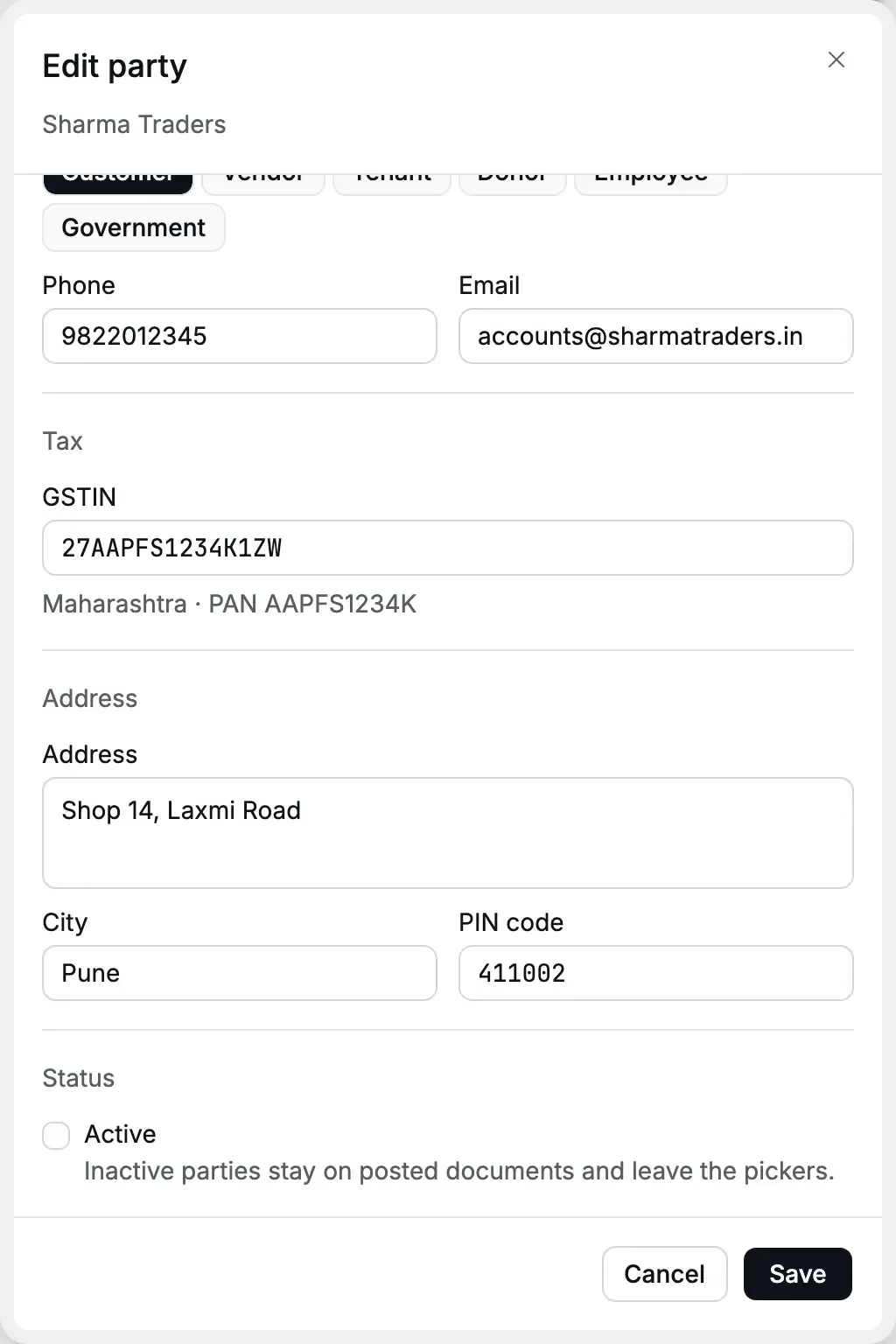
Click Edit on the party page. Change any field and click Save. Saving is allowed only when you changed something. Posted documents keep the name, address and GSTIN they were posted with; new documents use the new details.
Mark a party inactive
In Edit, clear Active under Status (inactive records stay but leave the pickers) and click Save. The party leaves the pickers on new documents. Its posted documents and balance stay. Filter the list by Status → Inactive to see inactive parties.
On a phone
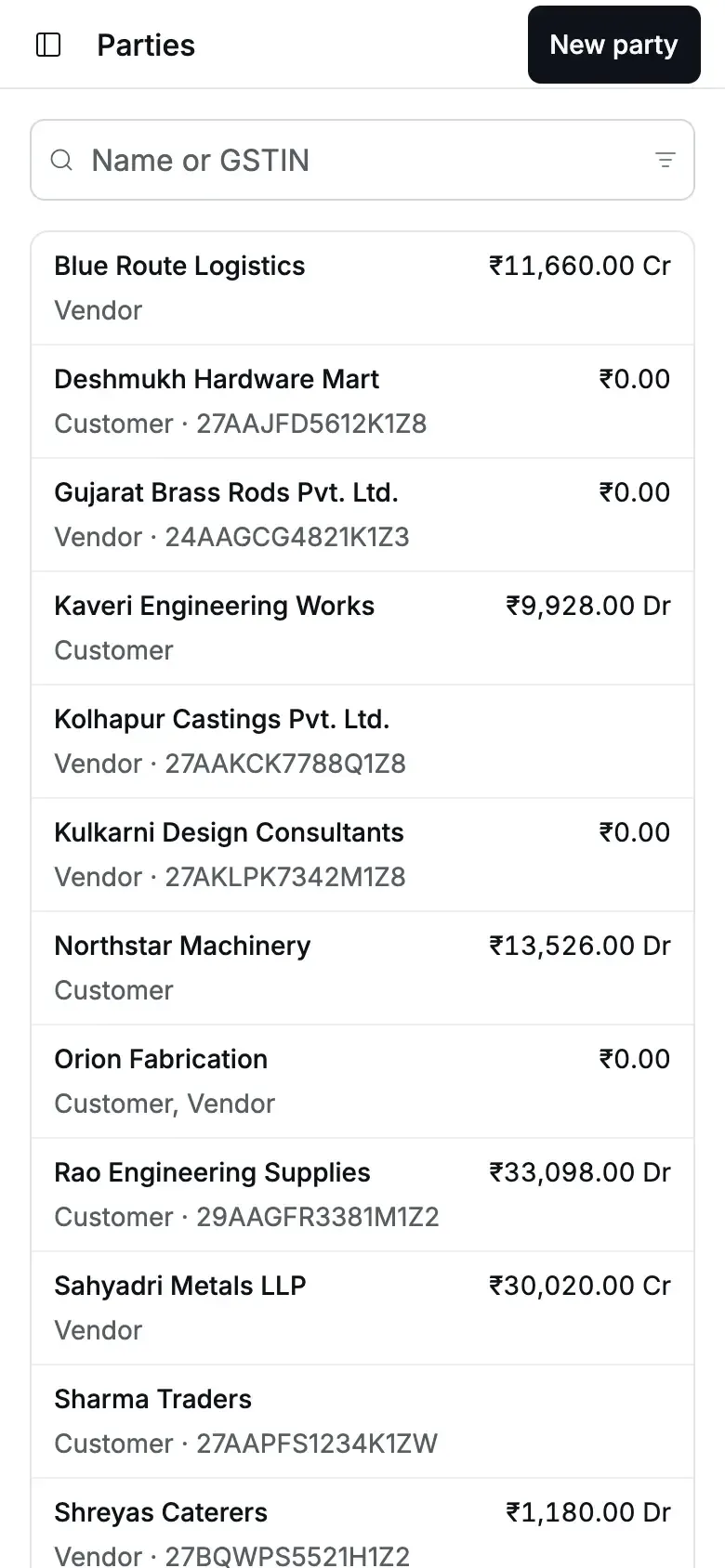
The list shows each party as a card with its GSTIN and balance. Tap a card for the quick look.
Common errors
| Message | What to do |
|---|---|
| “A party with this GSTIN already exists.” | Use the existing party, or correct the GSTIN |
| “A party named … exists” | Use the existing party, or click Create anyway for a different one |
| “GSTIN must start with a valid Indian state code” | Check the first two digits |
| “Choose a state” | An unregistered party needs a state |
| “Use a valid PAN” | Five letters, four digits, one letter, such as ABCDE1234F |
| “Use a valid 6-digit PIN code” | Six digits, not starting with 0 |
| “Choose at least one role” | Press at least one role |
Related pages
- Invoices and Bills: each names a party.
- Party ledger: a statement for any period.
- Import opening balances: create many parties from Excel.