Reports
Read your books on Home and in the Reports hub, and find the right report for each question
Edernal Books builds every report from the posted entries in your books: documents you have saved for good, which change the accounts. Nothing is copied or summarised in advance, so a receipt (money you received) that you post now shows the next time you open any report whose accounts and dates it touches. A receipt to a bank account, for example, appears in the trial balance and the day book for its date, but in the profit and loss only when it credits an income account.
This section explains each report: the question it answers, how to choose its dates, how to read each column, and how to download it.
Kinds of report
| Kind | Reads | Reports |
|---|---|---|
| Accounting reports | The journal entry lines behind each posted document | Trial balance, Profit and loss, Balance sheet, Account ledger, Day book |
| Party report | Each party’s statement lines | Party ledger |
| Filing registers | Posted invoices, bills, notes and payments | GST outward register, GST inward register, TDS (tax deducted at source) register |
| Stock reports | Posted stock movements, purchase costs and sold costs | Stock and purchases |
The accounting reports always agree with each other. The trial balance, the profit and loss and the balance sheet read the same lines, so when you post a document, all three change together.
Home
Home is the first page after you sign in. Finding your way describes its figures, chart and lists.
The Reports hub
Open Reports in the sidebar. The hub lists the reports your role can open.
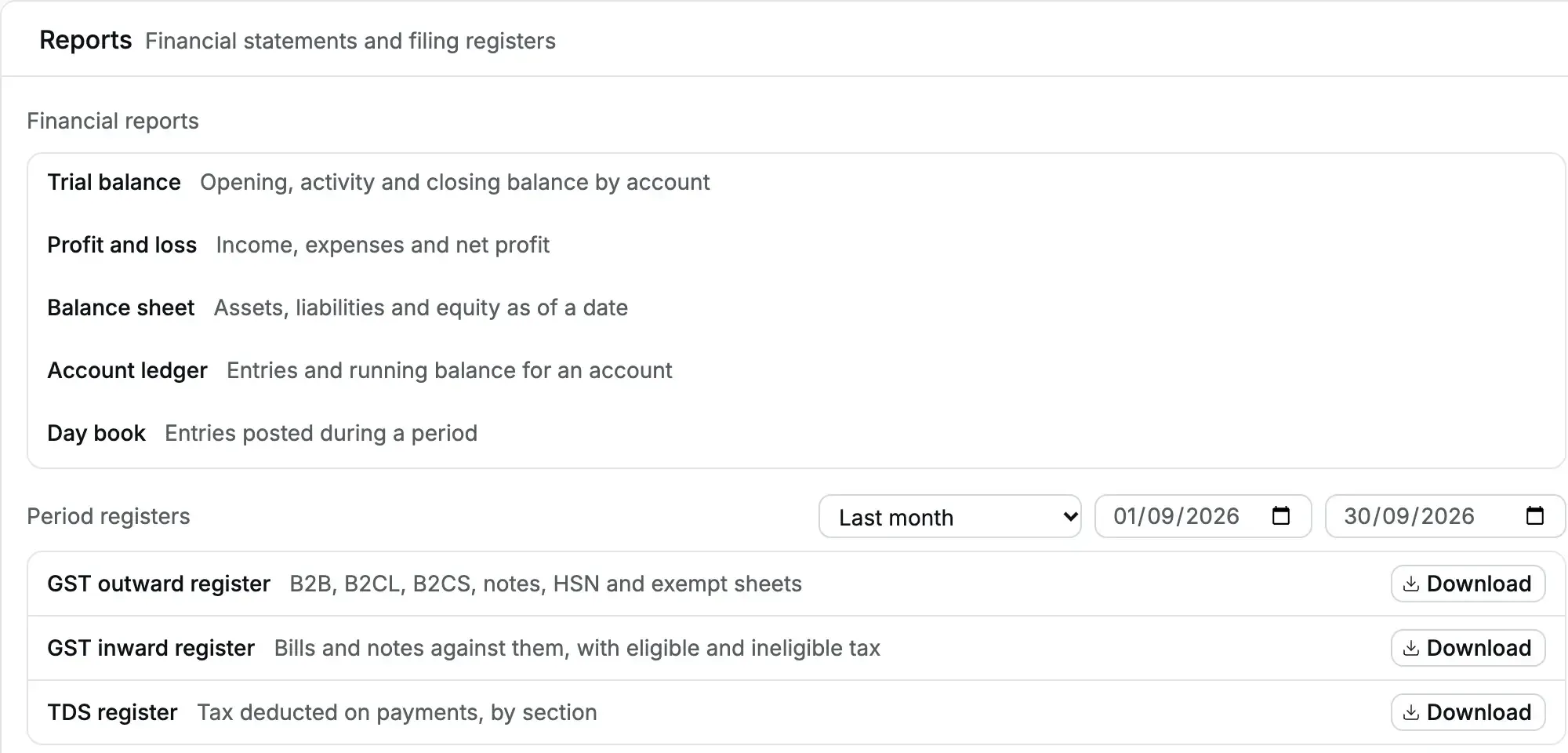
Financial reports opens each accounting report on its own page. Party statements takes you to Parties: choose the party, then open its Ledger tab to view and download the statement.
Period registers builds the GST and TDS workbooks for one period:
| Register | Contents |
|---|---|
| GST outward register | B2B (sales to GST-registered buyers), B2CL and B2CS (large and small sales to consumers), notes, HSN (product code) and exempt sheets, for your GSTR-1 return |
| GST inward register | Bills and the notes against them, with eligible and ineligible tax (input tax credit, the GST you may deduct) |
| TDS register | Tax deducted on payments, by section of the Income-tax Act |
The period starts on Last month. Choose another preset or a custom range, then click Download Excel next to the register. The button reads Building… until the file is ready.
Stock and purchases
Open Reports → Stock and purchases for tracked items. The stock statement shows quantities and values at a date and downloads as Excel. The Strict FIFO comparison shows the cost difference that late Bills leave; it does not change posted accounts.
Purchase cost groups the period by Item, Party or Month, including freight, supplier credits, free units and discounts. The stock bridge explains the change from opening to closing Stock. By Item, the report also shows sales, posted cost and gross margin. A provisional cost means some sold goods still await their purchase cost; later Bills can change that margin.
Choose the dates
Accounting reports start on This month, the Day book on Today, the period registers on Last month and the Party ledger on This year. All use the same date filter:
- Choose Today, Yesterday, Last 7 days, Last 30 days, This month, Last month, This year (2026–27) or Last year (2025–26). A year is your financial year (FY). It runs April to March unless your organization set another start month in its settings; the labels and dates follow that month.
- Choose Custom range, pick the first and last dates in the calendar, then click Apply. Both dates are included. Desktop shows two months; a phone shows one.
- The filter label shows the selected preset or dates. Future dates remain available.
If To is before From, the report shows “The end date must not be before the start date.” and nothing loads until you correct a date.
The dates stay in the page address. Bookmark the page or send its link to a colleague in the same organization, and the report opens with the same period.
Downloads
| Report | XLSX | |
|---|---|---|
| Trial balance | Yes | Yes |
| Profit and loss | Yes | Yes |
| Balance sheet | Yes | Yes |
| Account ledger | Yes, up to 1,00,000 lines | Yes, up to 5,000 lines |
| Day book | Yes, up to 1,00,000 lines | Yes, up to 5,000 lines |
| Party ledger (party statement) | Yes, up to 1,00,000 lines | Yes, up to 5,000 lines |
Download Excel saves a workbook. Its first four rows hold your legal name, the report title, the period and the time it was generated. Amounts are numbers, so you can add and filter them in Excel.
The workbook name includes its report and its dates in year-month-day form, for example
day-book-2026-04-01-2026-06-30.xlsx. Document types and reversal kinds
appear as labels rather than internal codes.
Print opens the PDF in its own browser tab. Press Ctrl+P there, or use the viewer’s print button, and only the report prints. Download PDF saves the same PDF file and leaves the page where it is. The letterhead heads the first page; every page repeats the column headings, and the footer names the report and numbers the pages. The PDF states “Amounts in ₹” once above the table, so the cells hold plain numbers. Zero amounts in the debit and credit columns are blank.
Until the report’s inputs are complete (for example, before you choose an account in the account ledger), none of the three buttons shows.
When a period holds more lines than the limit, the download stops with “This report exceeds 1,00,000 lines; choose a shorter period.” (Excel) or opens a small error page with “This report exceeds 5,000 lines; narrow the filters or choose a shorter period.” (Print and Download PDF). Nothing is cut off. Choose a shorter period, for example one month, and download each part.
Who can see reports
| Role | Accounting reports | Party ledger | Filing registers | XLSX downloads |
|---|---|---|---|---|
| Owner | Yes | Yes | Yes | Yes |
| Accountant | Yes | Yes | Yes | Yes |
| Chartered Accountant | Yes | Yes | Yes | Yes |
| Operator | No | No | No | No |
An operator does not see Reports in the sidebar, the Ledger tab on a party, or the money figures on Home. A Chartered Accountant (CA) is your outside auditor or tax adviser. See roles and Roles and access.
Large books
The account ledger and day book load a page at a time. The footer counts loaded rows, for example “100 shown”, and says “All … shown” at the end.
For long periods, downloads take longer than the first page. Use a shorter period when a report exceeds the download limit.
Reports in this section
Trial balance
Opening, debits, credits and closing for every account.
Profit and loss
Income, expenses and net profit for a period.
Balance sheet
Closing assets, liabilities and equity for a period.
Account ledger
Every entry in one account, with a running balance.
Day book
Every entry posted in a period, with all its lines.
Party ledger
One customer’s or vendor’s statement of account.