Import opening balances
Move from Tally, Excel or other books with one workbook of accounts, parties, items, trial balance and open invoices
Settings → Import moves your starting position from Tally, Excel or another bookkeeping system in one step. One Excel workbook creates new accounts, parties (customers and vendors) and items, and can post your trial balance (every account’s balance on one date) with the unpaid invoices, unpaid bills and unused credits behind it.
It is for a one-time move. It does not bring in your old transaction history, and it never updates records that already exist.
When to use it: whenever customers or vendors have open balances at cutover, or you have many masters (accounts, parties and items) to create. For a few balances with no party balances, the form in Opening balance (the balances you start with) is quicker.
Who can do it: only an Owner or Accountant (see roles). A Chartered Accountant or Operator does not see the Import tab. Your CA (Chartered Accountant) can still prepare and review the workbook before an owner or accountant imports it.
Before you start
- Agree the cutover date and a balanced trial balance with your CA. India’s financial year (FY) runs from April to March. For a fresh start on 1 April 2026, agree the closing balances as at 31 March 2026.
- List each unpaid customer invoice and vendor bill, with its original reference, date, amount still unpaid and, if relevant, due date.
- List unused credits and unmatched advances (money paid before the invoice) separately for each party. List only credits not already matched to a specific invoice or bill in your old books. If an advance was already set off against an invoice, enter only that invoice’s remaining amount as the claim. Never deduct a credit from an invoice and also list it as a credit: that counts it twice.
- Review the chart of accounts. Use existing account codes or exact names for balances and item income accounts. List only new accounts, parties and items in the creation sheets; a name that already exists is an error.
- Confirm no Opening Balance is posted. A posted Opening Balance blocks an import that contains a trial balance or opening items (unpaid invoices, bills and credits from your old books).
Import in six steps
Download the template
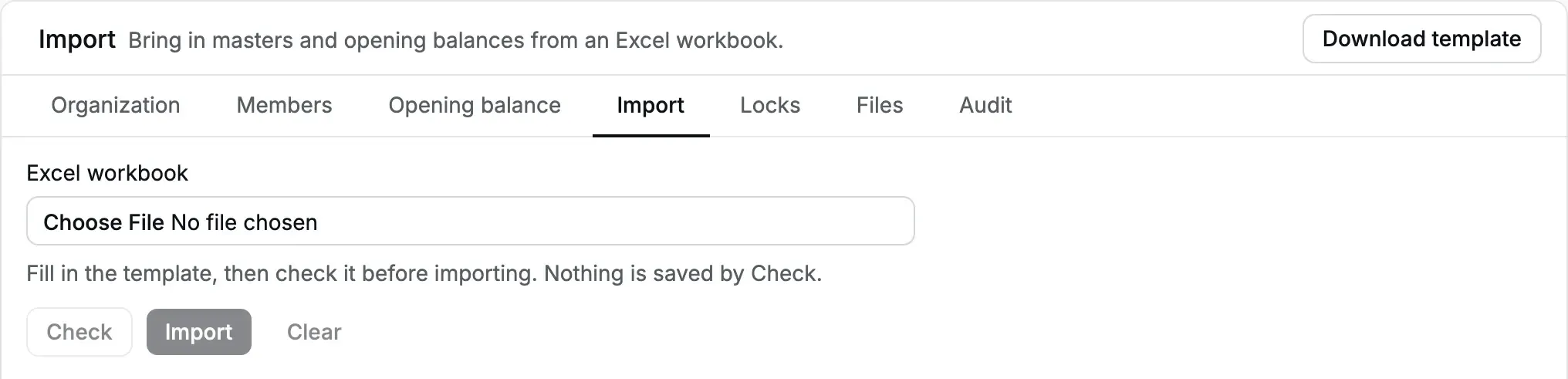
Click Download template. You get import-template.xlsx. Keep its sheet names and the
headers on row 1 unchanged.
Fill the workbook
Fill the sheets described in Workbook reference, with data from row 2.
Paste values, not formulas. Save it as an Excel workbook (.xlsx) of no more than 5 MB, then
choose it under Excel workbook.
Check
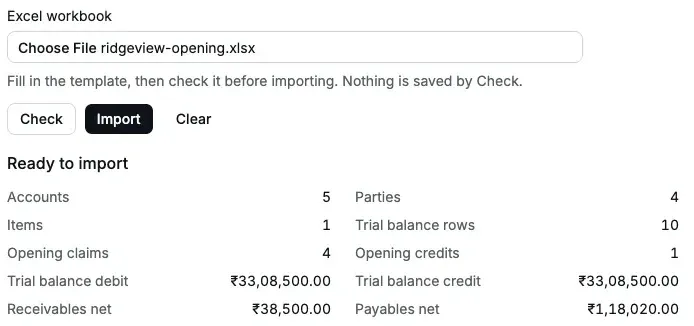
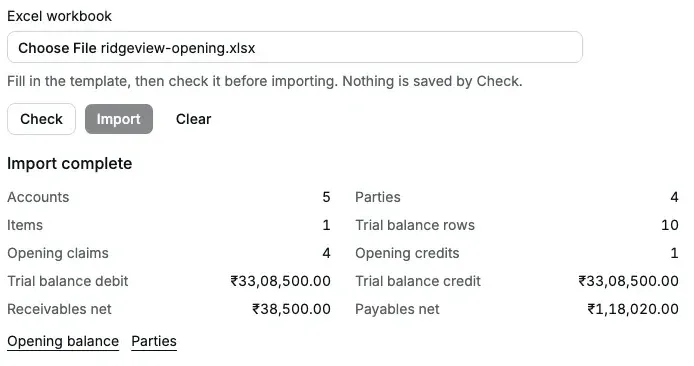
Click Check. Check writes nothing. A valid workbook shows Ready to import with the record counts, trial balance totals and the net receivables and payables. Compare them with the figures your CA approved.
Fix any errors
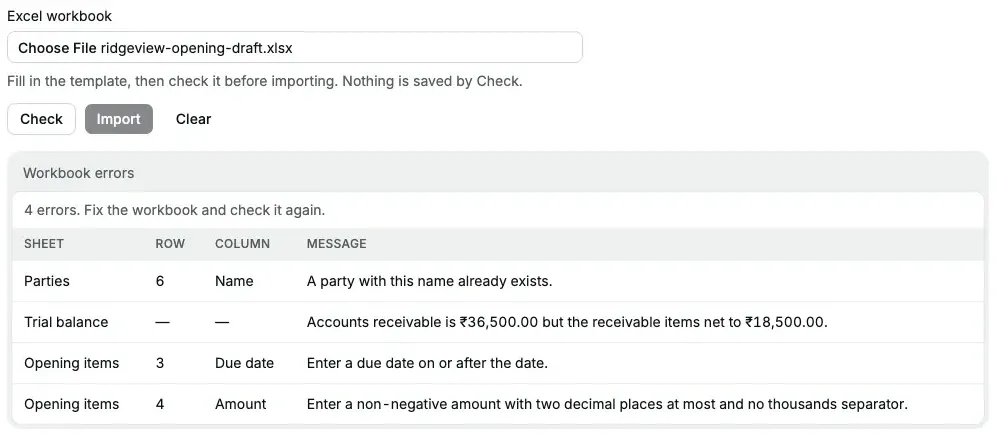
If the workbook has errors, a table lists each with Sheet, Row, Column and Message. Above 500 errors it says “Showing 500 of N errors”; fix those and check again for the rest. After editing in Excel, save, click Clear, choose the file again and click Check.
Import
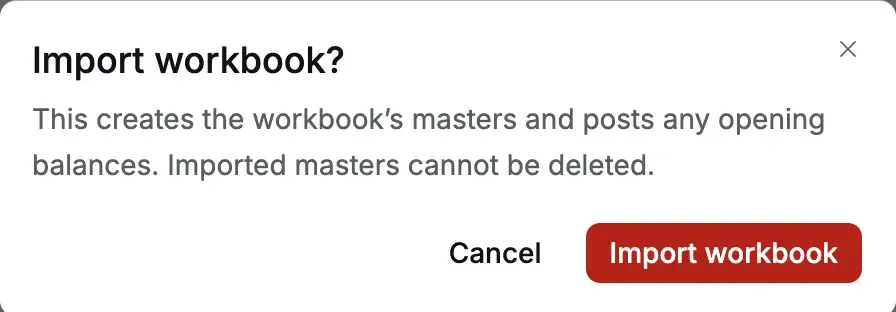
Import is available only after a clean Check of the chosen file; choosing another file resets it. Click Import. The dialog Import workbook? says “This creates the workbook’s masters and posts any opening balances. Imported masters cannot be deleted.” Click Import workbook only when the figures are right.
Verify
After Import complete, follow the Opening balance and Parties links. Check the posted balances and opening items against your old books before you record new receipts or payments.
The import is all or nothing. If any row has an error, nothing is written.
What the import creates
| From the sheet | Edernal Books creates |
|---|---|
| Accounts | New accounts, with codes given as in the chart of accounts |
| Parties | New parties |
| Items | New items |
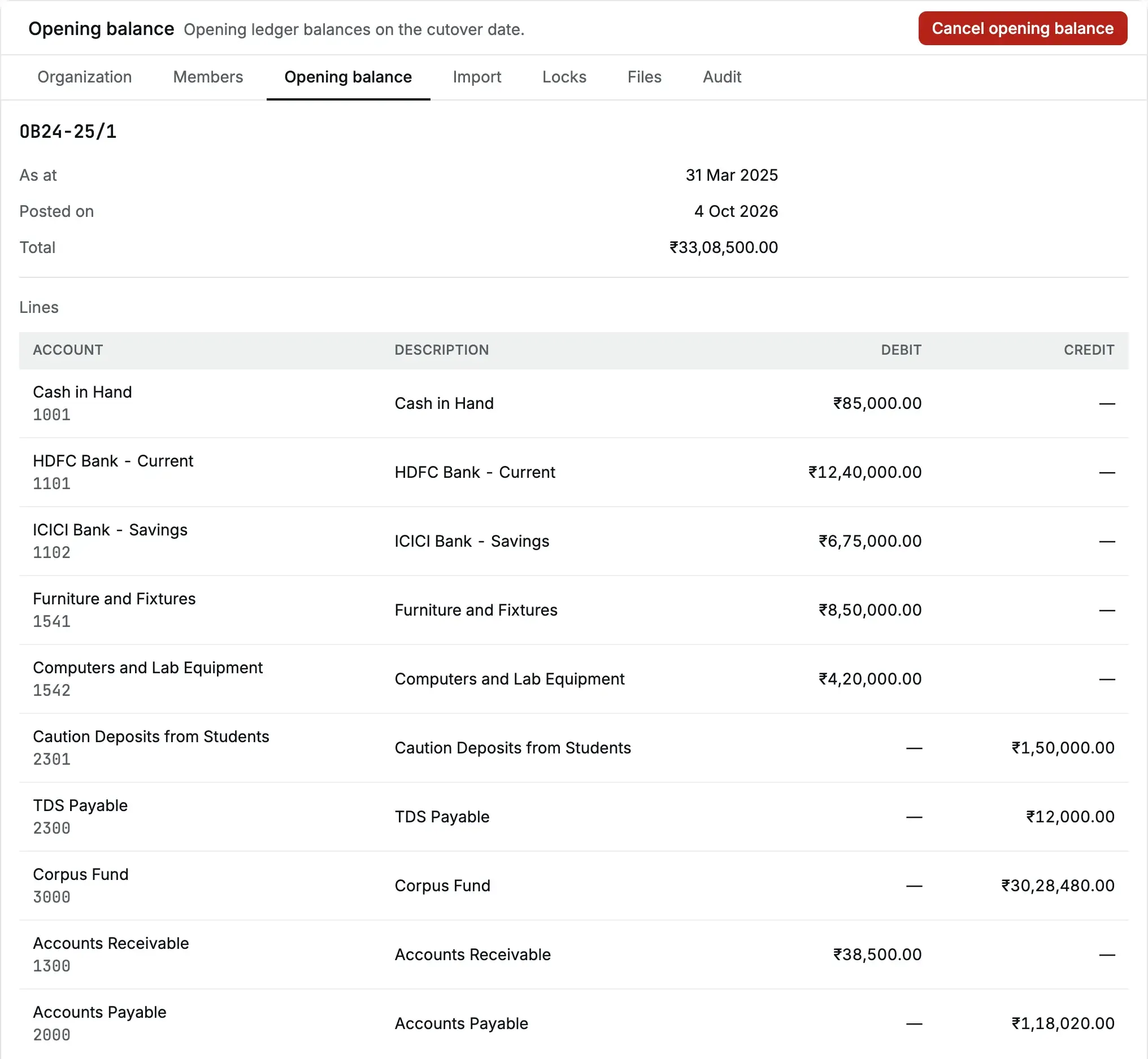
| Trial balance | One posted Opening Balance, numbered OB + year, dated on the opening date |
| Opening items | One opening claim (OC…) or opening credit (OA…) per row. Each keeps its original date; its party-ledger line is dated on the opening date |
Each opening item keeps its own reference, original date and due date. The receivable and payable totals post to Accounts Receivable and Accounts Payable (the control accounts that total all customers and vendors) as part of the Opening Balance, and each party’s balance comes from its opening items. See Opening balance.
Workbook reference
Keep the sheets in this order: Read me, Opening, Accounts, Parties, Items, Trial balance, Opening items. Every sheet except Read me may be empty; leave its header row in place. A required column needs a value in each row you fill.
Read me
| Cell | Required | Accepted value | Example |
|---|---|---|---|
| B1 | Yes | The template version; leave it as 1 |
1 |
The sheet starts with A1 = Template version and B1 = 1; leave both
as they are. The remaining rows explain how to fill the workbook.
Opening
| Column | Required | Accepted values | Example |
|---|---|---|---|
| Opening date | When Trial balance or Opening items have rows | One date, not in the future; enter only one data row | 2026-03-31 |
Accounts
Only include accounts you need to create.
| Column | Required | Accepted values | Example |
|---|---|---|---|
| Name | Yes | A new account name | Tuition Fees |
| Parent | Yes | An existing active group’s code or name, or Assets, Liabilities, Equity, Income, Expenses; not an account that takes postings |
Income |
| GST supply class | For an income account only | taxable, exempt, nil, nonGst, notASupply; leave blank for other account types |
exempt |
Parties
Only include parties you need to create.
| Column | Required | Accepted values | Example |
|---|---|---|---|
| Name | Yes | A new party name | Priya |
| Roles | Yes | customer, vendor, or both separated by a comma |
customer,vendor |
| GSTIN | No | A valid GSTIN; fills the state code and PAN | Leave blank for an unregistered party |
| PAN | No | A valid PAN (Permanent Account Number); if GSTIN is supplied, must match it | ABCDE1234F |
| State code | Unless supplied by GSTIN | Two-digit GST state code; 7 reads as 07 |
27 for Maharashtra |
| Address | No | Address text | 12 Market Road |
| City | No | City name | Pune |
| PIN code | No | A valid six-digit Indian PIN code | 411001 |
| No | A valid email address | priya@example.com |
|
| Phone | No | Phone number as text | 9876543210 |
Items
Only include items you need to create.
| Column | Required | Accepted values | Example |
|---|---|---|---|
| Name | Yes | A new item name | Tuition |
| Income account | Yes | Code or name of an active income account that takes postings, not a group or system account; may be created in Accounts | Tuition Fees |
| Unit price | Yes | Non-negative rupee amount; zero is allowed | 0 |
| HSN/SAC | For taxable items | Four to eight digits (HSN or SAC code) | 999293 |
| Unit | No | Unit text | month |
| Tax code | For taxable items only | A GST rate code effective in your organization, as shown in the GST rate column of Items; leave blank for other items | GST18; leave blank for Tuition under an exempt account |
The available GST rate codes are GST5, GST12, GST18, GST28 and GST40.
They come from your organization’s GST rate schedule; older rates may no longer
be effective. Use the GST rate column in Items to choose an effective code
for a taxable item. Leave the tax code blank for non-taxable items.
Trial balance
| Column | Required | Accepted values | Example |
|---|---|---|---|
| Account | Yes | Code or name of an existing active account that takes postings, or one created in Accounts | 1300 or Cash in Hand |
| Debit | One of Debit or Credit | Amount above zero; leave blank or zero if Credit is above zero | 8000 |
| Credit | One of Debit or Credit | Amount above zero; leave blank or zero if Debit is above zero | 5000 |
Each row must have exactly one amount above zero. Total debits must equal total
credits (debit and credit, the two equal sides of every entry). Accounts Receivable (1300) and Accounts Payable (2000) must also
agree with the opening items (see Why the party totals must
match).
Put legacy GST input, output and cess balances on their matching system accounts in the trial balance. Clear them later by Journal with your CA; opening balances do not enter the GST registers. Do not put advance accounts in the trial balance. For customer or vendor advances, include the unused amount as a Credit in Opening items and in the net control balance. If your organization has a GSTIN (GST registration number), the trial balance also cannot contain a taxable income account (see supply class); agree another account with your CA.
Opening items
A Claim is an unpaid invoice or bill. A Credit is an unused credit or unmatched advance that can be applied later. Enter the amount still open at cutover, not an invoice’s original total if it has been partly paid.
| Column | Required | Accepted values | Example |
|---|---|---|---|
| Party | Yes | Name of an existing active party or one created in Parties | Priya |
| Side | Yes | Receivable for customer amounts; Payable for vendor amounts |
Receivable |
| Type | Yes | Claim or Credit |
Claim |
| Reference | Yes | Original reference; the combination of Party, Side, Type and Reference must be unique | INV-88 |
| Date | Yes | Original date, on or before the opening date | 2026-02-10 |
| Due date | No | Claims only; on or after Date; may be after the opening date | 2026-03-12 |
| Amount | Yes | Rupee amount above zero | 10000 |
Cell, amount and date rules
- Use text, numbers or dates. No formulas, spreadsheet errors or rich-text cells; paste values only.
- Amounts may be numeric cells or plain text such as
2000.00. Use at most two decimal places and never a negative amount. In text cells, do not type a rupee symbol or thousands separators: use8000.00, not₹8,000.00. - Dates may be Excel dates or text in
YYYY-MM-DDform. Use2026-03-31, not an ambiguous text date such as03/04/26. - Keep each sheet to at most 5,000 data rows. Fully blank rows are skipped.
- Keep the file at or below 5 MB.
Why the party totals must match
The trial balance gives one total for all customers and one for all vendors. Opening items explains those totals party by party. Importing both does not count them twice; they must describe the same balances.
- Accounts Receivable (
1300), debit less credit, must equal receivable claims less receivable credits. - Accounts Payable (
2000), credit less debit, must equal payable claims less payable credits.
For example, Priya’s unpaid invoice of ₹10,000.00 less her unused advance of
₹2,000.00 gives receivables of ₹8,000.00. Mehta Traders’ unpaid bill of
₹5,000.00, with no unused vendor credit, gives payables of ₹5,000.00. The trial
balance therefore needs ₹8,000.00 debit in 1300 and ₹5,000.00 credit in 2000. A
control balance with no matching opening items is refused, even if total debits and
credits agree.
Worked example: start on 1 April 2026
This proprietorship moves its books at the end of financial year 2025–26. The opening date is 31 March 2026; new business starts on 1 April 2026.
Download the worked-example workbook. It is
ready to Check in a new proprietorship organization where Tuition Fees,
Priya, Mehta Traders and Tuition do not exist and no Opening Balance is posted.
In another organization, first adapt the accounts and figures with your CA.
Blank table cells below mean blank Excel cells. Money cells have no rupee symbol or
thousands separators, so you can paste them into Excel. The opening date is an Excel
date; the opening-item dates are YYYY-MM-DD text. In each sheet below, the table
heading is Excel row 1 and data starts on row 2. Read me keeps the template’s
text, with A1 = Template version and B1 = 1.
Opening, Accounts, Parties and Items
Opening
| Opening date |
|---|
| 2026-03-31 |
Accounts
| Name | Parent | GST supply class |
|---|---|---|
| Tuition Fees | Income | exempt |
Parties
| Name | Roles | GSTIN | PAN | State code | Address | City | PIN code | Phone | |
|---|---|---|---|---|---|---|---|---|---|
| Priya | customer | 27 | |||||||
| Mehta Traders | vendor | 27 |
Items
| Name | Income account | Unit price | HSN/SAC | Unit | Tax code |
|---|---|---|---|---|---|
| Tuition | Tuition Fees | 0 |
Trial balance and Opening items
Trial balance
| Account | Debit | Credit |
|---|---|---|
| Cash in Hand | 20000 | |
| 1300 | 8000 | |
| 2000 | 5000 | |
| Capital Account | 23000 |
Debits: ₹20,000.00 + ₹8,000.00 = ₹28,000.00. Credits: ₹5,000.00 + ₹23,000.00 = ₹28,000.00.
Opening items
| Party | Side | Type | Reference | Date | Due date | Amount |
|---|---|---|---|---|---|---|
| Priya | Receivable | Claim | INV-88 | 2026-02-10 | 2026-03-12 | 10000 |
| Priya | Receivable | Credit | ADV-3 | 2026-03-01 | 2000.00 | |
| Mehta Traders | Payable | Claim | B-17 | 2026-03-05 | 2026-04-30 | 5000 |
ADV-3 has no due date because it is a credit. B-17 may be due after cutover; its
original date is before cutover.
Expected Check summary
| Summary | Value |
|---|---|
| Accounts | 1 |
| Parties | 2 |
| Items | 1 |
| Trial balance rows | 4 |
| Opening claims | 2 |
| Opening credits | 1 |
| Trial balance debit | ₹28,000.00 |
| Trial balance credit | ₹28,000.00 |
| Receivables net | ₹8,000.00 |
| Payables net | ₹5,000.00 |
What you see after Import
Parties shows Priya at ₹8,000.00 Dr and Mehta Traders at ₹5,000.00 Cr. Dr means a net amount due from Priya; Cr means a net amount you owe Mehta Traders.
Settings → Opening balance shows OB25-26/1, As at 31 Mar 2026 and Total ₹28,000.00, with these lines:
| Account | Debit | Credit |
|---|---|---|
| Cash in Hand · 1001 | ₹20,000.00 | |
| Capital Account · 3000 | ₹23,000.00 | |
| Accounts Receivable · 1300 | ₹8,000.00 | |
| Accounts Payable · 2000 | ₹5,000.00 |
Its Opening items table shows:
| Number | Party | Type | Reference | Date | Due date | Amount | Balance |
|---|---|---|---|---|---|---|---|
| OC25-26/1 | Priya | Opening invoice | INV-88 | 10 Feb 2026 | 12 Mar 2026 | ₹10,000.00 | ₹10,000.00 |
| OA25-26/1 | Priya | Opening credit | ADV-3 | 1 Mar 2026 | — | ₹2,000.00 | ₹2,000.00 |
| OC25-26/2 | Mehta Traders | Opening bill | B-17 | 5 Mar 2026 | 30 Apr 2026 | ₹5,000.00 | ₹5,000.00 |
The opening ledger lines (entries in the party’s running record) are dated 31 Mar 2026, so choose Last year (2025–26) in the party Ledger to see them:
| Document | Date | Particulars | Debit | Credit | Balance |
|---|---|---|---|---|---|
| OC25-26/1 | 31 Mar 2026 | Opening invoice · INV-88 | ₹10,000.00 | ₹10,000.00 Dr | |
| OA25-26/1 | 31 Mar 2026 | Opening credit · ADV-3 | ₹2,000.00 | ₹8,000.00 Dr |
For This year (2026–27), Priya’s ledger starts with Opening ₹8,000.00 Dr.
Settle the balances after cutover
- Receive INV-88 in full. Open Receipts → New, choose Priya, enter
10000 and select Against open items. The Open items grid lists
“Opening invoice · OC25-26/1 · INV-88” with Outstanding ₹10,000.00
(outstanding: still unpaid). Click
Fill, choose the payment method that actually received the money, then
Post.
INV-88now has Balance ₹0.00, and Priya’s balance is ₹2,000.00 Cr, her unusedADV-3. - Pay Mehta Traders. Open Payments → New, choose Mehta Traders, select
Against open items, enter 5000, click Fill on
B-17, choose the method and Post. Mehta Traders’ balance is ₹0.00. - Use ADV-3 on Priya’s next invoice. Post a new invoice for Priya, for example Tuition at ₹3,000. Open it and choose More actions (…) → Apply credit. Choose “Opening credit · OA25-26/1 · ADV-3”; Amount fills 2000.00 (an allocation of the credit to the invoice). Click Apply credit. The invoice shows Part paid with Outstanding ₹1,000.00, and Priya’s balance is ₹1,000.00 Dr.
Record receipts and payments on their actual dates. Do not create a second invoice or bill for the old amounts. Document numbers depend on your prefixes and financial year.
To set an opening credit against an opening invoice instead, use Apply credit on the invoice’s row in Settings → Opening balance (see Apply an opening credit).
Common errors and fixes
Any error stops the whole import. After each Excel correction, save, click Clear, choose the file again and click Check.
| Error or symptom | What it means | Fix |
|---|---|---|
| “Debits ₹… and credits ₹… differ.” | Total debit is not total credit | Reconcile the trial balance with your CA. Do not add an unexplained balancing figure |
| “Accounts receivable is ₹7,000.00 but the receivable items net to ₹8,000.00.” | The control total disagrees with the items, even if the trial balance balances | Correct the control total or the items. Fix any Opening items row errors first, as they change the items’ net |
| “Parties · 2 · Name · A party with this name already exists.” | Row 2 tries to create an existing party. The import never updates it | Remove the creation row and use the existing party’s name in Opening items. The same applies to accounts and items |
| “No active account has the code or name …” | An account or income account cannot be found | Use the correct active code or name, or create it in Accounts |
| “… cannot take an opening balance: choose an active leaf other than an advance account.” | The trial balance names a group or an advance account | Use a posting account; put unused advances in Opening items and the net control balance |
| “… is taxable income, which is invoiced: carry its balance in another leaf.” | Your organization has a GSTIN and the row names a taxable income account | Agree another account with your CA |
| “No party is named …” | The opening item names a party that neither exists nor is in Parties | Correct the spelling or add the party |
| “… is inactive: mark it active first.” | The opening item names an inactive party | Mark the party active in Parties |
| “Enter a due date on or after the date.” | A claim’s Due date is earlier than its Date | Correct the dates from the old invoice or bill. Leave Due date blank on credits |
| “Enter a date on or before the opening date.” | An opening item is dated after the opening date | Use the original date; anything after cutover is a new document |
| “Paste values only: no formulas, errors or formatted text.” | A cell holds a formula or another unsupported cell type | Replace it with its value using Excel’s paste-values option |
| “Enter a non-negative amount with two decimal places at most and no thousands separator.” | An amount has more than two decimals, is negative, or is text with a separator or ₹ | Type rupees and paise, such as 4000.00 |
| “Opening balance OB… is already posted. Cancel it first.” | A trial balance or opening items cannot be imported while an Opening Balance is posted | Review the existing Opening Balance. If it is wrong and nothing is applied to its items, cancel it first |
| “The workbook changed after you chose it. Choose it again.” | The file changed on disk after you chose it | Click Clear, choose the saved file again and Check |
| “Choose a workbook of at most 5 MB.” | The file is too large | Remove unused sheets, formatting and blank rows |
Undo an import
Clear only clears the chosen file and its Check result. It does not undo an import.
- The Opening Balance and its opening items can be cancelled together from Opening balance, once no receipt, payment or credit is set against them.
- Imported accounts, parties and items cannot be deleted. Mark any you do not need inactive.
Related pages
- Cut over from Tally: a school’s full import, step by step.
- Opening balance: the posted entry, opening items and apply credit.
- Receipts and Payments: settle opening items.