Files
Upload, open and delete private organization files such as certificates, agreements and statements
Settings → Files is a private library for papers that support the books: the GST (Goods and Services Tax) registration certificate, a rent agreement, a loan sanction letter, a bank statement your CA (Chartered Accountant) asked for. Files belong to one organization and nobody outside it can open them.
- Who can use it: everyone in the organization can see the list and open a file. Only an Owner can upload or delete.
- When to use it: when a paper should stay with the books and be easy for your accountant or CA to find.
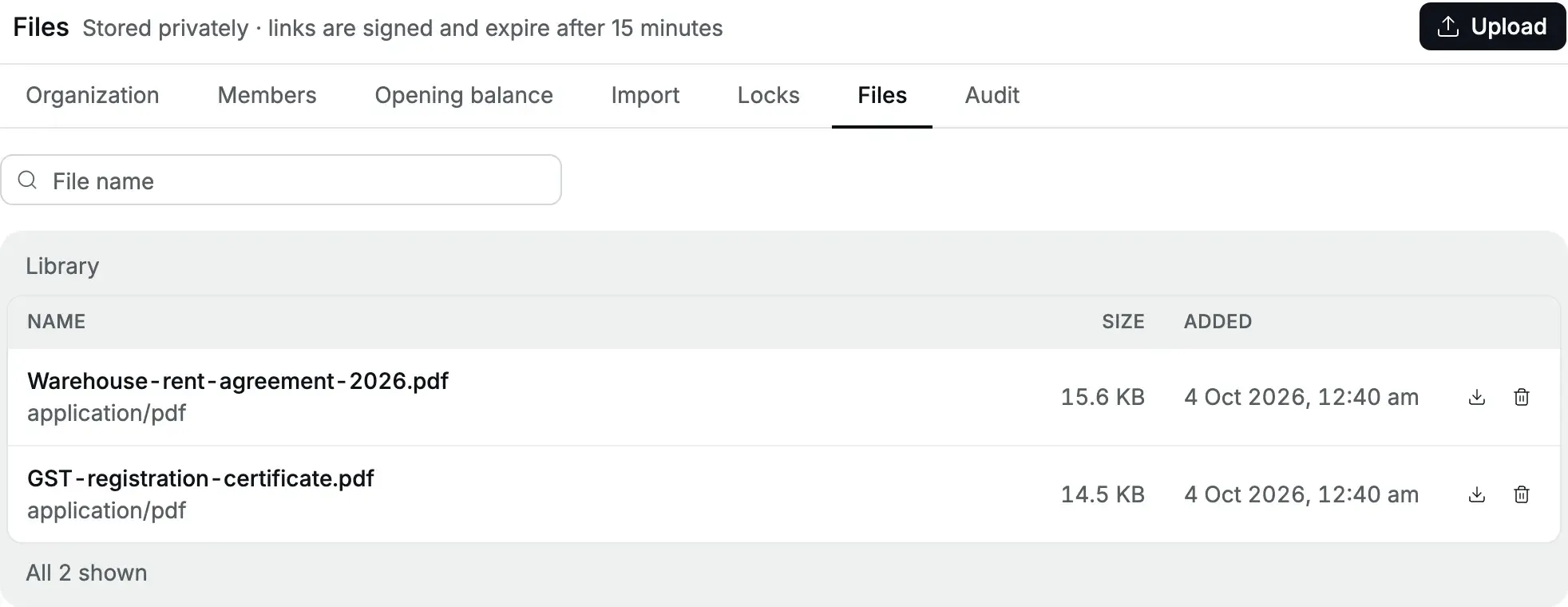
Upload a file
- Open Settings → Files.
- Click Upload and choose one file from your computer or phone.
- The button shows Uploading… while the file is sent. When it finishes, a message says, for example, “Uploaded GST-registration-certificate.pdf”, and the file appears at the top of the list.
The list shows each file’s name, type, uploader’s name, size and the date and time it was added. If the uploader’s account has been deleted, it shows Former member. Any file type is accepted. Upload one file at a time.
If the upload fails, the message says why. A file over the size limit set for your installation shows “File too large. Maximum allowed size is … bytes.”
Attach a file to a record
Edernal Books cannot attach a file to an invoice, bill
(a supplier’s invoice), receipt or party
(customer or supplier) yet.
Files live only in the library. Until attachments exist, put the document number
in the file name, for example BILL26-27-6-Shreyas-Caterers.pdf, so you can
find it with the search box.
Open a file
Click the download button (the arrow) on the file’s row. The file opens in a new browser tab, or downloads if the browser cannot show it.
Files are private
Files are never public. When you click download, Edernal Books creates a signed link for that one file that expires after 15 minutes. After that the link stops working, and you click download again to get a new one.
Delete a file
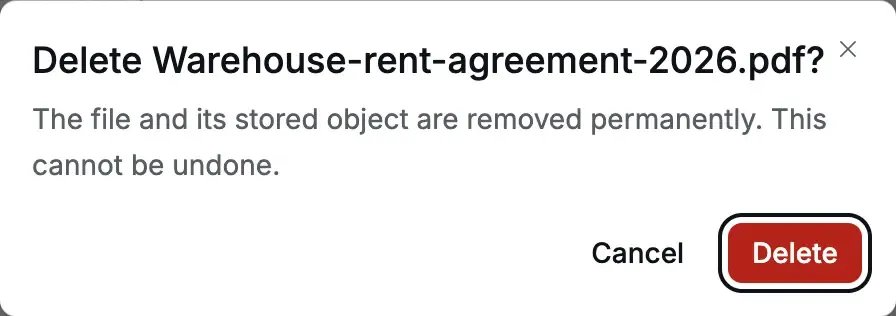
- Click the bin button on the file’s row.
- Read “The file and its stored object are removed permanently. This cannot be undone.” and click Delete.
Successful uploads and deletions are written to the
audit log (the record of sensitive actions) as
File uploaded and File deleted. The original file name appears in
On and Details. Hover over On to see the stored reference
(file:<organization id>/<id>/<sanitized name>). Failed or unfinished uploads
are not recorded as successes.
When there are no files
A new organization shows “No files yet”.
Related pages
- Roles and access: who can upload and delete.
- Audit log: uploads, deletions and refused attempts.
- Handover: which files to collect before a handover.