Getting started
Sign in, join an organization from an invitation, choose an organization and sign out
Edernal Books keeps the books (the accounting records) of one or more organizations. Each person signs in with their own account, and an organization’s owner decides who can open its books and what they can do there. This page covers your first sign-in and the everyday steps around it.
No public sign-up
There is no “Create account” button on the sign-in page. You get an account in one of two ways:
- An invitation from an organization owner. The owner creates an invitation for your email address and sends you the link themselves, for example on WhatsApp. Edernal Books does not send email.
- An account made by the person who runs your Edernal Books installation. This is rare. It is used for the first owner of a new installation.
If you do not have an invitation link, ask the owner of the organization you work for. Owners create invitations from Settings → Members (see Members and invitations).
Join from an invitation link
An invitation link looks like
https://<your-edernal-address>/join?invitation=01a10313-…. It is for one email
address and one organization, and it expires 48 hours after the owner creates
it. Treat it like a temporary password: anyone who has the link and knows the
email address can create the account.
Open the link
The Join page shows the organization name, the role and the invited email, for example “Join Cedar Components. Invited as Accountant · priya.accountant@example.com.”
Create your account, or sign in
If this email address has no Edernal Books account yet, enter your Name and a Password of at least 8 characters, then click Create account.
If the email address already has an account (for example, you already work in another organization), the page shows the sign-in form instead. Sign in with your existing password.
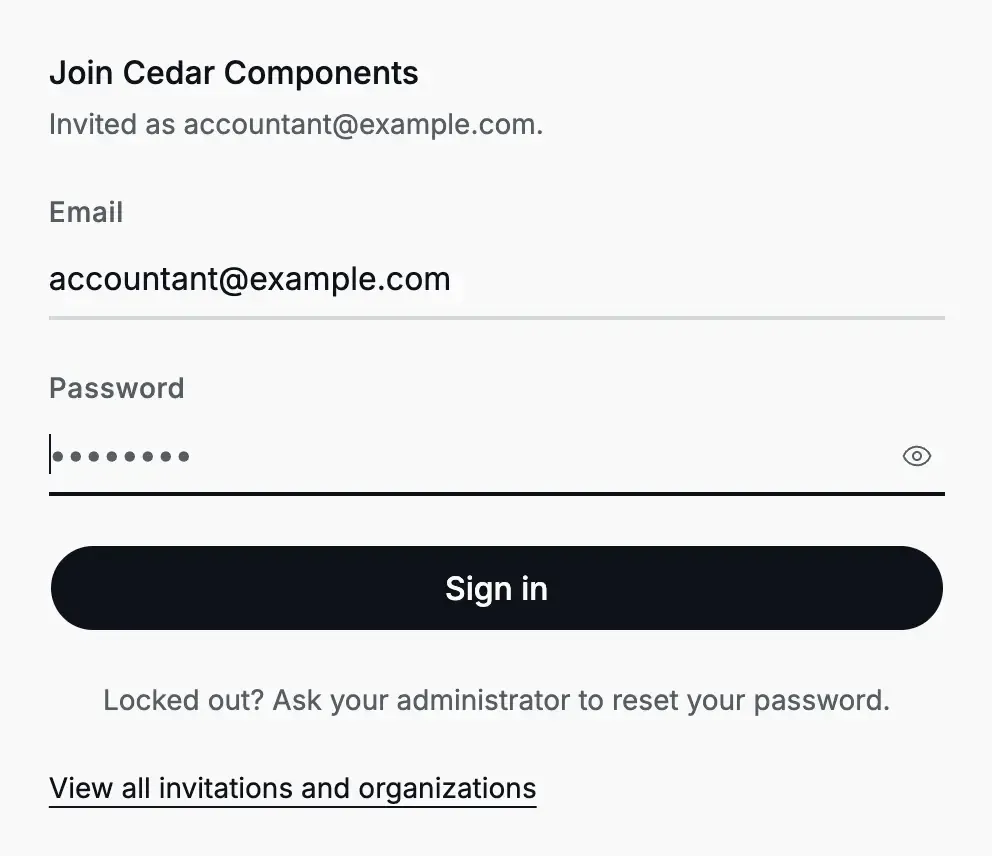
Click Join
After the account step, the page shows Join. Click it. Edernal Books adds you to the organization with the role the owner chose (owner, accountant, chartered accountant or operator, each with its own permissions) and opens the organization’s Home page.
The new team member scenario walks through this for an accountant and an operator, with screenshots of each step.
Problems with an invitation
| What you see | What it means | What to do |
|---|---|---|
| “This invitation has expired. Ask the sender for a new link.” | The 48-hour window has passed. | Ask the owner to use Re-invite on the expired row in Settings → Members, then send the new link. |
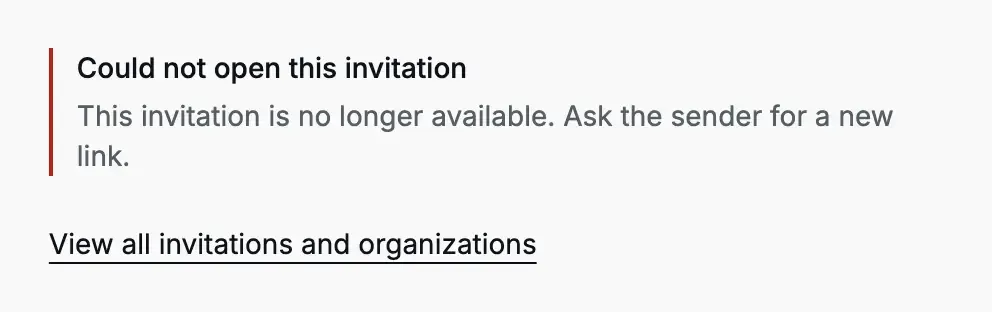
| “This invitation is no longer available. Ask the sender for a new link.” | The owner cancelled it, or it was already used. | Ask the owner for a new invitation. |
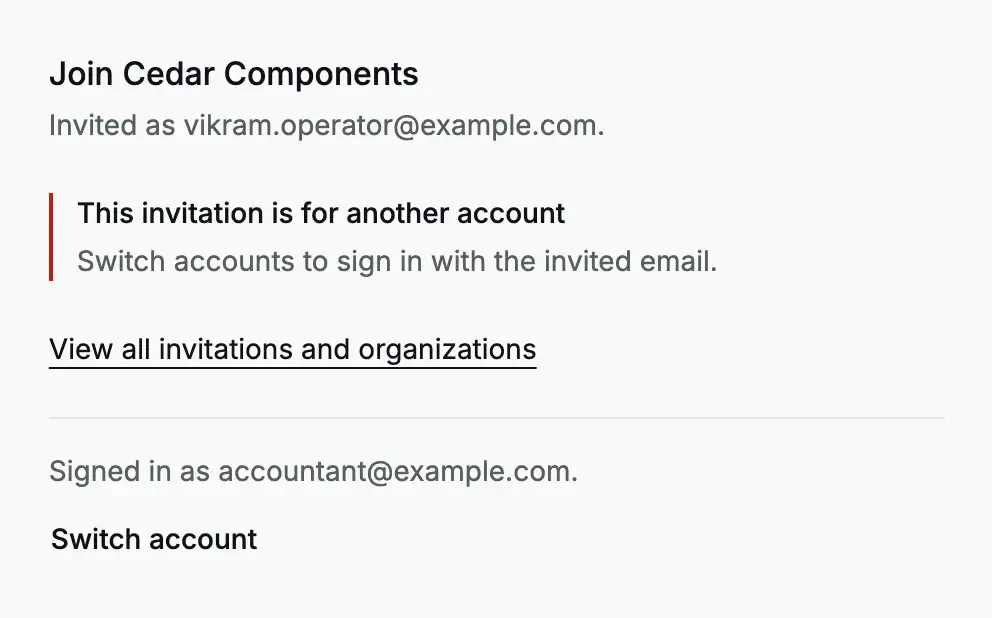
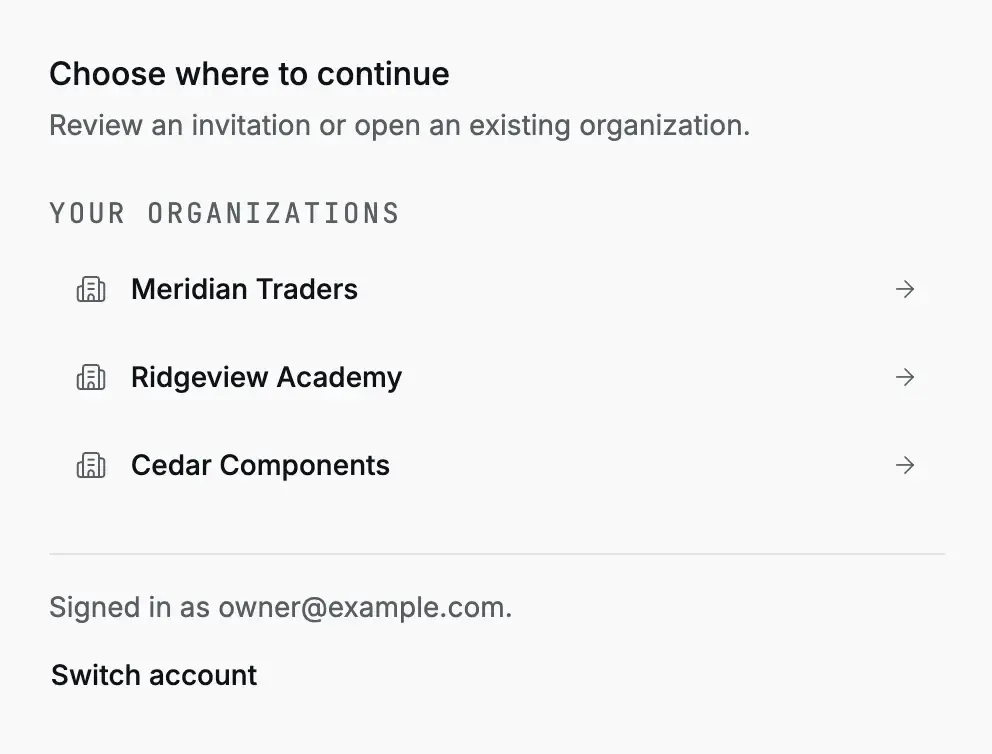
| “This invitation is for another account. Switch accounts to sign in with the invited email.” | You are signed in with a different email address. | Click Switch account, then sign in or create the account for the invited email. |
| The Join page lists your organizations, but no invitations. | Accounts created from an invitation cannot list pending invitation links without verified email. | Open the original invitation link again; if you lost it, ask the owner to copy the pending link from Settings → Members and send it again. |
Sign in
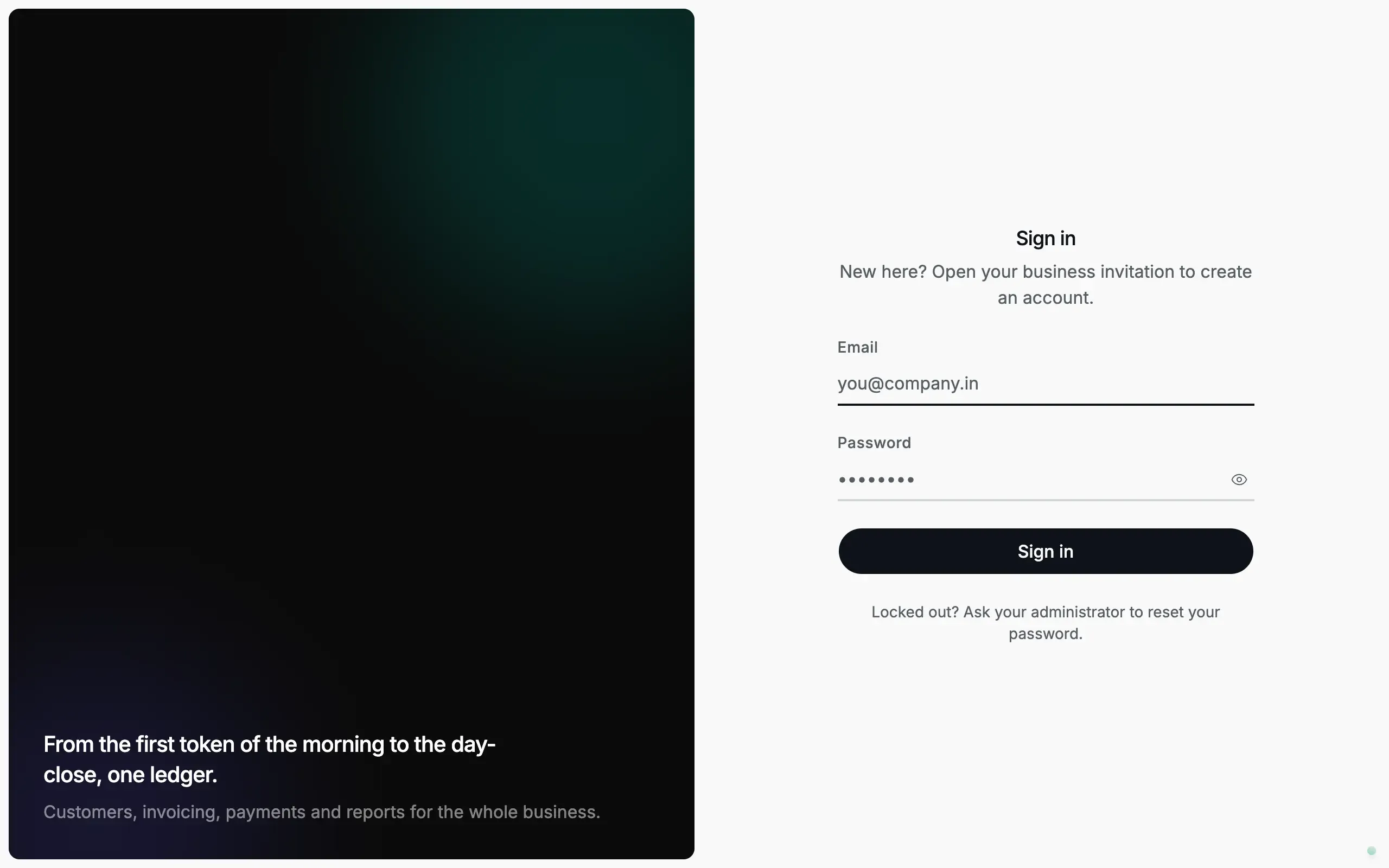
- Open your Edernal Books address. You see Sign in.
- Enter your Email and Password, then click Sign in.
- Edernal Books opens the first organization you belong to, in alphabetical order. If you followed a link to a particular page, it opens that page.
If the email or password is wrong, the page shows “Invalid email or password”.
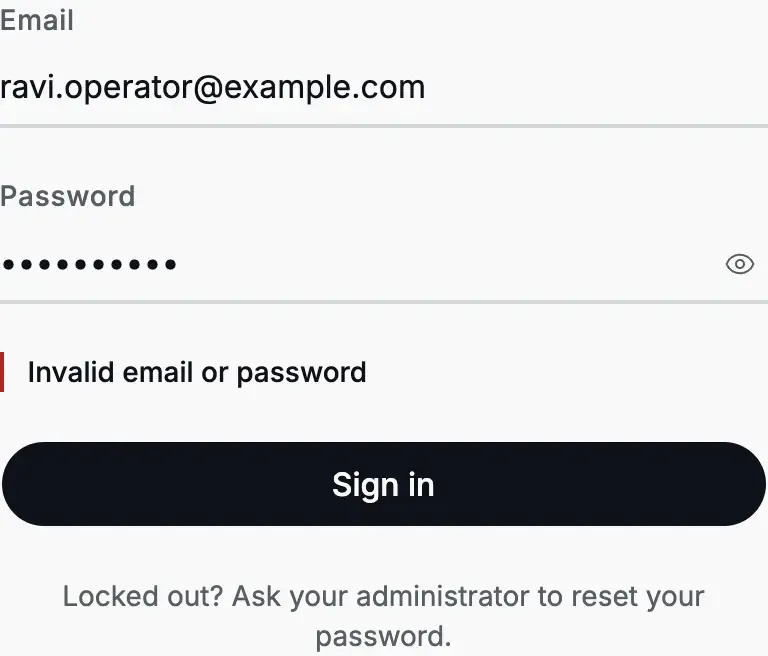
A sign-in stays active for about a week on that browser. Sign out on a shared computer.
Choose an organization
If you belong to more than one organization, use the organization switcher at the top of the sidebar to move between them (see Finding your way).
The Join page at /join lists Your organizations. Click one to open it.
To join another, open the invitation link the owner shares; accounts created
from invitations cannot list pending invitations without verified email.
Owners can copy an existing pending link from Settings → Members if you
lose it. Open /join from Join organization in the organization switcher.
Organization addresses
Every organization has its own permanent address, for example
https://<your-edernal-address>/cedar-components. Every page of that organization
starts with it: /cedar-components/receipts, /cedar-components/settings/members.
- You can bookmark a page or send its link to a colleague. The colleague sees it only if they are a member of that organization and their role allows it.
- Each browser tab stays in the organization its address names. You can keep Cedar Components in one tab and another organization in a second tab.
- The address part (
cedar-components) never changes, even if the organization’s name changes.
If you open the address of an organization you do not belong to, Edernal Books sends you to the Join page. It does not say whether that organization exists.
Sign out
- Click your name at the bottom of the sidebar.
- Click Sign out.
Edernal Books returns to the sign-in page and clears what it kept in the browser for your account. On the Join page, Switch account does the same.