Receipts
Record money received as an advance, against open invoices, a supplier refund, or direct income, with fees, write-offs and TDS
A receipt records money that comes in: a customer’s advance (money paid before you bill), payment for invoices you raised, a supplier’s refund of an unapplied debit note, payment advance or opening credit, or income that has no invoice. It debits the cash or bank account behind the payment method and credits the customer, supplier payables, or income (debit and credit are the two equal sides of every entry).
Who can do it (see roles): an Owner, Accountant or Operator posts (records in your books) receipts. Only an Owner or Accountant can cancel one. A Chartered Accountant can open and print receipts.
The receipt register
Open Sales → Receipts. The register lists receipts newest document date first, with Number, Date, Party, Method and Amount. Search by number, party or reference. The filter icon in the search box offers Date, Payment method, Status (Posted or Cancelled) and Settlement (Advance, Against open items or Direct). The ⋯ at the end of a row offers Print and Copy number.
One line under the filters counts and adds up every matching receipt, not just the receipts on screen, for example “12 posted receipts · ₹4,500.00 · Cash ₹500.00 · UPI ₹4,000.00”. It lists each payment method only when there is more than one. Choose the same day for From and To to check that day’s receipts by cash, bank transfer or other methods. The line counts posted receipts only, unless you filter Status to Cancelled. It refreshes when you post or cancel a receipt, or when you come back to the tab.
Use Export to print or download the filtered register. See Export a list for formats, access and limits.
Choose the settlement kind
You choose what the money is for, the settlement kind. Edernal Books never guesses.
| Kind | Use it when | What it settles |
|---|---|---|
| Advance | The customer pays before you invoice, for example against a purchase order | Nothing yet. The money waits as the customer’s advance until you apply it to an invoice |
| Against open items | The customer pays invoices you have posted | The invoices you choose in Open items. Any amount you do not allocate is kept as an advance |
| Direct | Income with no invoice and no customer balance, such as exempt (GST-free) interest | An income account. No party balance changes |
| Money back from supplier | The supplier pays back an unapplied debit note or payment advance | The rows you choose in What this supplier owes you (Debit note or Advance paid), allocated in full |
Record an advance
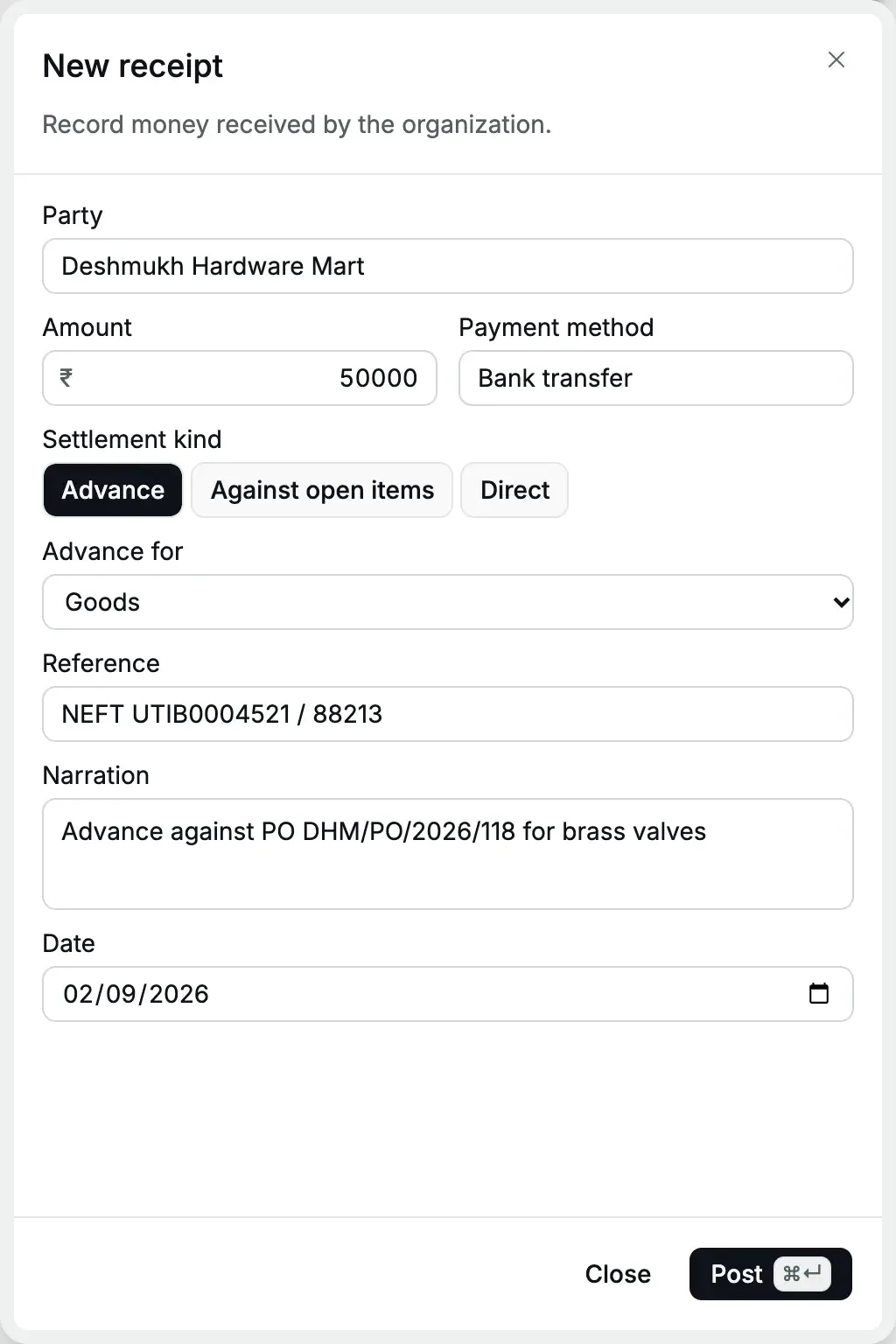
On 2 Sep 2026 Deshmukh Hardware Mart pays ₹50,000 by NEFT (a bank transfer) against its purchase order, before Cedar Components dispatches the goods.
Open a new receipt
In Receipts, click New. The receipt form opens on the right.
Fill the party, amount and method
Choose the Party, type the Amount and choose the Payment method, for example Bank transfer.
Choose Advance and what it is for
Leave Settlement kind on Advance. In Advance for, choose Goods. Choose Exempt supply for an advance towards exempt goods or services, which carry no GST.
Add the reference and date
Type the bank’s UTR (the transfer’s reference number) or cheque number in Reference, a Narration (a free-text note) if useful, and the Date the money arrived.
Post
Click Post (or ⌘/Ctrl + Enter). The toast reads “Receipt RCT26-27/7 posted”, with a Print button. The form closes and the balances refresh.
Record payment against invoices
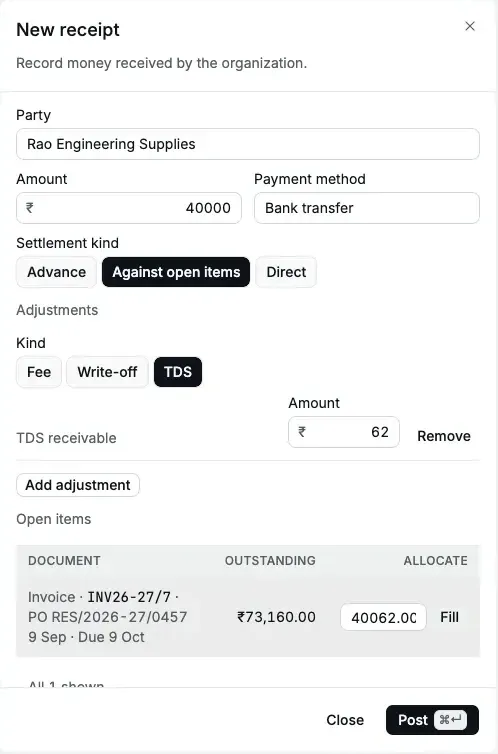
On 15 Sep 2026 Rao Engineering Supplies pays ₹40,000 by NEFT towards INV26-27/7 for ₹73,160 and deducts ₹62 TDS (tax deducted at source, which the customer pays to the government on your behalf) under section 393(1) Table 8(ii), TDS code 1031 (purchase of goods, formerly section 194Q): 0.1% of ₹62,000. A buyer deducts this only when its turnover and its purchases from you cross the legal limits, so Rao has crossed them in this example. Check with your CA whether it applies to your customers.
Fill the party, amount and method
Choose Rao Engineering Supplies, type 40000 and choose Bank transfer.
Choose Against open items
Click Against open items. Open items lists the customer’s posted invoices and opening claims (unpaid invoices from your old books) that still have money due. If you can read journals, it also lists journals that left the customer owing money. Each row shows its reference, date, due date and Outstanding (the amount not yet paid).
Add any adjustments
Click Add adjustment for each deduction the customer made (see Fees, write-offs and TDS). Here: TDS, ₹62.
Allocate
Type the amount to settle against each invoice in Allocate, the allocation (the match between money and an invoice), or click Fill to put the rest of the receipt (plus adjustments) on that invoice, up to its outstanding. Here Fill puts ₹40,062.00 on INV26-27/7.
Check the totals and post
Under the table, Allocated shows the total you matched. Remaining as advance shows what is left over; when there are adjustments it reads Remaining to allocate and must be ₹0.00. Add the reference and date, then click Post.
If you allocate less than the receipt and have no adjustments, the remainder is kept as an advance. Then choose what it is for in Advance for, as for an advance receipt.
From an invoice
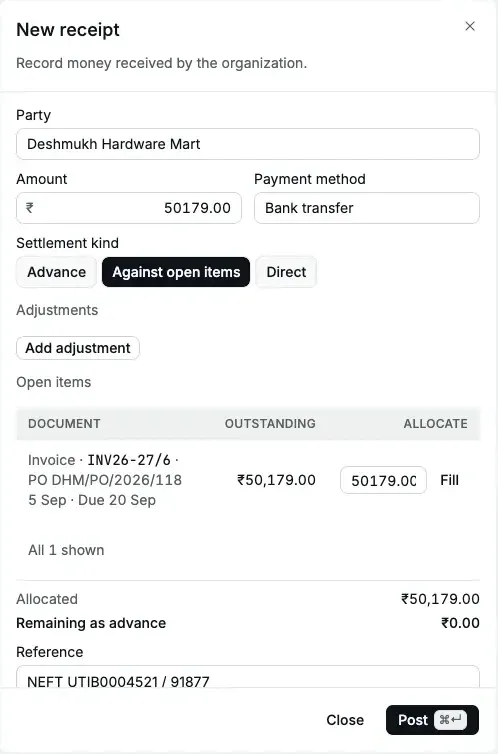
On a posted invoice that is not fully paid, click Record receipt. The receipt opens with the party, the outstanding amount and the allocation already filled. Change the amount for a part payment: the allocation follows it. After posting, the form closes and the invoice shows its new outstanding amount.
Fees, write-offs and TDS
Customers often pay a little less than the invoice. Record each difference as an adjustment so that the invoice is fully settled. You can add up to five.
| Kind | Use it for | Posts to |
|---|---|---|
| Fee | Bank or payment gateway charges deducted from the amount | The expense account you choose, for example Bank Charges |
| Write-off | A small short payment you agree to forgive (a write-off) | The expense account you choose, for example Discount Allowed or Bad Debts Written Off |
| TDS | Tax the customer deducted and will deposit for you | TDS Receivable |
With adjustments, the allocation must equal the money received plus the adjustments: nothing can be left as an advance.
Choose the TDS section for each customer TDS adjustment. The receipt keeps its section and amount so the PDF can identify the deduction; keep any additional details (such as the customer’s TDS certificate reference) in Narration for matching the tax department’s Form 26AS.
Direct income
Choose Direct for income that has no invoice, for example interest received. The Party is optional. Choose the Income account. If your organization has a GSTIN (GST registration number), a taxable income account is refused with “Taxable income must be invoiced before it is received.” Raise an invoice for taxable sales instead.
Payment methods
The Payment method decides which cash or bank account the money goes to. Cedar Components has Cash (Cash in Hand) and Bank transfer, UPI and Card (Bank Account). Set them up in Banking.
The receipt record
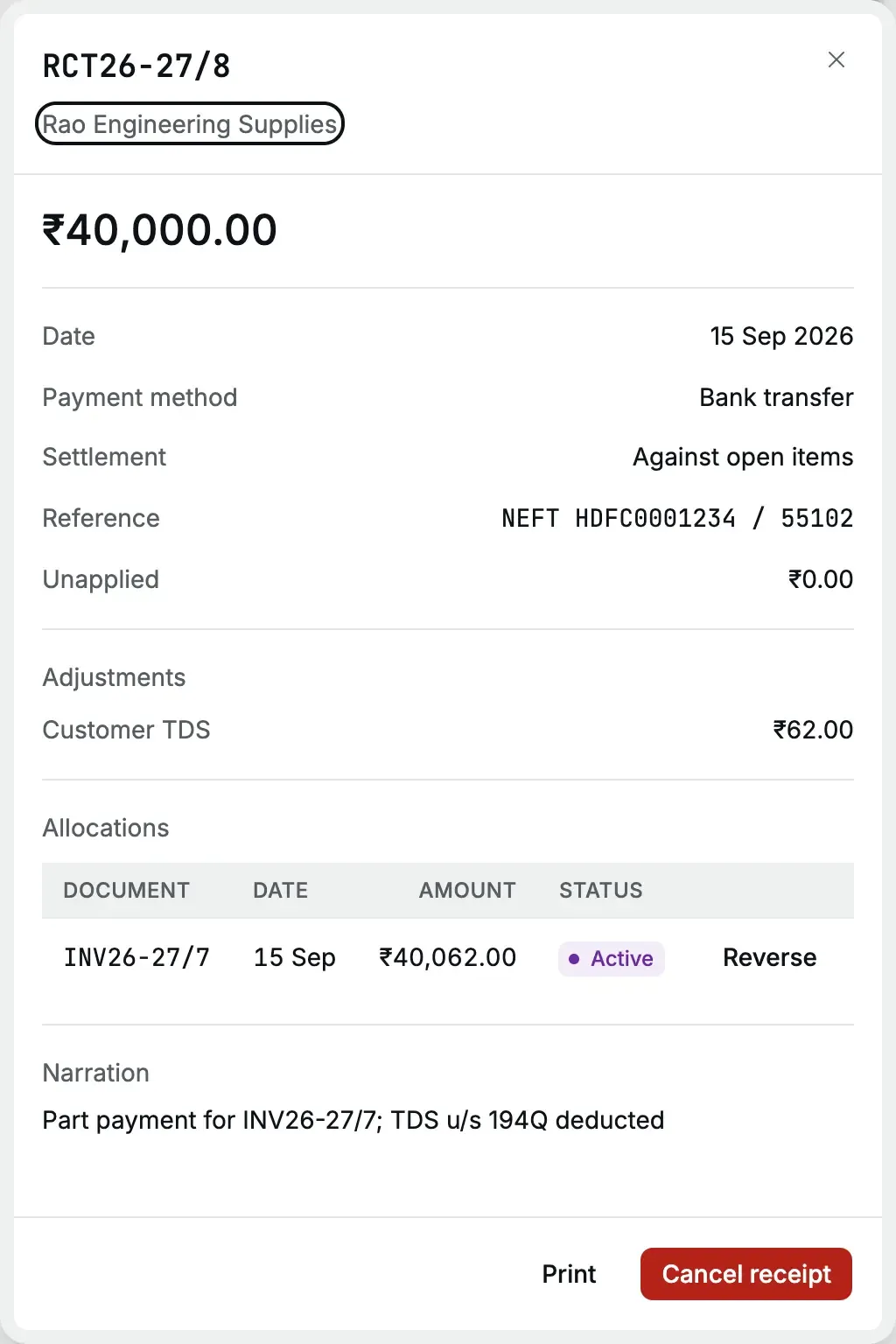
Click a receipt to open its record: amount, date, method, settlement kind, reference, Unapplied (money not yet matched to an invoice), any Adjustments, and the Allocations it made. A TDS adjustment shows as TDS deducted by customer. Click Print to open the receipt PDF in its own tab for printing, or Download PDF to save the file.
The PDF is a receipt voucher (the printed proof of payment) with your organization’s details, date, party, method, reference, amount in figures and words, and narration. A receipt School collected also shows the student’s class, roll, admission number and guardian under Received from, as they stood that day. It lists each document settled by number, document date and amount applied, with that invoice’s Invoice fields under its number, plus any fees, write-offs and TDS, for example “TDS deducted by customer (194J)”. The applied amounts, less adjustments, plus any remaining advance, reconcile to the amount received. Supplier refund PDFs list the debit notes, payment advances and opening credits refunded.
Refund a supplier
Open an unapplied debit note and click Refund, or create a receipt and choose Money back from supplier. Choose the supplier, and enter the amount and payment method. The table What this supplier owes you lists each Debit note, Payment (an advance paid) or Opening credit (an advance carried in at the opening balance), with the amount Owed to you. Allocate the full amount to these rows. The amount must equal the total you pick exactly. Only Owners and Accountants, who can read the related notes and bills, can use this settlement kind.
What happens in the books
Customer Advances and Accounts Receivable are control accounts: they hold the total that customers have paid ahead and the total they owe.
Advance (RCT26-27/7):
| Account | Debit | Credit |
|---|---|---|
| Bank Account | ₹50,000.00 | |
| Customer Advances (Deshmukh Hardware Mart) | ₹50,000.00 |
Against open items with TDS (RCT26-27/8):
| Account | Debit | Credit |
|---|---|---|
| Bank Account | ₹40,000.00 | |
| TDS Receivable | ₹62.00 | |
| Accounts Receivable (Rao Engineering Supplies) | ₹40,062.00 |
An unallocated remainder is credited to Customer Advances. A fee or write-off debits its expense account in place of TDS Receivable. A Direct receipt credits the income account you chose.
A supplier refund debits the bank or cash account and credits Accounts Payable for the same amount. It reduces the supplier’s unapplied credit without recording income a second time.
On the customer’s party ledger, a receipt is a credit for the money plus any adjustments: ₹40,062.00 for RCT26-27/8. Rao Engineering Supplies then owes ₹33,098.00.
Cancel a receipt
Open the receipt, click Cancel receipt, type the reason and click Cancel receipt. Use it when the money never arrived, a cheque bounced, or the receipt was entered twice.
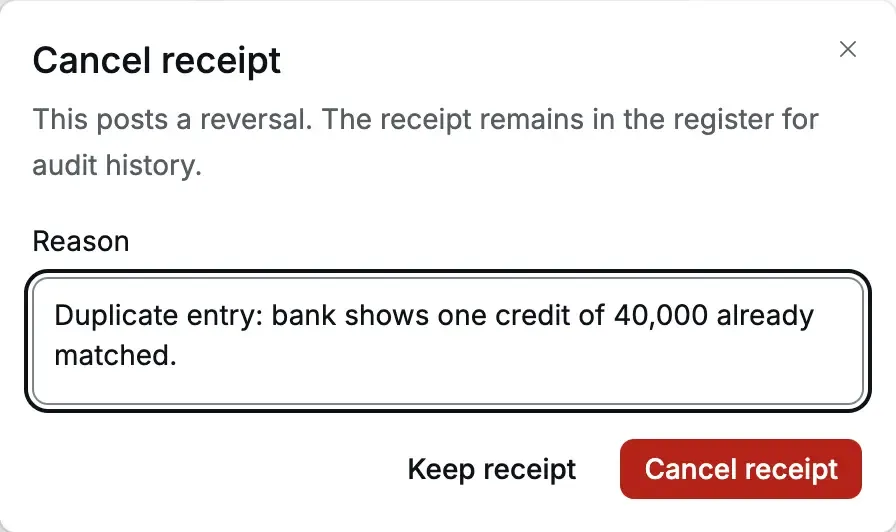
Cancelling:
- posts a reversal, an equal and opposite journal entry, of the receipt’s entry, so the cash or bank account and the customer balance go back;
- reverses every allocation the receipt made (or, for a supplier refund, received), restoring outstanding invoices or unapplied supplier credits;
- reverses any entry that moved its money between Customer Advances and Accounts Receivable;
- keeps the receipt in the register, marked Cancelled, with the cancellation date.
The reversal uses the receipt date, correcting the bank balance from that date. Cancellation is refused if that date is books-locked without an exception, or tax-locked for a receipt that belongs in a GST register.
Common messages
| Message | What to do |
|---|---|
| Choose a party | Advance, Against open items and Money back from supplier need a party |
| Choose a payment method | Pick how the money came in |
| Choose what the advance is for | Pick Goods or Exempt supply |
| Choose what the remaining advance is for | Part of the receipt is not allocated. Pick what the advance is for, or allocate it all |
| Allocate to at least one document | Type an amount on an open item, or choose Advance |
| Enter no more than ₹73,160.00 | An allocation is more than the invoice’s outstanding |
| Allocated amount cannot exceed the receipt and adjustments | Lower the allocations |
| Allocate the full receipt and adjustments | With adjustments, allocate the whole amount |
| Choose an expense account | Fee and write-off adjustments need an account |
| Amount must match the total you picked below | Allocate the whole supplier refund, without an advance remainder |
| Taxable income must be invoiced before it is received. | Use an invoice, or choose an exempt or non-GST income account |
| Books are locked through 30 Jun 2026. Ask for an exception to post on or before that date. | Use a date after the lock, or ask your CA for an exception (see Period locks) |
Related pages
- Invoices
- Apply credit: use an advance against a later invoice
- Credit notes: refunds
- Debit notes: supplier refunds
- Party ledger
- A month of trading