Finding your way
The sidebar, Home, the command palette, the organization switcher, themes and the phone menu
This page shows where things are in Edernal Books and the quickest ways to reach them. What you see depends on your role; see Roles and access.
The sidebar
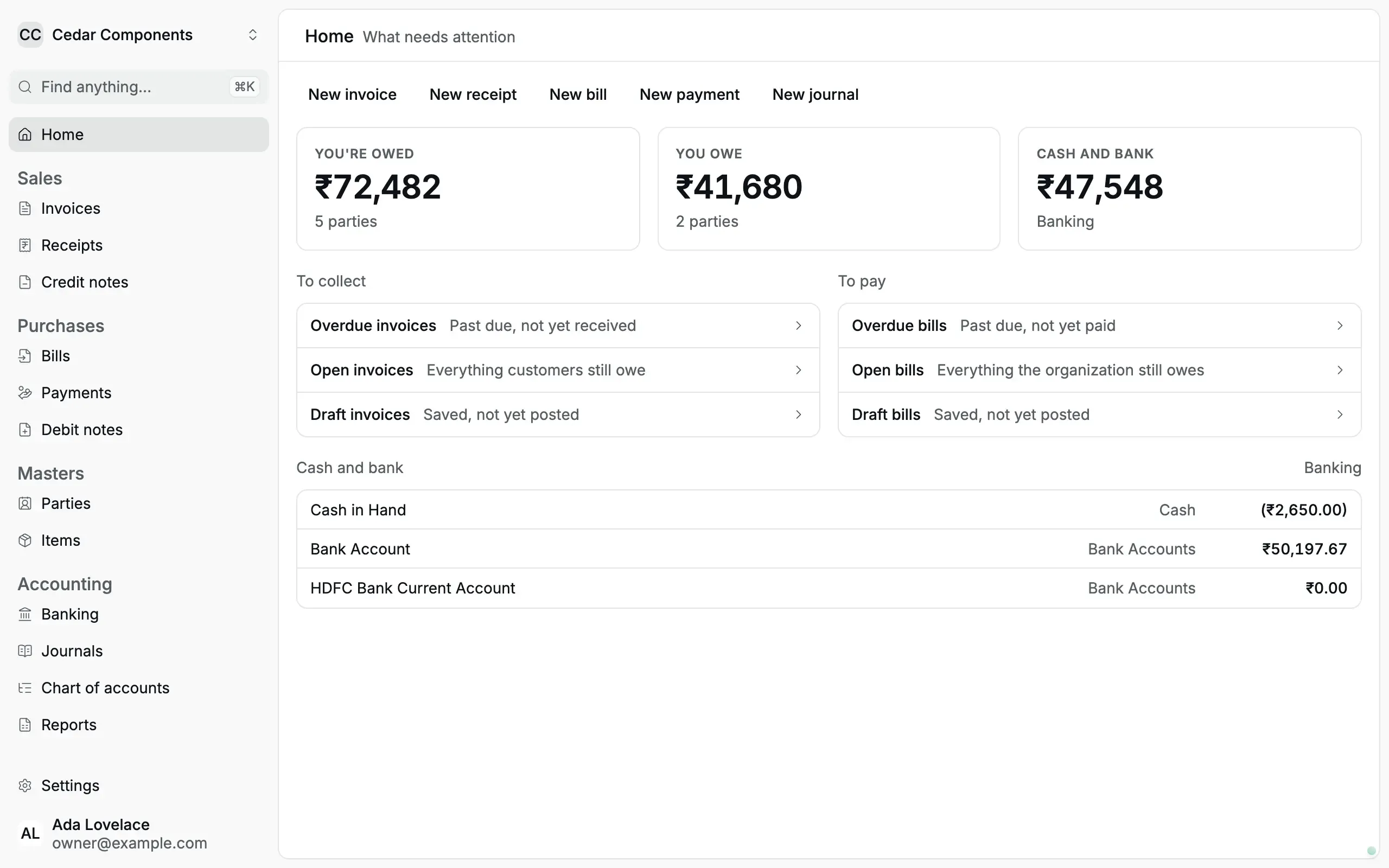
From top to bottom, the sidebar has:
-
The organization switcher: the current organization’s name. See Switch organization.
-
Find anything… ⌘K: opens the command palette.
-
Home.
-
Four groups of registers (a register is the list of one kind of record):
Group Pages Sales Invoices (bills to customers), Receipts (money in), Credit notes (reductions to what a customer owes) Purchases Bills (supplier invoices), Payments (money out), Debit notes (reductions to what you owe a supplier) Masters Parties (customers and suppliers), Items (goods and services you sell or buy) Accounting Banking, Journals (manual entries for adjustments), Chart of accounts (the list of every account), Reports -
Settings, and your name with the account menu.
Send invoice notices and reminders from Invoices and read delivery history on each Invoice. In a School organization, the School area adds Students, Attendance, Fees, Marks and School messages. Academics and Fee setup appear under Setup for the owner and principal.
Click a group name to fold it away if you never use it. The group opens again when you go to one of its pages. The sidebar shows only the pages your role can open, so an operator sees a much shorter list.
Home
Home answers “how is the business doing, and what needs attention today”. It opens with a greeting and today’s date, with the date filter on the right. Figures are in whole rupees, through today in your organization’s time zone, so future-dated entries do not count until their date arrives.
- Income, Expenses and Profit for the dates you choose (Last 7 days unless you pick another range), each compared with the same number of days just before. Cash and bank shows today’s balance and how long it lasts at your recent monthly spending.
- A bar chart of income and expenses for those dates, by day, week or month. Point at or tab to a bar to read its figures and profit.
- Recent transactions: the latest five posted entries, with a link to the Day book.
- Overdue payments: overdue invoices (What we’re owed), bills (What we owe) and imported Opening due rows, with days late and the balance. Load more rows from the footer. Receive or Pay on an opening due starts its settlement.
An operator sees only Overdue payments for invoices and opening receivables. The figures and charts need a role that can read reports, and Cash and bank needs banking access.
Before anything is posted, Home shows Start your books with the first steps your role can take: opening balances, an invoice and a receipt.
The command palette
Press ⌘K on a Mac or Ctrl+K on Windows, from any page and even while you type in a form. You can also click Find anything… in the sidebar. Press the same keys again, or Esc, to close it.
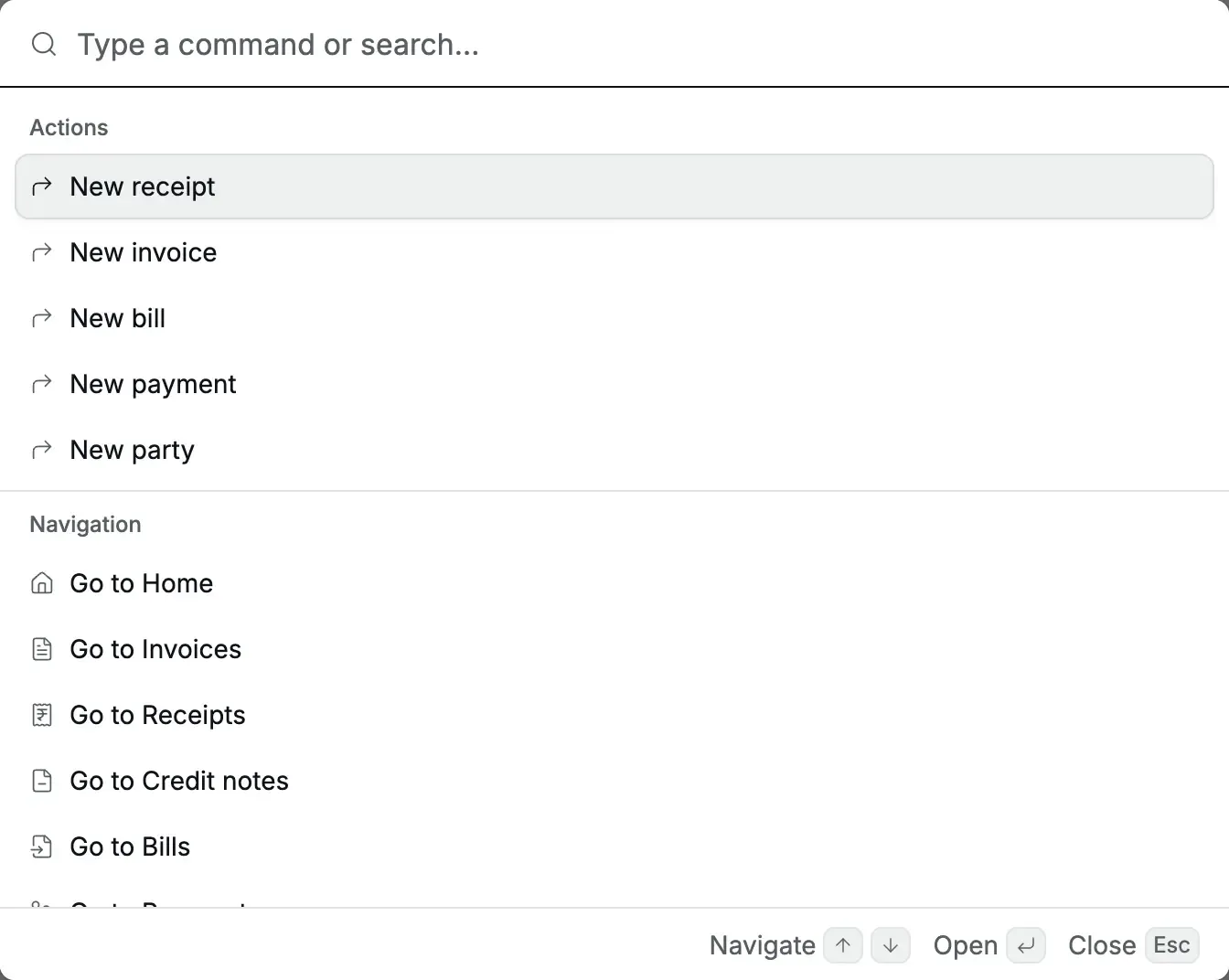
The palette lists, in this order:
| Group | What it does |
|---|---|
| Actions | Starts a new receipt, invoice, bill, payment or party. Some pages add their own actions here. |
| Navigation | Go to any page in the sidebar. Type a word such as audit or locks to find a Settings tab too. |
| Organizations | Switch to another organization you belong to. |
| Parties | Opens a party by name. |
| Documents | Finds invoices, receipts, bills, payments and credit or debit notes. |
Use ↑ and ↓ to move, Enter to open and Esc to close.
Search for a document
Type at least three letters or digits of a document number, a party name or a reference. The palette shows up to four matches of each document type, with the party. A posted document shows its amount. A cancelled document shows Cancelled, and a draft shows Draft in place of both its number and its amount.
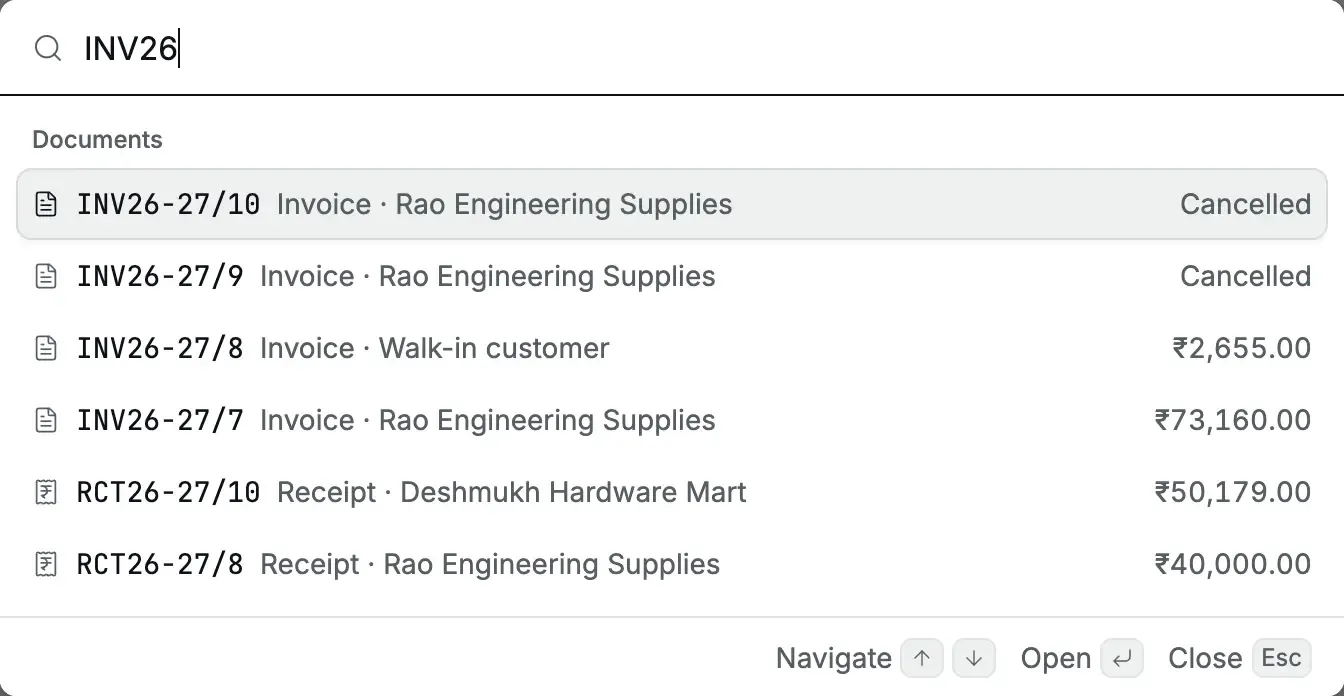
If the document you want is not among the first four, open its register and use the search box there. Journals are not searched by the palette: open Journals instead.
Export a list
Set the search, dates and filters, then click Export in the toolbar. The export includes every matching row, not just the loaded page, up to 5,000 rows. Narrow the filters if the result exceeds that limit; a file is never silently cut short.
- Print list opens a PDF in a new tab. Print from that tab.
- Download PDF saves the same list.
- Download Excel and Download CSV save spreadsheet data. These actions need Owner, Accountant or Chartered Accountant access.
The files state the filters used. Registers offer all four actions; master lists such as Parties, Items and Chart of accounts offer Excel and CSV. Individual reports have their own download limits.
Switch organization
Click the organization name at the top of the sidebar. The menu lists every organization you belong to alphabetically by name, as on the Join page, with a tick next to the current one.
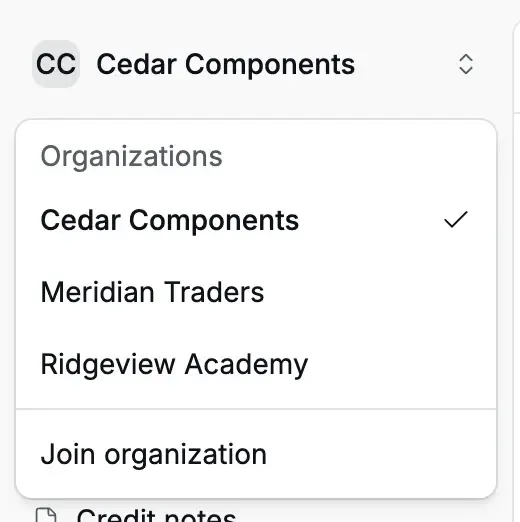
- Choose another organization to open the same section there. For example, from Invoices in Cedar Components you land on Invoices in Ridgeview Academy. From a single record you land on its register, because a record belongs to only one organization.
- Join organization opens the Join page with your organizations. Ask the owner for an invitation link to join another (see Getting started).
- The person who runs the installation also sees Create organization.
Each browser tab keeps its own organization, so you can compare two organizations side by side.
Theme and sign out
Click your name at the bottom of the sidebar.
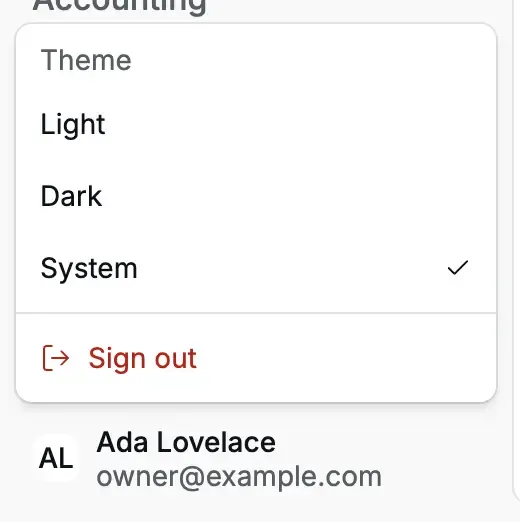
- Theme: Light, Dark or System (follows your computer). The choice is kept on that browser.
- Sign out: ends your session on this browser.
On a phone
Below laptop width, the sidebar hides. Tap the panel button at the top left of any page to open it as a drawer. Tapping a page link closes the drawer; tap outside it to close it without moving.
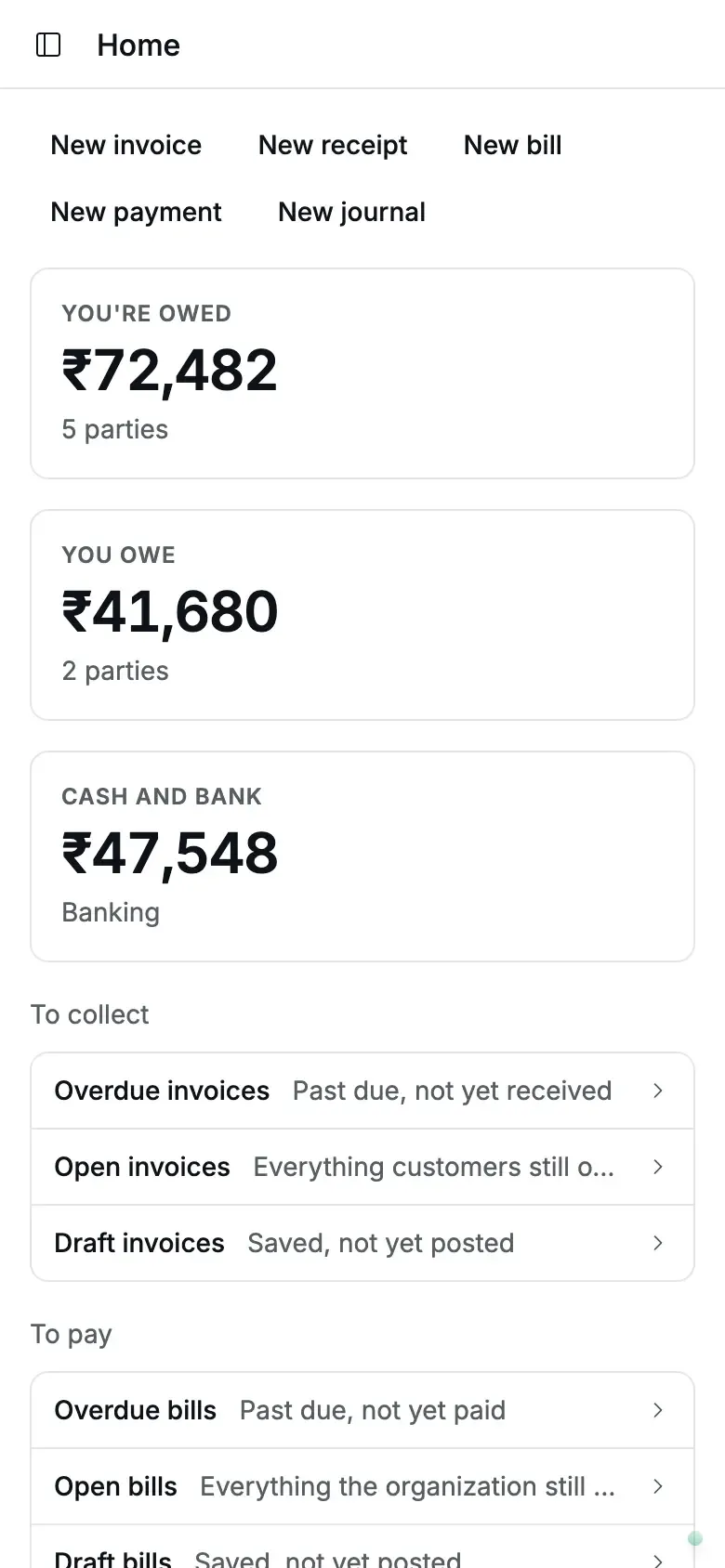
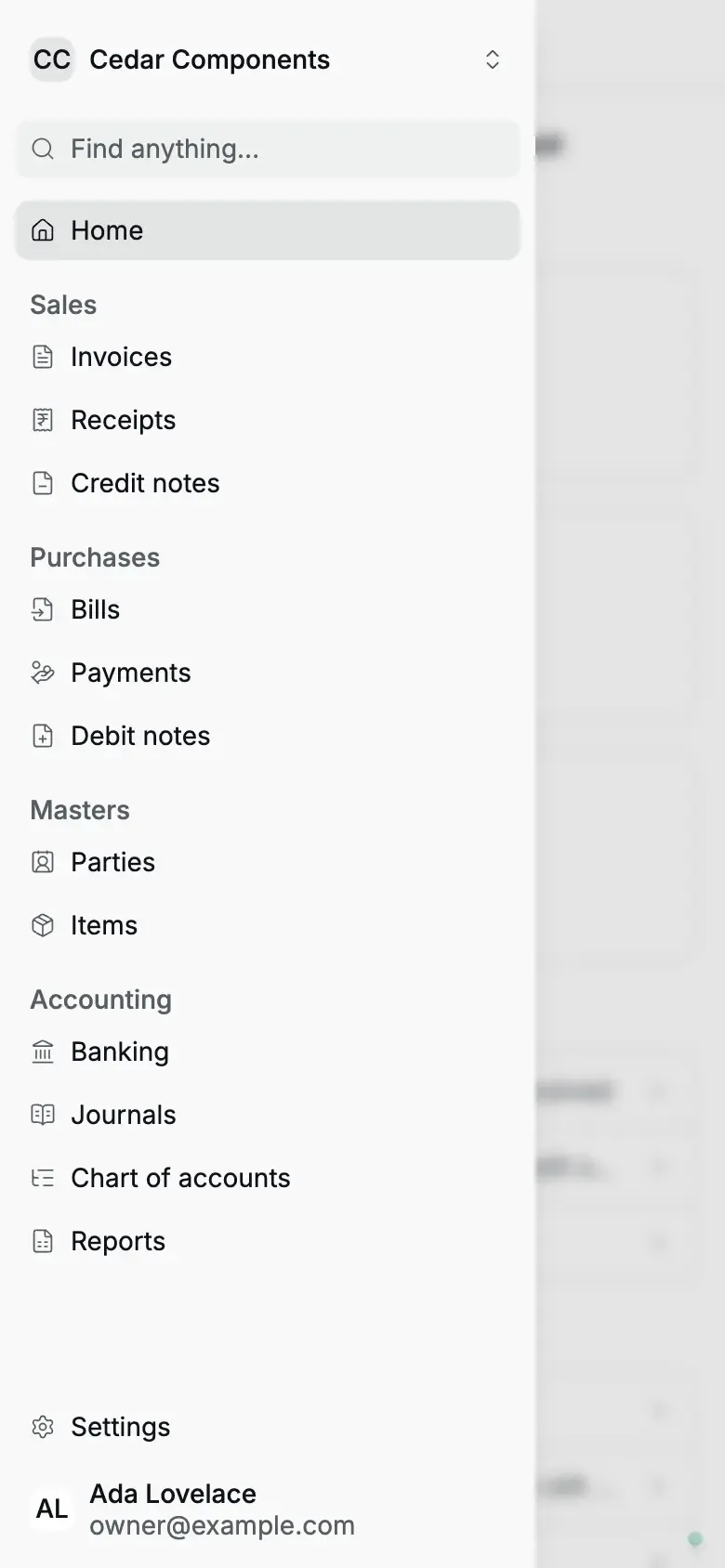
On a phone, lists show as cards, and the ⋯ button on each card is always visible. On a computer, the ⋯ button on a list row appears when you point at the row.
Related pages
- Getting started: sign in, invitations and organization addresses.
- Roles and access: why some pages are missing.
- Administration: members, files and the audit log.