Debit notes
Reduce a posted bill for a purchase return, a short supply or a price reduction, and use the credit against the supplier's bills
A debit note reduces a bill you have posted (recorded for good). Raise one when you send goods back, when the supplier delivers less than they billed, or when the supplier agrees a lower price after the bill. It lowers what you owe the supplier, your payable. It takes back the input tax credit (ITC, the GST you paid that you may set against GST you collect) on the reduced amount, and reduces the expense or asset you booked.
Each debit note belongs to one bill. It uses that bill’s lines, GST rates, place of supply (the state where the supply is delivered) and ITC choice, so the tax on the note always matches the bill.
Who can do it: an Owner or Accountant posts and cancels debit notes; see roles. A Chartered Accountant can open them. An Operator does not see them.
The debit note register
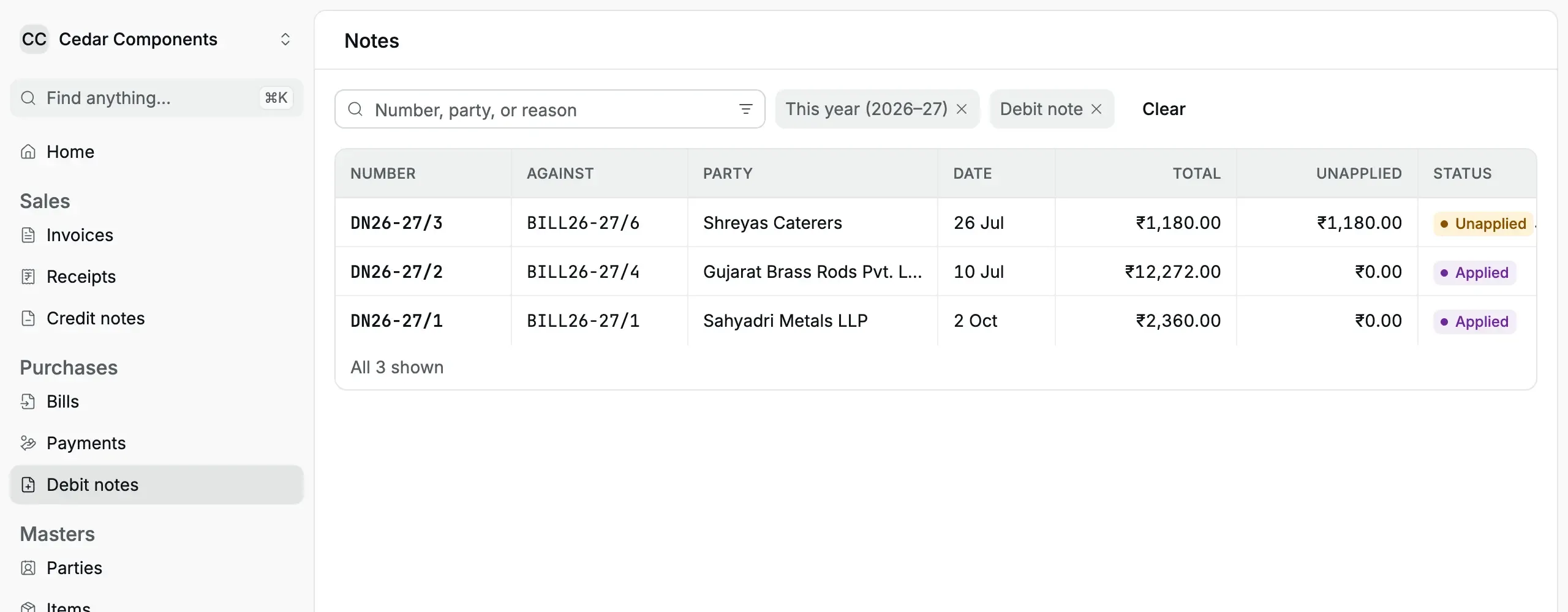
Open Purchases → Debit notes. The page is titled Debit notes and opens filtered to Debit note for This month. It lists Number, Against (the bill), Party, Date, Total, Unapplied and Status: Applied when the whole note is set against bills, Unapplied when some credit is left to use, or Cancelled. Search by number, party or reason.
There is no New button here: you raise a debit note from the bill it reduces.
Use Export to print or download the filtered register. See Export a list for formats, access and limits.
Raise a debit note
On 10 Jul 2026 Cedar Components finds that Gujarat Brass Rods delivered 480 kg of the
500 kg billed on GBR/0412/26-27. The supplier agrees to credit 20 kg at ₹520, that is
₹10,400 plus 18% IGST (integrated GST, charged between
states).
Open the bill
In Bills, open the bill and choose ⋯ → Debit note. The New debit note page opens, headed with the bill number, supplier and bill date.
Set the note date
Note date starts at today. Change it to the date of the return or the supplier’s credit note. It cannot be earlier than the bill date.
Enter the amount for each line
Source lines lists the bill’s lines with Left to return (the taxable value not yet returned), GST Rate and Tax. In Amount, type the taxable value to take off the line, before GST. Full enters only the remainder after earlier posted debit notes. Leave a line empty to leave it unchanged. The totals preview shows taxable value, GST, round-off and the note total.
Add the supplier's reference and reason
If the supplier sent a credit note, enter its number in Supplier credit note number (optional). Type the Reason for what came back or changed. Both show on the record; the supplier’s number also prints on the PDF.
Post the note
Click Post note (or ⌘/Ctrl + Enter). The toast reads “Debit note posted” and the note’s record opens.
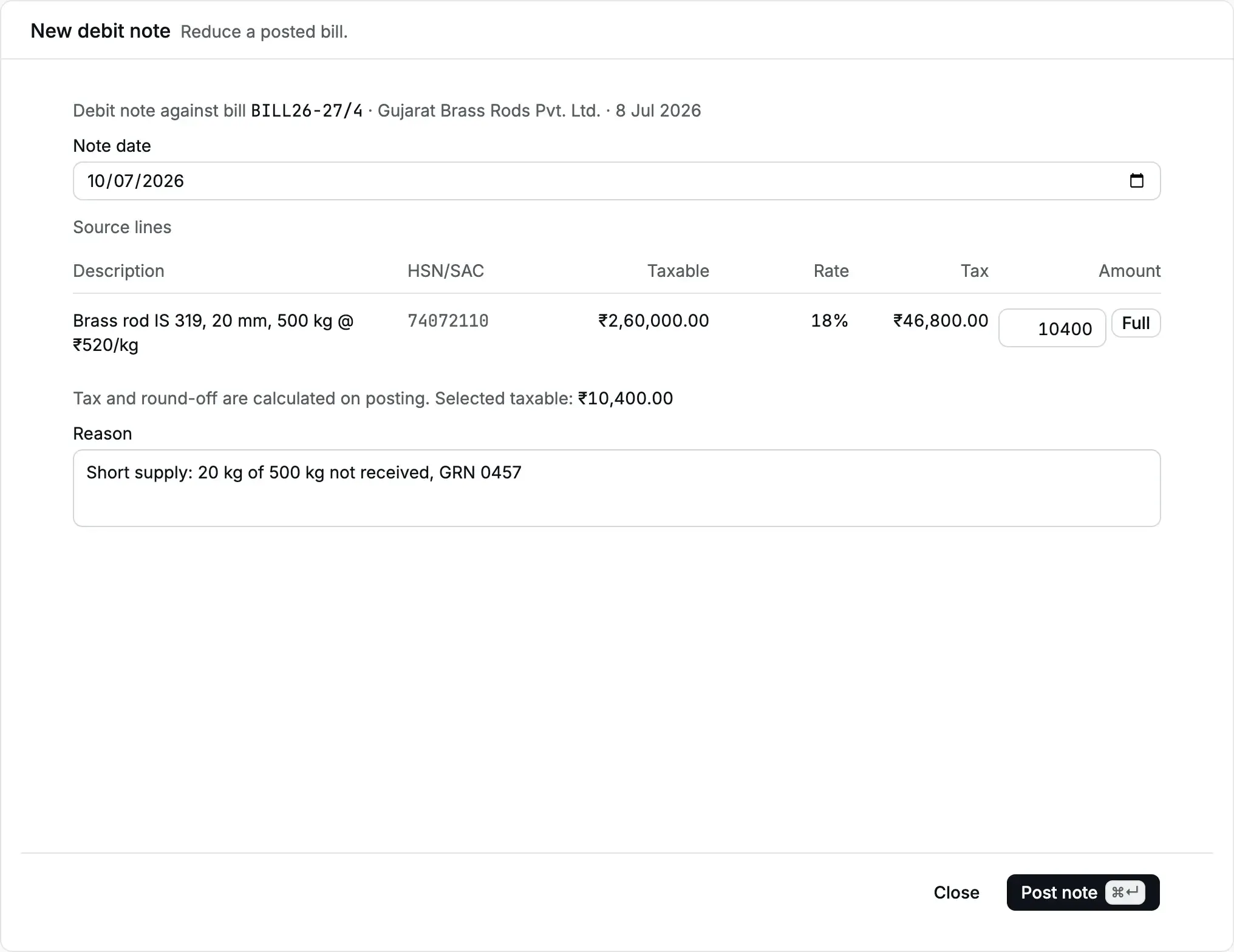
The preview calculates tax from the bill line’s rate: here 18% IGST of ₹10,400 is ₹1,872, so the estimated note total is ₹12,272. Posting recalculates against the latest source balance.
If the bill deducted TDS, the form also estimates the TDS to reverse from the selected taxable value. It shows a line such as “Lowers what you owe this supplier by ₹Y: the note’s ₹Z less ₹X TDS you had kept back.” GST is not part of the TDS base.
For a price reduction, enter the reduction in taxable value on each line it applies to. For a purchase return, enter the value of the returned quantity.
Print or download the PDF
Click Print on the note record to open the Debit Note in its own tab, then press Ctrl+P or use the viewer’s print button. Click Download PDF to save the file instead. It shows your organization’s and the vendor’s names, addresses and GSTINs, the note number and date, the original bill number and date, supplier invoice reference and any supplier credit note number, each line’s taxable value, GST rate and tax, place of supply, totals, reason and signature line. A cancelled note prints CANCELLED.
What happens in the books
| Account | Debit | Credit |
|---|---|---|
| Accounts Payable (Gujarat Brass Rods) | ₹12,272.00 | |
| Purchases | ₹10,400.00 | |
| IGST Input Credit | ₹1,872.00 |
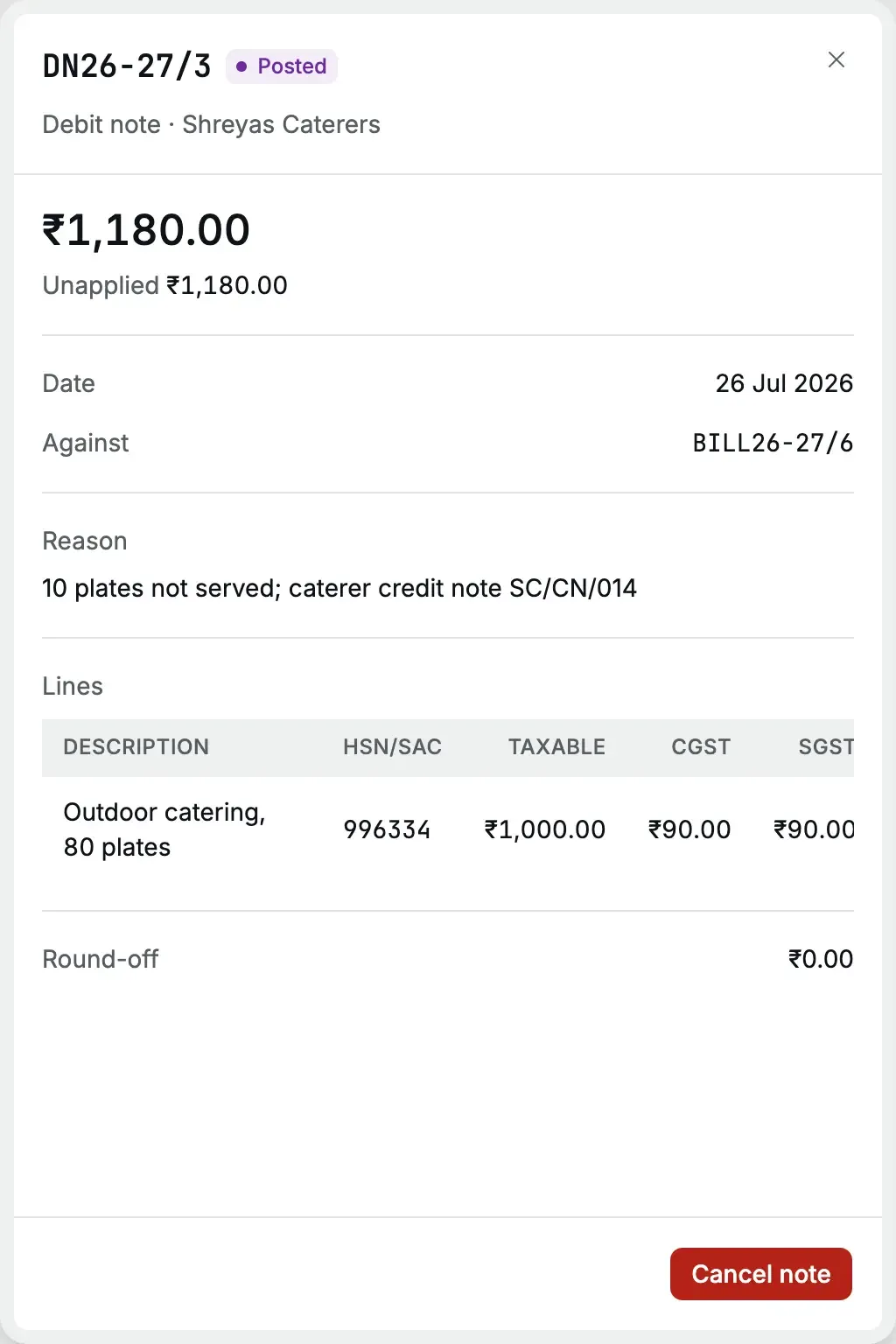
When the bill line had ITC cleared, the note credits the whole amount, tax included, back to the line’s account. A ₹1,000 note on the Shreyas Caterers lunch bill credits Staff Welfare ₹1,180.
The note appears in the GST inward register as a reduction of the input tax for its month. Report it as your supplier’s credit note in your GST return (GSTR-3B).
If the bill deducted TDS, the note also debits TDS Payable for the proportional reversal, leaving a smaller debit to Accounts Payable. For example, a ₹10,000 taxable bill with ₹1,000 TDS and a ₹4,000 taxable return reverses ₹400 TDS. Each note reverses the TDS on everything returned so far, rounded to the rupee, less what earlier notes reversed, so returning the whole bill always reverses exactly its TDS. The TDS register shows the note’s reversed deduction as a negative amount under the bill’s section in the note’s period.
Where the credit goes
When you post, the note is applied to its own bill straight away, up to what is still outstanding (left to pay) on that bill. The bill’s record lists it under Allocations; an allocation matches a credit to a bill.
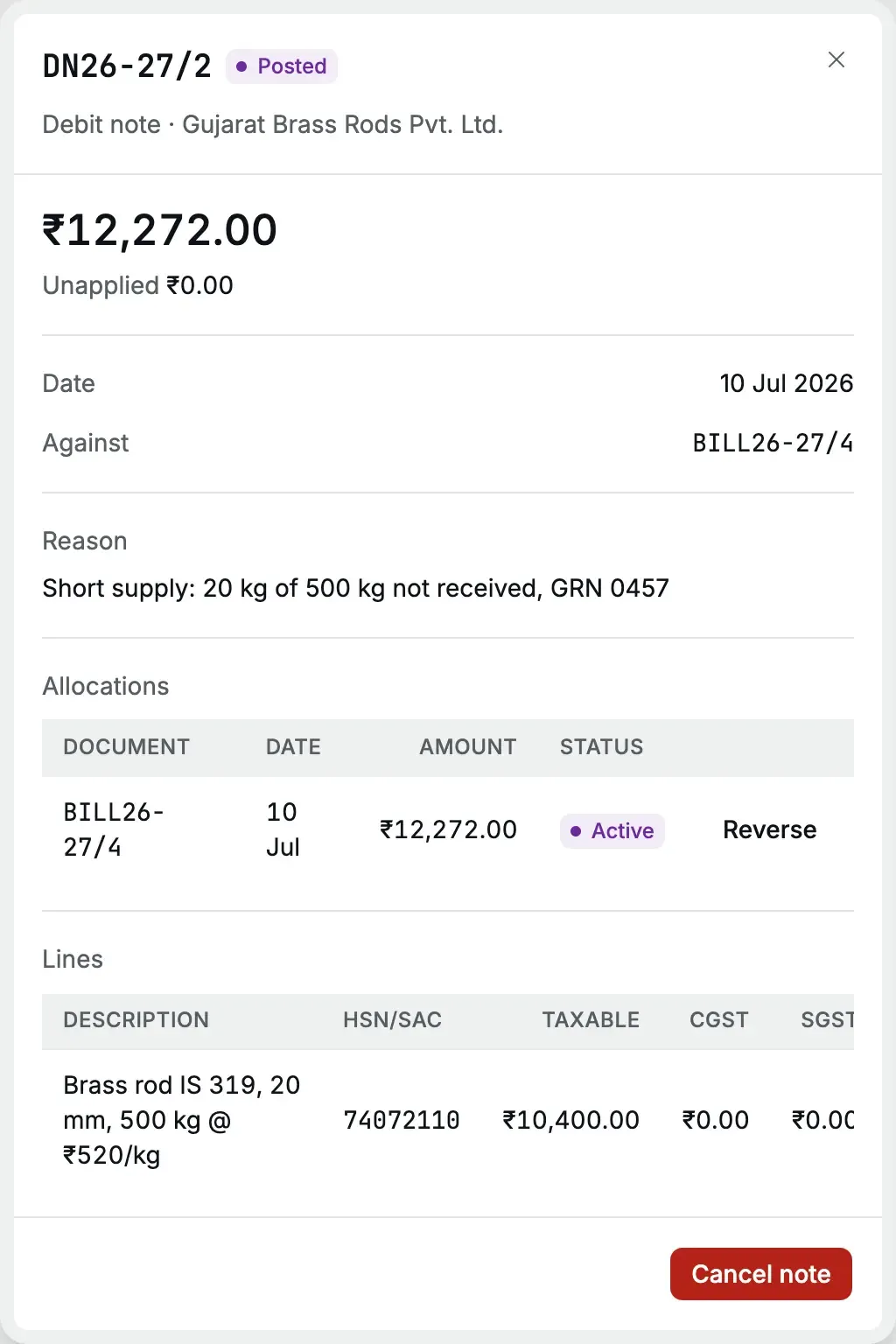
If the bill was already paid, the credit stays Unapplied on the note. You can use it against the supplier’s next bill: open that bill, choose ⋯ → Apply credit and pick the debit note in Credit. See Apply an advance; debit notes appear in the same list. Or request a refund from the supplier.
When the supplier refunds you
Open a posted debit note with an Unapplied balance and click Refund. A New receipt form opens with the supplier selected and Money back from supplier chosen. Enter the amount received, choose the payment method, and allocate the full amount to the rows in What this supplier owes you. Click Post. The receipt debits the bank or cash account and credits Payables; it does not record income again. The note’s unapplied balance falls by the allocation. Cancelling the receipt restores the unapplied credit.
You can also start from Sales → Receipts and select Money back from supplier.
Limits
- A note can take off at most what is left of each bill line after earlier notes. More gives “The note exceeds what remains of “Brass rod IS 319, 20 mm, 500 kg @ ₹520/kg”.”
- The notes against a bill cannot add up to more than the bill total.
- The note date cannot be before the bill date: “Note date cannot precede its source document.”
- On a bill with TDS, the note reverses the corresponding TDS automatically; do not post a separate journal for that correction.
- A bill with a posted debit note cannot be cancelled or amended until the note is cancelled.
Cancel a debit note
Open the note and click Cancel note. Type the Reason and click Cancel note. Cancelling posts the reverse entry (reversal, an equal and opposite entry), dated on the note date, and removes the note’s allocations, so the bill’s outstanding goes back up. The note stays in the register marked Cancelled. If the bill had TDS, cancelling also reverses the TDS adjustment; the cancelled note no longer appears as a reversal in the TDS register. Cancellation is refused if the note date is tax-locked, or books-locked without an exception.
Related pages
- Bills: the bill a note reduces, and Apply credit
- Payments: pay what is left after the note
- Purchase cycle: a short supply in a full worked example
- Credit notes: the same correction on the sales side