Apply credit
Set an advance, a credit note or an opening credit against an invoice, and reverse a wrong match
Applying credit matches money or credit a customer already has with you to an invoice they owe. Each match is an allocation. The customer’s total balance does not change; the invoice’s outstanding amount (what is still unpaid) falls, and the credit is used up.
Use it when:
- a customer paid an advance (money before the invoice) before you raised the invoice;
- a credit note (a document that reduces an invoice) is left unapplied, for example after its own invoice was paid;
- a receipt was only partly allocated and the rest sits as an advance;
- an opening credit (money a customer paid ahead in your old books) should settle a new invoice.
Who can do it (see roles): an Owner or Accountant. Operators and Chartered Accountants do not see Apply credit or Reverse.
Apply an advance to an invoice
Deshmukh Hardware Mart paid an advance of ₹50,000 on 2 Sep 2026 (RCT26-27/7). Cedar Components then raised INV26-27/6 for ₹1,05,383 on 5 Sep.
Open the invoice
In Invoices, open INV26-27/6 and click ⋯ → Apply credit. The dialog shows the invoice’s Outstanding.
Choose the credit
Click Credit to list the customer’s unapplied credits: each shows its kind (Receipt, Credit Note, Opening credit, Journal), number, reference, date and the unapplied amount. Type part of a number or reference to search.
Check the amount
Amount fills with the smaller of the credit and the invoice’s outstanding, here ₹50,000.00. Change it to apply only part. Outstanding after shows what the invoice will still owe: ₹55,383.00.
Apply
Click Apply credit. The toast reads “Credit applied”. The invoice now shows Part paid and the receipt under Allocations.
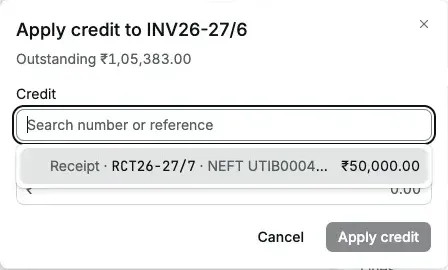
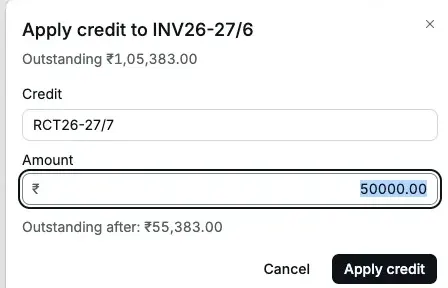
If the customer has nothing to apply, the dialog says “No unapplied credits for this party.” An amount larger than the credit or the outstanding is refused with “Enter no more than ₹…”.
Where you see allocations
Every invoice, receipt and credit note lists its matches under Allocations, with the other document, the date, the amount and Active or Reversed.
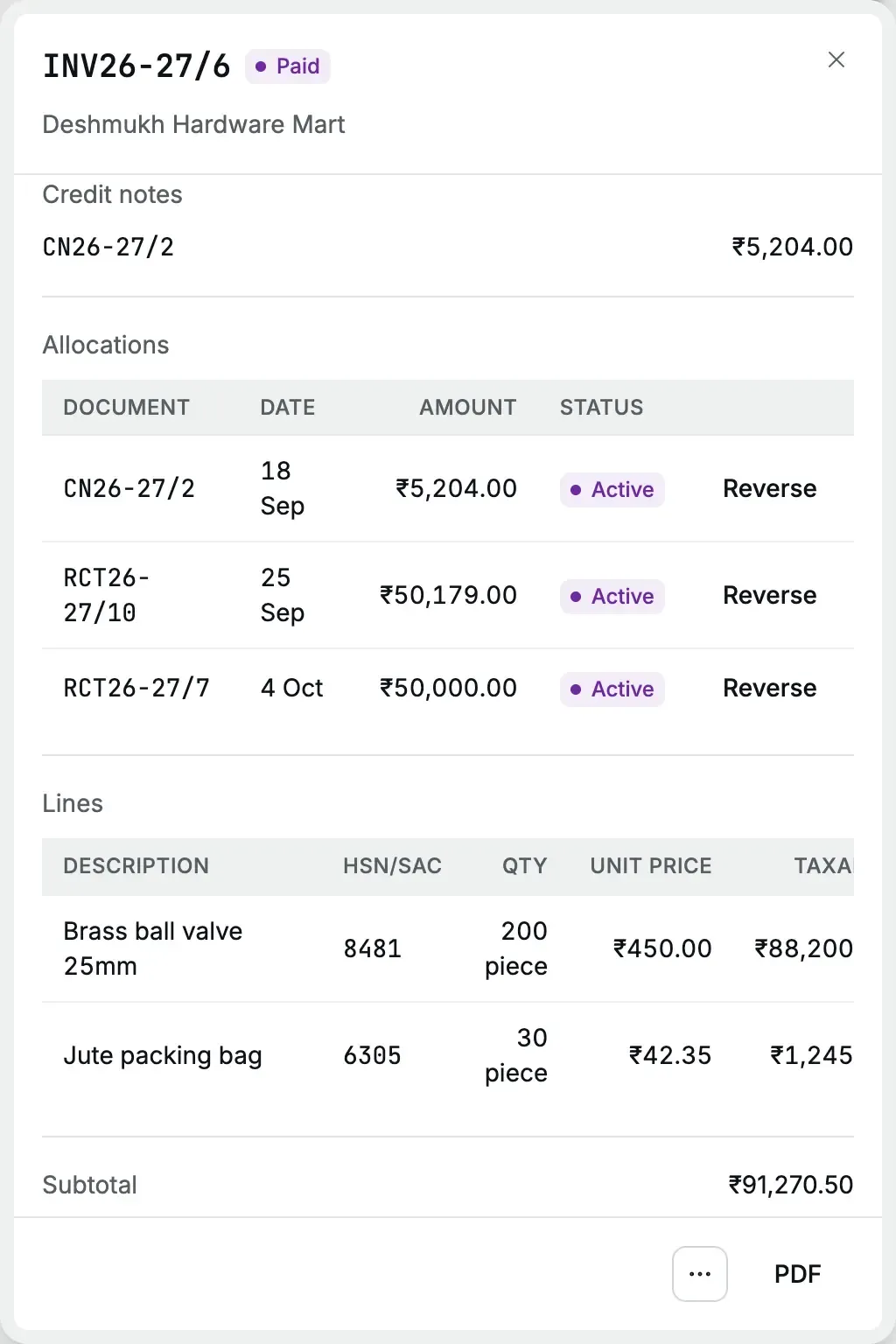
A receipt or credit note record shows Unapplied: what it still has to give. An invoice shows Outstanding.
What happens in the books
Applying an advance receipt moves the money from the advance account to the customer’s receivable. Both are control accounts, which hold one total for all customers. Each line is a debit or credit (Dr or Cr), the two equal sides of every entry:
| Account | Debit | Credit |
|---|---|---|
| Customer Advances (Deshmukh Hardware Mart) | ₹50,000.00 | |
| Accounts Receivable (Deshmukh Hardware Mart) | ₹50,000.00 |
Applying a credit note, an opening credit or a journal credit posts no entry: the credit is already in Accounts Receivable, and the match only records which invoice it settles.
In the account ledger and the day book (the list of every entry by date), the advance entry shows as Allocation.
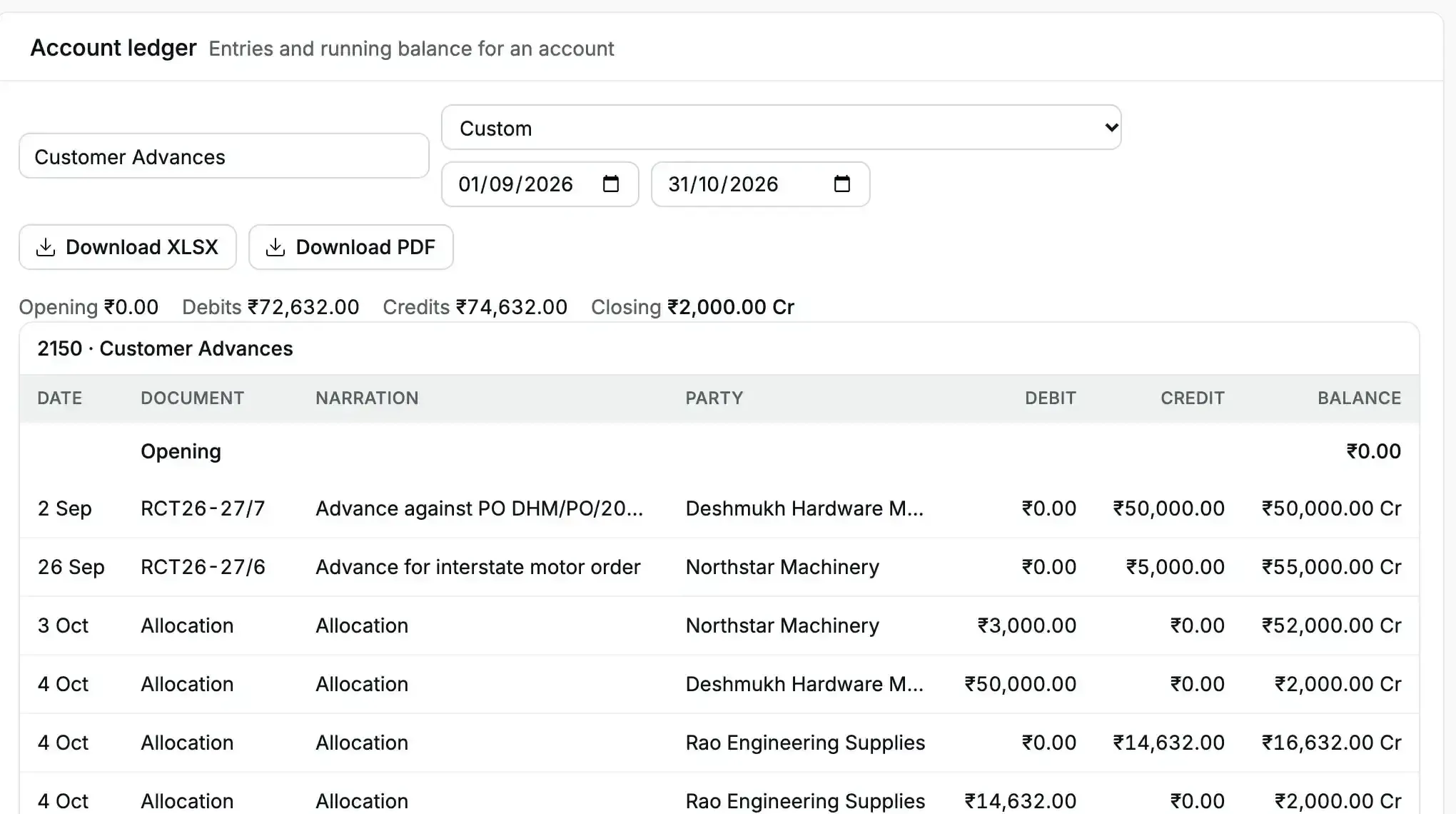
What the party ledger shows
The party ledger lists documents, not matches. Applying credit adds no line and does not change the balance. For Deshmukh Hardware Mart:
| Document | Date | Debit | Credit | Balance |
|---|---|---|---|---|
| RCT26-27/7 Advance received | 2 Sep | ₹50,000.00 | ₹50,000.00 Cr | |
| INV26-27/6 Invoice | 5 Sep | ₹1,05,383.00 | ₹55,383.00 Dr | |
| CN26-27/2 Credit Note | 18 Sep | ₹5,204.00 | ₹50,179.00 Dr | |
| RCT26-27/10 Receipt | 25 Sep | ₹50,179.00 | ₹0.00 |
The matches decide which invoices show as open or overdue, not the party’s balance.
Reverse an allocation
Reverse a match made against the wrong invoice, or before you cancel or amend an invoice that has matches.
Find the allocation
Open the invoice, receipt or credit note. Under Allocations, click Reverse on the row.
Give the reason
The dialog says what will be removed, for example “This removes the ₹40,062.00 applied with RCT26-27/8. Both documents become open to settle again.” Type the Reason and click Reverse allocation.
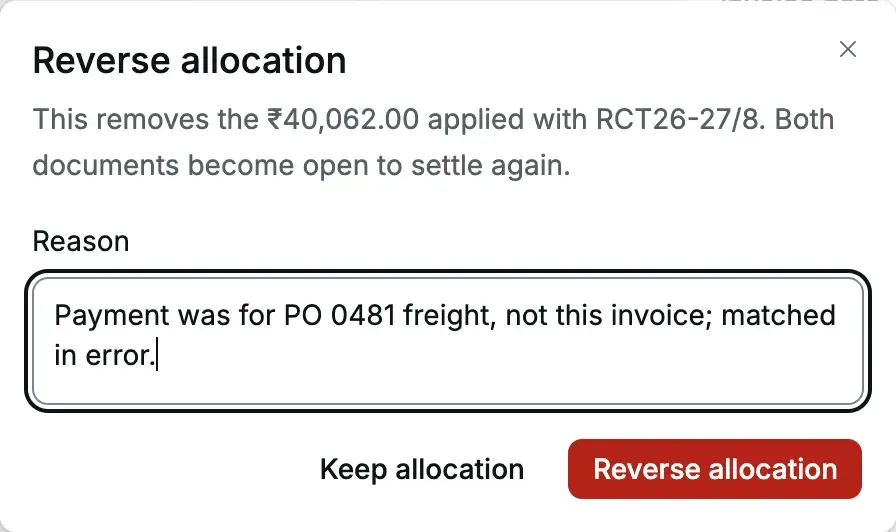
The row stays in the list as Reversed. The invoice owes the amount again, and the credit is unapplied again, ready to apply elsewhere.
In the books:
| What you reverse | Reversal entry on the allocation’s original date |
|---|---|
| An advance you applied later | The applying entry is reversed: Dr Accounts Receivable, Cr Customer Advances |
| A match made when the receipt was posted | The money becomes an advance: Dr Accounts Receivable, Cr Customer Advances |
| A credit note, opening credit or journal match | No entry |
You cannot reverse the same allocation twice: “This allocation is not active.”
Related pages
- Receipts: advances and partly allocated receipts
- Credit notes
- Opening balance and import: opening credits
- Account ledger
- A month of trading